AI agent
An AI agent for business automation: ask, and the work moves
You always talk to the same single agent. It picks the skill that fits your request, reads the knowledge base, reads and writes tables, and operates the browser and external services to finish the job. Before any sensitive action, it stops until you approve.
Open Samurai AppRequest materials
- How the work was done
- Who is working on what
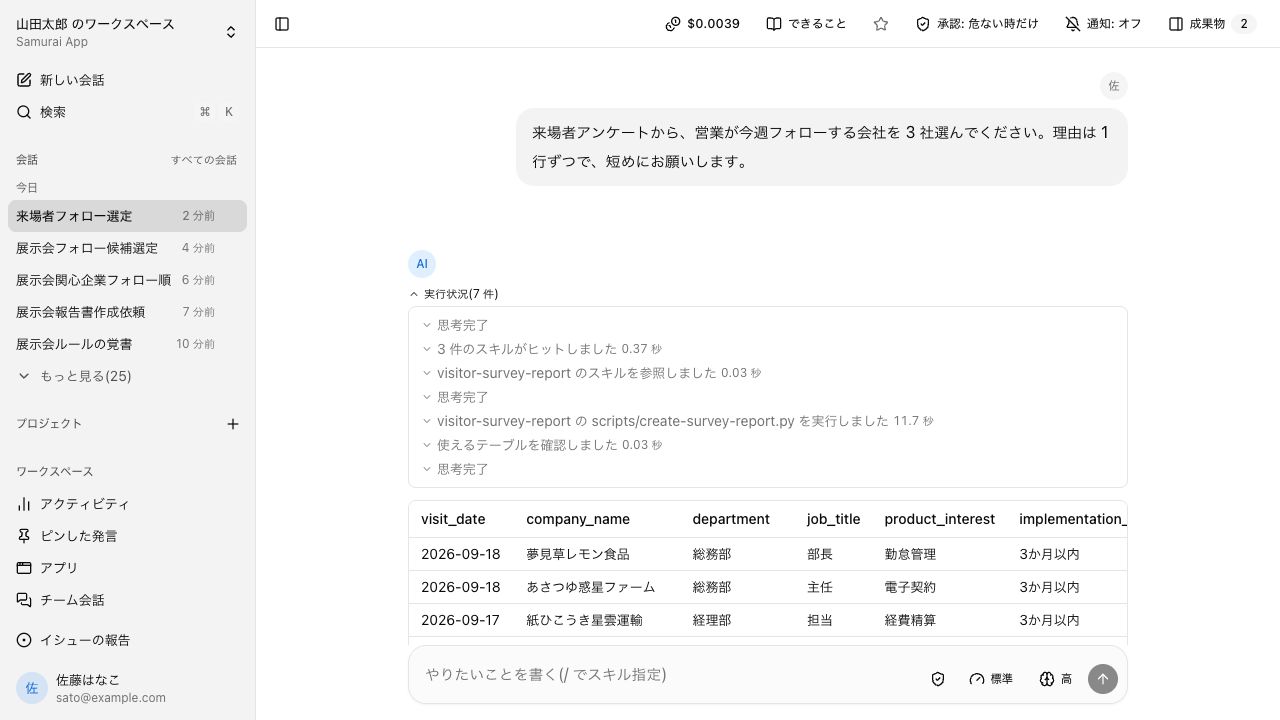
You ask the AI, then still do the work yourself#
With a chat AI alone, the second half of the job stays on your desk.
Copying answers back by hand
The AI answers, but entering data into internal systems and building files is still a person's job. Going back and forth between the AI and your work screens eats the time.
Not knowing how to ask
Without long instructions it doesn't do what you expected, and doing it yourself feels faster. The effort of writing a good request decides who can use it.
Uneasy letting it touch external services
Once the AI touches company data and external services, you can't see what it did where. Handing over sending or registering things feels risky.
It asks about what's missing, and shows a plan before multi-step work#
When information is missing, the agent asks a clarifying question on a card. For work with many steps, it shows an "Execution plan" above the input box and shows how far it has gotten in the right panel.
- Questions with a default get one "Recommended" mark, but stay unanswered until you click
- "Progress" lets you check each step and every tool it called
- Large requests are split up and worked on in parallel
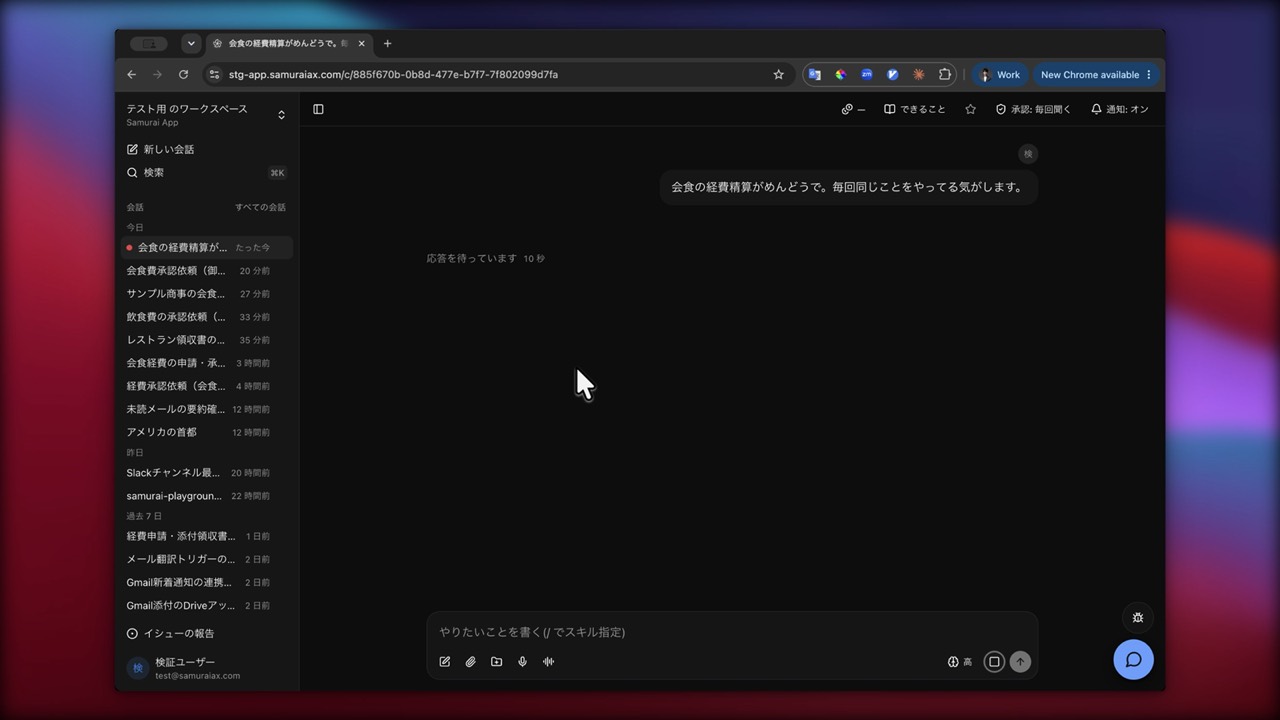
From internal documents to the browser and your own PC#
The agent reads the knowledge base, reads and writes tables, runs code, and operates the browser. It also works in connected external services and on your own PC once you allow it. It can only handle what the requesting person has permission and access to see.
- The site it is operating appears in the conversation's right panel. Sign in yourself, then hand it back with "Let it continue"
- Register your PC with samuraiapp tunnel and allow folders, scripts, the browser, and apps one kind at a time
- On the cloud "Computer", files persist across conversations and you can watch the screen live
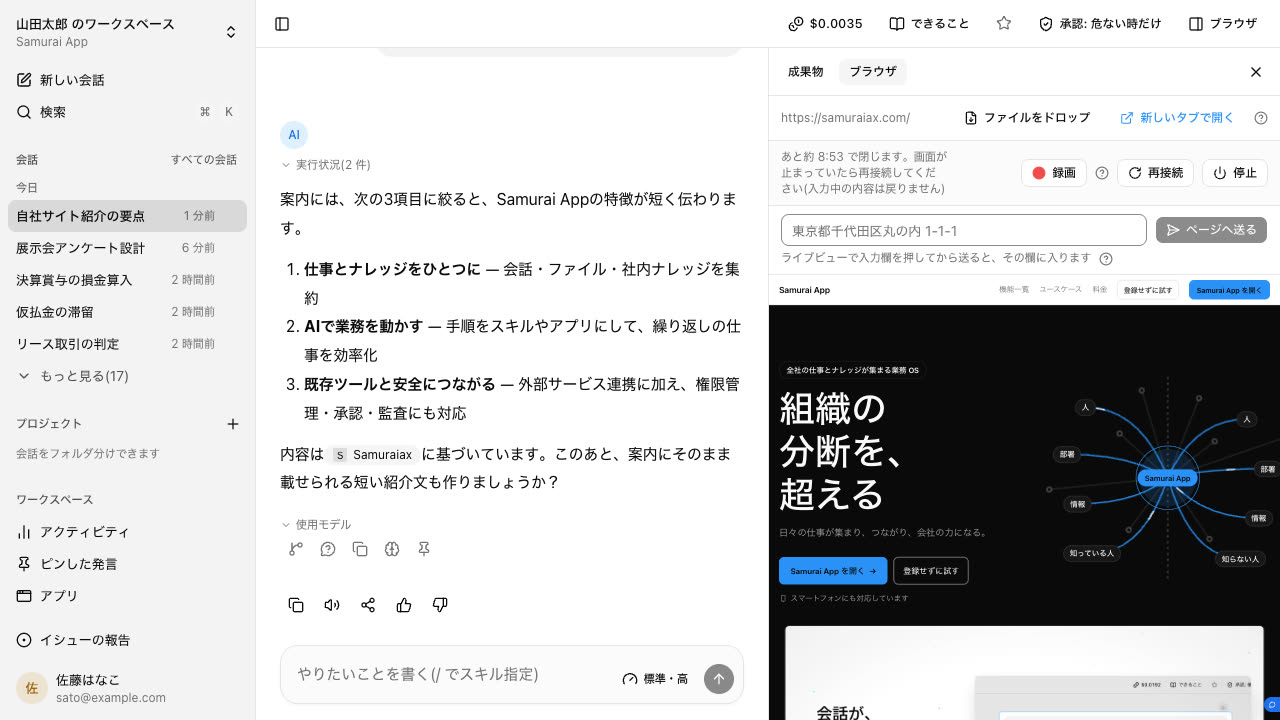
Before sensitive actions, nothing moves until you approve#
Before a sensitive action, the agent shows an approval card and stops. It does not go further until you check the details and approve.
- If the card is off screen, a button to jump to it appears at the bottom right
- While it waits for approval, the browser tab title starts with "●"
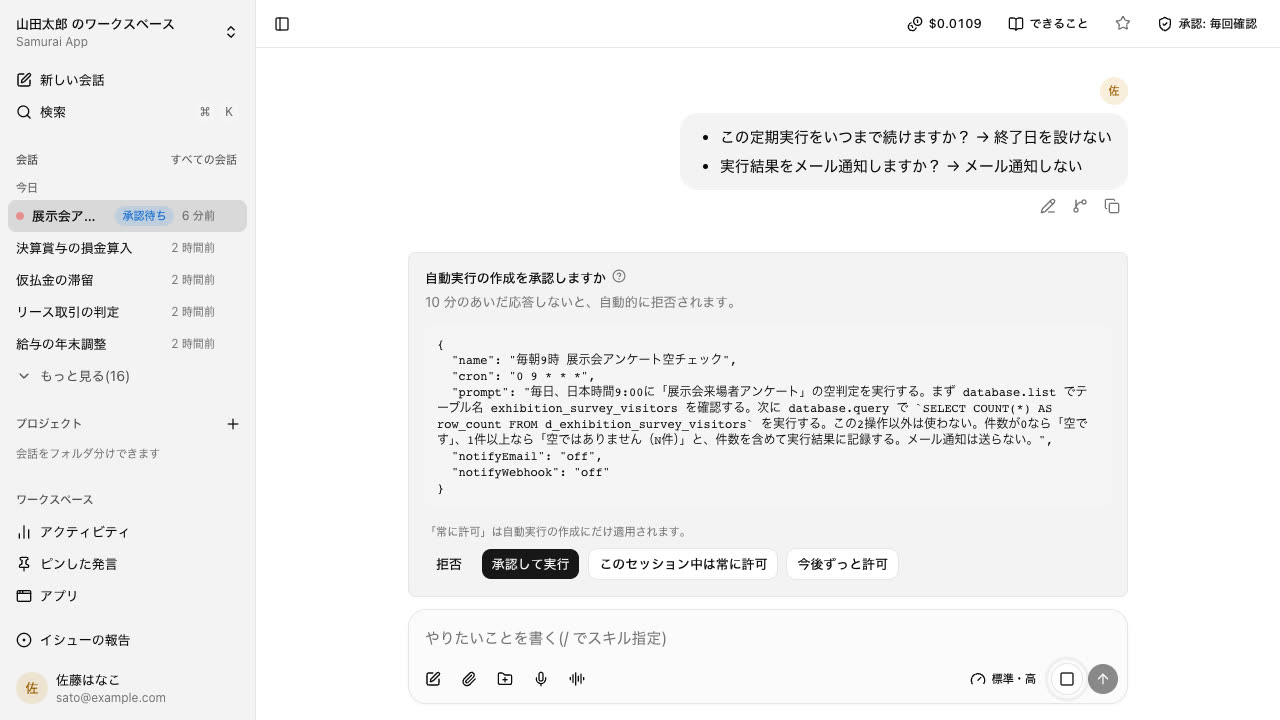
Skills for each area of the business#
The bundled agents are Automation / Apps / Legal / Documents / Meetings / Design / Accounting. Work that fits none of these is handled by the general-purpose agent.
- Skills learning
- Drafts improvements to a skill from conversations and, once approved, applies them to your company's version.
- Memory
- Context that builds up from conversations automatically, plus context users manage themselves.
- Subagent
- Splits a large request and hands the parts to child agents that work in parallel.
- Channels
- Conversations several people can join. The agent can only work where that person's permissions overlap with the conversation's visibility.
- Scheduled tasks
- Runs routine work automatically at set times or when an event occurs.
- Automations
- Runs on events in connected services, or on a call to a URL you issued.
- Workflow import
- Imports definitions built in n8n or Dify so they can run as Samurai App procedures.
- Clarifying questions
- Stop mid-answer
- Voice input
- Meeting recording
- Plan display
- Name a procedure with "/"
- Tools bundled with procedures
- Scripts run from the second time on
- Edit procedures as diagrams
- Procedure distribution
- Skill sharing
- Direct run (no model call)
- Recurring runs with an end date
- Notify only on failure
- Start externally with a single URL
- Triggered by incoming Gmail
- Operations allowed in unattended runs
- Reactions on messages
- Projects per engagement
Tools to search, read, and create#
Tools called from within a conversation. The agent chooses which to use, so you don't need to remember their names.
- Knowledge search
- Takes in internal knowledge and answers with sources.
- Web search and page reading
- Searches the internet and answers with sources. Give it a URL and it reads the body of that page.
- Files and the file list
- Uploaded files and outputs made in conversations line up in the same list. Filter by origin and type; add a file to knowledge and it can be referenced in searches from then on.
- Code execution
- For non-routine work like tallies or building reports, writes code on the spot and runs it.
- Database
- Store tables like shift schedules or product masters. You can tally and update them from a conversation.
- Apps
- Build apps with screens from a conversation. They can be published outside the tenant, and people without an account can use them.
- Image generation
- Creates images of what you describe. Diagrams for documents can be made here too.
- Search past conversations
- Reading PDFs, images, and recordings
- Describing video content
- Multilingual knowledge
- Source chips
- Attachments in any format
- CSV import
- Direct SQL
- Visibility per table
- Storage meter
- Input forms
- Publishing screens externally
- Inquiry desk for published screens
- Fix an app's code
- Share files externally, and stop sharing
- Conversation visibility and external sharing
- Extract only what's needed from large files
- Save to Later
Reach beyond the cloud#
Screens behind a login, internal systems unreachable from outside, software that only runs on one machine: all of it can be handled from a conversation.
- Browser use
- Opens pages, operates elements on screen, and gets the information it needs. It can also handle screens that only appear after a click, and admin screens behind a login.
- Take over while watching
- The browser being operated shows in the right-hand panel. Enter only the step a person must do, like two-factor authentication, and leave the rest to it.
- Hand over a signed-in session
- Sign in yourself on the screen shown and press Done, and only the signed-in cookie is passed on. Your password is not.
- Local folders
- Keep a resident program running on your device, and the agent can read and write only inside the folders you allow.
- Run Excel macros locally
- Runs processes that only work on that machine. Software you can't take to the cloud can be used as is.
- Connect to your everyday Chrome
- Instead of launching a dedicated profile, it can connect to the Chrome you always use. While staying signed in, it can operate internal systems unreachable from outside through your local browser.
- Operate local apps through the screen
- Operates apps running on your local machine while looking at the screen.
- Separate permission per kind
- Read-only by default
- Only the cookie is passed on
- Auto-connect or connect just once
- Device revocation
- No admin rights needed
- No hourly charge when run locally
- Close the browser when done
Frequently asked questions#
How is an AI agent different from a chat AI?
A chat AI stops at giving answers. The Samurai App agent reads and writes the knowledge base and tables, and operates the browser and external services to finish the work. It shows a plan before multi-step work and waits for approval before sensitive actions.
Do I need a separate agent for each type of work?
No. You always talk to the same single agent, and it picks the skill that fits your request. The Automation, Legal, Accounting and other tiles on the start screen are skill folders; clicking one opens that area's skill list.
Is it safe to let the agent operate external services?
Before a sensitive action, an approval card appears and nothing moves until you click it. External services can only be operated within the requesting person's own permissions. You can check which step called what under "Progress".
Can I choose the AI model?
You can pick the "Model" and "Thinking time" in the input box. On "Auto", short exchanges like greetings are answered without extended thinking. You can also bring your own model API key (BYOK).
Everyday work comes together, connects, and becomes the company's strength.