Integrations
Connect business tools to AI with MCP connectors
The agent operates your accounting, HR, and sales SaaS from chat. The main route is a direct link to each vendor's official remote MCP server, and it can only do what the person who asked is allowed to do.
Open Samurai AppRequest materials
- Where things are
You added AI, but it still sits apart from your systems#
Every time an AI answer goes into real work, someone bridges the gap by hand.
Copying is still a human job
The AI knows nothing about your accounting or HR system. People copy numbers out of one screen and type the answers back into another.
Whose permissions is it using?
Connect AI through a shared account and nobody can tell who did what. It may also read beyond what that person should see.
Jumping between chat and AI
Discussions happen in Slack or Teams, but the AI lives in another tab. Each time, you paste the thread and explain it again.
Direct links to official MCP servers, with a connection platform for the rest#
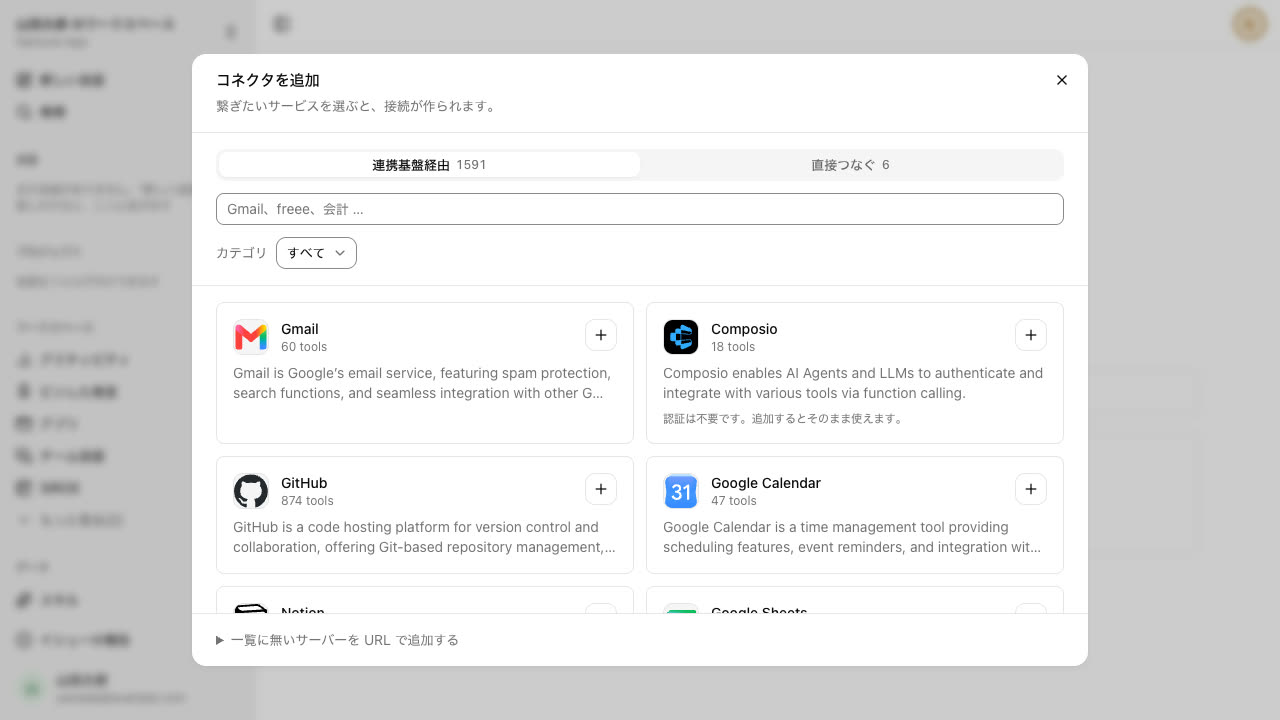
Services such as freee and Money Forward Cloud Accounting connect directly to each vendor's official remote MCP server. For services without a direct link, pick from over 1,000 SaaS via a connection platform. SaaS with no MCP server can be connected from the API tab.
- Nine SaaS, including SmartHR, CloudSign, and Sansan, connect directly with credentials you enter
- Keep several named credentials on one connection, such as Me in finance and Me in sales, and choose one per tool
- When a conversation needs a service that is not connected yet, an option to connect it appears right there
Call the agent from a Slack or Teams channel#
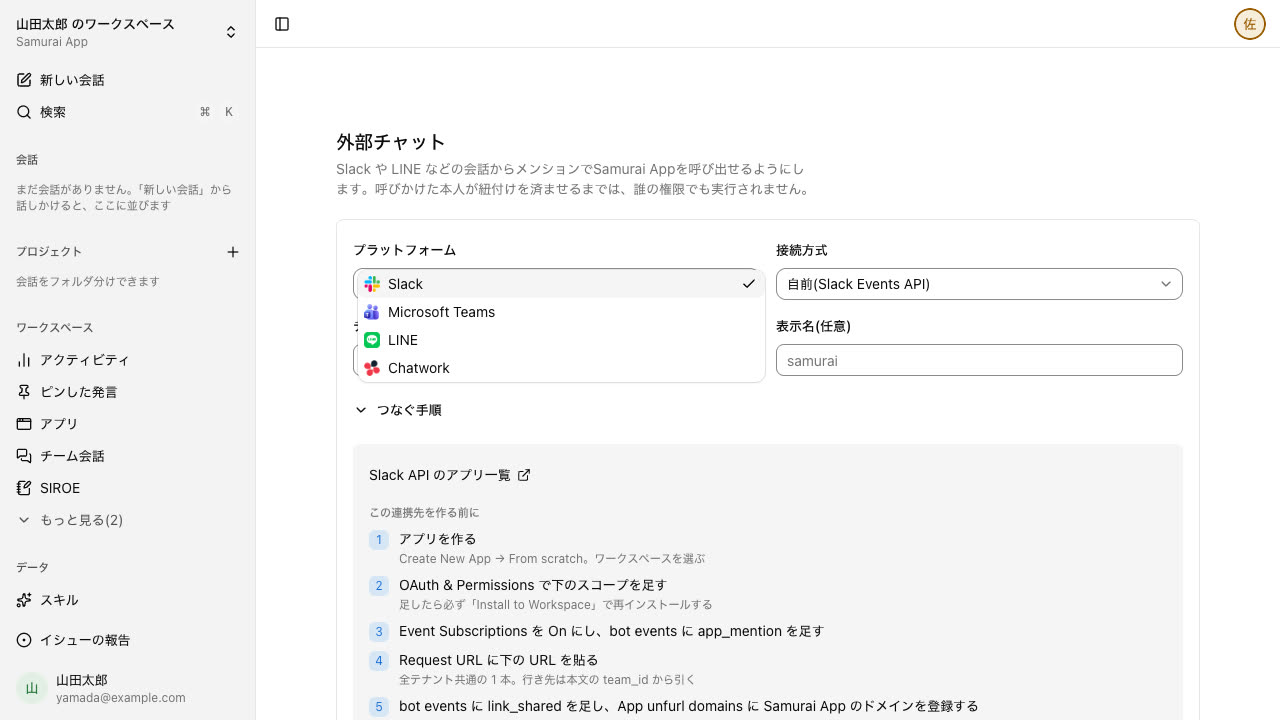
Register a Slack, Microsoft Teams, LINE, or Chatwork channel and ask the agent from there. By default it only replies when called.
- It runs with the permissions of the person who linked their account on first use
- Paste a Samurai App URL into Slack and a card shows its title and opening lines, only if the person who pasted it can read it
Work the same way from the terminal, Claude, or ChatGPT#
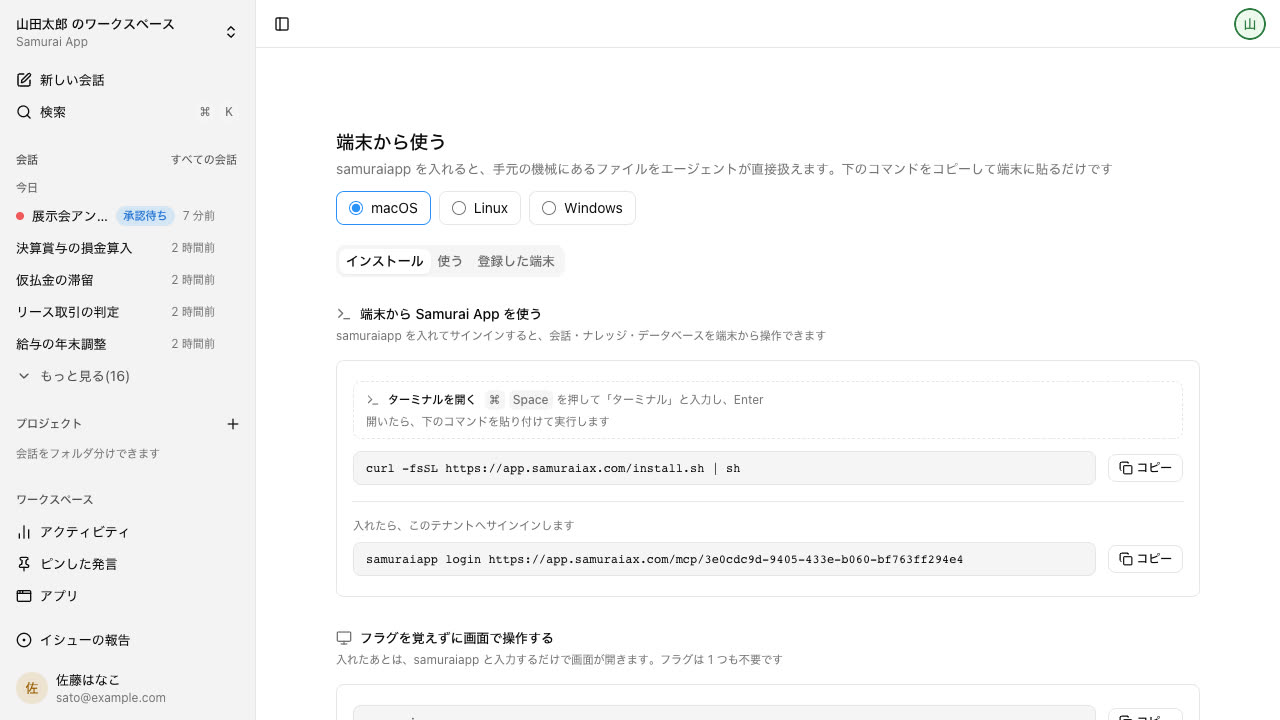
Install the samuraiapp CLI to work with conversations, knowledge, and tables from the terminal. Paste the MCP connection URL into the connector settings of Claude or ChatGPT to use Samurai App from an external AI.
- MCP and the CLI cover the same 18 resources, including conversations, approvals, knowledge, tables, and files
- Sign-in happens in the browser, and no secret key is left on your machine
Connect to outside business systems#
It connects to external services, and external AI clients can connect to it. Credentials are only stored with us; there is no way to read their values back.
- Connectors (MCP)
- The main way to connect is directly to each vendor's official remote MCP. Beyond that, you can connect to over 1,000 SaaS apps through a shared connection platform.
- Credential profiles
- Named credentials, several of which a single connection can hold. Each can be bound per tool.
- MCP endpoint
- External AI clients can operate Samurai App.
- CLI
- samuraiapp — login / chat / request / tunnel. No config file needed.
- External chat
- Call it with a mention from conversations in Slack / Microsoft Teams / LINE / Chatwork. It acts with the permissions of the person who linked their account, and answers in the same thread. A Facebook page on Messenger shows up in the unified inbox, and people send the replies.
- Embeddable chat widget
- Place it on your company's site and have conversations right there.
- Model routing
- Routes each conversation to a suitable model. You can also use your own API keys (BYOK).
Direct to each vendor's official remote MCP
 freee
freee Money Forward Cloud Accounting
 Misoca
 LegalBrain Agent
 Ekispert API
 Oracle Autonomous Database
Services without MCP, through API definitions
 LegalOn
 CloudSign
 SmartHR
 SAP Concur
 HRMOS Kintai
 Smaregi
 Jobcan Expense
 SmartDB
 kaonavi
 Sansan
Everything else, through a shared platform
 Outlook
 SharePoint
 OneDrive
 Gmail
Gmail Google Drive
 Salesforce
 Zendesk
 Jira
Jira
More than 1,000 other services can be connected the same way.
No API or MCP? Operate the screen directly
- Browser use
- Computer use
Call the AI agent from the chat you already use
 Slack
Slack Microsoft Teams
 LINE
LINE Chatwork
Company names and logos are trademarks of their respective owners and do not imply partnership or endorsement.
- Call APIs directly
- Reaches only allowed hosts
- Credentials can't be read back
- Find services to connect
- Find actions after connecting
- Just paste one connector URL
- Billed per event received
Frequently asked questions#
Which business tools can I connect?
Six, including freee, Money Forward Cloud Accounting, and Misoca, connect directly to the vendor's official remote MCP server. Others, such as Google Drive, Salesforce, and Jira, connect via a connection platform, which offers over 1,000 SaaS.
Can I connect SaaS that has no MCP server?
Yes. The API tab connects SAP Concur, SmartHR, HRMOS Kintai, LegalOn, Smaregi, Jobcan Expense, CloudSign, Kaonavi, and Sansan. The What you can do from chat section on the screen lists the available operations.
Whose permissions does the AI use?
Each person confirms their own account once, and it is linked to them by matching email address. From chat, the agent can only do what that person is allowed to do. Shared company accounts are usable only by the roles, groups, and people an admin has granted.
Can I use Samurai App from Claude or ChatGPT?
Yes. Paste the MCP connection URL into the connector settings of Claude or ChatGPT and sign in through the browser. There is no way for an external AI to pass approvals for sensitive operations automatically.
Everyday work comes together, connects, and becomes the company's strength.