Calendar
A shared calendar that shows when your team is free
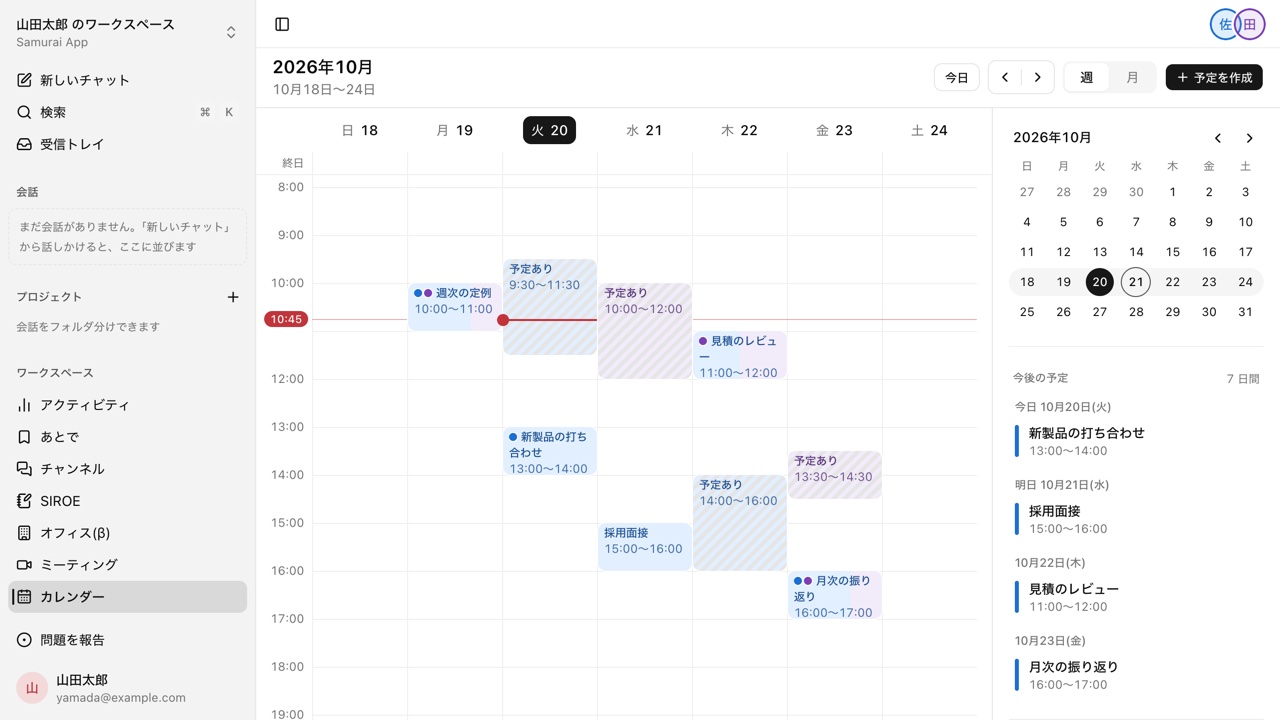
Calendar puts your events, the busy times of other members, and tasks assigned to you on one grid. Only the creator and attendees can see what an event is about. From finding a time to joining the meeting, it all happens on one screen.
Open Samurai AppRequest materials
- Who is working on what
Does sharing schedules cause these problems?#
When events, meetings, and deadlines live in different places, just finding a time takes effort.
Asking everyone for free time, one by one
Every new meeting means asking each attendee when they are free. Nothing is settled until everyone replies.
Events and meeting links are scattered
You create the calendar event and the video meeting link separately, then hunt for the URL on the day.
Deadlines live on a different screen
Task due dates sit in the task tool and meetings in the calendar, so you cannot tell how much time you really have this week.
Overlay schedules and book an open slot#
Members you add under people to overlay appear color-coded on the same grid. Click or drag across an open slot to create an event, and invitees reply with going, not going, or maybe. Switch between week and month views.
- Overlay up to 16 people. Events you are not invited to show only as busy, with the time
- Drag in 15-minute steps. All-day events are supported
- Invite up to 50 members
Join the video meeting straight from the event#
Use Add meeting on an event to create a video meeting, then join it from the event on the day. No separate link to send or hunt for.
- Enter a start time under New meeting and the event goes on the calendar by default
- Rename the meeting and the linked event is renamed too
Keep events in step with Google Calendar and Outlook#
Turn on external calendar sync to export events you create to Google Calendar or Outlook. The AI does not read or write this calendar, but if you connect Google Calendar as an external service, the AI can work with that calendar.
- Members you invite receive an invitation email from Google or Outlook
- Export is one-way and covers only events created after sync is turned on
Frequently asked questions#
Can other people see what my events are about?
Only the creator and attendees can see an event's details. When someone overlays your schedule, events they are not invited to show only as busy, with the time.
Can I import events from Google Calendar or Outlook?
No. Events you create are exported one-way to Google Calendar or Outlook. Events created or changed there do not appear here.
Are there recurring events or reminders?
Neither is available. Each event is created once. Upcoming lists your own events for the next 7 days.
Can task due dates show on the calendar?
Yes. SIROE cards assigned to you that have a start or due date appear as all-day bars. Click a bar to open the card on its board.
Everyday work comes together, connects, and becomes the company's strength.