SIROE Canvas
An online whiteboard on the same page as your docs
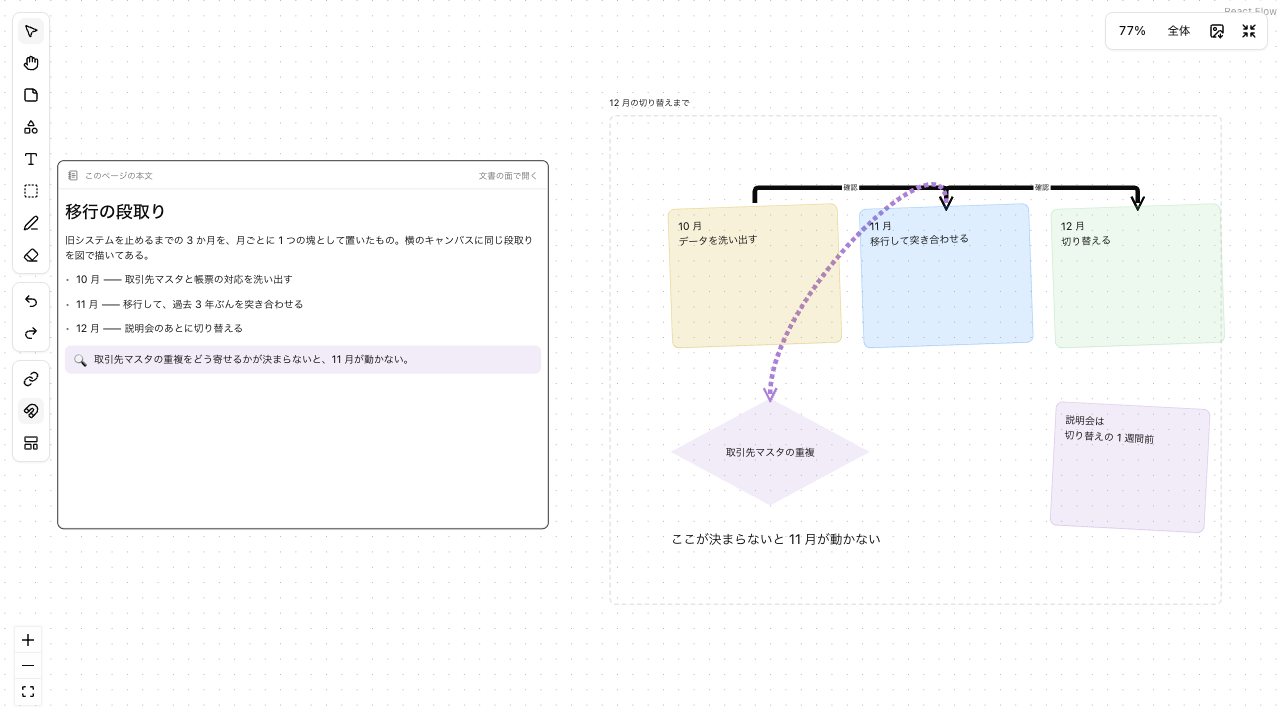
Canvas is the other side of a SIROE page. Next to what you wrote as text, lay out ideas with sticky notes and arrows. The diagram never splits off into a separate file.
Open Samurai AppTry without signing upRequest materials
- Where things are
- How the work was done
The diagram drifts away from what was decided#
What you sorted out on a whiteboard is often hard to find later.
Diagrams and docs live apart
The whiteboard tool and the document tool are separate, so you keep pasting board links into docs. You cannot tell which is current until you open both.
Drawing it, then writing it again
The plan you laid out with sticky notes gets rewritten as prose in the manual. The same content is made twice.
AI cannot see the board
You want AI to help sort the notes, but the diagram sits where AI cannot read it. You end up taking screenshots and explaining.
Lay out your thinking with sticky notes, shapes, and frames#
Place sticky notes, shapes, text, frames, and pen strokes, and join elements with arrows. Select a note or shape and a floating toolbar lets you change text size and color on the spot.
- Four text sizes, from small to extra large, plus bold, italic, underline, strikethrough, and left, center, or right alignment
- Select several elements and change their formatting at once
- Shape fills come in five levels from transparent to 100%, and sticky note colors have adjustable strength too
Switch between Text and Canvas on the same page#
Switch between Text and Canvas at the top of the page. The side you have open is kept in the URL, so a link opens the same side for whoever you send it to.
- The page text appears on the canvas as a single card
- Shortcuts such as ⌘B, ⌘I, and ⌘U apply to the selected elements
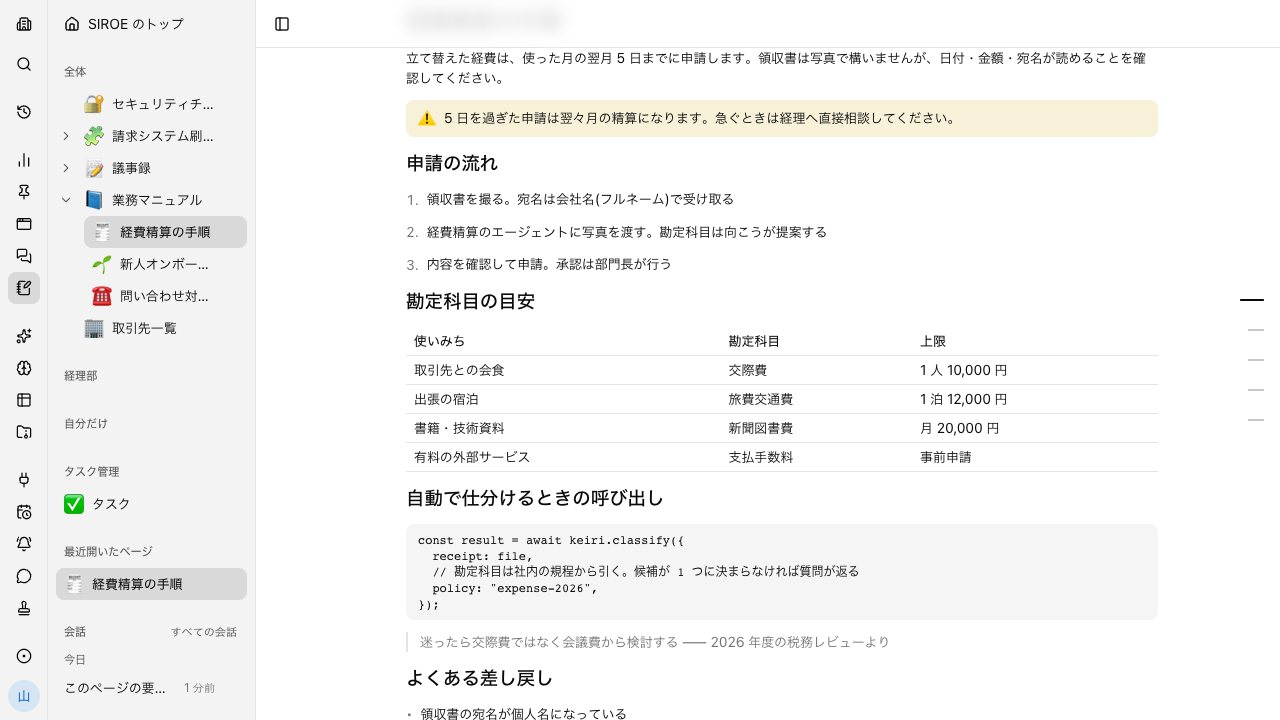
Ask in chat, and AI places notes on the canvas#
Ask the agent from a conversation and it adds, updates, or deletes canvas elements. Elements AI touched light up with an AI cursor, and the view moves to them.
- External AI can read and write the canvas via MCP or the CLI too, and new notes are placed where they do not overlap
- Turn off AI access for a page and its canvas is excluded from AI as well
Frequently asked questions#
What can I place on the online whiteboard?
Sticky notes, shapes, text, frames, freehand pen strokes, and arrows that join elements. Images cannot be placed on the canvas.
Is the canvas a separate file from the document?
No. The canvas is another side of a SIROE page, and you switch with Text and Canvas. The side you have open is kept in the URL, so you can share the same side with a link.
Can AI edit the canvas?
Yes. Ask in chat and the agent adds, updates, or deletes elements. On a page with AI access turned off, AI does not edit the canvas either.
How is it different from the whiteboard in Meetings?
The Meetings whiteboard is for drawing during a call and is neither saved nor recorded. Diagrams you want to keep go on the canvas of a SIROE page.
Everyday work comes together, connects, and becomes the company's strength.