Broadcasts
Post to multiple social networks and media at once
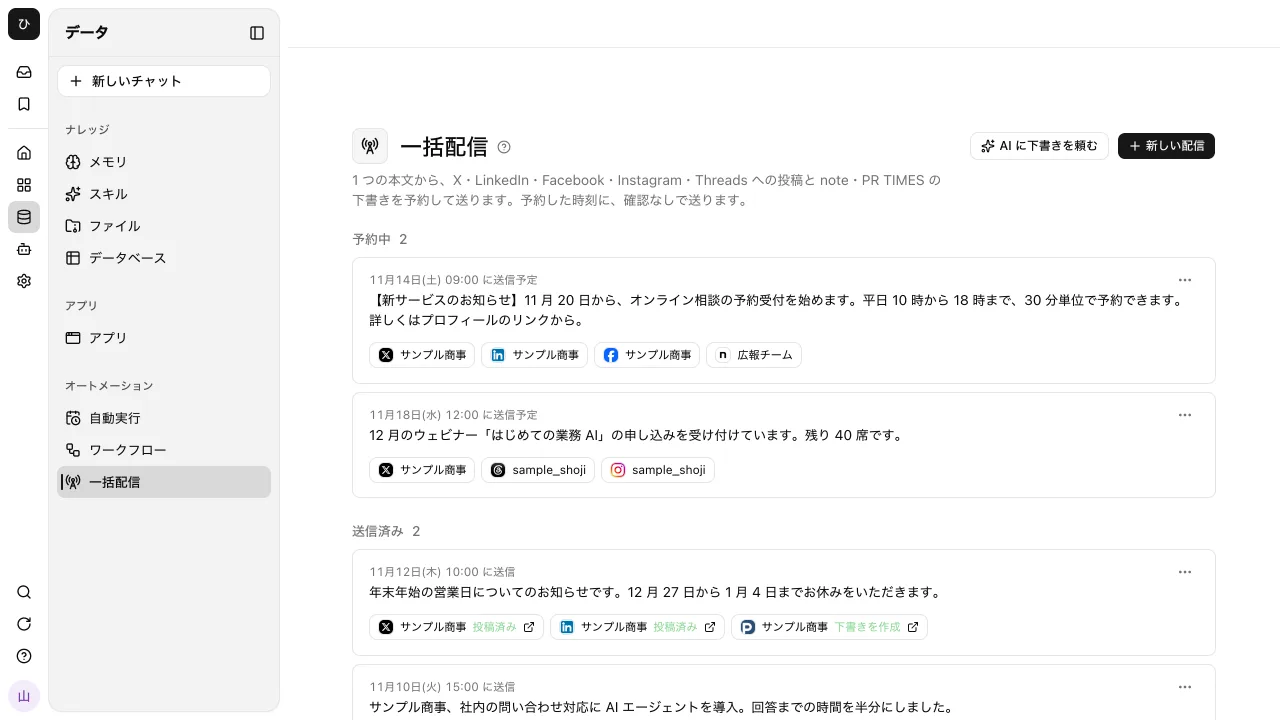
Post the same news on X, put it on Instagram too, write it up on note, and turn it into a PR TIMES press release. Broadcasts take one message, adjust it for each destination, and send it all at the time you choose.
- Where things are
Do you paste the same text again for every announcement?#
Pasting once per service
You open each social network and paste the same announcement. Fix one word and you fix every post again.
Every service has its own rules
The text is too long for X, Instagram needs an image, and note needs a title. You find out just before posting and rewrite.
No record of what went where
Scheduled posts sit on each service's own screen. There is no one place to see which announcement went where, and when.
One message, adjusted for each destination#
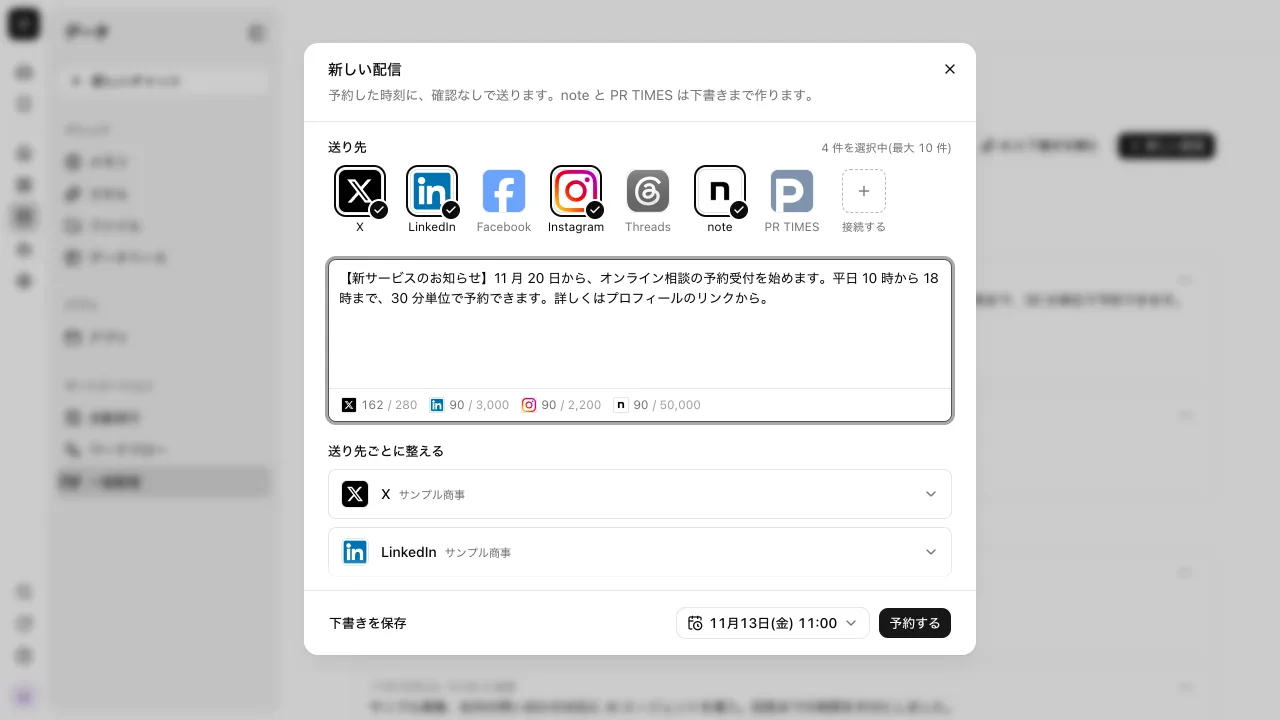
Write one shared message and pick destinations from the service logos. Each chosen destination shows its character count next to the service's limit. To change the text for just one destination, open its row and replace the message there.
- Destinations are X, LinkedIn, Facebook (pages), Instagram, Threads, note and PR TIMES, up to 10 per broadcast
- X counts full-width characters as 2. A destination over its limit is shown in red and cannot be scheduled until fixed
- note and PR TIMES get a draft with a title. Publishing is done on each service
Sent at the time you set, without asking again#
Send now, or schedule a date and time up to a year ahead. The content is fixed when you schedule it, so nothing asks for confirmation when the time comes. Editing a scheduled broadcast turns it back into a draft, and it is not sent until you schedule it again.
- Each destination keeps its result: Posted, Draft created, Failed or Check needed. A posted destination links to the post
- When it is unclear whether a post went through, it is marked Check needed instead of being sent again, so the same announcement never goes out twice
- A failed broadcast can be rebuilt with Duplicate and resend, keeping the same message and destinations
Ask AI to tailor and schedule it in chat#
In your own conversation, ask "Tailor this announcement for X and LinkedIn and send it at 9 tomorrow", and AI writes the text for each destination and schedules it. Before scheduling, an approval card shows the text for each destination and the time.
- What you approve on the card is exactly what gets scheduled
- Broadcasts are handled only in your own conversations, never in shared conversations or channels
For a new service announcement, I shape posts for X and LinkedIn from one text and create drafts on note and PR TIMES. Publishing those happens on each service, so I do the final check myself.
Public relations When I schedule a campaign post for X and Instagram, anything over X's character limit shows up in red. I no longer find out right before posting and have to rewrite it.
Marketing I ask in my conversation for a job post written separately for X and Threads, check the text and time on the approval card, then schedule it. The per-destination results show where and when each one went out.
Recruiting
Connect to outside business systems#
It connects to external services, and external AI clients can connect to it. Credentials are only stored with us; there is no way to read their values back.
- Connectors (MCP)
- The main way to connect is directly to each vendor's official remote MCP. Beyond that, you can connect to over 1,000 SaaS apps through a shared connection platform.
- Credential profiles
- Named credentials, several of which a single connection can hold. Each can be bound per tool.
- MCP endpoint
- External AI clients can operate Samurai App.
- CLI
- samuraiapp — login / chat / request / tunnel. No config file needed.
- External chat
- Call it with a mention from conversations in Slack / Microsoft Teams / LINE / LINE WORKS / Chatwork / Google Chat. It acts with the permissions of the person who linked their account, and answers in the same thread. A Facebook page on Messenger shows up in the unified inbox, and people send the replies.
- Embeddable chat widget
- Place it on your company's site and have conversations right there.
- Model routing
- Routes each conversation to a suitable model. You can also use your own API keys (BYOK).
Direct to each vendor's official remote MCP
 freee
 Money Forward Cloud Accounting
 Misoca
 LegalBrain Agent
 Ekispert API
 Oracle Autonomous Database
Services without MCP, through API definitions
 LegalOn
 CloudSign
 SAP Concur
 HRMOS Kintai
 Smaregi
 Jobcan Expense
 SmartDB
 kaonavi
 Sansan
 LINE WORKS
 note
 PR TIMES
 Sagawa Smart Club
 Yamato Business Members
Everything else, through a shared platform
 Outlook
 SharePoint
 OneDrive
 Gmail
 Google Drive
 Salesforce
 Stripe
 Shopify
 Zendesk
 Jira
 Tableau
 SmartHR
More than 1,000 other services can be connected the same way.
No API or MCP? Operate the screen directly
- Browser use
- Computer use
Call the AI agent from the chat you already use
 Slack
 Microsoft Teams
 Chatwork
 Google Chat
 LINE
- LINE WORKS
Company names and logos are trademarks of their respective owners and do not imply partnership or endorsement.
- Call APIs directly
- Reaches only allowed hosts
- Credentials can't be read back
- Find services to connect
- Find actions after connecting
- Just paste one connector URL
- Billed per event received
- Outside chats and mail in one list
- Reads what was said before the call
- Approve in external chat
- Ask an admin for a connection
- Broadcast to social media, note and PR TIMES
Frequently asked questions#
Can others on my team see my broadcasts?
No. Only the person who created a broadcast can see it, and broadcasts cannot be shared. Destinations are limited to services you connected with your own account.
Are note and PR TIMES articles published right away?
No. For note and PR TIMES, a draft is created and publishing is done on each service's own screen.
Can I attach images?
For Facebook, Instagram and Threads, you can post with an image URL. Instagram requires an image. A broadcast with an image for any other destination cannot be scheduled.
Can I cancel a scheduled broadcast?
Yes, with Cancel schedule, as long as sending has not started. Deleting a broadcast does not remove posts or drafts already on the services.
Everyday work comes together, connects, and becomes the company's strength.