When you turn on two-factor authentication for a service where a department shares one account, such as an ad console, accounting software, or an official social media account, everyone has to ask the person who registered it "What's the code?" at every login. When that person is in a meeting or on leave, nobody can sign in. It is not unusual to hear that the team ended up turning two-factor authentication off.
This article is written for IT and general affairs staff who manage shared accounts, and for people on the front line who are kept waiting for codes. After covering how authenticator app codes are generated, it compares four ways to share codes with a team, the risks of each, and what to do when people change.
Summary: keep two-factor authentication on, and put the "key" in a shared vault
- The 6-digit code in an authenticator app is calculated every 30 seconds from one secret "key" shared by the service and the device, plus the current time. Any device that has the same key can show the same code
- Turning off two-factor authentication is a last resort. If the password leaks, nothing is left to stop a login
- There are four ways to share: (1) register the same key on several devices, (2) split the backup codes among people, (3) store the key in a password manager that supports sharing, (4) switch to single sign-on (SSO)
- If you keep the key and the password together in a password manager, anyone who can open the tool has both factors. You need to limit who can open it and make the authentication to open it strong
- When someone leaves, do not just change the password; set up two-factor authentication again and replace the key as well
How authenticator app codes are generated
The 6-digit codes shown by Google Authenticator and Microsoft Authenticator are generated with a standard method called TOTP (time-based one-time password). Under the specification (RFC 6238), the service and the device hold the same secret key, and calculate a new code from that key and the current time, every 30 seconds by default.
The QR code or "setup key" shown when you turn on two-factor authentication is that key itself. The authenticator app reads the QR code and stores the key, and from then on calculates codes locally without any communication. Two things follow from this.
- If you have the key, any device shows the same code. Sharing ultimately comes down to "who gets the key, and how"
- If the key leaks, codes can be generated any number of times. The key is information to treat with as much care as a password, or more
Methods where the code arrives by SMS or email are even harder to share, because the phone number or email address it goes to is fixed to one.
Four ways to share authentication codes
| Method | Effort | When someone leaves | Best for |
|---|---|---|---|
| Register the same key on several devices | Only once at setup | Have them delete it from every device, or replace the key | A fixed group of 2 or 3 people |
| Split the backup codes among people | Run out as they are used | Regenerate the codes | A spare for emergencies |
| Store the key in a password manager that supports sharing | Introducing the tool | Remove them from sharing and replace the key | Departments where people change |
| Switch to SSO | Contract and setup | Suspend the account in the IdP | Services that support SSO |
1. Register the same key on several devices
On the screen where you set up two-factor authentication, scan the displayed QR code with several smartphones one after another. Everyone's device gets the same key, so anyone can show the code. It costs nothing.
The weakness is that nobody can keep track of how many copies of the key exist and where. Many services never show the QR code again once you close the setup screen, so adding a person later means setting it up again. Conversely, when someone leaves, there is no way to confirm that they deleted it from their device.
Also note that Google Authenticator, when signed in to a Google Account, syncs codes to every device on the same account. That sync is "between devices on the same Google Account", so it does not work as a way to share among different people's smartphones.
2. Split the backup codes among people
Many services issue backup codes for when you lose your device. For a Google Account, a set has 10 codes, each code can be used only once, and generating a new set invalidates the old one.
They work as an emergency spare, but if you use them for everyday logins they run out quickly. You also need to decide who replenishes the used ones.
3. Store the key in a password manager that supports sharing
Many password managers built for teams can store the two-factor key alongside the password, calculate the code, and show it. The tool manages who it is shared with, so adding and removing people takes only a few clicks.
In exchange, the password and the code end up in the same place. For anyone who can open the tool, two-factor authentication is effectively one factor. This assumes strong authentication on the tool's own login and sharing limited to the people who need it.
4. Switch to SSO
If the service supports SAML or OIDC single sign-on, you can stop using a shared account and have each employee sign in with their own company account. Two-factor authentication is applied per person on the IdP side (Microsoft Entra ID, Google Workspace, and so on), so the need to share codes disappears altogether.
This is the cleanest approach, but many services offer SSO only on higher-priced plans, and it cannot be used for services that allow only one account, such as official social media accounts.
What your company should decide
- Do not turn off two-factor authentication. First, take stock of any accounts where it was turned off because sharing was inconvenient
- Decide on one place to keep the key. The most dangerous situation is keys scattered across personal smartphones, old chat logs, and screenshot folders. Stop sharing the setup screen's QR code by pasting it into chat
- Decide who shares it, and keep a record. Keep who can show the code as the tool's sharing settings. A verbal "ask that person, they'll know" is not a record
- Replace the key when someone leaves. Along with changing the password, turn two-factor authentication off once, set it up again, and put the new key back in the vault. Even if the person who left still has the old key, it becomes useless
- Decide on a spare. Decide where to keep the backup codes, and who replenishes them when they are used
What to check when someone leaves or transfers is summarized in Steps for deleting accounts and changing passwords when someone leaves.
What Samurai App can do
Samurai App's password manager is a vault for passwords and authentication codes that people read and share. Vault contents are encrypted in the browser before they are saved, so while stored, neither the server, the operators, nor the AI can read them.
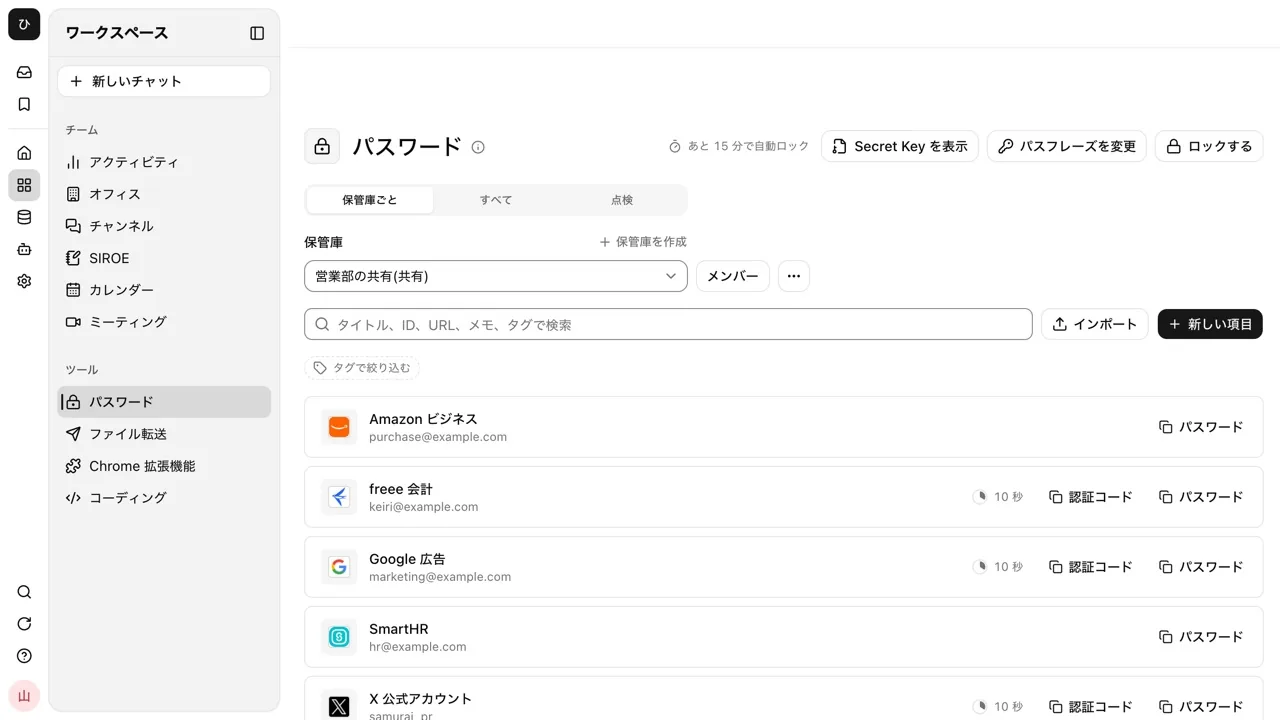
Put the key in the vault
Paste the setup key shown by the service, or a URL starting with otpauth://, into the item's "Authentication code key". For services that show only a QR code, choose a screenshot with "Read from QR image", or paste the image directly into the field. The image is read inside the browser and is not sent anywhere. QR codes produced by Google Authenticator's "Transfer codes" (otpauth-migration://) cannot be read, so set up two-factor authentication again on the service and scan the new QR code.
With "Authentication code" on each row of the list, you can copy the current code without opening the item. The copied value is cleared from the clipboard after 30 seconds.
Decide who shares it and with what permission
In the vault's "Members", choose "Manager", "Editor", or "Viewer" and add the people to share with. You can also choose a group to add its current members all at once. However, people who join the group later are not added automatically. Even a "Viewer" can show and copy values, so everyone you added can show the code.
Fill it in on the sign-in screen
Once you connect the Chrome extension for passwords, on a page asking for a two-factor code you can just press the item to enter the current code on the page. The key stays inside the extension, and only the code is passed to the page. For services that send the code by email, open the Gmail or Outlook (web) inbox in a tab and press "Enter the code from email", and it reads the top 5 messages in the inbox and enters the code.
When AI is asked for two-factor authentication in the middle of operating the browser, a card saying "
Records, and what it cannot do
Vault operations are recorded in the audit log. Entering a code from a conversation is recorded together with the conversation as "Enter vault authentication code into browser". Records of showing or copying values, and of entering them with the extension, are based on reports from the browser, so they do not prove who read a value.
Here is what it cannot do.
- Once a vault is shared, passwords and authentication codes are in the same place. Whether both factors are protected together comes down to who can open the vault
- When you "Remove" a member, new content no longer reaches that person, but they may still have the values they saw before. After removing someone, change the password on each service and set up two-factor authentication again
- Codes sent by SMS are not supported. Codes sent by email are supported only for Gmail and Outlook (web)
The workflow is shown on the Share two-factor codes with your team page. For the vault as a whole, see Password manager.
FAQ
Can several people receive two-factor authentication codes?
With the authenticator app (TOTP) method, any device or tool holding the same key shows the same code, so several people can use it. With SMS, the code goes to one fixed phone number, so it is not suited to several people receiving it. If the service lets you choose the authenticator app method, switching to it is the quickest route.
Does putting two-factor authentication on a shared account violate the terms of service?
Some services prohibit several people from using one account in the first place. Before setting up two-factor authentication, check whether the service's terms allow account sharing, and whether it has a member invitation feature for organizations. If you can invite members, it is safer to stop using a shared account.
What should I do about two-factor authentication when the person in charge leaves?
Changing the password is not enough. The person who left may still have the key, so turn two-factor authentication off once, set it up again, and put the new key back in the shared vault. Regenerate the backup codes as well.
What happens if my authenticator app codes disappear when I change phones?
If the key was only on that device, the new device cannot show codes. Sign in with a backup code and set it up again, or use the service's recovery process. If the key is kept in a shared vault, you can show codes from the vault even after changing devices.
Sources
- RFC 6238: TOTP: Time-Based One-Time Password Algorithm (IETF)
- Sign in with backup codes (Google Account Help)
- Get verification codes with Google Authenticator (Google Account Help)
- Password vault (Samurai App documentation)
Checked against each company's official pages and Samurai App's documentation as of November 9, 2026.