Offboarding paperwork centers on HR documents, and system accounts tend to become "we'll disable them later." But accounts someone forgot to disable, and shared passwords the departing employee still remembers, remain able to access company data even after they leave. The "Guidelines for Preventing Insider Fraud in Organizations" from IPA (Information-technology Promotion Agency, Japan) also added measures in its 5th edition in 2022 that reflect the rise in departures as employment becomes more fluid.
This article is for people in IT and general affairs who are responsible for cleaning up departing employees' accounts. Together with the official procedures for Google Workspace and Microsoft 365, we lay out what to disable and in what order around the last day, how to change the easily overlooked shared account passwords and two-factor authentication, and how to hand over data.
Bottom line: disable, change, hand over, and keep records, in that order
- Disable: disable sign-in for the company's main account (Google Workspace, Microsoft 365, or your IdP), and cut off signed-in sessions and devices. Don't delete right away; first make it impossible to sign in
- Change: change the passwords of shared accounts the departing employee knew, and set up two-factor authentication again. Disabling the IdP account does not invalidate shared passwords
- Hand over: move email, files, documents only that person had, and automation settings to their successor or the team before deleting
- Keep records: record who disabled what and when, and preserve the data you need before deleting
- Make a single checklist table and check against the same table every time someone leaves
What happens when a departing employee's accounts remain
Access from accounts someone forgot to disable
SaaS not connected to SSO, services registered with a personal email address, and local accounts remain usable even after you disable the account in the IdP. Even if the departing employee means no harm, company data can be viewed from a smartphone that's still signed in or a browser that remembers the password.
Shared passwords and two-factor authentication
Official social media accounts, ad management consoles, and partner portals reused across a department have multiple people using one ID and password. If the departing employee still has that password, or the two-factor authentication key (the QR code registered in an authenticator app), they can sign in even after their company account is disabled. How to handle shared two-factor authentication is summarized in How to use two-factor authentication with shared accounts.
API keys and integrations
API keys the departing employee issued, integrations with external services, and auto-forwarding settings can keep running even after the person is gone. Conversely, the moment you delete the person's account, integrations can break, and business automation can stop without anyone noticing.
What to do by the last day (checklist)
| When | What to do | Who to check with |
|---|---|---|
| When the departure is decided | List the services and shared accounts the person uses | The person, their manager |
| When the departure is decided | Identify files, documents, and automation settings only the person has | The person, their successor |
| Before the last day | Move data to the successor or team. Set up email forwarding and sharing | Successor |
| Last day | Disable sign-in for the main account and cut off sessions and devices | IT |
| Last day | Change shared account passwords and set up two-factor authentication again | Administrator of each account |
| Last day | Stop API keys and integrations the person issued, or move them to the successor's name | IT, successor |
| After departure | After a set period, delete the account and remove the license | IT |
| Monthly | Reconcile the list of departed employees against each service's accounts | IT |
As a rule, disable accounts after the last day's work is done. However, for a departure involving trouble, you may need to decide to disable sign-in before the handover.
Official procedures for Google Workspace and Microsoft 365
Google Workspace
Google Workspace's page for administrators lists the following seven steps for protecting data after an employee leaves.
- Wipe devices (erase the entire device, or only the organization's data)
- Remove the recovery email address and phone number for password resets
- Change the password
- Revoke OAuth 2.0 tokens (changing the password revokes some, but also check other authorized apps)
- Reset sign-in cookies
- Revoke security keys and app passwords
- Move the data you need to another account, then delete the account
Note that unless you remove the recovery contact information, the person can get back into the account through a password reset.
Microsoft 365
Microsoft 365's documentation shows the process for removing a former employee in seven steps: block sign-in, save the contents of the mailbox, wipe and block mobile devices, forward email or convert to a shared mailbox, grant access to OneDrive and Outlook data, remove the license, and delete the user account, in that order.
When you delete the account, OneDrive and Outlook content is kept for 30 days, during which you can restore the account. If you remove only the license and keep the account, OneDrive content remains accessible even after 30 days. If you sync from an on-premises Active Directory, you can't delete on the Microsoft 365 side; delete it in Active Directory.
Tips for changing shared account passwords
- Build the list from "who knew it." Identify the shared accounts the departing employee could access. If the sharing scope in your password manager serves as a record, you can check from there
- Re-share the changed passwords. Passing new passwords around in chat scatters the records again. If you update the value in the vault, the new value reaches the members it's shared with
- Set up two-factor authentication again too. Even if you change the password, if the authenticator app's key is the same, the departing employee's device keeps producing valid codes. Turn two-factor authentication off once, set it up again, and put the new key in the vault
- Cut off signed-in sessions. On some services, signed-in devices can keep being used even after the password changes. If there's a "sign out of all devices" feature, use it
What Samurai App can do
In Samurai App, handover and cleanup are handled together as part of removing a member.
Handover when removing a member
On the "Members" screen, choose delete from a row's menu, and "What will be deleted" and "What will remain" are shown.
- What will be deleted: conversations only that person had and their public URLs, memories, personal secrets, and bring-your-own keys. Automated runs the person created stop
- What will remain: shared knowledge and data tables, channels, and run and audit records
If there's knowledge, files, data tables, skills, or apps only that person can open, the confirmation screen shows the counts, and you can choose "Hand over" or "Delete" for each type. "Hand over" makes them belong to the whole workspace, and "Delete" sends them to the trash. If you proceed without choosing anything, everything is handed over. When removing several people at once, you can't choose and everything is handed over, so if there's something you want to delete, remove people one at a time. This operation can't be undone.
URLs the removed person sent outside the company via file transfer also stop opening.
Cutting off signed-in devices
From "Signed-in devices" on a member's row, an administrator can end that person's sign-ins per device or all at once. Sign-ins are tied to the person, so they're also signed out of other workspaces they belong to.
Shared passwords and authentication codes
If you manage shared accounts with Samurai App's "Passwords," you can check from the vault's sharing scope which passwords the departing employee knew. When you remove a member, their personal vault is deleted, and they're also removed as a member of shared vaults.
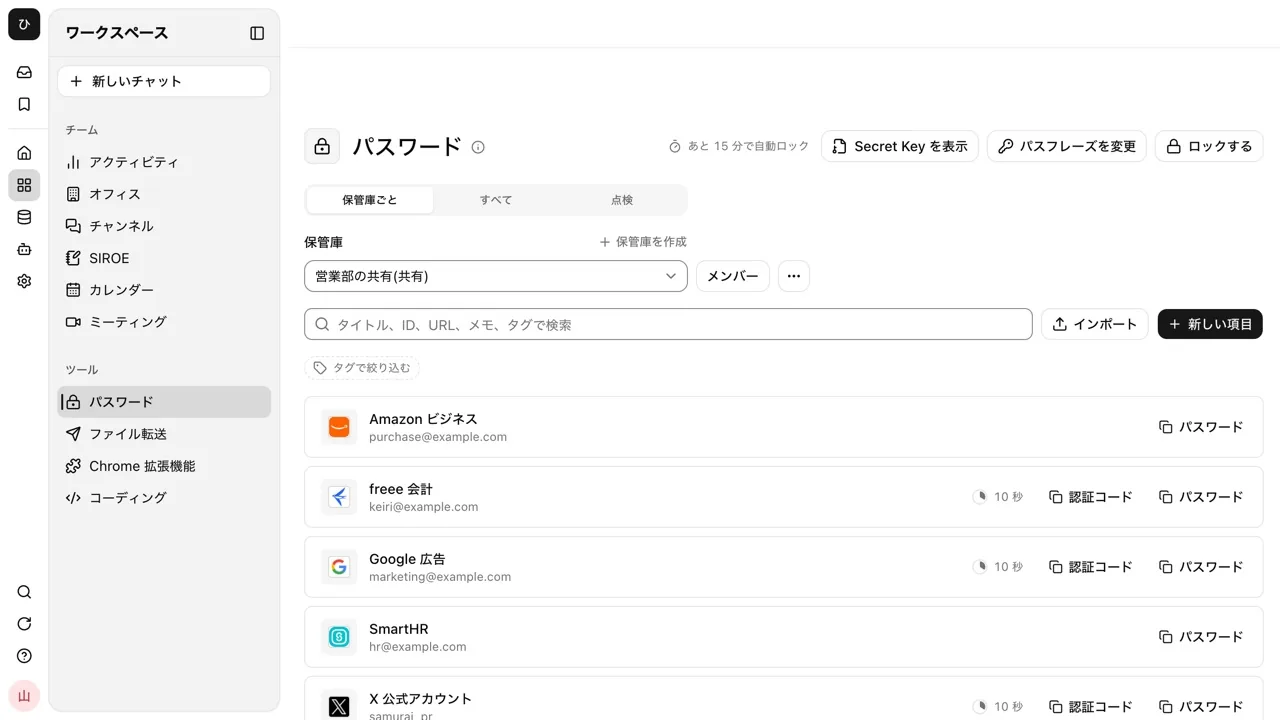
However, values they viewed before being removed may remain with them. After removing them from the vault, change the password on each service and update the item. An item's "Change history" keeps up to 20 previous versions, so you can see who changed which field and when. You can create a new password of 16, 20, or 32 characters with "Generate password." After setting up two-factor authentication again, enter the new setup key in "Authenticator key."
Records
Member deletions and operations on vault members and items are recorded in the audit log. The audit log is kept for 2 years, and administrators can export it as CSV or JSONL and verify that it hasn't been tampered with. Records of passwords being shown and copied are based on reports from the browser, so they don't prove who read a value.
What it can't do
- There's no "suspended" state that temporarily makes a member unable to use it. It's either remove or keep
- It can't disable accounts in SaaS outside Samurai App. Disable Google Workspace, Microsoft 365, and other SaaS in their own admin consoles
- It can't automatically change shared account passwords on each service's side
For the full vault, see the password manager page.
FAQ
Should a departing employee's accounts be deleted right away?
It's safest to first disable sign-in on the last day, and delete after data handover and preservation are done. Microsoft 365 lets you restore an account for 30 days after deletion, but deleting right away shortens the time to find data that was missed in the handover. If there's suspicious activity, keep the account disabled without deleting it and preserve the records.
Do I need to change every password the departing employee knew?
As a rule, change every shared account password the departing employee could access. If you don't know which ones they knew, cover everything the department shared. For accounts using two-factor authentication, change the key too.
How do I decide whether to disable or delete a departing employee's account?
Decide based on license costs, data retention periods, and the need for investigation. Keeping it disabled lets you retain the data, but some services keep charging for the license. Before deleting, move the data you need to keep to the successor's account or a shared location.
How should I hand over a departing employee's email?
Microsoft 365 provides steps for forwarding email to the successor or converting to a shared mailbox. Google Workspace advises moving the data you need to another account before deleting the account. Tell business partners the new contact person's details before the employee leaves.
Sources
- Guidelines for Preventing Insider Fraud in Organizations (IPA, Information-technology Promotion Agency, Japan)
- Maintain data security after an employee leaves (Google Workspace Admin Help)
- Remove a former employee - overview (Microsoft Learn)
- Password vault (Samurai App documentation)
- Admin settings (Samurai App documentation)
Checked against each vendor's official pages and Samurai App's documentation as of November 9, 2026.