Build with forms
Build the form, and the table comes with it
Each field you add to the form becomes a column in the table. For customer lists or deal management, just pick one of the 16 presets and start with the fields and statuses already set up.
Open Samurai AppTry without signing upContact us
- How the work was done
- Where things are
Does managing ledgers run into these problems?#
Spreadsheet ledgers break easily
Someone deletes a column or overwrites a formula, and the totals stop adding up.
Everyone enters data differently
Dates and choices are written every which way, so you can't sort or filter later.
Everyone wants a different view
Sales wants a list and managers want a monthly calendar, but there's only one table.
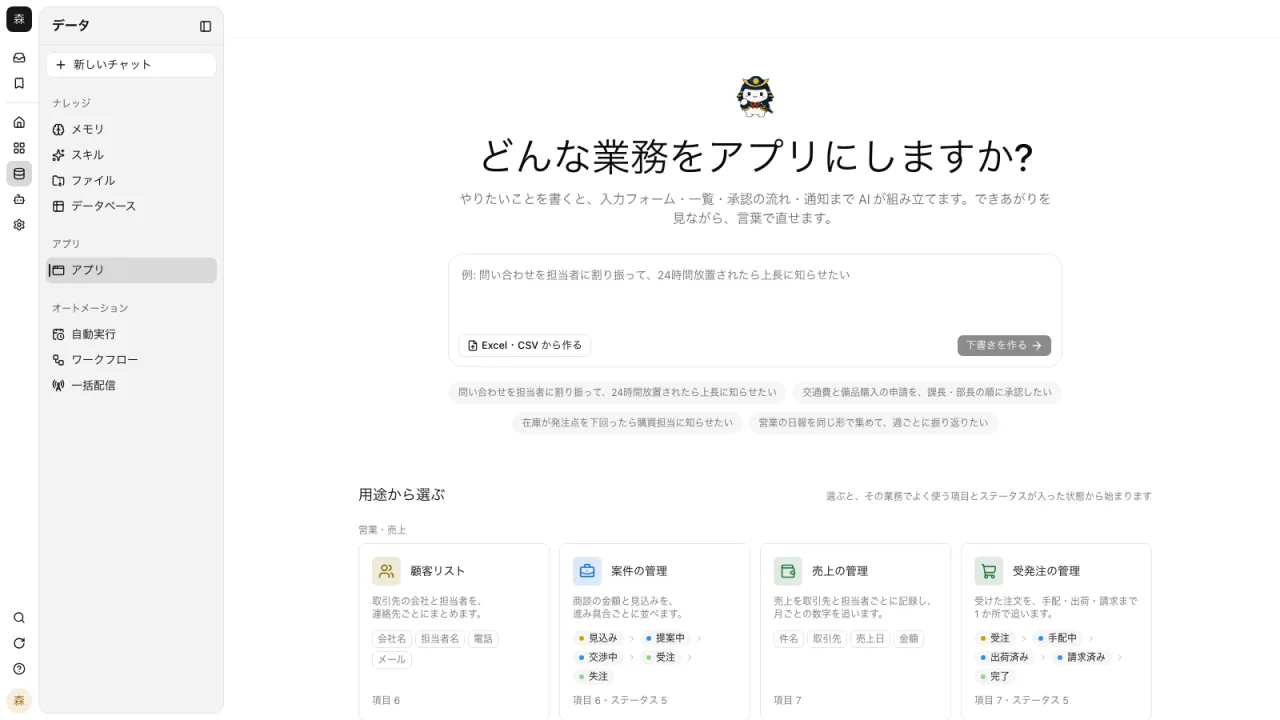
Start from 16 presets, fields and statuses included#
"Choose by use case" lists 16 presets in four groups: sales and revenue, requests and progress, records and reports, and internal information. Each card shows how many fields and statuses it has, and opening it lets you check everything inside.
- Includes customer lists, deal management, quotes, daily reports, inventory management, FAQs, and more
- Quotes come with line items for item, quantity, and unit price, plus subtotal and tax-included total calculations
- Name it and press "Create", and the app and table are made with no conversation
Place components, and they become table columns#
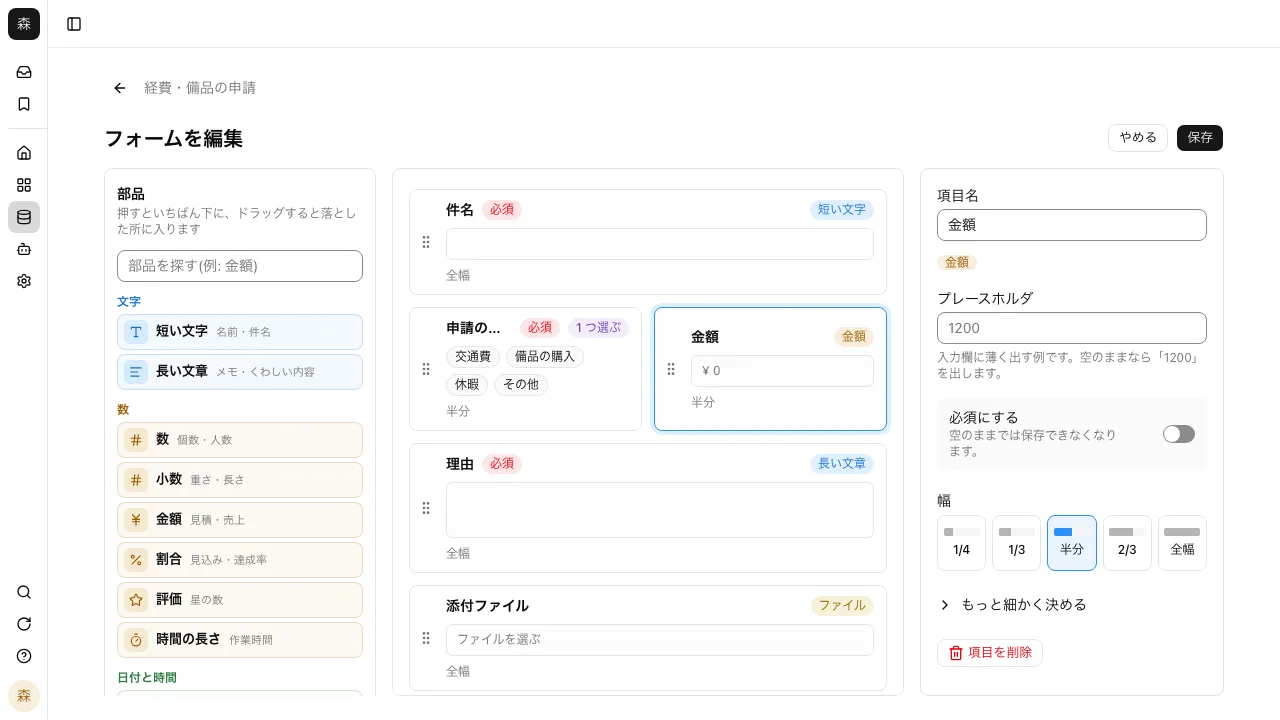
In the form editor, click or drag a component on the left to add a field. Choose field types such as text, number, currency, date, choice, user, and file. Add headings and descriptions between fields to make the form easy to fill in.
- Set required fields and input rules per field
- Add line items (a table within the table) and calculations based on them
- Reference records in other apps to pull in values
- The table doesn't change until you press "Save"
The same records as a list, kanban, or calendar#
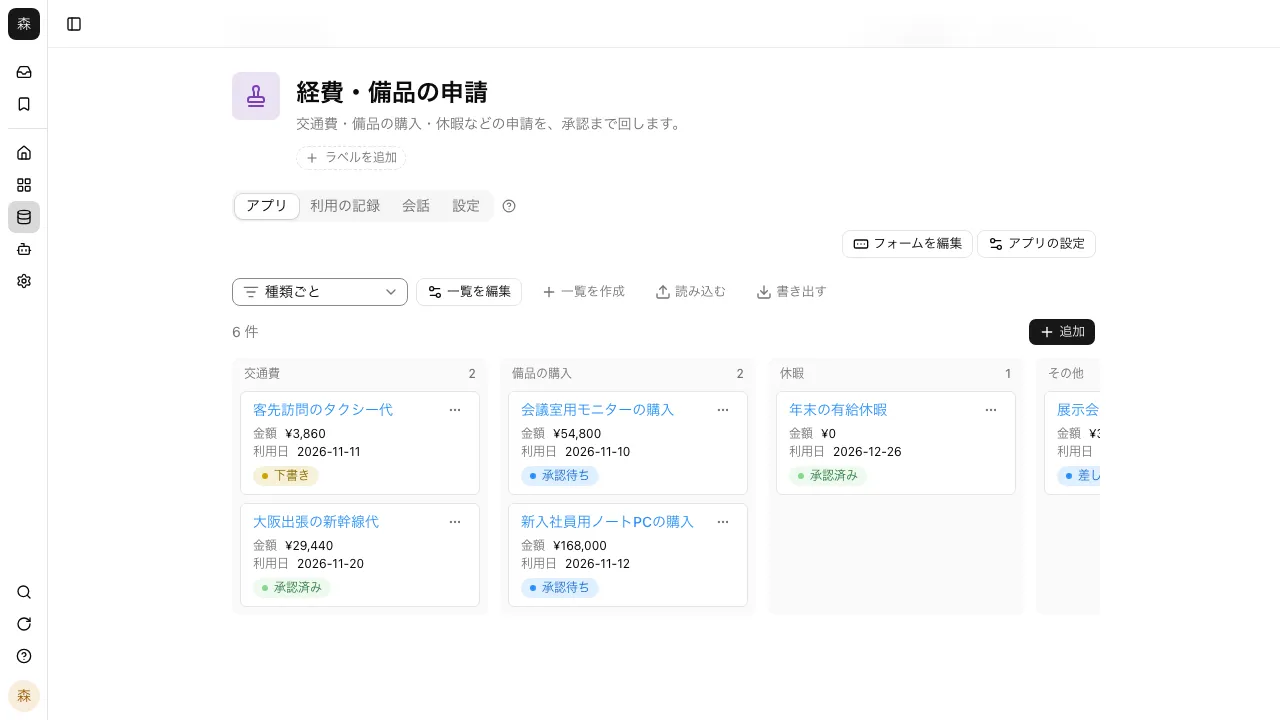
Besides a table, lists can be shown as kanban, calendar, gallery, or Gantt. Save filters and sort order under a name, and the list you want is one click away.
- Color rows that match conditions (up to 5)
- Print records, save them as PDF, or fill them into an Excel template
- "Make a copy" creates an app with the same setup and no records
Bring in today's ledger, and export any time#
"Import" reads a CSV or Excel file with headers in the first row. Check how the headers map to the app's fields before importing, and match on a key to update existing records.
- "Export" writes every record you can read to CSV or Excel
- Export only the definition to JSON and rebuild the app in another workspace
I picked the quote template, named it, and the app and table were created without any chat. Once I enter the item, quantity, and unit price lines, it calculates the subtotal and the tax-included total.
Sales Our equipment inspection logs had dates and choices entered a different way by each person. Since I set field types and required fields on the form, we can sort and filter the records later.
Manufacturing The sales team views our deals as a list, and I view the same table as a monthly calendar. I saved my filter and sort under a name, so I can open the view I want right away, even just before a meeting.
Sales administration
Frequently asked questions#
Can I add fields later?
Yes. Add fields in the form editor and press "Save", and the table gains columns. Existing records stay as they are.
Who can edit the form?
The app's creator and group admins. Everyone else uses the app by adding records through the form and viewing lists.
Can each person view the list differently?
Yes. Name a set of filters and sort order and save it as a list, then switch to it. Besides a table, you can choose kanban, calendar, gallery, or Gantt.
Can the AI total up records for me?
Yes. An app's table is a database in your workspace, so ask in a conversation for "this month's closed deals by rep" and it totals the records you're allowed to read.
Everyday work comes together, connects, and becomes the company's strength.