Components and buttons
Lay out components to build a business screen
Put numbers, tables, charts, forms, and buttons on one screen at whatever size you like. Every component works by picking a table and columns, and you never write SQL.
Open Samurai AppTry without signing upContact us
- How the work was done
Does building business screens run into these problems?#
The screen you read and the screen you click are different
You check the numbers in a report and update them on another screen, going back and forth.
Doing the same steps by hand every time
Change the status, enter the date, contact the owner, and repeat, every single time.
Even a small change means asking someone
Even adding one column means asking the person who built it.
Drag six kinds of components into place#
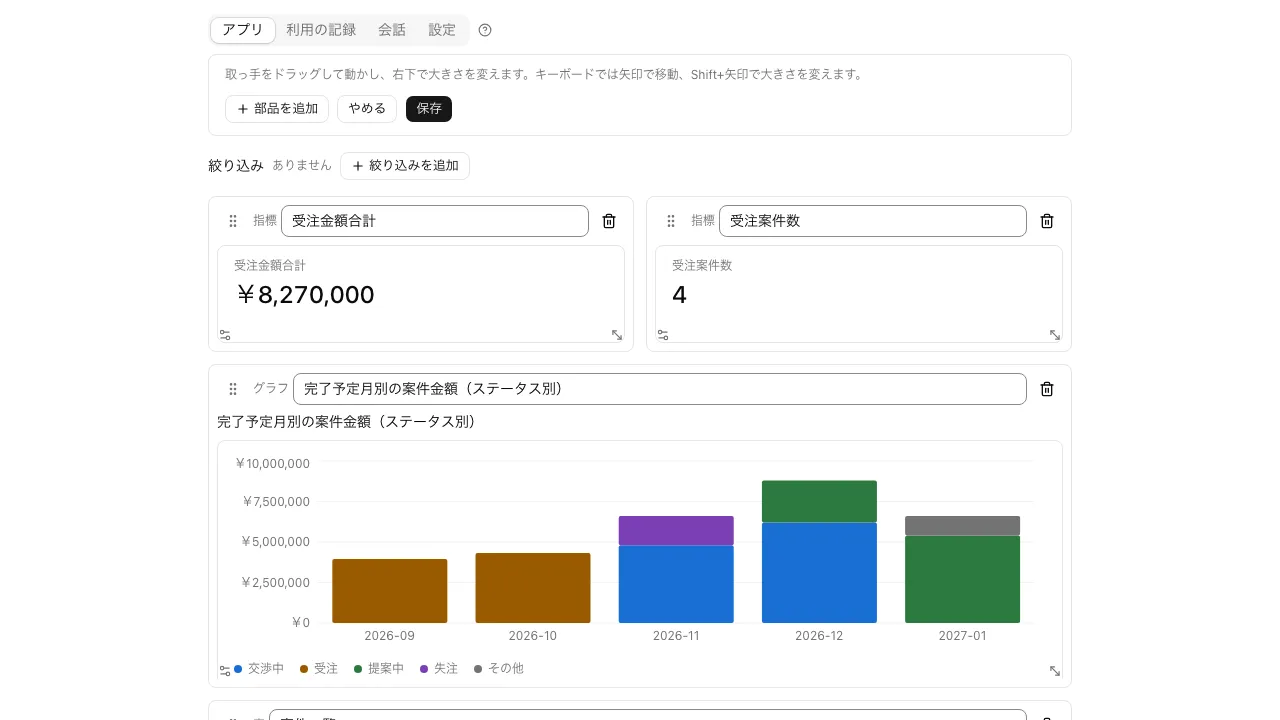
From "Edit layout", use "Add component" to add a number, table, chart, form, button, or note, then pick a table and columns. Drag components to move them and resize from the bottom-right corner. They can be moved with the keyboard too.
- Join with other tables to view up to three tables together
- Put period and value filters at the top of the screen
- When a table changes, components show the new numbers within seconds
One button runs a set of steps in order#
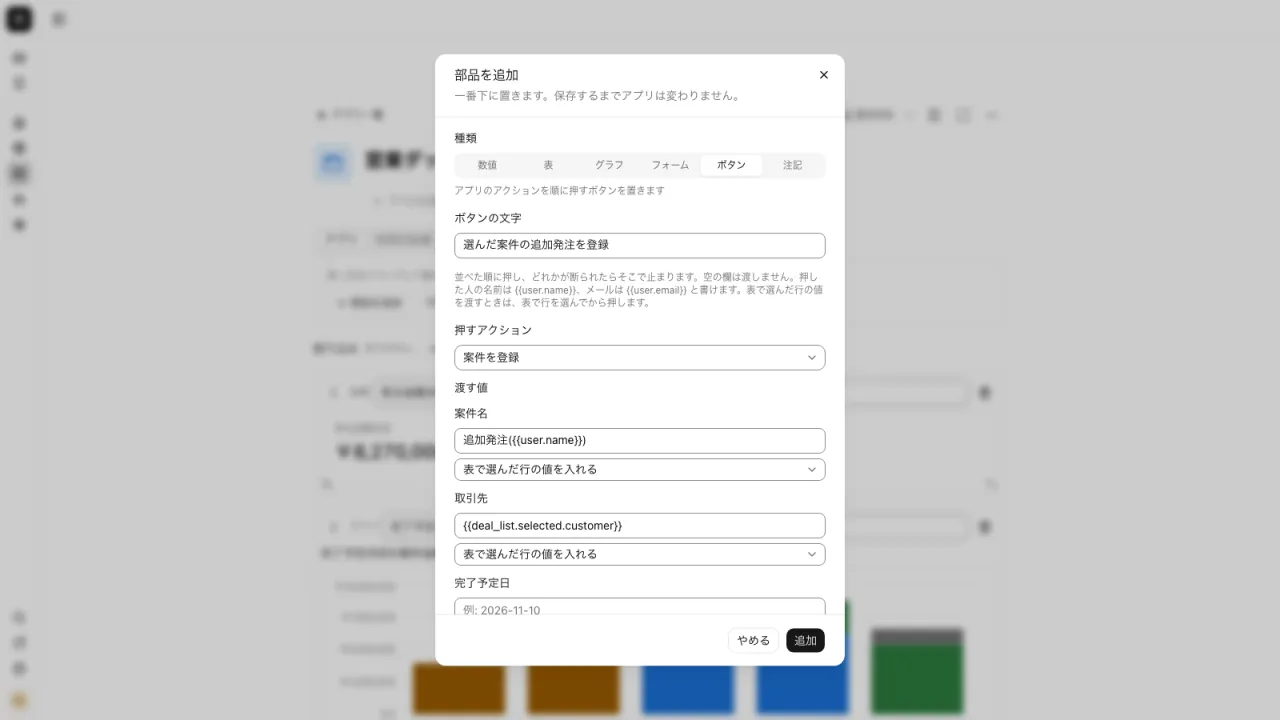
A button component runs a sequence of the app's actions. You can add a confirmation message before it runs and a notice when it's done. If an action is refused, the button stops there and shows the reason below it.
- Up to 6 chained actions
- Fill in the name or email of the person who pressed it as a value
- Run it with values from the row selected in a table
- Add up to 4 buttons, such as edit or delete, at the right end of each table row
Whether a person or the AI makes the change, a version is kept#
Every press of "Save" adds a version. "Undo" goes back one step, "Version history" takes you back to any version, and going back is saved as a version too, so nothing is lost.
- Version history shows whether a change was made on the screen or in conversation
- "View query" on number, table, and chart components shows the SQL behind them
I put the sales figures, the inventory table, and the update form on one screen. I update right where I read the numbers, and no longer go back and forth between report slides and a separate screen for updates.
Area manager I bundled changing the status and entering the date into one button. A confirmation message appears before it runs, so I don't worry about pressing it by mistake.
Customer success I placed a by-department chart and put a date-range filter at the top of the screen. When a number looks off, I use "View query" to check the SQL behind it.
Corporate planning
Frequently asked questions#
How is this different from a dashboard?
They're built from the same components. A dashboard is a screen for reading numbers, while an app adds forms and buttons so you can also write to tables on the same screen.
Who can change the layout?
The app's creator and group admins. Others don't see "Edit layout".
What do people without permission to read a table see?
Components can only use tables the builder can read. Each user sees only the numbers they are allowed to read.
Can a button act on outside services?
Buttons run the app's actions. To write to outside services, have an app action start a workflow and leave it to that.
Everyday work comes together, connects, and becomes the company's strength.