When you keep up exchanges with business partners on Chatwork, short replies like "Understood" and "Thank you" stop your work dozens of times a day. But if you leave everything to AI, you worry that it might answer important matters like prices and delivery dates on its own.
This article is for people who work with outside parties on Chatwork, and explains how to decide how much of your replying to hand to AI. You will learn how to receive Chatwork rooms in Samurai App's unified inbox and choose "Labels only", "Drafts", or "Send automatically" for each room and person, and what AI passes to a person instead of sending itself.
Summary
- Once a Chatwork room is in Samurai App's unified inbox, you can choose how much to delegate in the room's "AI replies". The default is "Only judge whether a reply is needed", and AI writes nothing
- In group rooms, you can set the level of delegation for each sender. Up to 50 people per room
- Even with "Send automatically", anything about prices, fixing dates or deadlines, contracts, payments, complaints, or personal data is not sent and becomes a draft
- Replies are posted from a Chatwork bot account, with the sender's name at the start. They are not sent from your own Chatwork account
How to make Chatwork replies automatic
In our research for this article (as of November 9, 2026), we could not find a built-in Chatwork feature that automatically replies to received messages. To automate it, use one of the following.
| Method | AI wording | Check before sending |
|---|---|---|
| Use an integration tool to send AI-written text triggered by a post | Created for each new post in the room | Possible if you add a check step to the flow |
| Build it yourself with the Chatwork API | You build it | You build it |
| Samurai App's "AI replies" | Created by reading the flow of the conversation and your tone | Choose "Drafts" or "Automatic" per room and per person |
Integration tool templates mostly take the form of AI writing a reply triggered by a post in a specific room and sending it to Chatwork. Because they react to every single post, you have to build the conditional branches yourself so that they do not reply to the end of small talk or to automated notifications.
If you build it yourself with the Chatwork API, watch the API limits. According to Chatwork's API documentation, requests are limited to 300 per 5 minutes, and message posts to 10 per 10 seconds per room.
What Samurai App's "AI replies" can do
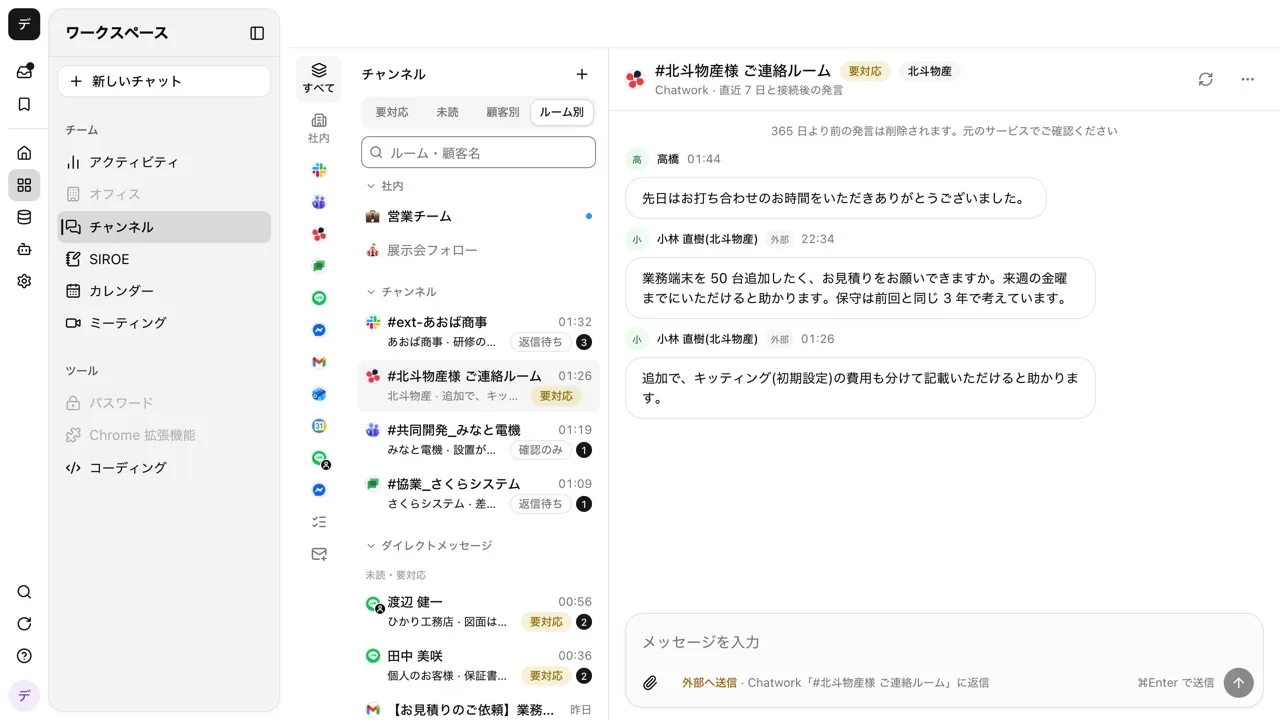
Open "AI replies" from the "⋯" in the room's header, and choose how far AI goes when a new message arrives.
| Option | What AI does |
|---|---|
| Only judge whether a reply is needed (default) | Only adds labels such as "Needs reply" |
| Write drafts | Writes a reply draft, and a person reads and sends it |
| Send automatically | Sends the reply without approval, in the name of the person who saved the setting |
AI decides every time whether a reply is needed in the first place. It writes a draft or reply only when the last message is from the other side. In a work chat like Chatwork, it replies politely to requests, questions, and thanks, and does not reply to conversations that have wrapped up or to automated notifications. When it judges that no reply is needed, it writes nothing and sends nothing.
It reads the flow of the conversation and your tone. If you do not choose a "Bot to write replies", AI reads only up to the 40 most recent messages in that room and the "Reply instructions (optional)" written for the room. It does not read other rooms or files. It matches the tone to the messages the sender has written themselves in that room. If you write casually, the text is casual; if you write formally, it is formal. In a room with none of your own messages, it writes polite business text.
If you choose a "Bot to write replies", it researches before writing. Choose an available bot or "AI", and it looks up files, tables, schedules, and email with the tools allowed for that bot before writing the reply. Operations that change something wait for the person's approval on an approval card. The bot does not send by itself, and it is instructed to include only as much internal material in the reply as the other side's question requires.
You can set the level of delegation per sender. In group rooms, outside people who wrote recently are listed under "Per sender" below the options. For each person, you can choose "Follow the room setting", or "Labels only", "Write drafts", or "Send automatically". For example, if you set the room to "Labels only" and only the person who handles scheduling to "Send automatically", AI sends only the replies to that person.
Some content is passed to a person. Even with "Send automatically", content about prices, fixing dates or deadlines, contracts, payments, complaints, or personal data, and content AI cannot decide on, is not sent and becomes a draft. The draft comes with the reason: "This was left as a draft instead of being sent, because AI left the decision to a person."
What it cannot do, and what to know
- Replies are not sent from your own Chatwork account. They are posted from the bot account with "Name: " at the start. To the other side, it looks like the bot account wrote something like "Yamada: Understood"
- It can receive group rooms that the bot account has joined. The bot is not in direct chats between just you and the other person
- New messages are fetched every 5 minutes. Mentions of the bot arrive immediately. Replies can be up to a few minutes behind the incoming message
- Automatic replies have a limit. Up to 30 per room per hour, and anything beyond that becomes a draft. In chat rooms, one reply is split into up to 3 messages and sent with short pauses, the way a person types
- An automatic reply that has been sent cannot be taken back. If you notice a mistake, send a follow-up yourself, or if it is your own message, fix it with "Edit message". The edit is also reflected in the message on the Chatwork side
- If someone replies while it is writing, it does not send. Once you or the other side writes something, the rest of the reply is not sent
What you need
- A Chatwork account for the bot, to receive replies together
- On an organization plan, approval of API use by the organization admin (not needed on the Personal plan)
- An admin or manager account in Samurai App (needed to register the integration)
Steps
1. Create an API token and a Webhook with the bot account
With the bot's Chatwork account, open "Service integrations" → "API token" from your user name at the top right, and issue an API token. Then create a new Webhook in "Service integrations" → "Webhook", and paste the "URL this integration listens on" shown in the registration form of Samurai App's "External chat". For the event, choose account events (mentions of the bot account). Also note the token shown on the Webhook's edit screen. It is a different value from the API token.
2. Register Chatwork in External chat
Register the two values you noted in Samurai App's "Secrets", choose Chatwork as the platform on the "Integrations" tab of "External chat", and choose the secret names. Turn on "Add to Samurai channels" and press "Register". You can also turn it on later from the "⋯" on the row.
Have the bot account join the rooms where you want AI to reply.
3. Link your account and choose the rooms to receive
Mention the bot account once in Chatwork, and you receive instructions for linking. Open the link and press "Confirm link".
Open "Choose channels to receive" in the left column of /channels, and the Chatwork rooms that both the bot and you have joined are listed. Turn on the switch for the rooms whose replies you want to delegate. When turned on, it imports the messages from the last 7 days (up to 100 for Chatwork).
4. Set up "AI replies"
Open the room and choose "AI replies" from the "⋯" in the header. It is safest to start with "Write drafts", watch the quality of the drafts for one to two weeks, and then expand to "Send automatically" person by person. In "Reply instructions (optional)", write your policy in up to 1,000 characters.
Keep it short and polite. If asked about quotes or delivery dates, say that Yamada, who is in charge, will get back to them.
5. Use a draft and send it
When a draft is ready, "AI draft" appears above the input field along with the reason. Press "Use" to put it in the input field, edit it, and send with ⌘+Enter (Ctrl+Enter on Windows). If you do not need it, press "Discard". The person who set it up is notified of what AI did through browser notifications ("Turn results" in /settings/notifications) and in the inbox.
Replying the Chatwork way
From a room in the unified inbox, you can send in the same form as Chatwork's "Reply" and "Quote". Press "Reply" or "Quote" on the bar that appears when you hover over a message, and a label such as "Reply to Yamada" appears above the input field. When quoting, mentions in the quoted message are removed, so those people do not get duplicate notifications.
Type @ in the input field, and the room's members are listed. People chosen from the list are notified in Chatwork. A name typed by hand is sent as plain text.
FAQ
Is it OK to leave all Chatwork replies to AI?
We do not recommend setting everything to "Send automatically". AI passes prices, contracts, and the like to a person, but a wrong automatic reply cannot be taken back. It is safest to automate first for people who mostly get routine thanks or acknowledgements, and for everyone else use "Write drafts" so a person checks before sending.
Can I keep a specific room away from AI?
Yes. Choose "Turn off AI access" from the room's "⋯", and that room is used for neither AI labels nor replies. Messages are kept, and people can still reply as usual.
Can I delegate replies to my own email the same way?
You can use "AI replies" in Gmail and Outlook mail rooms as well. For email, "Send automatically" replies to everyone in the thread from your own address. How to keep replies as Gmail drafts is explained in Have AI draft replies to inquiry email.
If I just want Chatwork notifications in Slack
If you just want to know about Chatwork posts in Slack rather than delegating replies, Notify Slack about Chatwork posts is the better fit.
Sources
- Endpoints (API usage limits) (Chatwork API documentation)
- Replies in channel rooms (Samurai App guide)
- Message operations in channel rooms (Samurai App guide)
- External chat settings (Samurai App guide)
Checked against Chatwork's official documentation and Samurai App's implementation as of November 9, 2026.