At companies that use Chatwork with outside parties and Slack internally, people tend to keep both open so they don't miss Chatwork posts. This article walks through sending Chatwork posts to a Slack channel.
The Chatwork specifications here were checked against official documentation as of November 4, 2026.
Summary
- Use a webhook. Samurai App's "service integrations" don't include Chatwork events, so receive the Chatwork webhook with an "external trigger" and send it to Slack with a "Send to notification target" step
- You can pass along the body and IDs. The webhook contains neither the sender's name nor the room's name
- Posts that don't arrive are not recovered. Chatwork doesn't resend failed notifications, so this isn't suited to uses where nothing can be missed
What it can and cannot do
Chatwork webhooks work with the following specifications.
- How many you can create: up to 5 per account
- Retries: none. The receiver must respond with status code 200 within 10 seconds
- Automatic disabling: if the receiver returns many errors, the webhook becomes "Disabled" and stays stopped until you turn it back on by hand. The threshold is not published
Note that the fields that arrive differ by event type.
| Event | Common fields | Fields for this event only |
|---|---|---|
Message created (message_created) |
body room_id message_id send_time update_time |
account_id |
Mention to me (mention_to_me) |
Same as above | from_account_id to_account_id |
If the body in Samurai App refers to a field that didn't arrive, the step fails. It does not become blank. If you receive both events in the same workflow, put only the common fields in the body.
The body arrives unprocessed. Recipient tags like [To:12345] and notation like [info] and [qt] appear in Slack as they are. The sender is also only the account_id number. Names are in the room member list of the Chatwork API, but the steps in this article don't fetch them.
By default, a Samurai App external trigger can start up to 10 times per minute. Beyond that it returns 429, so if you receive "Message created" from a busy room, posts during that time are lost. If errors continue, Chatwork may disable the webhook. Starting with "Mention to me" keeps the volume down.
What you need
- A Chatwork account that can use the API (except on the personal plan, you need to submit an "API usage request" to your organization's administrator)
- A Slack Incoming Webhook URL (one for the destination channel)
- Manager or higher permission in Samurai App (needed to add an external trigger)
Steps
When you're done, the workflow looks like this.
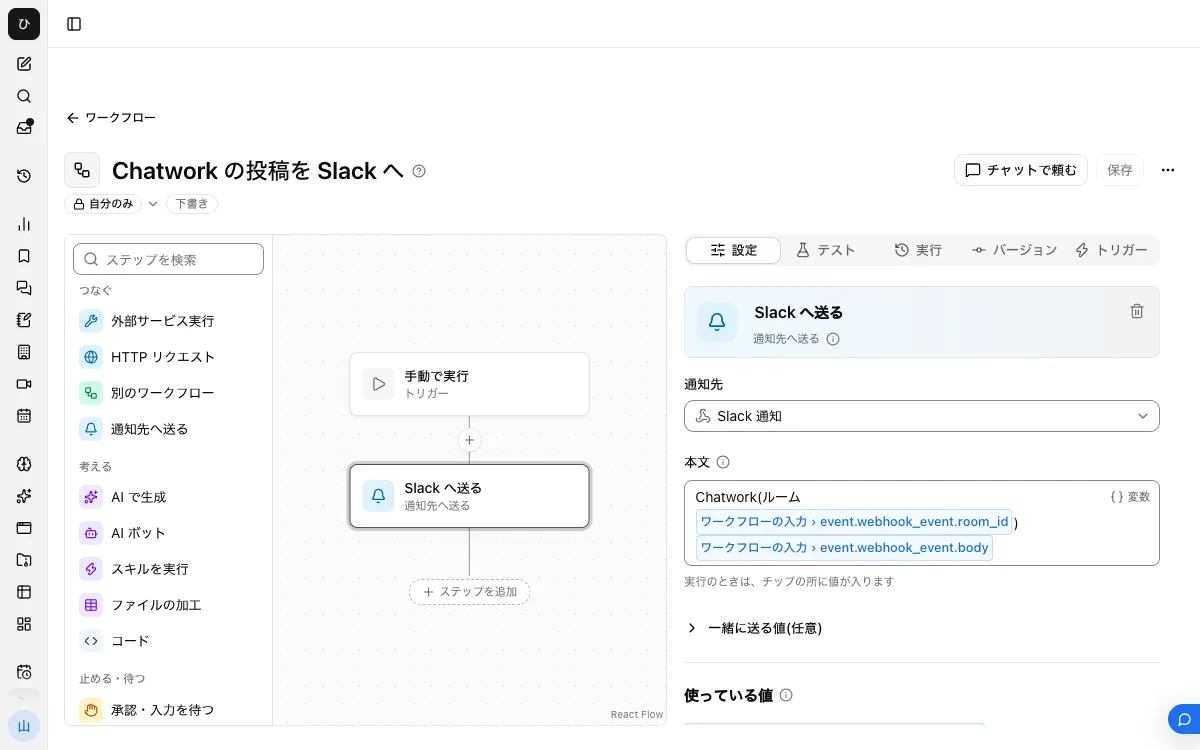
1. Create an Incoming Webhook URL in Slack
In Slack's app settings, create an app from "Create an app" and turn on "Incoming Webhooks". Choose a channel with "Add New Webhook to Workspace" and approve it, and you get a URL starting with https://hooks.slack.com/services/.... The destination channel is fixed to this URL.
2. Register the notification target in Samurai App
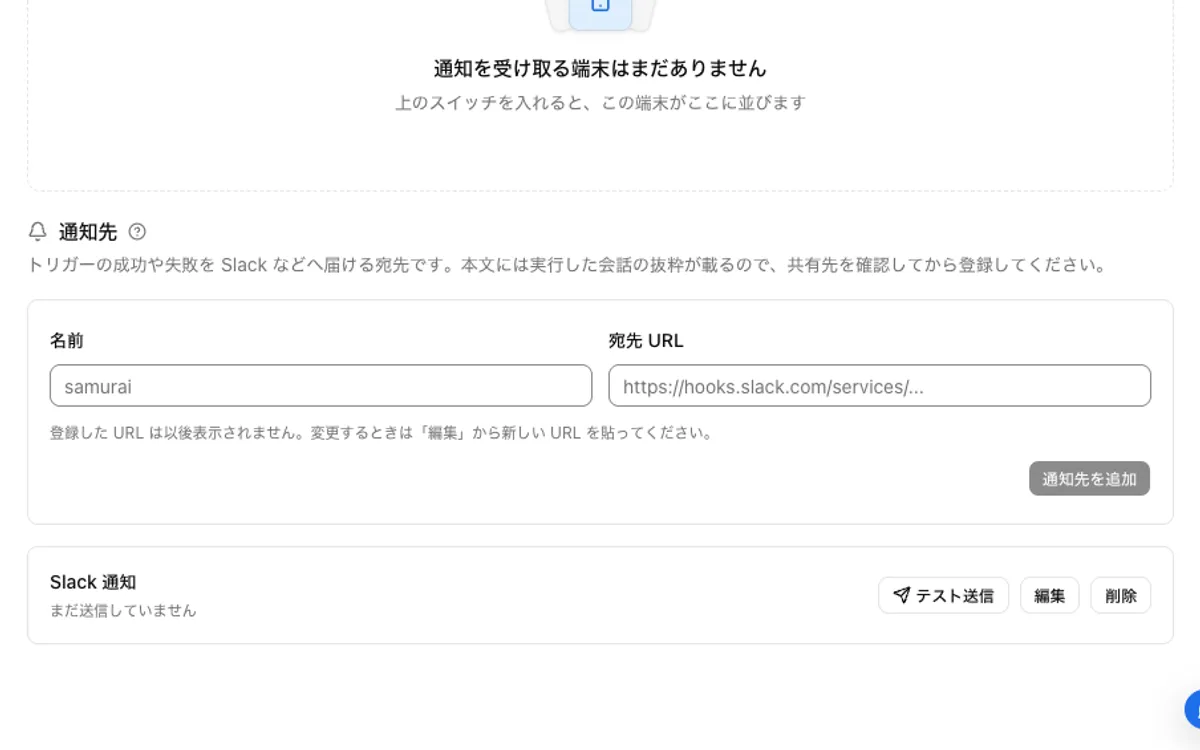
Under "Notifications" in "Settings", register a name and the URL from step 1. Press "Send test" and confirm that one test message arrives in Slack. A registered URL is not shown on screen again, so to change it, enter it again with "Edit".
3. Build the workflow
From "Create" in "Workflows", choose "New".
- With no step selected, go to "Workflow inputs" under "Settings" and press "Add input field". Name it
eventand set the type to "Group of fields" - From "Connect", place a "Send to notification target" step and choose the notification target from step 2
- Write the following in the "Body"
Chatwork (room {{input.event.webhook_event.room_id}})
{{input.event.webhook_event.body}}
To build it in chat, choose "Build in chat" under "Create" and ask something like the following. Triggers can't be added in chat, so do step 5 on the screen.
Build a workflow that receives a Chatwork webhook and sends input.event.webhook_event.body to the Slack notification target
4. Publish
On the "Versions" tab, press "Publish version N". While it's unpublished, starts are refused with 422.
5. Add an external trigger
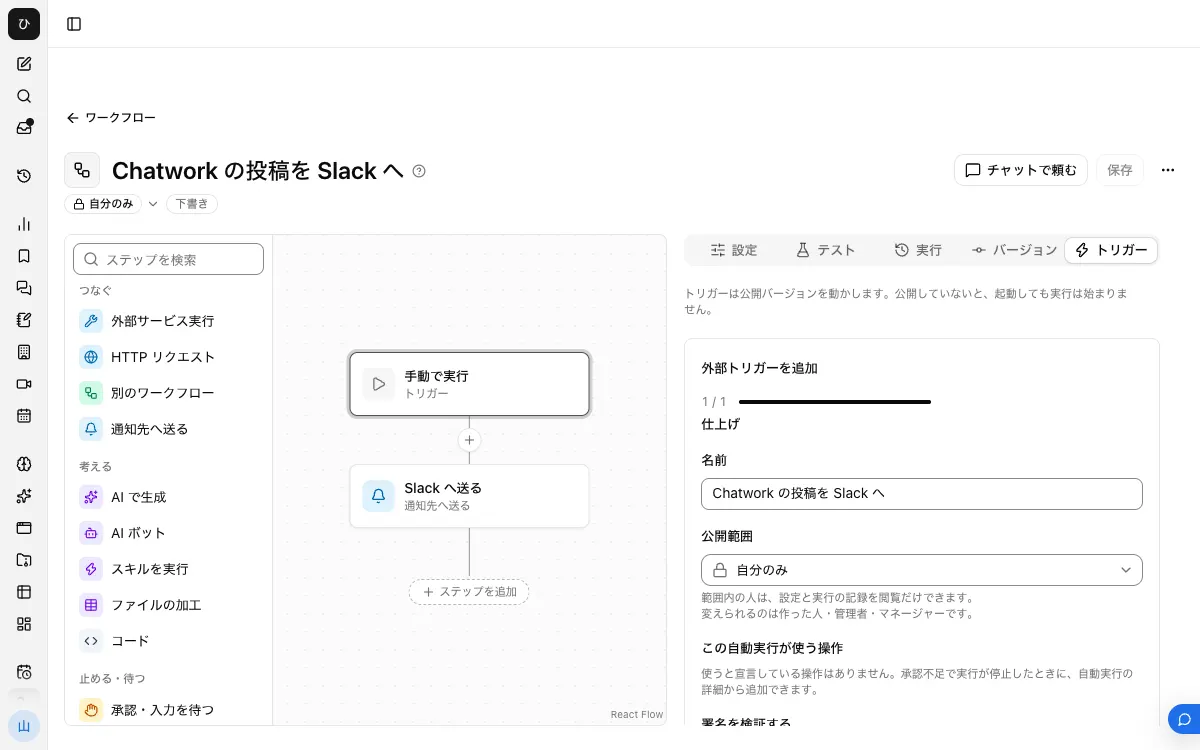
On the "Triggers" tab, open "Add external trigger", turn on "Also accept the secret in the URL's ?k=", and create it. The secret is shown only once, right after creation, so write it down.
Leave "Verify signature" off. Samurai App's verification matches a hexadecimal signature, and it can't match Chatwork's signature (computed with a key obtained by Base64-decoding the token, and output in Base64). If you turn it on, every call from Chatwork returns 404. In this setup, the ?k= secret is what protects it.
6. Register the webhook in Chatwork
Create a webhook from Chatwork's "API management screen". For the webhook URL, enter the external trigger's URL with ?k=<secret>&wait=result appended to the end.
Don't leave out &wait=result. By default the external trigger returns 202 (accepted), but Chatwork's official documentation requires that 200 always be returned. With wait=result, it waits for the run to finish and returns 200. The response is delayed by the length of the run, so to stay within 10 seconds, leave AI steps out of this workflow and use only "Send to notification target".
The URL must start with https:// and be encoded according to RFC 3986. Choose the event that matches the body from step 3.
7. Post and check
Post in Chatwork and confirm it arrives in Slack. The run record isn't kept in chat; it appears as "Started externally" under "Recent runs" on the workflow's "Runs" tab. You can see the input and output of each step, so you can also check the JSON that arrived here.
When it doesn't work
- Nothing appears in "Recent runs": First check on Chatwork's webhook edit screen whether it has become "Disabled", and turn it back on. Next, check
?k=in the URL. If&wait=resultis missing, Chatwork may count the responses as errors and set the webhook to "Disabled". If the secret is wrong or "Also accept the secret in the URL's ?k=" is off, you get 404 - There's a run, but the step failed: A field in the body may not have arrived.
account_idisn't included in "Mention to me". Check the names of the fields that arrived in the input on the "Runs" tab - The "Notification targets" row says "The destination URL was not found. Check the URL (404)": The Slack webhook URL is wrong or has been deleted. Enter the URL from step 1 again with "Edit"
- Only some posts don't arrive: You may have exceeded the start limit (10 per minute) or the body limit (64 KiB). There are no retries, so check those posts in Chatwork
FAQ
Do my own posts also go to Slack?
The official documentation doesn't say whether your own posts are included in notifications. When receiving "Message created", post something yourself and check whether it appears in "Recent runs".
Is it a problem to put the secret in the URL?
A secret in the URL can remain in access logs of relays and of the sending side. Chatwork's screen doesn't mention any way to add headers to a webhook, so this is the form it takes. When you stop using it, reissue the secret.
Can I also send the other way, from Slack to Chatwork?
Yes. But the mechanism is different: it receives Slack events and posts to the Chatwork API. It's explained in How to post from Slack to Chatwork. If you run both at the same time, posts bounce back and forth, so you need filtering.
Related guides
- How to post from Slack to Chatwork
- How to send Backlog notifications to Slack
- How to send kintone notifications to Slack