You want to see email from your business partners in Slack, but forwarding everything floods the channel. This article is for business staff in that situation, and explains how to send only the email that matches your conditions to Slack.
Summary
In a Samurai App workflow, use Gmail's "New Gmail Message Received Trigger" as the starting event, and send to a Slack Incoming Webhook with a "Send to notification target" step. "Send to notification target" does not call a model.
- What it can do: send the subject, sender, and body of email filtered by Gmail search conditions to Slack
- What it cannot do: notify the moment mail arrives. Gmail is checked periodically, so notifications can be up to 15 minutes late
- What it cannot do: route from one notification target to several channels. Use a separate notification target for each channel
What it can and cannot do
query is the main way to filter. The filter fields are query and labelIds. query uses the same syntax as the Gmail search box, and supports from: subject: has:attachment - (exclude) and OR. labelIds accepts only one label ID, and if query is filled in, query takes precedence.
If you do not filter, you pay for every email received. A service integration costs about 0.5 yen for each event it receives, even when nothing runs. The busier the mailbox, the more important it is to decide the conditions first.
The Slack channel is fixed by the URL. An Incoming Webhook posts to the channel you chose when you created it, and the sending side cannot change it. Posts also cannot be deleted afterward.
The fields that arrive are fixed, but they are not guaranteed to be present. The fields in the official list include subject, sender, message_text (body), to (recipients), attachment_list, message_timestamp (date and time), and thread_id, and all of them are treated as optional. If a field you inserted into the message body is missing from what arrived, the step fails rather than sending an empty value.
What you need
- A Gmail account, and a Gmail connection in Samurai App's "Connectors"
- A Slack Incoming Webhook URL (starting with
https://) - Permission to add service integrations to workflows (manager or above)
Steps
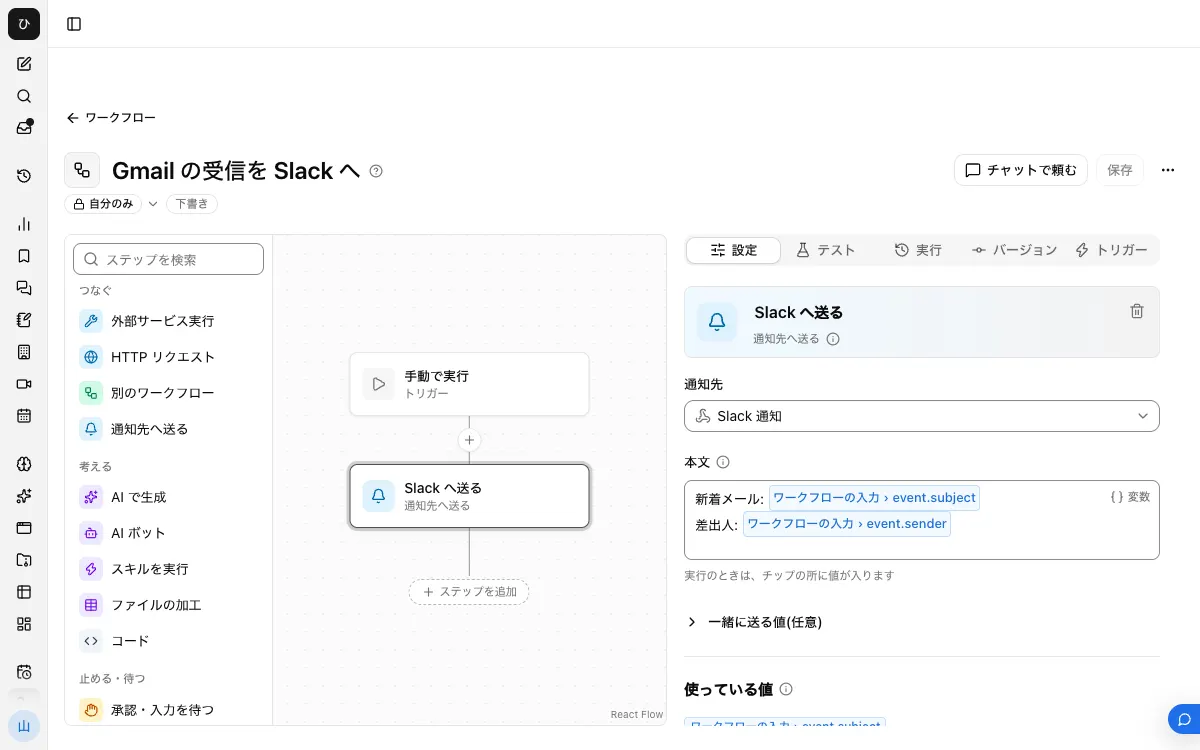
When finished, the workflow looks like this.
1. Create an Incoming Webhook URL in Slack
In Slack's app settings, turn on "Incoming Webhooks", choose the channel to post to from "Add New Webhook to Workspace", and allow it. Treat the URL you get as a secret. Slack looks for leaked URLs and disables them.
2. Register it as a notification target
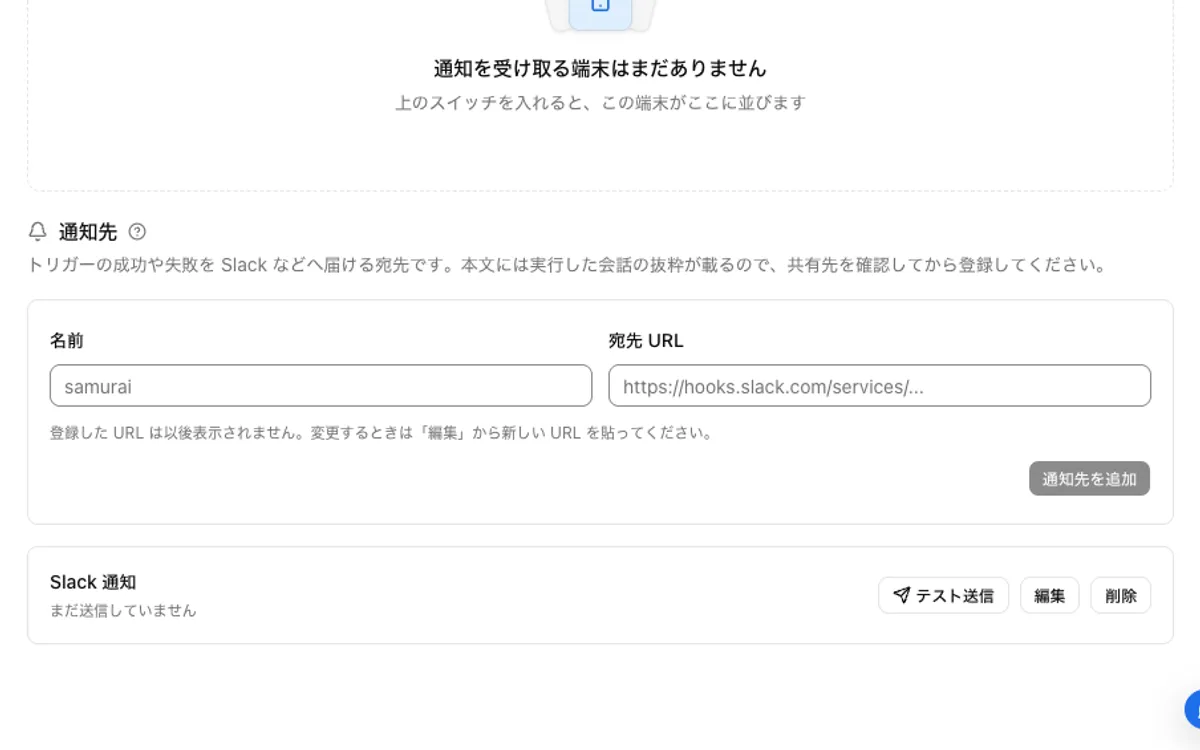
Under "Notification targets" in "Settings" → "Notifications", register a name and the URL. A registered URL is never shown again. Use "Send test" to confirm that one message arrives.
3. Connect Gmail
On the "Connectors" screen, "Add" Gmail and link it with your own account. Adding a connector is an operation for admins and managers.
4. Build the workflow
Create a draft with "New" in "Workflows". With no step selected, go to "Workflow input" under "Settings", and use "Add input field" to add a field named event with the type "Group of fields". What arrives is placed in this event.
Next, add "Send to notification target" from "Connect", choose the notification target from step 2, and write the "Body".
New email: {{input.event.subject}}
From: {{input.event.sender}}
You can add {{input.event.message_text}} to send the whole body, but then everyone in that channel can see the content of the email. We recommend starting with just the subject and sender, and adding more when you need it.
After you "Save", publish it with "Publish version N" on the "Versions" tab. Automatic runs use the published version.
5. Add the trigger and filter
Press "Add service integration" on the "Triggers" tab.
- In "Which service to watch", choose the Gmail connection from step 3
- In "When to run", choose "New Gmail Message Received Trigger"
- In the
queryfield under "Filter", enter the same condition you would use in the Gmail search box
from:billing@example.com OR subject:Urgent
Before entering it, try the same condition in the Gmail search box and confirm that only the email you want comes up.
6. Test it
Send yourself an email that matches the condition and wait up to 15 minutes. The result of the run appears as "Started by an event" under "Recent runs" on the workflow's "Runs" tab.
If you build it in chat, you can ask something like "Build a workflow that sends the subject and sender of email from billing@example.com in Gmail to the sales channel notification target." Check publishing and trigger registration with steps 4 and 5 above.
When it does not work
- The "Notification target" row shows "The destination URL was not found. Check the URL (404)": the Webhook URL is wrong, or it has been disabled on the Slack side. Recreate it in Slack and enter the new URL with "Edit" on the notification target
- The run fails, saying an inserted value is missing: the body refers to a field that the email does not have. Open the input in "Recent runs" to check which fields arrived, and match the field names in the body
- Nothing happens: a trigger does not start runs unless the workflow is published. Even after publishing it does not run immediately, so wait 15 minutes. If it still does not run, test the
queryagain in the Gmail search box - Slack refuses the message: according to the official list, an archived channel returns
channel_is_archived, a disabled Webhook returnsno_service, and an admin restriction returnsaction_prohibited. Check the channel and Slack's admin settings
FAQ
Can I send to several channels?
A Webhook always posts to one fixed channel, so create a Webhook and a notification target for each channel. Split the steps with "Condition", or create a separate workflow and trigger for each condition.
Can it be faster than 15 minutes?
The Gmail trigger checks periodically and can be up to 15 minutes late. It is not suited to relying on it for urgent email.
Can I delete notifications posted to Slack?
Incoming Webhooks have no way to delete a post. Delete it from the Slack screen.
Related how-tos
- Post Gmail notifications to Chatwork
- Post incoming Outlook mail to Teams
- Have AI draft replies to inquiry email