Even after several rounds of email with a client finally settle on a meeting time, you are still left copying the date, time, and meeting URL into your calendar by hand. Forgetting to copy it, or mistyping the time, can leave the meeting off your schedule.
This article is for sales and recruiting staff who often arrange schedules by email, and explains how to add agreed dates to your calendar automatically. You will learn what Google Calendar's built-in features can do, how to set up "Auto-add schedules" in Samurai App's unified channels, and how to fix an event that was added by mistake.
Conclusion
- Google Calendar's "Events from Gmail" picks up confirmation emails for reservations such as flights, hotels, and restaurants. Scheduling emails with clients are not covered
- In Samurai App, when you turn on "Auto-add schedules" for an email room, the AI reads the thread every time a message arrives and puts confirmed dates on your own calendar
- Inviting attendees, rescheduling, and cancellations are not applied automatically. They are proposed on cards and applied only when a person presses the button
- It adds up to 10 events automatically per room in the last 24 hours
Ways to Get Email Schedules Into Your Calendar
| Method | Emails it picks up | Effort |
|---|---|---|
| Create an event from the Gmail menu | Any email | Enter each one by hand |
| Google Calendar's "Events from Gmail" | Reservation confirmation emails (flights, hotels, restaurants, and so on) | Just turn on the setting |
| Extract the date and time from the body with an integration tool | Emails in a fixed format | Build a setup for each format |
| Samurai App's "Auto-add schedules" | Scheduling exchanges in general | One switch per room |
Google Calendar's "Events from Gmail"
Google Calendar has a feature that creates events from reservation confirmations received in Gmail. In Google Calendar on a computer, go to "Settings" → "General," turn on "Smart features in Google Workspace," and check "Show events from Gmail." According to Google's help, this feature is off by default in Japan.
It covers confirmation emails for flight, train, bus, hotel, and restaurant reservations, and for events where tickets are delivered. Emails sent to a mailing list, emails received in Cc, and emails forwarded from another account are excluded. An email with a client agreeing "Then let's go with November 20 at 2:00 PM" does not become an event with this feature.
Integration Tools That Extract Dates From the Body
You can also use an integration tool to pull the date and time from the body of incoming emails and create calendar events. This suits emails in a fixed format, such as notifications from a booking system. In exchanges between people, however, phrasing varies, as in "I'll arrange for that day" or "Actually, let's do next week," and you need to tell whether a date is confirmed or just a candidate.
What Samurai App's "Auto-add schedules" Can Do
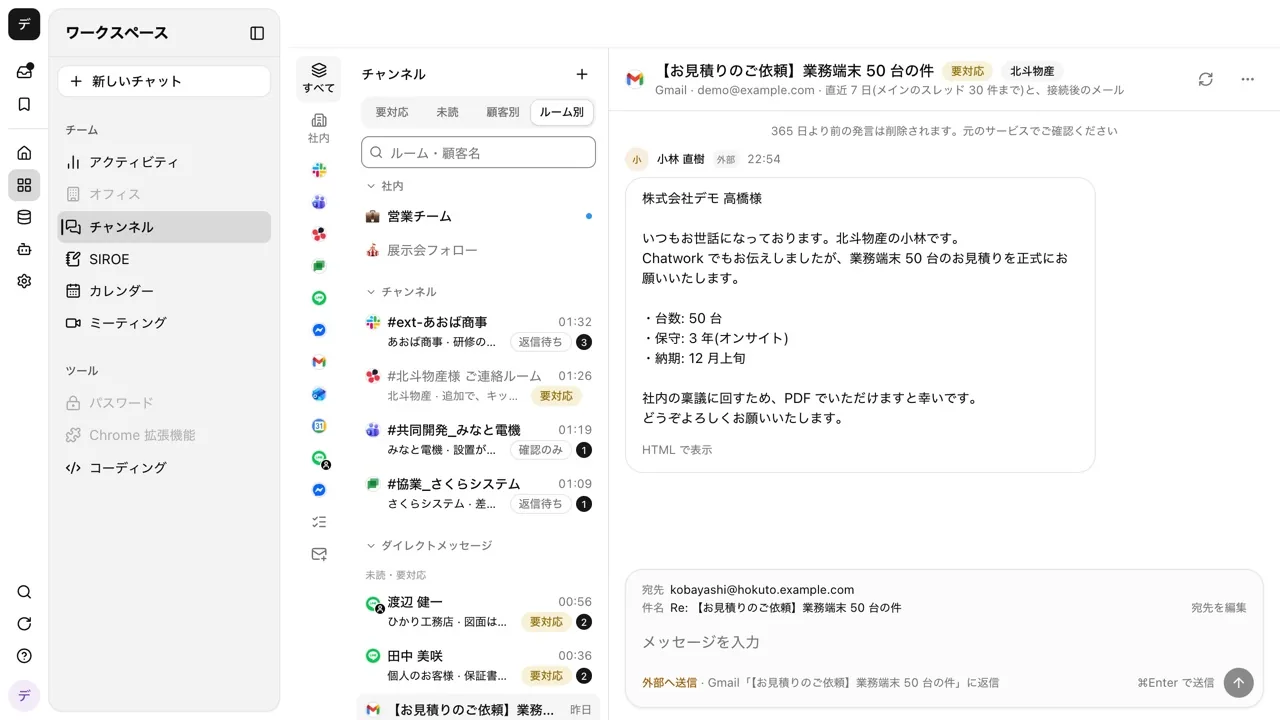
Samurai App's unified channels (/channels) is a screen for viewing your own Gmail or Outlook email as rooms, one per sender. When you turn on "Auto-add schedules" for an email room, every time a new email arrives from the other party, the AI reads the thread and determines whether a meeting, call, or visit has been set, moved, or canceled.
Confirmed dates go on the calendar of the person who turned it on, with no attendees. The AI sets the title, and the location or meeting URL is filled in, with "Added from email scheduling" in the description. If no end time is written, the event is one hour long, and a time with no time zone is treated as a time in the calendar's time zone. Dates and times that have passed or cannot be read are not added.
Some emails lead to no action. No event is created for emails that only list candidate dates, replies like "I'll arrange for that day," deadlines, newsletters, or automated notices.
Everything else is proposed on a card. The card appears above the room's input box, only to the person who turned it on. There is only the latest one per thread.
| Card | When it appears | Buttons |
|---|---|---|
| Event added | When a confirmed date was added | "Invite," "Cancel event," "View in calendar" |
| Move the event? | When the date or time of an added event changed | "Move" |
| Delete the event? | When the event was canceled | "Delete event" |
| Add this date? | When the limit was exceeded, or when a date that was never added changed | "Add" |
Every card can be dismissed with "Close." When a card appears, you are also notified by a browser notification ("Turn results" in /settings/notifications) and under "Event suggestions" in the inbox.
What It Cannot Do
- It cannot be used in chat rooms or calendar rooms. It works only in Gmail and Outlook email rooms
- It cannot be turned on in a room where "AI access" is OFF. You can still turn it off
- It does not invite addresses written in the body. Invitation candidates are only the addresses in the thread's From, To, and Cc
- It does not expand the people behind mailing lists or shared addresses. Addresses that begin with a role, such as
info@,sales@, andsupport@, and addresses that come through a mailing list (detected for Gmail only) show "This may be a group address" and are unchecked at first - The settings cannot be changed from outside AI (MCP or CLI)
What You Need
- A Samurai App account, and a (personal) Gmail connection you authorized yourself in
/settings/connections - If you also want events to appear in Google Calendar, a Google Calendar connection you likewise authorized yourself
Steps
1. Connect Gmail to Unified Channels
In /settings/connections, link Gmail with your own account. Then open "Connect your own account" in the left column of /channels and press "Connect this Gmail" in the "Email" section.
At first it imports 30 new threads from the last 7 days, and after that it fetches new mail about every 10 minutes. By default, "Emails to import" is only "Primary." If emails from clients land in another category such as "Updates," add it here.
2. Turn On "Auto-add schedules" in the Room
Open the room of the person you are scheduling with, and choose "Auto-add schedules..." from the "⋯" menu at the top right. Turn on the switch in the dialog that opens and press "Save." While it is on, an "Auto-add schedules" tag appears in the room's header (on narrow screens the tag is hidden, and the "⋯" item shows "On").
The setting is per room. Turn it on starting with the rooms of clients or recruiting candidates you schedule with most. Only the person who connected an email account can change the settings of its rooms.
3. Check the Added Event and Invite Attendees
When an email confirming a date arrives, an "Event added" card appears in the room. Candidates are listed under "People to invite"; check the people to invite and press "Invite." People who wrote in the thread and people the AI read as attending are checked from the start. People who are only in Cc are unchecked. Members are marked "Member."
If the AI got it wrong, delete the event with "Cancel event." After you delete an event yourself, the next email in the same thread is treated as a new date.
4. Export to Google Calendar
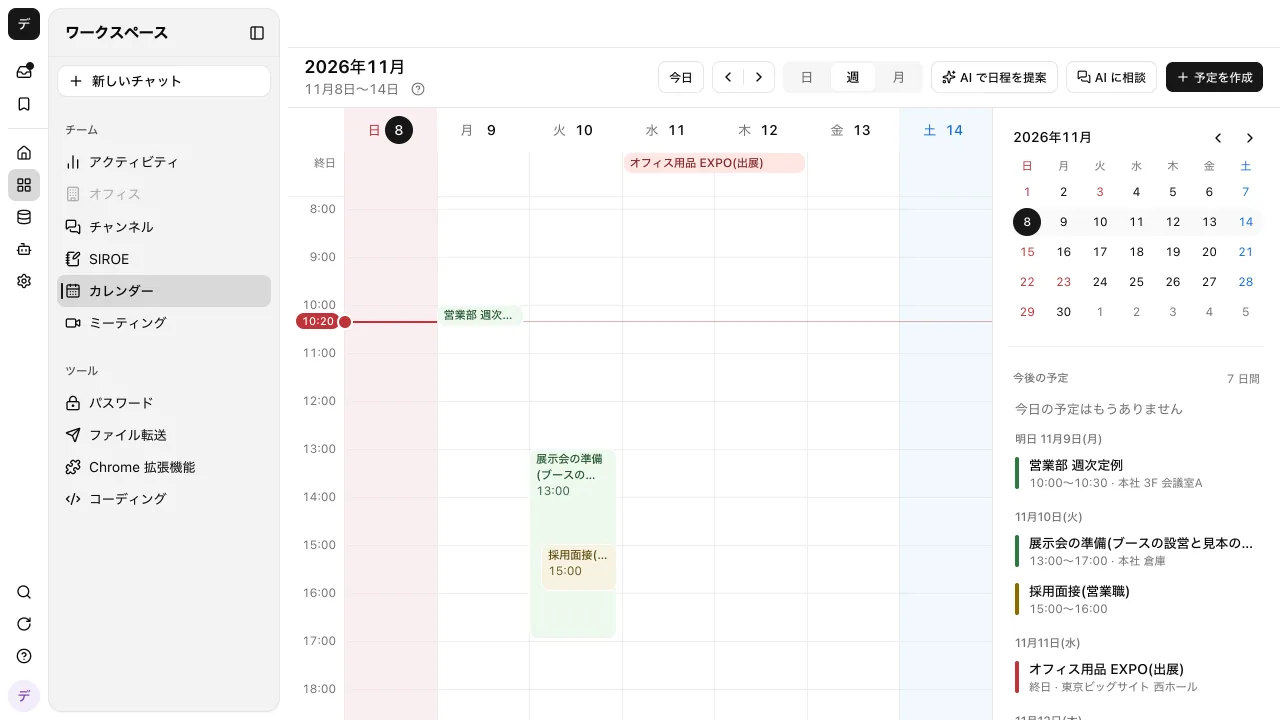
Auto-added events go into Samurai App's calendar (/calendar). To also show them in Google Calendar, press "Sync" under "Sync with external calendars" at the bottom of the right column of /calendar, and turn on "Export events." Events created after you turn it on appear in Google Calendar within seconds. Events from before you turned it on are not exported.
Invited attendees receive an invitation email from Google Calendar. Auto-added events go in without attendees so that no invitations are sent outside the company when the AI misjudges. Invitations are sent only after a person chooses them in step 3.
Notes
- In a room someone else turned on, events go on that person's calendar. The dialog says so. If you save and turn it on yourself, events go on your calendar from then on
- If the person who turned it on leaves the workspace, the setting returns to off
- Anything over the limit becomes a card. Once a room exceeds 10 events in the last 24 hours, it asks for confirmation with the "Add this date?" card
- If you change an event to all-day, reminder emails with a date and time that falls within that day do not produce a card
Frequently Asked Questions
Can I use it with Outlook email?
Yes. The same "Auto-add schedules..." appears in Outlook email rooms. To export to Outlook calendar, choose your Outlook connection under "Sync to."
Will an event be added just because I sent candidate dates?
No event is created for emails that list candidate dates. It adds an event only when the AI judges the email to be a confirmation, change, or cancellation and can read the date and time. It also does nothing when its judgment is uncertain.
Are reschedules from the other party applied automatically?
No. A "Move the event?" card appears, and the event moves only when you check the "New date and time" and press "Move." Changes and cancellations affect commitments with the other party, so a person confirms them.
Can I use it to schedule internal meetings?
If you want to propose candidates from everyone's free time on the calendar, the approach in Shortening meeting scheduling is a better fit. "Auto-add schedules" is a setting that saves you from copying dates agreed with outside parties by email.
Related Use Cases
Sources
- Show events from Gmail in Google Calendar (Google Calendar Help)
- Replies and auto-adding schedules in channel rooms (Samurai App guide)
- Email and calendar rooms (Samurai App guide)
- Sync your calendar with Google Calendar or Outlook (Samurai App guide)
Based on Google's official help and Samurai App's implementation as checked on November 9, 2026.