Staff answer one by one the questions that arrive in LINE WORKS almost every day, like "When is the expense deadline?" or "Where's the form for this document?" You'd like a bot to answer, but just registering fixed responses can't handle questions worded slightly differently.
This article explains how to have AI answer in LINE WORKS chats. The first half compares common approaches, and the second half walks through registering a LINE WORKS bot with Samurai App's "External chat," starting from the Developer Console. It also summarizes limits on the LINE WORKS side, such as chat rooms where bots can't be added.
Summary
- Create a LINE WORKS bot in the Developer Console and paste Samurai App's receiving URL into the Callback URL, and AI answers in chats
- In one-on-one chats it answers every message; in groups it answers only messages that contain a set string (by default, "@" plus the bot's name)
- Bots can't be added to chat rooms that include LINE users or people outside the company. This is a limit on the LINE WORKS side
- It can read only text messages, and its answers are text too. LINE WORKS chats can't be added to the unified inbox
Ways to have AI answer in LINE WORKS
| Approach | Best for | Preparation |
|---|---|---|
| Integration tool templates | Returning AI-written text to posts in a set chat room | A contract for the integration tool and setting up the flow |
| Your own bot server | Deep connections to internal systems | Developing and running a server that receives callbacks |
| Samurai App's External chat | Answering after looking into internal documents and tables | Registering the bot, and registering it in External chat |
Integration tool templates mainly take a post in a chat room as the trigger, create a reply with AI text generation, and send it to LINE WORKS. Because they write text each time, a use like answering after looking into internal files needs a separate mechanism.
If you build your own bot server, you write the processing that receives callbacks from LINE WORKS, verifies the signature, obtains an access token, and sends messages. It's very flexible, but you have to keep running the server.
When you register with Samurai App's External chat, the same AI you call from Slack or Teams answers in LINE WORKS chats. You can choose the AI that answers under "Bot that answers" during registration, so you can put a bot with a narrowed role at the LINE WORKS front desk, such as a general affairs bot that references only internal policies.
What it can and cannot do
How a message counts as calling the bot depends on the type of chat. In one-on-one chats, every message to the bot counts as calling it. In group chats, it answers only messages that contain the "String that counts as calling the bot in groups (optional)" from the registration form. If that's blank, it uses "@" joined with the bot's name. LINE WORKS callbacks don't carry mention information, so it decides based on the string in the message text.
It can read only text. Images, files, and stickers aren't passed to the AI. Answers are text too; any file the AI creates while answering is reported as its name and a link to the conversation in the app.
Operations that need approval are answered in the app. When the AI is waiting for approval, a note that it's waiting for approval and a link to the conversation are returned to the chat. Unlike Slack or Teams, you can't approve with buttons inside the chat.
The first time ends with linking accounts. The AI doesn't work until your Samurai App account and your LINE WORKS account are linked. The first time, you get instructions for linking, and the link in the instructions is valid for 1 hour. Once linked, the continuation of your first request comes back to the same chat.
It can't be added to the unified inbox. A LINE WORKS integration can only be used to reply when called. Unlike Slack or Chatwork, Samurai App's "Channels" can't read and reply to messages without a mention.
LINE WORKS's specifications (the Developers bot page, as of November 9, 2026) also have the following limits.
- Bots can't be used in chat rooms that include LINE users or LINE WORKS users outside the company
- Only one Callback URL can be registered per bot
- Up to 300 bots can be registered per tenant
- In chat rooms with 500 or more participants, sending works but push notifications don't
What you need
- An account that can use the LINE WORKS Developer Console, and an administrator who can publish bots in the admin console
- An administrator or manager account in Samurai App (registering External chat is an operation for administrators and managers)
- LINE WORKS pricing, per the official pricing page as of November 9, 2026, is Free at ¥0, Standard at ¥450 per user per month, and Advanced at ¥800 per user per month (all on annual contracts, excl. tax). We couldn't confirm which plans can use bots and the API, because the table on the pricing page is shown as an image. Check with LINE WORKS whether your plan can use them
Steps
1. Create an app in the Developer Console
Create an app in the LINE WORKS Developer Console and add bot to OAuth Scopes. Note the Client ID and Client Secret. You'll also use these two when obtaining a token.
2. Issue a Service Account and get the Private Key
In the same app, issue a Service Account and download the Private Key. The Private Key can be obtained only once, when you download it. If you reissue it, the previous key stops working.
3. Register the bot and paste the Callback URL
Register a bot in the Developer Console and paste Samurai App's receiving URL into the Callback URL. This URL appears as "URL this integration listens on" when you open "Add integration" in Samurai App's "External chat" and choose LINE WORKS as the platform. For the types of messages to receive, choose text. If you'll use it in group chat rooms, allow invitations to chat rooms.
After registering, note the Bot ID and Bot Secret on the bot's detail screen.
4. Register two secrets in Samurai App
On Samurai App's "Secrets" screen, register the following two.
- Bot Secret
- The JSON of credentials for sending (five values combined into one)
{
  "clientId": "…",
  "clientSecret": "…",
  "serviceAccountId": "…@…",
  "privateKey": "-----BEGIN PRIVATE KEY-----\n…",
  "botId": "…"
}
Write privateKey on one line, replacing line breaks with \n. If any of the five is missing, it can't be used for sending.
5. Register the integration in External chat
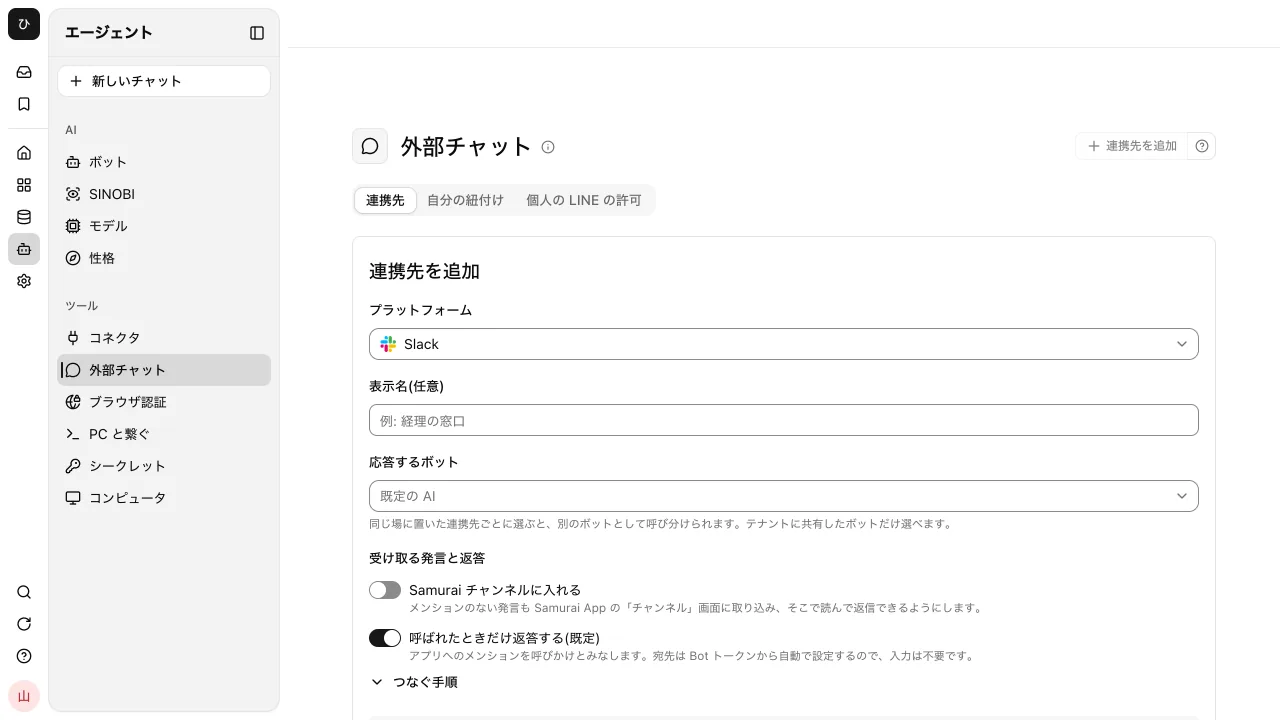
On the "Integrations" tab of "External chat", enter the following and press "Register".
| Field | What to enter |
|---|---|
| Platform | LINE WORKS |
| Display name (optional) | Example: General affairs desk |
| Bot that answers | The bot to answer. If none is chosen, the default AI |
| String that counts as calling the bot in groups (optional) | Example: @GeneralAffairsBot. If blank, "@" plus the bot's name |
| Secret name for verifying incoming signatures | The Bot Secret from step 4 |
| Secret name for sending | The JSON from step 4 |
You don't enter chat room IDs or the like. It can be called from any chat room the bot has been invited to.
6. Publish the bot in the admin console
In the LINE WORKS admin console, add the bot to your domain and publish it. Until you add it, the bot stays "In preparation" and members can't see it.
7. Talk to it and link accounts
Talk to the bot one-on-one, or invite it to a chat room and call it. The first time, you get instructions for linking, so open the link while signed in to Samurai App and press "Confirm link". You're done when the continuation of the answer arrives in the same chat.
Letting AI read LINE WORKS data
Separately from the bot that answers in chats, Samurai App's "Connectors" include a LINE WORKS API integration. An administrator or manager registers it by entering the Developer Console app's Client ID, Client Secret, Service Account, and Private Key. The app's OAuth Scopes need user.read orgunit.read group.read calendar board.
Once registered, you can ask for the following from chat.
- Read the address book and boards across the whole company
- Read your own calendar. Adding, changing, or deleting events goes through a confirmation
- Post to boards (administrators and managers only)
It can't read tasks, other people's calendars, or phone numbers and birthdays. Each person using it first presses "Verify my LINE WORKS account" once (it matches by sign-in email address).
When it doesn't work
- The bot stays "In preparation": The bot hasn't been added to the domain in the admin console
- It doesn't answer when called in a group: Check whether the message contains the "String that counts as calling the bot in groups." If blank, it's "@" plus the bot's name
- You can't invite the bot to a chat room: The chat room includes LINE users or people outside the company. Use it in chat rooms with only internal members
- Replies suddenly stopped: Check whether the Private Key was reissued. If it was, also replace the JSON in the secret with the same name
FAQ
Can a LINE WORKS bot be used in chats with people outside the company?
No. Per LINE WORKS's specifications, bots can't be used in chat rooms that include LINE users or LINE WORKS users outside the company. If you want AI at a front desk for outside parties, consider a different route, such as a LINE Official Account or Chatwork.
Can I ask questions by sending images or PDFs?
No. Samurai App reads only text messages. To ask about images or PDFs, attach the file and ask on Samurai App's web screen.
Is it fine if I only want fixed answers to fixed questions?
In that case, registering fixed responses on the LINE WORKS bot, or an FAQ chatbot product, is enough. The advantages of leaving it to AI are that it can answer questions worded differently and can answer after looking into internal documents.
Can I read LINE WORKS chats on the same screen as Slack or Chatwork?
No. LINE WORKS integrations can't be added to the unified inbox. How to bring personal LINE and Messenger together is explained in How to manage LINE and Messenger in one place.
Sources
- Bot (LINE WORKS Developers)
- Pricing plans (LINE WORKS)
- External chat settings (Samurai App usage guide)
- Integrating with external services (Samurai App usage guide)
- How to connect each API-integrated service (Samurai App usage guide)
Checked against LINE WORKS's official pages and Samurai App's implementation as of November 9, 2026.