Messages from customers arrive on LINE, and messages from business partners arrive on Facebook Messenger. Switching back and forth between phone apps, you forget to reply, and by the time you notice, days have passed. At small shops, freelancers, and small companies, this is not unusual.
This article is for people who want to bring their LINE and Messenger messages together on one screen. First we sort out the difference between official accounts, which suit a business contact point, and personal accounts. Then we explain the steps for connecting personal LINE and Messenger to Samurai App's unified inbox, and what you should know before you do.
Bottom line
- If it's your company's contact point, the standard choice is a LINE Official Account and Messenger for a Facebook Page. Both have official APIs and can be added to Samurai App's unified inbox
- You can also connect personal LINE and Messenger, but this is not a method LINE or Meta officially provides. It may violate their terms of use, and if your account is affected, that is your own responsibility
- Only the person who connected can read personal rooms. AI reads the contents only in limited cases, such as rooms where that person has set up "AI replies" or when they point to them in their own chat
- Personal Messenger only receives and sends while the person's Chrome is connected to messenger.com
The difference between official and personal accounts
| Official accounts (LINE Official Account, Facebook Page) | Personal accounts (personal LINE, personal Messenger) | |
|---|---|---|
| How it connects | Each company's official API | An unofficial method |
| Who connects it | An administrator or manager ("External chat") | The person themselves ("Connect your own account") |
| Who can read it | The person who registered the integration (one-on-one rooms) | Only the person who connected it |
| Whose name replies go out under | The official account's name, prefixed with the sender's name | Sent as the person themselves, with no name added |
| Suited for | Customers and inquiries from the general public | Business partners and acquaintances you deal with personally |
If you take work messages on a personal account, they can't be handed over when the person in charge changes, and the conversations stay on the device of someone who has left. If you're setting up a contact point from now on, receiving it on an official account lets you manage it as a company.
Connecting personal accounts is for when you already have people you talk to on personal LINE or Messenger, and you want to read those messages on the same screen as your other chats and email.
What to know before connecting personal LINE
Under "Caution" in "LINE (personal)" in "Connect your own account," three notes are listed:
- This integration is not a method LINE officially provides. It connects to LINE by unofficial means
- It may violate LINE's terms of use. If your account is affected, that is your own responsibility
- Connecting signs you out of LINE for Chrome. LINE on your phone and LINE for desktop are not affected
There is no consent checkbox. When you click "Show QR code" and start using it, you are deemed to have agreed to the "Caution" contents. Your consent is kept in the audit log.
Article 15 of LINE's terms of use (as of November 9, 2026) includes items prohibiting acts for commercial purposes and acts that improperly operate the service by technical means such as bots. If you are judged to have violated the terms, use may be suspended or the account deleted under Article 17. The more important the account is for receiving work messages, the more carefully you should decide whether to connect it.
What you can and can't do with personal LINE
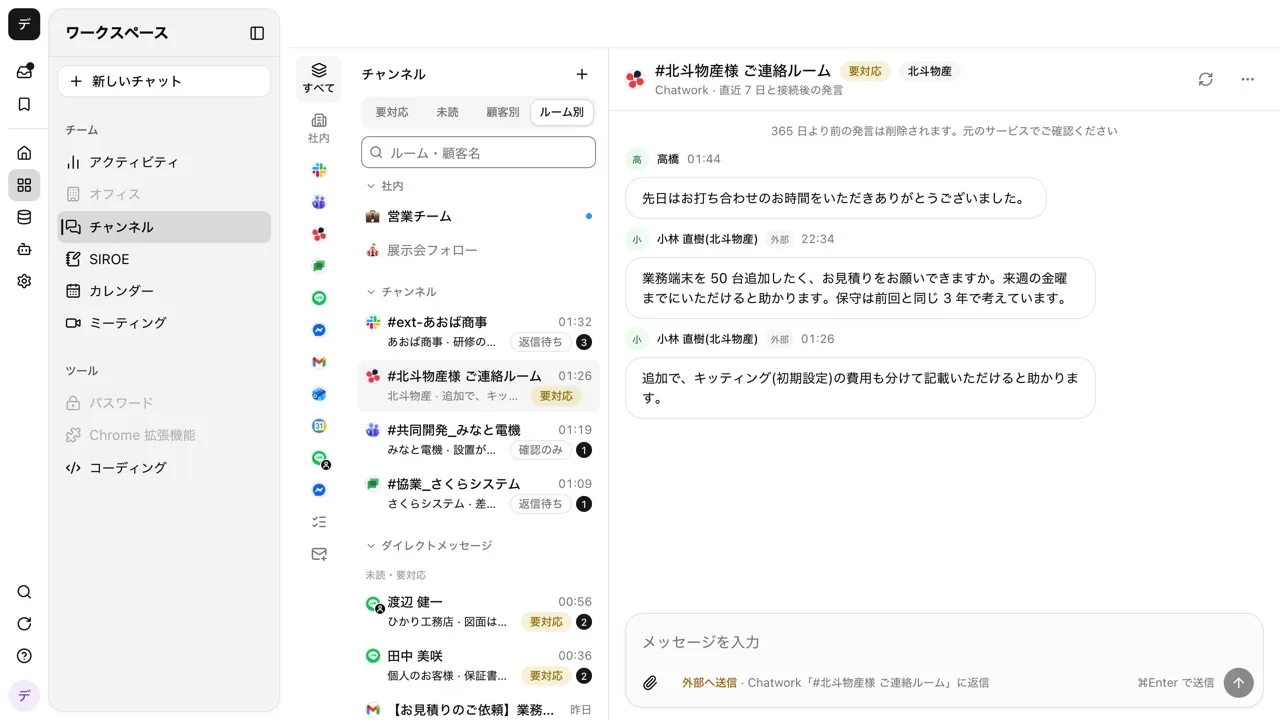
Each chat becomes a room. One-on-one chats and groups each become one room. When you connect, it imports the last 7 days (up to 200 messages, 50 chats) once, and after that messages come in as they arrive. By default, all chats are received. For chats you don't need, such as notices from official accounts, turning off their switch under "Chats to receive" removes the room and its records, and they won't be imported from then on.
You can reply with the same actions as in LINE.
- Reply: "Reply" on a message sends it in the same reply format as LINE. There's no quote
- Stickers: from the button next to the input box, you can send recently used stickers (up to 40) and the basic stickers. You can't send stickers you don't own
- Reactions: choose from the same six as LINE (like, heart, laugh, surprised, sad, angry)
- Files: up to 5 per message, up to 10 MiB per file. JPEG, PNG, and GIF arrive as images. Images and files you receive are saved to "Files" in a form only you can open. Video and audio are not imported
Reading alone doesn't mark messages as read. Just opening a room doesn't mark anything as read in LINE. When you send from the room, messages up to the last one received in that chat are marked as read. This is so people you plan to reply to later don't see you as having "read it and not replied."
If sending doesn't finish within 30 seconds, it shows "Failed to send." The message may have reached the other person, so check in the LINE app before you click "Send again."
If you sign in to LINE for Chrome again, the connection is cut. "Reconnect LINE" appears in the left column, so scan the QR code again from "Connect again."
What you can and can't do with personal Messenger
Personal Messenger connects through the "Channels" Chrome extension. The server does not hold your Facebook password or cookies; it reads incoming messages from the messenger.com page you're signed in to in your own Chrome. The "Caution" in the sheet lists four points:
- It is not a method Meta officially provides, and it connects through an extension in your own browser
- It may violate Meta's terms of use, and if your account is affected, that is your own responsibility
- Receiving and sending work only while your Chrome is connected to Messenger
- Group conversations are included too, and replying in a group reaches everyone in that conversation
The extension keeps one messenger.com tab pinned and open in your usual window. While Chrome is closed, nothing arrives, and if you try to send, it shows "Your browser isn't connected to Messenger." and won't send. Only conversations you checked after connecting are imported.
In environments where the Channels Chrome extension is not distributed, the sheet shows "The Channels Chrome extension isn't available in this environment yet."
How much is passed to AI
The contents of your personal rooms are never read by AI without your knowing. AI only reads the following places you specify:
- Rooms where you set the room's "AI replies" to "Create drafts" or "Send automatically"
- When you ask in your own one-on-one chat, such as "Tell me the messages I got from so-and-so on LINE"
- LINE chats you choose for an "Automation" event (not available for Messenger)
For chats you don't want passed to AI at all, choose "Turn off AI access" from the room's "⋯" menu. AI can't read a room that is off through any route.
A chat that read your personal rooms belongs to you alone. It is excluded from "Search past conversations" and compliance checks, can't be branched or shared, and AI leaves no memory from that chat.
If you use "AI replies"
In personal LINE and Messenger rooms, AI replies in your usual tone, and in an ongoing conversation it answers even small talk. It does not reply to a sudden single word or a single sticker, or to a conversation that ended with a thank-you. The reply's tone matches the messages you have written in that room.
It's safest to start with "Create drafts," read the AI's text, then put it into the input box with "Use" and send it. Even with "Send automatically," it does not send anything involving prices, confirming dates or deadlines, contracts, payments, complaints, or personal information; those go to drafts instead.
What you need
- A Samurai App account
- Personal LINE: the LINE app on your phone (to scan a QR code and enter a number)
- Personal Messenger: Chrome and the "Channels" Chrome extension, signed in to messenger.com
Steps
1. Check that the administrator allows it
Permission to connect personal LINE and Messenger is on from the start. On the "Personal LINE and Messenger" tab of "External chat" in the settings, there are two switches: "Allow members to connect personal LINE" (switched by administrators) and "Allow members to connect personal Messenger" (switched by managers and above). Turning one off disconnects everyone who has connected, and deletes their rooms along with the records.
If your company's policy is not to allow connecting personal accounts, turn them off here.
2. Connect personal LINE
Open "Connect your own account" in the left column of /channels, and read the "Caution" under "LINE (personal)." Click "Show QR code" and scan it with LINE on your phone. When a number (PIN) appears in the sheet, enter it in LINE on your phone. When it shows "Connected," you're done.
If the QR code expires, click "Show a new QR code." You can't connect a LINE account that someone else has connected, or a LINE account different from the last one you connected.
3. Connect personal Messenger
Install the "Channels" Chrome extension and connect it to your workspace. The sheet in "Connect your own account" walks you through the steps in order: allow Chrome to read messenger.com, read the "Caution," and click "Agree and connect." Once connected, a list of conversations to import appears, so check the ones to add to the unified inbox.
4. Decide how AI handles each room
From "⋯" in the room header, open "AI replies" and choose from "Only judge whether a reply is needed," "Create drafts," or "Send automatically." For rooms you don't want AI to read, choose "Turn off AI access."
Things to watch out for
- Replying in a group chat reaches everyone in it. Check the room name before sending, so you don't send something meant for one person
- Messages in rooms are deleted 365 days after they were sent. Older messages remain in the LINE or Messenger app
- AI auto-replies can't be undone. If a reply is wrong, send a follow-up yourself to correct it
Frequently asked questions
Can coworkers or administrators read my LINE?
No. Personal LINE and Messenger rooms can be read and sent from only by the person who connected them. Even administrators can't open them.
Can I read the company's LINE Official Account on the same screen?
Yes. When an administrator or manager registers the LINE Official Account in "External chat" and turns on "Add to Samurai Channels," it's listed alongside personal LINE. How to send an official account's incoming messages to Slack is explained in Notify Slack of messages to your LINE Official Account.
Can I bring LINE WORKS in too?
LINE WORKS integrations can't be added to the unified inbox. For calling AI in a LINE WORKS chat to have it answer, see How to have AI answer in LINE WORKS chats.
How do I stop after connecting?
Click "Disconnect" under "Connected LINE" in "Connect your own account," and the rooms and records in the unified inbox are deleted. The chats in the LINE app remain.
Sources
- LINE Terms of Use (LY Corporation)
- Channels (Samurai App guide)
- Working with messages in channel rooms (Samurai App guide)
- Replies in channel rooms (Samurai App guide)
Confirmed against LINE's terms of use and Samurai App's implementation as of November 9, 2026.