The discussion is moving along in Teams, yet whenever you want to ask AI, you open another screen and paste the thread in again. This article is for administrators of teams that use Teams, and explains how to build a bot that takes on work right there when you mention the AI in a Teams channel.
Focusing on the setup with Samurai App, it covers how this differs from the methods Microsoft provides, the points where people tend to stumble on the Azure side, and the flow for pressing approvals for operations that need them without leaving Teams. If you only want to send incoming email to Teams, How to connect Outlook and Teams to get email notifications automatically is closer to what you need.
Conclusion
- There are three main ways to call AI from Teams: use Microsoft 365 Copilot, publish an agent built in Copilot Studio to Teams, or create an Azure Bot and connect it to an external AI
- Samurai App takes the third form. Create one Azure Bot, register the Microsoft App ID and client secret, and upload the downloaded zip to Teams
- When you mention it, the answer arrives in the same thread. Images the AI creates (PNG, JPEG, GIF, up to 1 MiB) appear directly in the thread
- For operations that need approval, an approval card arrives in a Teams personal chat for the person who asked, and they can press it without opening Samurai App
- If you also want the AI to read earlier messages, add that Teams channel to "Channels" (unified channels). If you don't, only the message that called it is passed
Three Ways to Call AI From Teams
| Copilot Studio agent | Azure Bot and your own AI | Azure Bot and Samurai App | |
|---|---|---|---|
| What you build | The agent's conversations and knowledge | The bot's program and where it runs | Only the Azure Bot registration |
| How it gets into Teams | Install from Copilot Studio, or a zip | A Teams app zip | A zip Samurai App generates |
| Internal documents and services | Copilot Studio knowledge and connectors | You build it yourself | Samurai App files and connectors |
| Good for | Keeping everything within Microsoft 365 | Building custom processing in detail | Using the same AI in both chat and Teams channels |
Copilot Studio has settings to publish the agents you build to Teams and Microsoft Copilot. You can also add them to a Teams team or group chat and call them with a mention. If you want to keep everything within Microsoft 365, consider this first.
In the Azure Bot approach, the Azure Bot handles the exchange between Teams and the bot. Azure Bot's pricing page lists messages on Standard channels, which include Teams, as "unlimited messages" on both Free and S1 (as of November 9, 2026). The server that runs the bot's processing and the AI cost extra.
What You Can and Cannot Do With Samurai App
What you can do
- Call it from any channel in a team where the bot was added. You do not enter channel IDs
- When called, it creates one conversation per thread and replies in the same thread. The conversation also stays in the requester's history, and they can continue it later in Samurai App
- Files the AI creates are posted to the thread after the answer, up to 5 at a time. Teams can show PNG, JPEG, and GIF images up to 1 MiB. For anything else, the file name, the reason it could not be posted, and a link to the conversation in Samurai App are listed
- Answers that include tables and headings appear in Teams as tables and headings
- If you add the Teams channel to "Channels," the earlier messages are also passed to the AI when it is called. When called in a thread reply, the first time it passes messages from the thread's parent onward, and from the second time on, only messages after the AI's last reply. Up to 30 messages and 6,000 characters are passed, with any excess dropped starting from the oldest
What you cannot do
- It does not respond to messages without a mention, because Teams sends only messages that mention the bot to the Azure Bot
- There is no streaming display of the answer as it is written, as in Slack; it arrives as one message after it finishes
- It cannot post files other than images to Teams, because Teams bots cannot upload files to channels
- It cannot read messages from before the Teams channel was added to "Channels." Only messages after the connection are listed
What You Need
- An Azure subscription, and permission to create an Azure Bot
- Permission to upload custom apps to Teams. "Upload custom apps" must be enabled in "Setup policies" in the Teams admin center
- An administrator or manager in Samurai App (these two roles can create external chat integrations)
Steps
1. Create an Azure Bot
In the Azure portal, choose Azure Bot under "Create a resource." Set the Microsoft App ID type to single tenant. According to Microsoft's quickstart, creation of new multi-tenant bots ended on July 31, 2025.
Once created, note the Microsoft App ID under "Configuration." Then go from "Manage" next to the Microsoft App ID to "Certificates & secrets," and create a new client secret. Note the "Value" column, not the secret ID. The value is shown only right after it is created.
2. Register the Integration in Samurai App
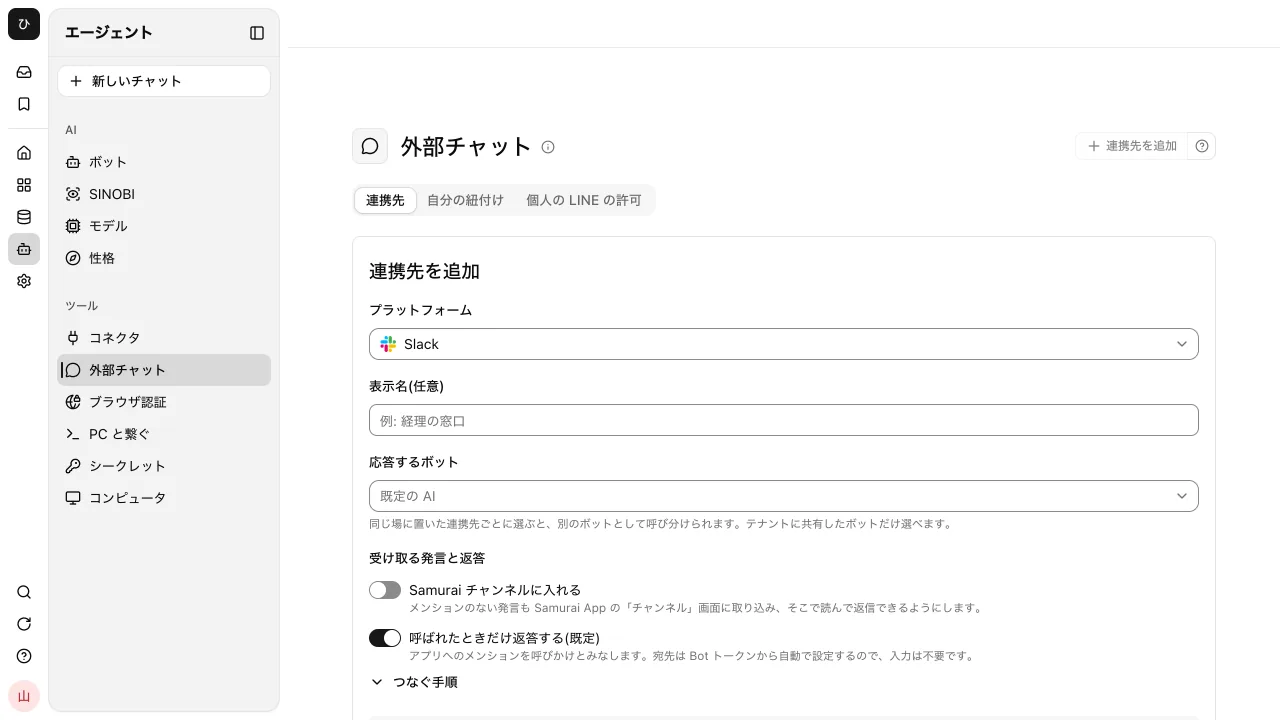
In Samurai App's "External chat" (/settings/chat-surfaces), press "Add integration" and choose Microsoft Teams as the platform. You can register the two values you noted as tenant-wide secrets right there. In the "Azure Bot Microsoft App ID" and "Azure Bot client secret" fields, choose the names of the registered secrets, not the values.
Leave "Reply only when called (default)" on. If you choose a bot shared with the tenant under "Responding bot," it answers with that bot's settings.
3. Set the Messaging Endpoint and Teams Channel on the Azure Bot
Paste the messaging URL shown in the form into the Messaging endpoint under "Configuration" on the Azure Bot. Next, add Microsoft Teams under "Channels" on the Azure Bot, agree to the terms of service, and apply.
4. Create the Teams App Zip and Add It to a Team
Enter the Microsoft App ID in "Steps to connect" on the Samurai App form and press "Download Teams app" to get the zip to upload to Teams. If you also want to read messages without a mention in "Channels," turn on "Add to Samurai Channels" before downloading.
In Teams, upload the zip from "Apps" → "Manage your apps" → "Upload an app," and choose the team that will use it.
5. Mention It, and Link Your Account the First Time Only
Mention the bot in a Teams channel and talk to it. The first time, linking instructions arrive in a Teams personal chat. The link expires in 1 hour. Open it while signed in to Samurai App and press "Confirm link"; the request you first made then proceeds as is, and the answer arrives in the original thread.
Nothing is executed for requests from people who have not linked their accounts. Once linked, it runs with the Samurai App permissions of the person who asked.
Pressing Approvals in Teams
When it stops at an operation that needs approval, such as rewriting a file or sending to an external service, the thread shows a note to that effect and a link to the conversation. At the same time, an approval card arrives in the Teams personal chat of the person who asked.
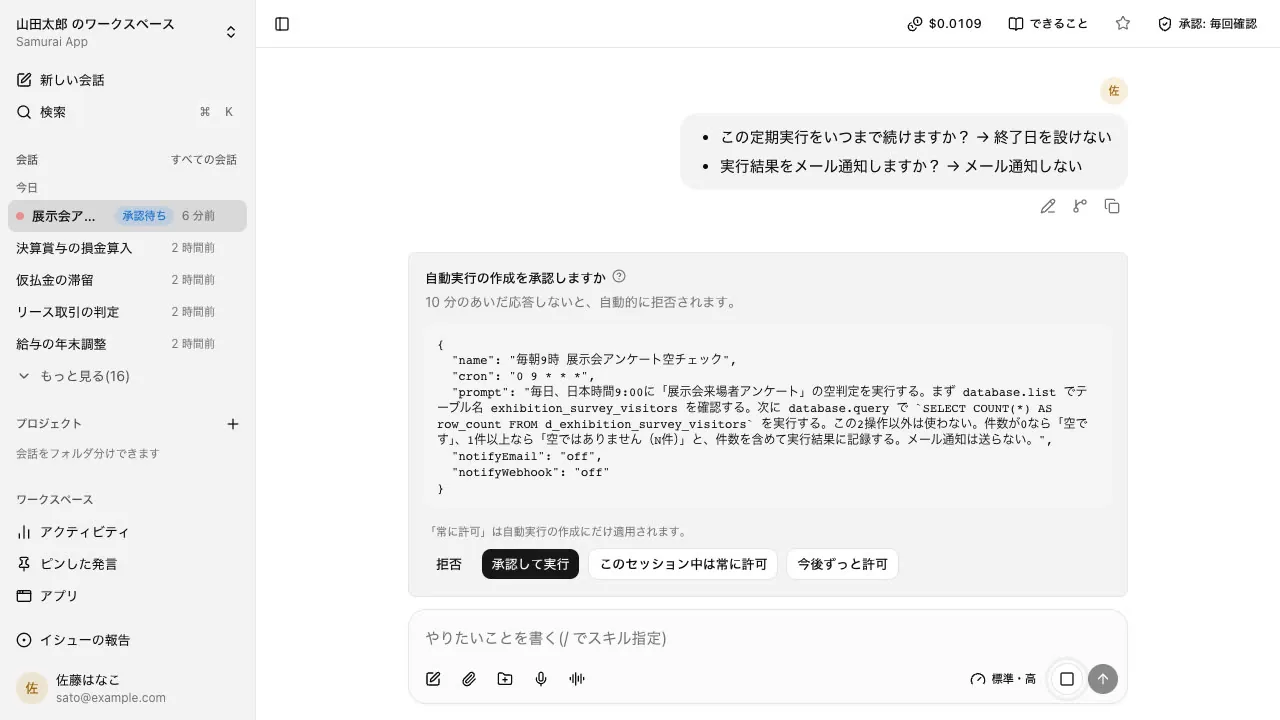
The card's buttons are "Reject," "Approve and run," "Always allow for this session," and "Always allow from now on," shown under the same conditions as in the app. Other people's cards do not arrive, so no one else in the Teams channel can press them on someone's behalf.
Publishing an app, publishing a workflow or running a draft, declaring a skill, and operating the cloud browser cannot be pressed in Teams; decide them on the Samurai App screen.
Common Stumbling Points
- Adding Teams under "Channels" on the Azure Bot does not by itself let you talk to it from Teams. Messages arrive only after you add it to a team as a Teams app
- If uploading custom apps is not allowed, you cannot upload the zip. In the Teams admin center, turn on "Upload custom apps" under "Teams apps" → "Setup policies." Each team's "Allow members to upload custom apps" setting also applies
- When the client secret expires, replies simply stop without any error. The maximum lifetime is 24 months. Create a new value before it expires, and replace the value of the secret with the same name in Samurai App
- Even if you regenerate the zip, the team's app keeps its old permissions until you update it. If you turn on "Add to Samurai Channels" later, update the app with the regenerated zip
- If you remove Teams from "Channels" on the Azure Bot and add it again, the addresses of earlier conversations can no longer be used. If you want to keep using it, leave it in place rather than removing it
- If you have an app made in the Developer Portal, this zip appears as a separate app. To keep using that app, add the permissions to the Developer Portal app and update it
Example Requests
Answers are more consistent when you have it read the flow of the thread and specify the format.
@Samurai Make a table separating what was decided in this thread and what is still undecided.
Include names where an owner has been assigned
@Samurai From last week's meeting minutes, pick out the terms of Company A's quote,
and write a draft reply. I'll do the sending
For the first one, in a Teams channel added to "Channels," it reads the thread's messages to answer. In a Teams channel that has not been added, only the message that mentions it is passed, so write what it needs in your message.
Frequently Asked Questions
How is this different from Copilot in Teams?
Microsoft 365 Copilot and Copilot Studio stay within Microsoft 365. Samurai App's bot answers using Samurai App's files, memory, and connected external services, and you can continue the same conversation in the app. Which suits you depends on where your internal documents live.
Can it respond without being mentioned?
No. Even if you turn off "Reply only when called," Teams does not send messages without a mention to the Azure Bot. To read messages without a mention, install a zip created with "Add to Samurai Channels" turned on, and read them in Samurai App's "Channels."
Can I do the same in Slack?
Yes. In Slack, the answer streams as it is written, and the approval card appears in the thread in a form visible only to the person who asked. If you only want to forward Slack messages to Teams, see How to connect Slack and Teams to forward messages automatically.
Can I have multiple bots in one team?
Yes. Teams registers an integration per bot, so register separate Azure Bots and choose a "Responding bot" for each. When bots call each other, they run with the permissions of the person who first called them, and stop after 3 rounds.
Sources
- Quickstart: Create an Azure Bot resource (Microsoft Learn)
- Azure AI Bot Service pricing (Microsoft Azure)
- Manage custom app policies and settings (Microsoft Learn)
- Connect and configure an agent for Teams and Microsoft Copilot (Microsoft Learn)
- External chat settings (Samurai App guide)
Based on Microsoft Learn and Microsoft Azure's official pages as checked on November 9, 2026.