When departments or clients are split between Slack and Microsoft Teams, you end up writing the same message twice. This article explains how to forward messages from a Slack channel to a Teams channel.
On the Teams side, the mechanism for receiving messages changed in May 2026, and the steps in older articles no longer work. The Teams specifications were checked against Microsoft's official documentation as of November 4, 2026.
Bottom line
- You use a Slack event and a Teams Workflows webhook. A Slack "Channel Message Received" event runs the workflow, and "Send to destination" sends to the URL issued by Teams Workflows
- The body alone may not be enough, so send it as a card. According to Microsoft's support documentation, the accepted formats are Adaptive Card and MessageCard. Put the card JSON in "Values to send along"
- The reverse direction is not possible with service integrations. Microsoft Teams events are not among those you can choose for service integrations
What you can and cannot do
Connector URLs cannot be used. Office 365 connectors, including Incoming Webhook, were retired in May 2026, and Microsoft directs users to move to Workflows.
Teams Workflows limits:
- Messages can be up to 28 KB
- More than 4 requests per second are throttled
- A flow is owned by the person who created it. If that person leaves the company, the flow becomes ownerless, so add co-owners in advance
How it appears in Teams: basic Markdown formatting is displayed, and HTML is ignored.
Constraints on the Slack side: a message may not include text. When a referenced field does not arrive, the step fails. user and channel are IDs, so names do not appear in Teams. Also, each service integration event costs about ¥0.5 when it arrives. In busy channels this adds up, so narrow down the channels you forward.
What you need
- Manager or higher permissions in Samurai App
- A Slack connection (add and connect it on the "Connectors" tab)
- A Teams account that can add Workflows to the destination channel
Steps
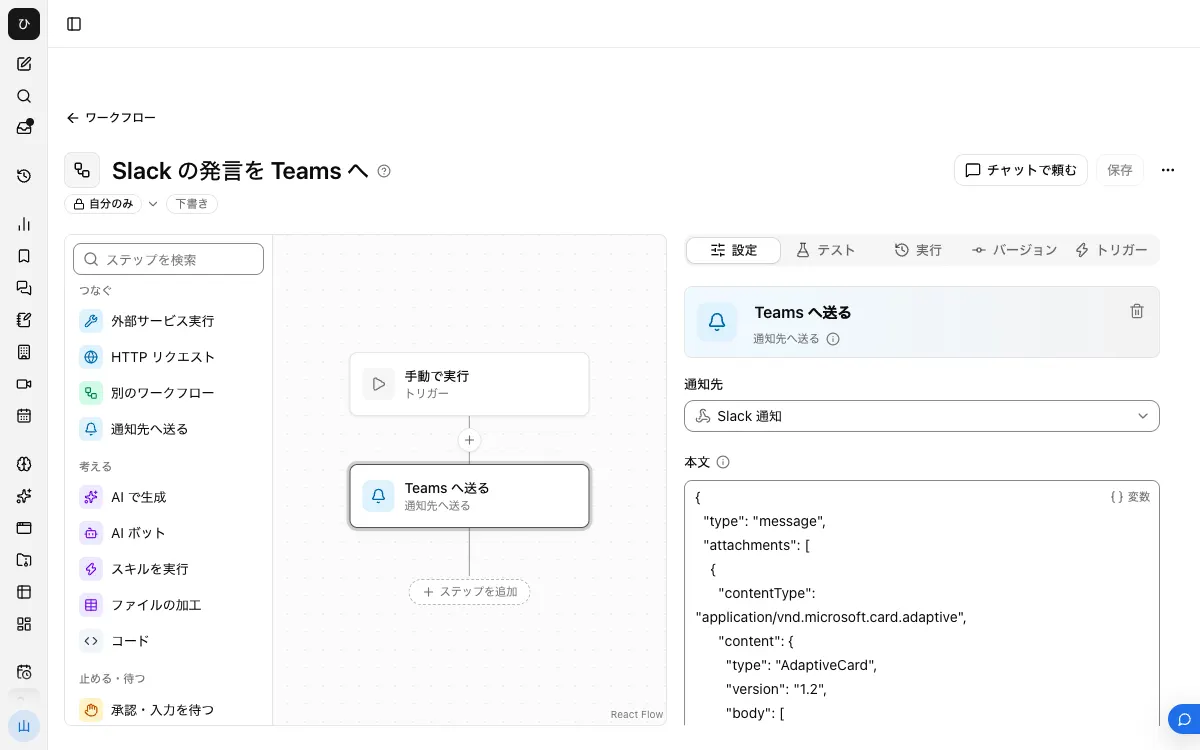
When finished, the workflow looks like this.
1. Issue a webhook URL in Teams
- Open "Workflows" from "..." (More options) on the destination channel
- Choose the template "Send webhook alerts to a channel" and save it with "Save"
- Copy the URL that is shown
The same list also has templates that restrict who can send (such as from specific people). These require authentication. Samurai App's destinations send with the URL alone, so choose one that does not require authentication.
2. Register it as a destination
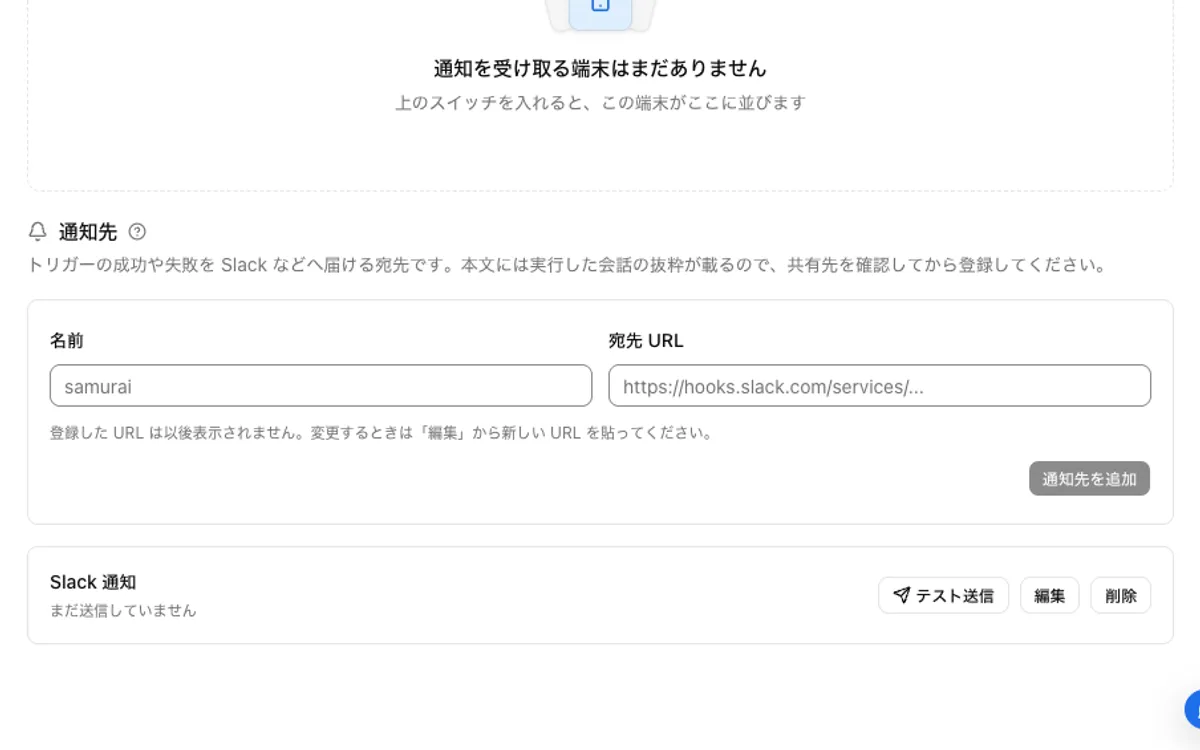
In "Settings" > "Notifications," register a name and the URL from step 1.
"Send test" sends only the body text. With receivers that require a card format, it may not appear in the channel. Even if nothing is posted here, judge by the result in step 5.
3. Build the workflow
From "Create" in "Workflows," choose "New."
- In "Workflow input," use "Add input field" to create a field named
eventwith the type "Group of fields" - From "Connect," place "Send to destination" and choose the destination from step 2
- Put
{{input.event.text}}in "Body" - Open "Values to send along (optional)" and, with "Edit as JSON," enter the following JSON
{
  "type": "message",
  "attachments": [
    {
      "contentType": "application/vnd.microsoft.card.adaptive",
      "content": {
        "type": "AdaptiveCard",
        "version": "1.2",
        "body": [
          {
            "type": "TextBlock",
            "wrap": true,
            "text": { "$template": "From Slack: {{input.event.text}}" }
          }
        ]
      }
    }
  ]
}
When inserting a value inside the JSON, writing "text": "{{input.event.text}}" does not expand it. It arrives as literal text. Wrap it in { "$template": "..." } as shown above.
"Values to send along" and "Body" are sent side by side in the same JSON. The Teams receiver reads the card.
To build it in chat, you can ask from "Build in chat" under "Create." Check in the resulting step that the card JSON has the shape from step 3.
Create a workflow that receives Slack messages as input.event and sends them to the Teams destination as an Adaptive Card
4. Publish and attach the service integration
Press "Publish version N" on the "Versions" tab.
Next, open "Add service integration" on the "Triggers" tab. Under "Which service to watch," choose the Slack connection, and under "When to run," choose "Channel Message Received." In the filter fields, specify the target channel and set it to exclude bot posts.
5. Post in Slack and check both sides
After posting, check the following two places. Events do not necessarily run as soon as they arrive.
- Samurai App: a "Started by event" row appears in "Recent runs" on the "Runs" tab and has progressed to the notification step
- Teams: the post appears in the channel. If it does not, check the flow's run results in "Your workflows" in the Teams Workflows app
Success in Samurai App alone does not prove the post reached Teams. The result of "Send to destination" is queued, at the point the send was handed off. Beyond that, check the result of the flow on the Teams side.
When it does not work
- Samurai App shows success but nothing appears in Teams: check in the Workflows app that the flow is on and that the run did not fail. If it failed, the shape of the card JSON may be the cause
- The literal text
{{input.event.text}}appears in Teams: it is not wrapped in$template. Fix it to the shape in step 3 and publish again - The "Destination" row says the request was refused: for 401 or 403, it shows "The destination refused the request. Check the key in the URL and the settings on the destination side." Check that you did not choose a template that requires authentication
- Only some messages do not come through: the step may be failing on messages without
text. Check in "Recent runs," and place a "Branch" step before it so it continues only wheninput.event.text"has a value"
Frequently asked questions
Do Teams Workflows need a paid license?
Microsoft's documentation states that these templates do not require a Premium license.
Can I forward long text at once?
Teams messages are limited to 28 KB. For channels that forward long messages, you can summarize with a "Generate with AI" step before sending. In that case, reference <step id>.text in the card's $template.
Can I also send to a Teams chat?
There is a template for chats, "Send webhook alerts to a chat." Only where the URL is issued changes; the rest of the steps are the same.
Related guides
- How to post from Slack to Chatwork
- How to forward Chatwork to Slack
- How to notify Slack of LINE messages