Checking today's schedule before the morning meeting or the daily report is a small task, but it happens every day. With a shared team calendar, if everyone can see the same list in a channel, everyone checks the schedule the same way.
This article explains how to send today's events to Slack every morning, and how to get notified right before an event.
Summary
Build the morning list by adding a "scheduled task" to a Samurai App workflow. An "AI bot" step reads the calendar and makes the list, and a "Send to notification target" step sends it to Slack.
To be notified of each event right before it starts, use the "service integration" event "Event Starting Soon" (GOOGLECALENDAR_EVENT_STARTING_SOON_TRIGGER). This one can send without calling a model.
What it can and cannot do
- A scheduled task runs at most once an hour. Times are in Japan time. You can specify down to the minute, such as "8:50 every morning"
- A scheduled task can't create per-event notifications like "10 minutes before". Build pre-event notifications with a service integration
- Pre-event notifications from a service integration can be up to 15 minutes late. Because it checks periodically, if you set "5 minutes before," the notification may arrive after the event starts. Allow for the delay and set
minutesBeforeStartto 20 minutes or more - All-day events are not included in pre-event notifications. They're excluded by default. To include them, turn on
includeAllDay - The "AI bot" step calls a model. Each run incurs usage fees. The wording of the list may vary slightly from run to run
- Everyone in the channel can see the events that were read. Any event the connected account can read is included as is. Even private Google Calendar events (
visibilityisprivate) can be read in detail by an attendee's own account. When you connect a personal calendar, exclude them in the instructions or send to a channel just for that person
What you need
- A Google account that can read the calendar you want to notify about
- A Slack Incoming Webhook URL for the destination channel
- A scheduled task can be added by the person who created the workflow or by someone with manager or higher permission. Adding a service integration requires manager or higher
Steps (morning list)
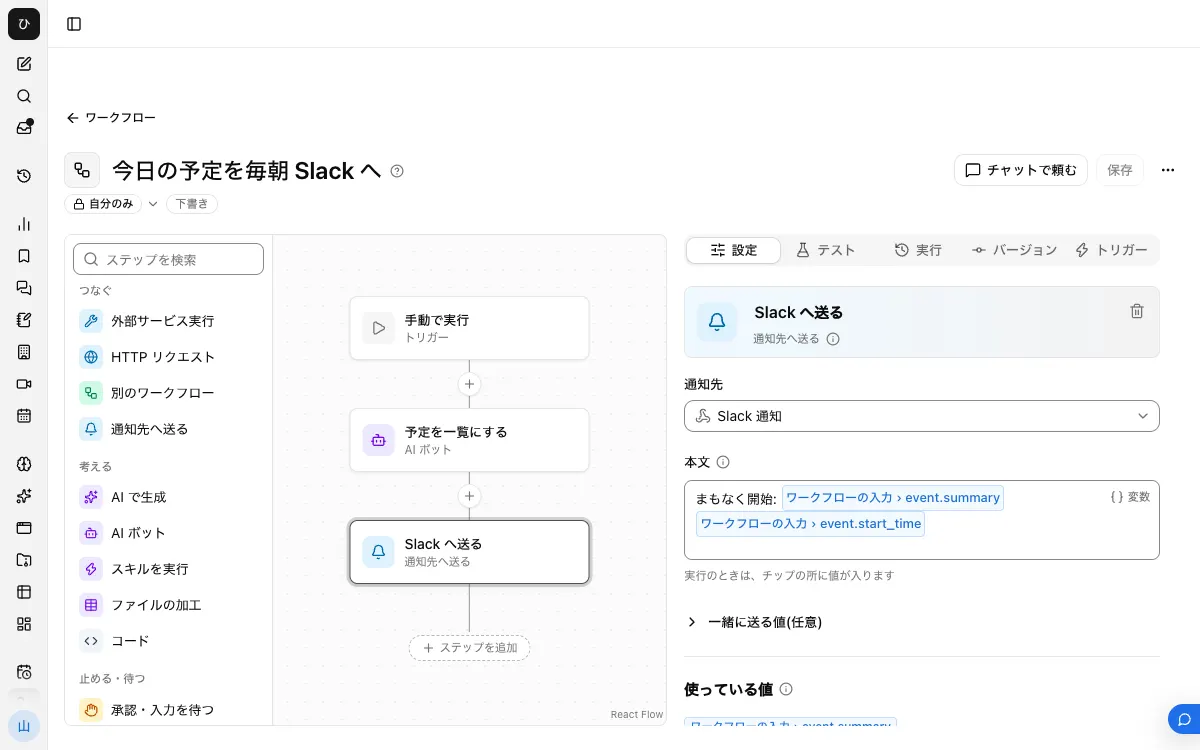
When you're done, the workflow looks like this.
1. Register the notification target
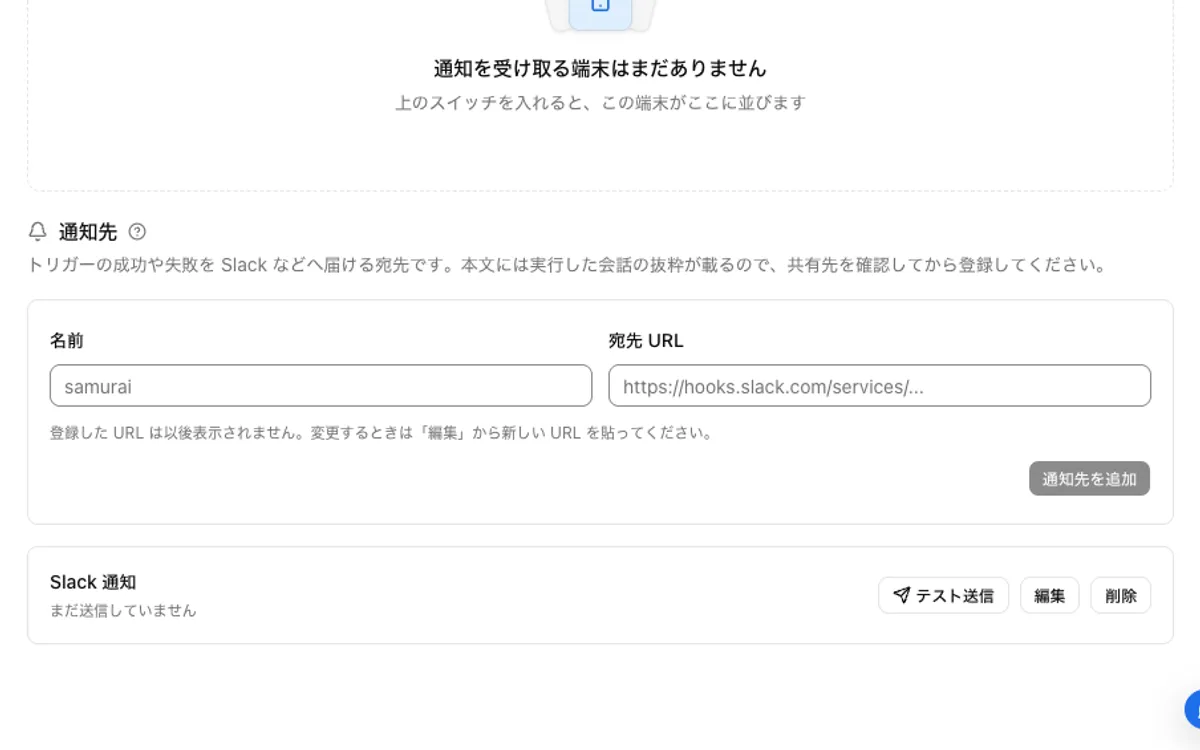
In Slack's app settings, turn on "Incoming Webhooks" and create a URL by choosing a channel from "Add New Webhook to Workspace". In Samurai App, go to "Settings" → "Notifications" → "Notification targets", register a name and the URL, and check it with "Send test".
2. Connect Google Calendar
On the "Connectors" tab of the "Connectors" screen, press "Add" for Google Calendar, choose "Add with standard integration app", and sign in.
3. Build the workflow
From "Create" in "Workflows", choose "New". No input fields are needed.
Place an "AI bot" step and write the following in "Instructions".
Read the events from Google Calendar for today from 0:00 to 24:00 (Japan time).
Write one per line in order of start time, in the form "09:30 Weekly meeting".
Write all-day events at the top in the form "All day Summer holiday".
For private events, write only "Busy".
On days with no events, write only "No events today".
Return only the list, with no introduction.
Next, place a "Send to notification target" step, choose the notification target, and in "Body" insert the text of the "AI bot" step from "/".
4. Publish and try it
Press "Save", then press "Publish version N" on the "Versions" tab. Run it once with "Run published version" on the "Runs" tab, and compare what arrives in Slack with the events in the calendar.
5. Add a scheduled task
On the "Triggers" tab, press "Add scheduled task". In "cron (minute hour day month weekday)" under "When to run", enter the following.
50 8 * * 1-5
This is 8:50 on weekdays. A description and the next run date and time appear below the field, so check them. If you know when to stop, also enter "End date (optional)".
Building it in chat
You can also do step 3 by asking something like the following from "Build in chat" in "Workflows". What gets created is a draft, so check the steps before going on to steps 4 and 5.
Build a workflow that lists today's Google Calendar events and sends them to the notification target "Morning schedule"
Steps (notification right before an event)
1. Build and publish the workflow
In "Workflow inputs", press "Add input field", name it event, and set the type to "Group of fields". Write the following in the "Body" of a "Send to notification target" step, and publish.
Starting soon: {{input.event.summary}}
{{input.event.start_time}}
location and hangout_link are fields that some events don't have. If you write them directly in the body, notifications for events without them may fail. Start with only the fields that are always present, and add more after looking at the input under "Recent runs".
2. Add a service integration
On the "Triggers" tab, under "Add service integration", choose the Google Calendar connection, and under "What triggers it" choose "Event Starting Soon". Enter the number of minutes in minutesBeforeStart under "Filter".
When it doesn't work
The morning run fails with "too many requests" (429)
The "standard integration app" shares API limits with other companies. With Google services, this has actually happened for scheduled tasks at the top of the hour. First, shift the run time to something like 8:50. If it keeps happening, reconnect with "Add with your own OAuth client".
Some events are missing, or a different calendar is read
By default, it reads the main calendar of the connected account. To read a team calendar, write the calendar's ID or name in the instructions. The connected account must be able to read that calendar.
It doesn't run at the scheduled time
Only the published version runs automatically. If it isn't published, it won't run. Also check whether "Disabled" or "Trigger paused" is shown.
The run succeeds, but no events appear
If the "AI bot" step's operations are set to require approval, an approval card goes to the person who started it, and it waits up to 20 minutes. Even if it's rejected or times out, the step doesn't fail; the AI continues without performing that operation. Check pending approvals in your "Inbox" and the operation settings an administrator has applied.
FAQ
Can I make the list without AI?
Yes, but it takes more steps. Use a "Code" step to turn today's range into Japan-time dates and times, pass timeMin, timeMax, singleEvents, and orderBy to the operation GOOGLECALENDAR_EVENTS_LIST in a "Run external service" step, then format the result with another "Code" step and send it. Note that all-day events use start.date, and events with a time use start.dateTime.
Can I stop it only on days off?
1-5 stops it on weekends. Cron can't single out public holidays. Even if you mention holidays in the "AI bot" instructions, sending won't stop.
Related guides
- Send Calendly bookings to Slack
- Summarize a Slack channel with AI every morning
- Collect news automatically and send it to Slack