When you take customer inquiries through a LINE Official Account, nobody notices a message until someone goes to look at the LINE admin screen. This article explains how to send messages that arrive at an Official Account to a Slack channel.
The LINE specifications were checked against LINE Developers' official documentation as of November 4, 2026.
Summary
- This is for LINE Official Accounts. Receive the Messaging API Webhook with Samurai App's "External trigger", and send it to Slack from a workflow with "Send to notification target"
- Personal LINE accounts cannot be forwarded with these steps. Events in personal chats cannot start a workflow
- Prepare for non-text messages and for several events bundled into one delivery. Stickers and images have no
message.text, and referring to it as is makes the step fail
What it can and cannot do
LINE Official Accounts vs. personal LINE
| LINE Official Account | Personal LINE | |
|---|---|---|
| Where | "External trigger" on the workflow's "Triggers" | "A message arrived in a personal LINE chat" under "In-app events" in "Automation" |
| Prerequisite | A channel with the Messaging API enabled | Admin permission ("Allow personal LINE" under "External chat") and a connection |
| What runs | A workflow | An agent (it cannot start a workflow) |
| When it runs | When a Webhook arrives | In the 1 to 20 chats you choose, when there has been no message for 30 seconds or after 5 minutes of continuous messages (up to 50 messages) |
Fields that arrive
A single Webhook from LINE consists of destination and an events array.
eventsis not always one item. Several events can arrive together, or it can be empty (a connectivity check from LINE). Reading only the first one drops the second and later ones, so process them one at a time with "Repeat"- Events other than messages also arrive. Events such as a friend add (
follow) have nomessage - Message types are mixed. Text, images, video, audio, files, locations, and stickers all arrive in the same shape. Only text has
message.text - The sender's name does not arrive. There is only
source.userId, and the display name has to be looked up with a separate API (GET /v2/bot/profile/{userId}). Depending on the device and consent conditions, evenuserIdmay be missing - The content of images and files does not appear in Slack. These steps can send only the fields of
message(such as the type and ID)
How it arrives
LINE's redelivery is off by default. The official documentation says the same event may arrive more than once, and events may arrive out of order. Do not treat the order in Slack as the order they were received.
An external trigger can be started up to 10 times per minute by default. Beyond that it returns 429. You may exceed this when replies arrive in bulk, such as after a broadcast message. The official documentation says LINE may stop sending Webhooks if receiving keeps failing for a long time.
What you need
- A LINE Official Account and a channel with the Messaging API enabled
- A Slack Incoming Webhook URL
- Manager or higher permission in Samurai App (needed to add an external trigger)
Enable the Messaging API with "Enable Messaging API" in LINE Official Account Manager. The provider you choose at this point cannot be changed later, so agree on it with the people in charge at your company before you proceed.
Steps
When finished, the workflow looks like this.
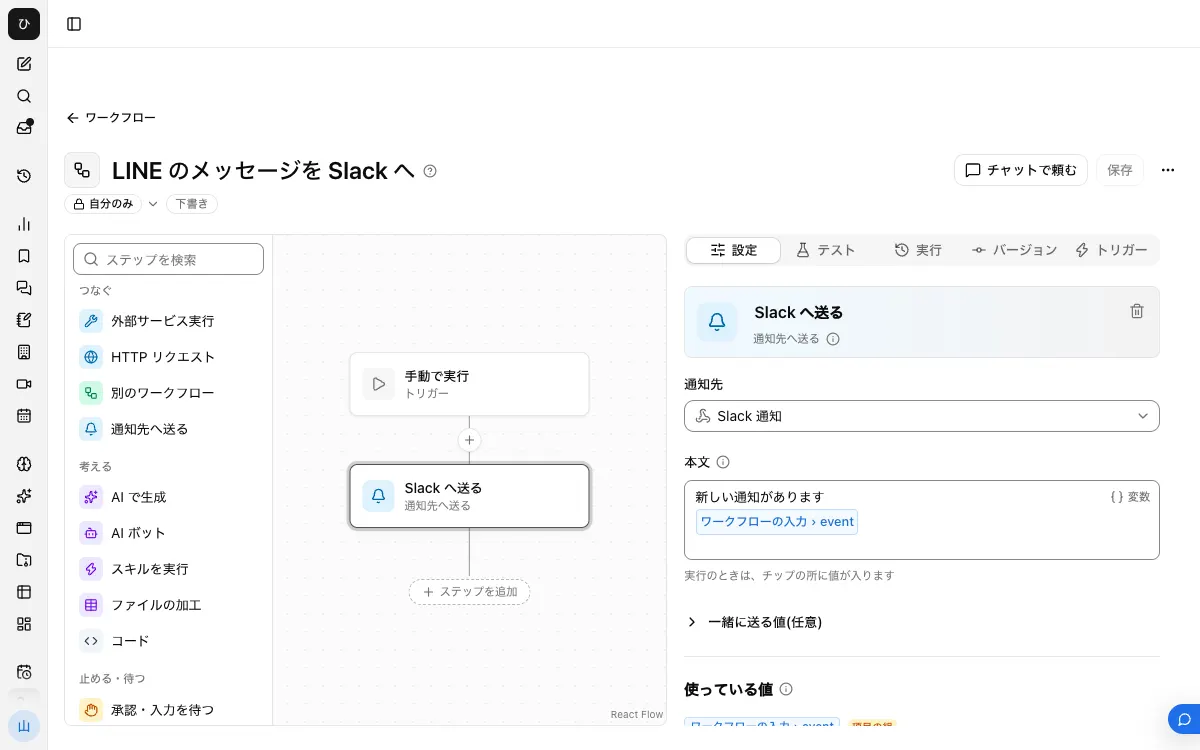
1. Register the Slack notification target
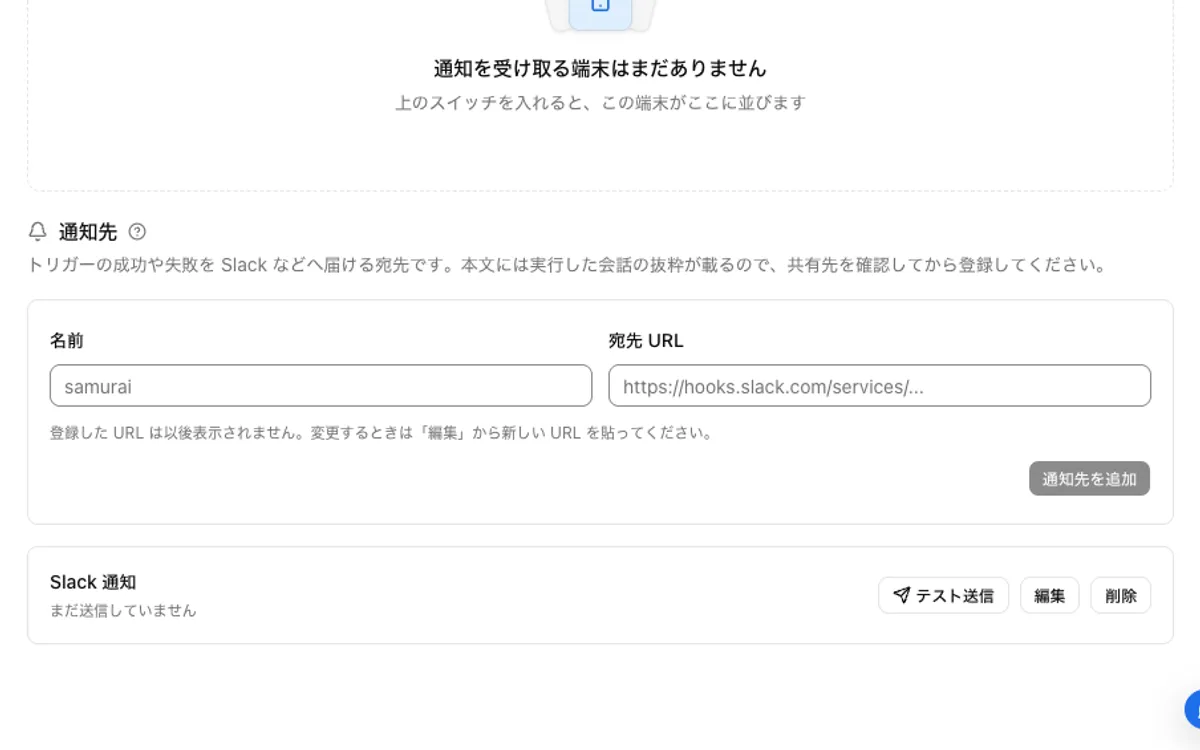
In Slack's app settings, turn on "Incoming Webhooks", choose a channel with "Add New Webhook to Workspace", and issue a URL.
Under "Notifications" in Samurai App's "Settings", register a name and this URL, and confirm with "Send test" that it arrives.
2. Build the workflow
Choose "New" from "Create" in "Workflows".
- Under "Workflow input", use "Add input field" to create a field named
eventwith the type "Group of fields" - Place "Repeat (each row of a list)", and enter
{{input.event.events}}in "List" andevin "Row name" - Inside it, place a "Condition", and use "Add condition" to set "Has a value" on
{{ev.message}}. Friend adds and similar events drop out here and send nothing - On the matching side, place another "Condition" and set "Has a value" on
{{ev.message.text}} - On the matching side, place "Send to notification target" with this body
Received at the LINE Official Account
{{ev.message.text}}
- On the non-matching side, also place "Send to notification target" with this body
A non-text message arrived at the LINE Official Account (type: {{ev.message.type}})
Do not add AI steps. In the next step, LINE is made to wait for the run to finish, so a long process delays the response.
If you build it in chat, you can ask from "Build in chat" under "Create" like this. Triggers cannot be added from chat, so do step 3 on screen.
Build a workflow that receives the LINE Webhook as input.event and, for each row of input.event.events, sends message.text to the Slack notification target if it exists, and sends "A non-text message arrived" if there is a message but no text
3. Publish and add an external trigger
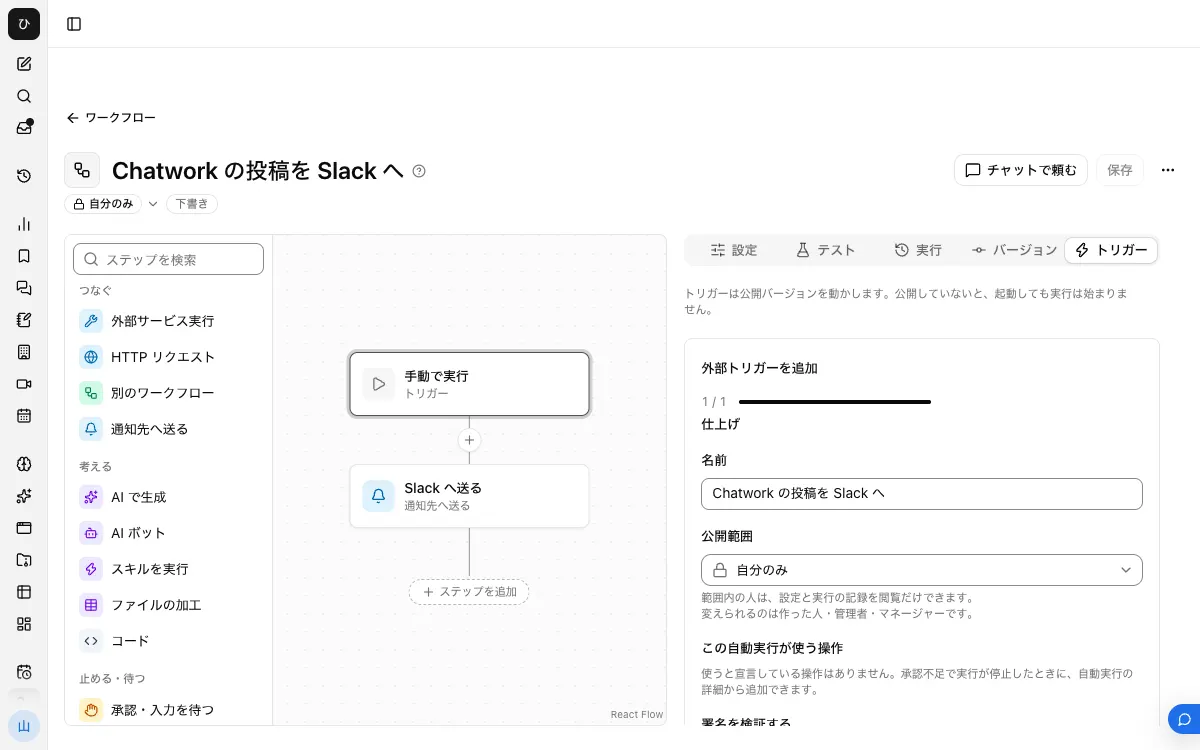
Press "Publish version N" on the "Versions" tab.
Then open "Add external trigger" on the "Triggers" tab, turn on "Also accept the secret in the URL's ?k=", and create it. The secret is shown only once right after creation, so write it down.
Leave "Verify signature" off. Samurai App verifies signatures by comparing hexadecimal signatures, and cannot verify LINE's signature (Base64). In this setup, the ?k= secret is what protects it.
4. Enter the Webhook URL in LINE
In "Webhook URL" on the "Messaging API" settings tab of the LINE Developers console, enter the external trigger's URL with ?k=<secret>&wait=result added to the end. Turn on "Use webhook".
Do not leave out &wait=result. An external trigger returns 202 (accepted) by default, but LINE's official reference requires a status code of 200. With wait=result, it waits for the run to finish and returns 200.
A channel can have only one Webhook URL. If you overwrite it on a channel already used by another system or by Samurai App's "External chat", messages will stop reaching that one. Run this on a test channel.
5. Verify and send a message
Press "Verify" under the Webhook URL. An empty events arrives, and if it shows success, the URL works.
From your own LINE, send one text and one sticker to the Official Account. You are done when two messages arrive in Slack and "Started externally" rows appear under "Recent runs" on the workflow's "Runs" tab.
When it does not work
- "Verify" fails: check
?k=and&wait=resultin the URL. A wrong secret, or "Also accept the secret in the URL's ?k=" being off, returns 404, and an unpublished workflow returns 422 - Nothing appears in "Recent runs": check "Webhook URL" and "Use webhook" in the "Messaging API" settings
- The step fails on stickers or images:
message.textis referenced without a "Condition". Use the shape from step 2 - Putting
ev.source.userIdin the body sometimes fails:userIdis missing in some deliveries. If you put it in the body, branch on "Has a value" for it too - Another system's LINE integration stopped: the cause may be that a channel can hold only one Webhook URL. Check the current value of "Webhook URL" and consider using separate channels
FAQ
Can I send chats that arrive at my personal LINE to Slack?
Not with these steps. Personal LINE is used through the "In-app events" trigger, when an admin allows it, to run an agent. It cannot start a workflow.
Can I reply to LINE from Slack?
The steps in this article are one way. The reply_token used to reply on LINE is valid for only 1 minute, so if a person replies after reading Slack, you need a push message addressed to the userId.
Related how-tos
- How to send Slack to Teams
- How to send Chatwork to Slack
- How to send notifications from kintone to Slack