Meetings with clients happen on Zoom and internal regular meetings on Google Meet. In both cases, someone writes the minutes after the meeting, and each tool keeps its records in a different place. This article is for people who want to record Zoom and Google Meet meetings and create minutes automatically. It explains when each vendor's built-in features are enough, and how to record with a browser extension when they aren't.
Prices and eligible plans for the built-in features are the values confirmed on each vendor's official pages as of November 9, 2026.
Bottom line
- On Zoom, AI Companion's meeting summary can be used even on the free Basic plan, up to 3 times a month for meetings you host. To use it without worrying about the count, you need a paid plan (Pro is $14.16 per user per month billed annually)
- Google Meet transcripts require an eligible edition such as Business Standard or higher. Gemini's automatic note-taking also requires an eligible edition or a Google AI plan
- If you use a mix of tools and want to gather records in one place, or it's hard to add a recording bot to other people's meetings, you can record the tab audio and microphone with a browser extension
- Samurai App's "Meeting Notes" extension records the browser versions of Google Meet, Zoom, and Microsoft Teams, and keeps the minutes and transcript in Samurai App's "Meetings." It can't record meetings in desktop apps
- Telling participants you're recording is the job of the person recording. The extension shows nothing in the meeting chat or on screen
Three ways to create minutes automatically
| Meeting tool's built-in features | Add a recording bot to the meeting | Record with a browser extension | |
|---|---|---|---|
| Setup | Plan and administrator settings | Invite the bot | Install the extension and connect it |
| Visible to others? | A transcribing indicator appears | The bot appears in the participant list | Nothing is shown |
| Where records are kept | In each tool | In the bot's service | Where the extension is connected |
| Suited for | Everything happens in one tool | You want to record even when you can't attend | You switch between several tools |
The built-in features have the advantage of staying inside the tool and needing little extra setup. Adding a bot lets you record even if you don't attend, but other organizations' meetings may refuse to let the bot in. A browser extension records in your own browser, so it only works for meetings you attend.
Requirements for the built-in features of Zoom and Google Meet
| What you can use for free | What you can use on paid plans | |
|---|---|---|
| Zoom AI Companion | Basic: meeting summaries 3 times a month for meetings you host, AI note-taking 3 times a month | Pro and others: most features unlimited |
| Zoom recording | Basic: local only, meetings up to 40 minutes each | Pro: local and 10GB of cloud, meetings up to 30 hours |
| Google Meet transcripts | Not eligible | Business Standard, Business Plus, Enterprise Starter, Enterprise Standard, Enterprise Plus, Workspace Individual, and others |
| Google Meet automatic note-taking (Gemini) | Not eligible | An eligible edition or a Google AI plan. Work accounts need an administrator to enable it |
Zoom's pricing page states that even on paid accounts, AI Companion features do not apply to users with Basic permissions. Zoom Pro costs $16.99 per user per month billed monthly, or $14.16 billed annually.
Google Meet transcripts are saved in the "Meet Recordings" folder in the organizer's Google Drive, in a subfolder created for each meeting. Japanese is supported. Automatic note-taking supports only one language per meeting, and the notes are attached to the same Drive folder and to the Google Calendar event.
The built-in features are enough when your meetings use one fixed tool and everyone has a paid plan for it. When it's mixed, with clients inviting you to Zoom and Meet used internally, records end up scattered across tools.
What you can and can't do with the browser extension
Samurai App's "Meeting Notes" is an extension for Chrome and Edge. It records the meeting tab's audio and your own microphone mixed into one track and puts it in Samurai App's "Meetings."
What you can do
- Record the browser versions of Google Meet, Zoom, and Microsoft Teams. Recording starts only when you click "Start recording" in the side panel
- Before recording, choose "Visibility," "AI access," "Minutes format," "Meeting language," "Meeting analysis," and "Live structuring" in the side panel. Your choices become the defaults for the next recording
- Fill in the "Meeting name" from the meeting tab. On Google Meet, the calendar event's name is filled in. For Zoom and Meet calls with no event, it stays empty, and if you start with it empty, the name becomes the service name plus the date and time, such as "Google Meet 2026-10-26 14:00"
- With "Live structuring" on, the side panel shows captions and tabs for organized notes, diagram, glossary, and facilitation during recording
- During recording, use "Take screenshot" to keep what's shown in the meeting tab in the meeting
- When you stop recording, the recording is uploaded automatically, and a transcript separating speakers as "Speaker 1," "Speaker 2," and so on, along with minutes, is created
What you can't do
- It can't record the Zoom or Microsoft Teams desktop apps, or people joining by phone. The extension only touches browser tabs
- Only one meeting can be recorded at a time
- It can't be used in Firefox or Safari
- Captions during recording are not split by speaker. Because the other participants' voices and yours are mixed into one track, the speaker name during recording is the name of the service
- One recording can be up to 4 hours. When it reaches 4 hours, recording stops and keeps what was recorded up to that point
Using the side panel while recording
If you record with "Live structuring" on, you can follow the flow of the conversation in the side panel during the meeting.
- Captions: what's said streams by as is. Turning on "Translated captions" shows a translation in the language you choose under each line. Use it, for example, to follow an English meeting in Japanese
- Organized notes: summarizes "Decisions," "Action items," and "Unresolved" for each agenda item. Items can be edited or deleted with the pencil and trash buttons, and your edits go into the minutes
- Diagram: draws the agenda items and decisions around the meeting name. You can zoom in and out and export it to HTML
- Facilitation: shows a warning when the conversation drifts from the agenda, plus good questions to ask and what to move on to next. Turn it on for meetings you facilitate
Even during recording, you can change which tabs are shown, translated captions, the update interval, the minutes format, and the meeting language under "AI settings" in the side panel.
What you need
- Chrome or Edge (on a computer)
- A Samurai App account, and a workspace where "Meetings" is available
- Text to tell meeting participants you're recording (a line in the invitation or chat)
Steps
1. Install the extension and connect it to Samurai App
Open "Meetings" in Samurai App and click "Meeting Notes extension" at the bottom of the left column. Install the extension from "Open store" in the dialog. Administrators also see a line to add to the Chrome policy ExtensionInstallForcelist for distributing it to managed devices all at once.
Once installed, click "Connect the Meeting Notes extension" in the same dialog and finish signing in in the window that opens. You can't start recording until it's connected.
2. Join the meeting and open the side panel
Join the Zoom or Google Meet meeting in your browser. Click the extension icon on the meeting tab to open the side panel.
3. Choose settings and click "Start recording"
"Visibility" can't be changed later. For meetings where people from outside the company speak, it's safer to start with "Only me" and share later by passing along the minutes file. For "Minutes format," choose from the default "Discussion," "Regular meeting," "1-on-1," and others.
If the meeting must not be transcribed, turn "AI access" off. When it's off, no transcription, minutes, or AI processing is done, and only the recording is kept.
4. Stop recording when the meeting ends
When you stop recording, the extension uploads the recording. There's no manual upload step. Until the upload finishes, the meeting list and details show "Recording."
5. Check the minutes and transcript
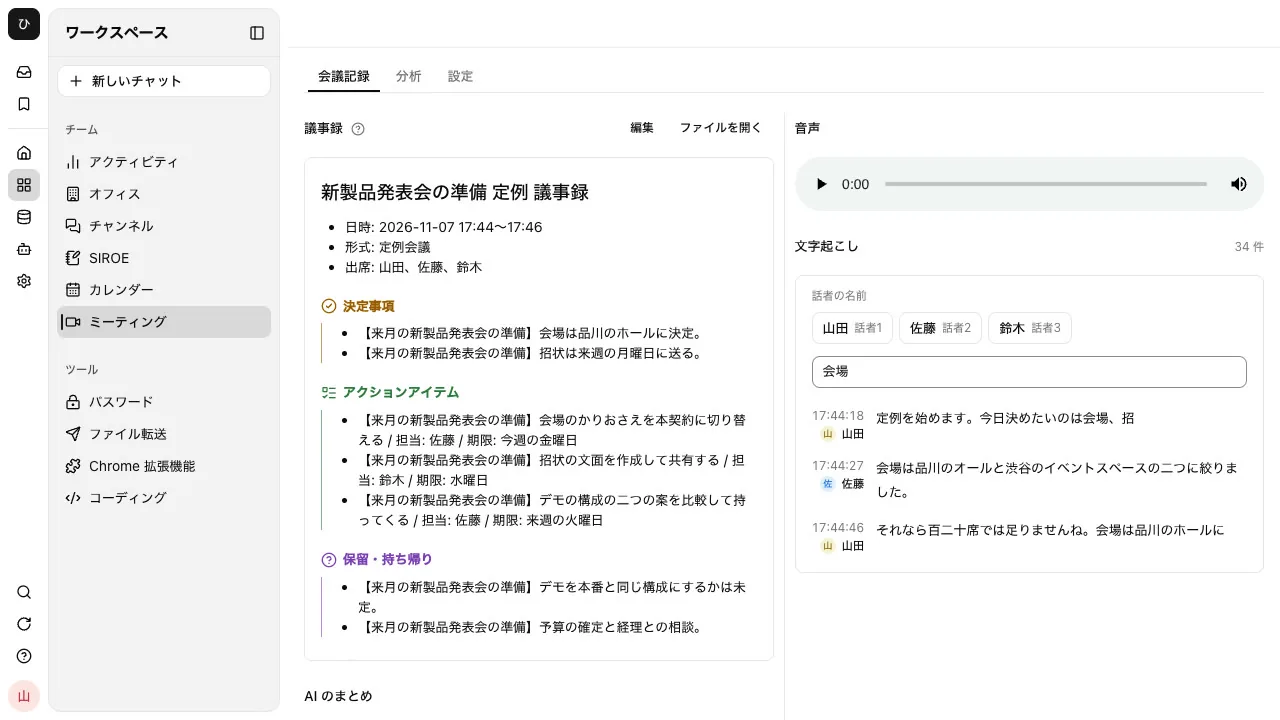
Open the meeting's details to see the minutes, audio, and transcript together. Instead of the "In person" label, the list and details show the service name, such as "Google Meet" or "Zoom."
The person who created the meeting or an administrator can give "Speaker 1" a name under "Speaker names" above the transcript (up to 40 characters). Names are reflected in the transcript, the minutes, and the transcript file.
Things to watch out for
Tell others you're recording. The extension shows nothing on the meeting screen or in the chat, so others can't tell you're recording. Tell them at the start of the meeting or in the invitation.
Join from the browser. Meetings joined from desktop apps can't be recorded. From a Zoom invitation link, choose the option to join from your browser.
Stop recording before closing the meeting tab. What's being recorded is the meeting tab's audio. When the meeting ends, stop recording in the side panel before closing the tab.
Decide the record retention period. The retention period for recordings and transcripts can be set per workspace to 90 days, 180 days (default), 365 days, or no limit. Administrators and managers change it on the "Automatic processing" tab of "Permission settings."
Usage. Transcription and organizing during recording, and redoing the transcript afterward, count toward the AI usage of the person who recorded. When the limit has been reached, only the recording is kept.
If you want to send minutes to a Slack channel automatically, the steps are explained in How to share minutes to Slack automatically.
Frequently asked questions
Can I create minutes on Zoom's free plan?
AI Companion's meeting summary can be used even on the free Basic plan, up to 3 times a month for meetings you host. However, Basic meetings are limited to 40 minutes each. If you record with the extension, you can record meetings joined in the browser regardless of your Zoom plan.
Can I get transcripts with a free Google Meet account?
Google Meet's transcript feature requires an eligible edition such as Business Standard. Free personal accounts are not eligible (as of November 9, 2026).
Can I record without adding a recording bot to someone else's meeting?
With a browser extension, you can record without a bot joining. It doesn't appear in the participant list either. In return, you need to tell people yourself that you're recording.
Can in-person meetings be kept in the same place?
Yes. With "Record in person" in Samurai App's "Meetings," you can record meeting-room meetings with a smartphone or computer microphone too. The steps are explained in How to record in-person meetings and turn them into minutes.
Sources
- Plans and pricing (Zoom)
- AI note-taking (Zoom)
- Use transcripts with Google Meet (Google Meet Help)
- Take notes automatically with Gemini in Google Meet (Google Meet Help)
- In-person meeting recording and the Meeting Notes extension (Samurai App guide)
Prices and eligible plans confirmed on Zoom's and Google's official pages as of November 9, 2026.