Pasting the key points of the minutes into a channel by hand after every meeting tends to get put off. This article explains how to send the minutes created in a Samurai App meeting to Slack the moment they are finalized.
The short answer
- For minutes from Samurai App meetings, choose a notification destination and any conditions in "Send minutes to a notification destination," and the workflow and trigger are created in one step.
- What is sent is a summary, not the full text. Sections such as decisions and action items include up to 10 items each.
- It does not call a model, so this sending uses no credits. Creating the minutes is separate.
- To have AI rewrite them before sending, build that separately with an "In-app event" trigger.
- Minutes from meetings held outside Samurai App cannot be sent with these steps. Google Meet, Zoom, and Microsoft Teams meetings are saved as Samurai App meetings if you record them with the browser's "meeting notes extension."
What you can and cannot do
What is sent:
- The title and a link to the meeting
- Topic titles
- Sections for each meeting type ("Their situation and challenges," "Concerns and objections," and "Next actions" for a client meeting; "Progress by agenda item," "Issues," and "Next agenda" for a regular meeting)
- "Decisions," "Action items," and "On hold / to take back" (up to 10 items per section, up to 200 characters per item)
- "Attendees" (up to 30 people)
Empty sections are left out, and headings appear in the meeting's language. The full text is not sent, so readers open the minutes from the link.
When nothing is sent:
- Meetings with "AI access" turned off (minutes are not created automatically)
- Meetings where nobody's speech was transcribed
- Meetings where the creator was over their usage limit and no minutes were created (you can use "Create minutes" later)
- Meetings the person who created the trigger cannot see
Also, the notification is sent only once, when the minutes are first saved. If you rewrite the minutes later, they are not sent again. There is no "Run now" either, so you cannot go back and send minutes from past meetings.
What you need
- The channel to post in, and a Slack Incoming Webhook URL
- A Samurai App account (anyone can create this trigger, regardless of permission)
Steps
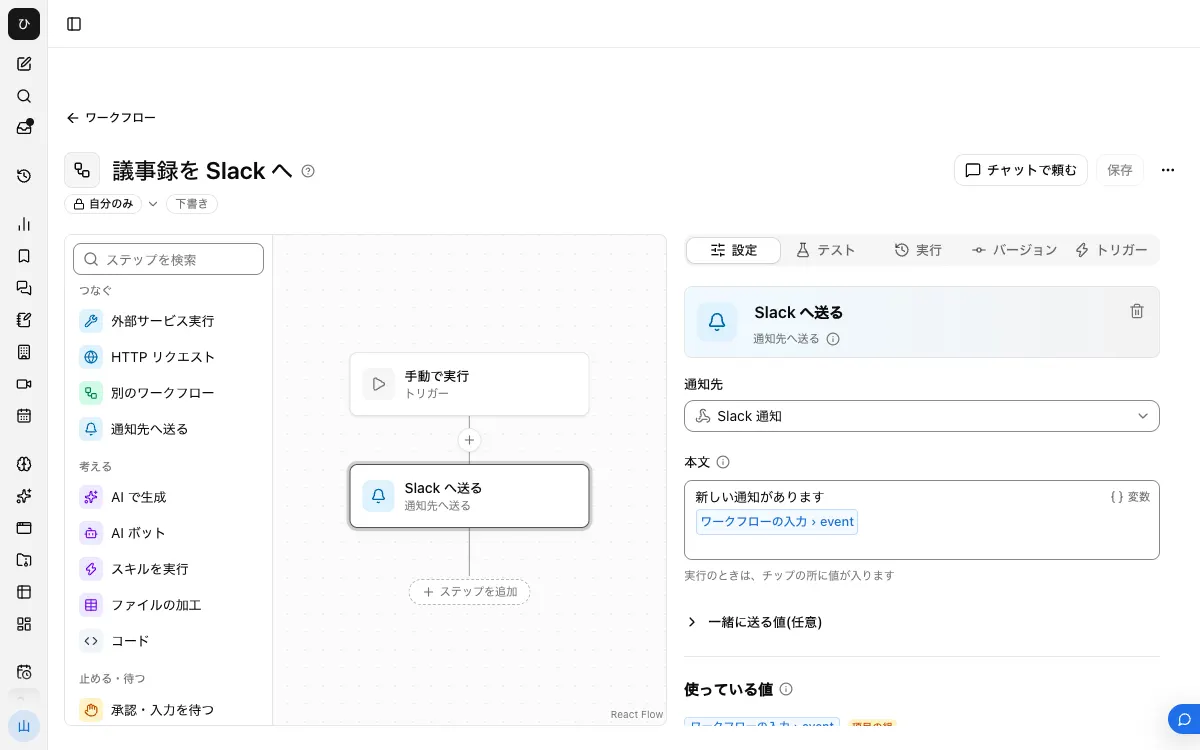
When it is finished, the workflow looks like this:
1. Create a webhook for the Slack channel
Create an app in Slack's app management screen, enable "Incoming Webhooks," choose the channel to post in, and issue a URL. The channel is fixed per URL. If you want to send to different channels, create a URL for each channel.
2. Register a notification destination
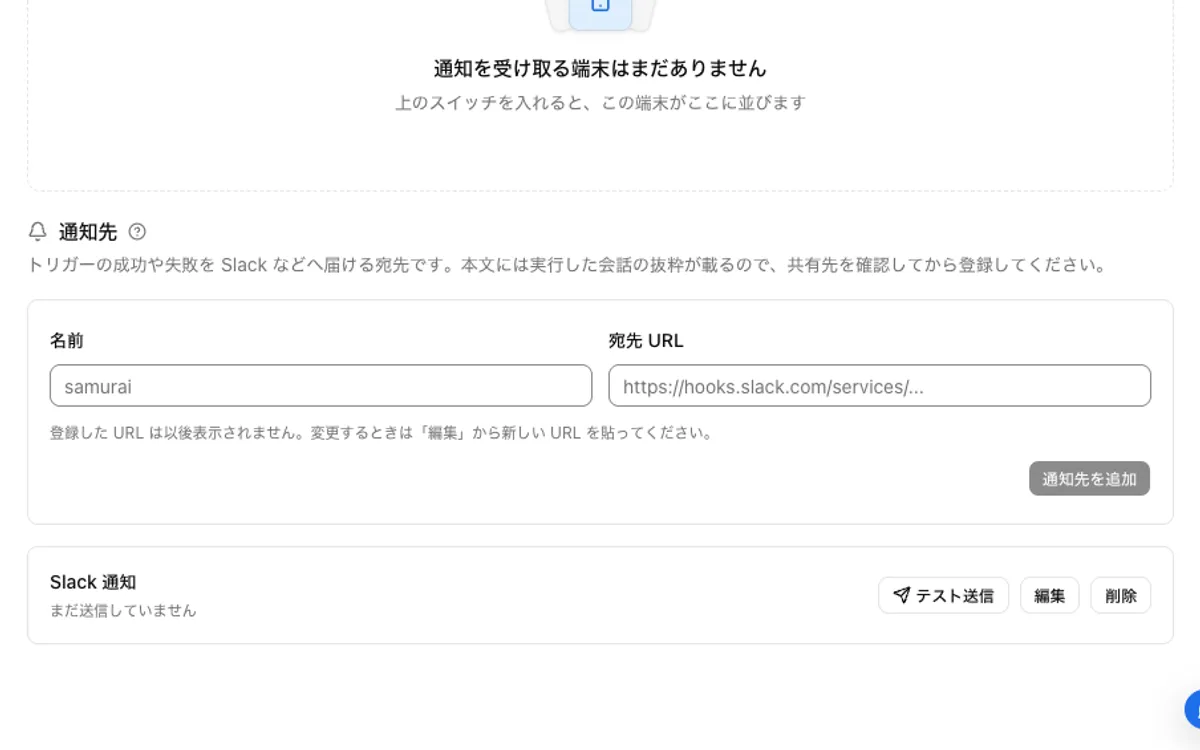
Register a name and the URL under "Notification destinations" in "Settings" > "Notifications." Confirming with "Send test" that it reaches Slack makes troubleshooting easier later. Notification destinations are shared within the organization, and members can register them too.
3. Open "Send minutes to a notification destination"
You can open it from any of these:
- "Send minutes to a notification destination" in the left column of the meeting list (below "Auto-delete records"; on a smartphone, inside "Folders")
- Above the "In-app event" form in "Settings" > "Automation"
- The "Send meeting minutes to a notification destination" template under "Workflows"
4. Choose the destination and conditions, and turn it on
Choose the destination from step 2. If you only want to send certain meetings, such as "weekly," enter it in "Words in the title." Press "Create and turn on," and the workflow and trigger are created and "Turned on" is shown. Publishing is part of this action, and the resulting workflow is visible only to its creator.
5. Check with a short meeting
Talk briefly in a test meeting and press "End meeting." When the minutes are ready, they arrive in Slack.
Adjusting what gets sent for your team
You can open the created trigger from "In-app event" in "Settings" > "Automation." There are three ways to narrow it:
- "Words in the title"
- "Meetings I created" or "All meetings I can see" (the one-step setup covers meetings you created)
- "Labels" (it fires if any of the chosen labels is attached)
To send to a different channel per department, register another one with a different destination and "Words in the title." Check who is in the destination channel so that the contents of meetings with limited visibility do not go out to a wide channel.
Sending with an AI step in between
When you want to transform the minutes, such as "hide customer names" or "make it 3 lines," use the regular form under "In-app event" in "Settings" > "Automation," and choose "Meeting minutes finalized" under "Which event to run on." When running a workflow, you can use {{input.event.minutes}}, {{input.event.meeting_title}}, {{input.event.meeting_url}}, and others as step values.
This approach calls a model, so it uses credits and does not run once you reach your usage limit. If the one-step setup is enough, skipping the AI step means lower costs and fewer causes of failure.
When it does not work
- Nothing arrives after the meeting ends. First check whether minutes were created. If "AI access" is off, or no speech was transcribed, there are no minutes, so it does not fire.
- Minutes exist but nothing arrives. Review the "Words in the title" condition and the "Meetings I created" scope. Meetings created by others are not covered by the default setup.
- "The destination URL was not found" appears. The destination URL is wrong. Fix it with "Edit" in "Settings" > "Notifications."
- Few sections appear. Sections that could not be built from what was said are left out. This is not a bug.
Frequently asked questions
Can everyone in the channel open the link posted to Slack?
The link goes to the meeting screen. Whether someone can open it depends on the meeting's visibility, not on whether they are in the Slack channel.
Can I try it in the demo environment?
"Send minutes to a notification destination" is not available in the demo.
Can I send to chat tools other than Slack?
The notification destination sends JSON with the body in text to an https:// URL. Any webhook that accepts text will receive it. Discord, which requires content, does not work as is.
Related guides
- Summarize Slack channels with AI every morning
- Send Google Calendar events to Slack
- Send Notion updates to Slack