Web meetings now come with plenty of transcription features, but for regular meetings held in a conference room or discussions at a client's office, someone is still taking notes on a laptop. Many people have probably recorded a meeting, only to leave the recording sitting there because they never found time to listen back and write the minutes.
This article lays out how to go from recording to minutes, for people tasked with writing minutes for in-person meetings. The first half covers general methods that work with any tool, and the second half covers the steps for using Samurai App's "Record in person." It also explains how to handle recording in meeting rooms without internet access, in factories, or in a moving car.
Bottom line
- What delays minutes for in-person meetings is less the time spent writing than the time spent listening back to confirm who said what
- Recording quality is mostly decided by where the microphone is placed and whether people talk over each other. Placement matters more than expensive equipment
- If you use AI, the realistic split is to let it separate the recorded audio by speaker, transcribe it, and organize it into agenda items, decisions, and action items, while people focus on checking and correcting
- Samurai App's "Record in person" records in the browser on a smartphone or computer, saves to the device even where there's no internet, and uploads and turns the recording into minutes once you're connected
- Because it records with a single microphone, captions during recording are not split by speaker. Speakers are separated after the recording is uploaded
Why minutes for in-person meetings take so long
In a web meeting, the tool receives each participant's audio separately. So the tool knows who spoke, and the transcript carries names.
In an in-person meeting, everyone's voice is mixed into a single recorder. When you listen back to the recording, three things take up your time.
- Working out who said it. You tell voices apart by ear and write names into the minutes
- Checking the parts you can't make out. Voices from far seats, moments when people spoke at once, and parts drowned out by air conditioning or keyboard noise
- Rearranging the conversation by agenda item. In-person meetings tend to jump between topics, and decisions often come up in the second half
Listening back to a one-hour meeting takes at least an hour. Writing from notes is faster, but relies more on the writer's memory.
General methods
Preparing to record
- Put the microphone in the middle of the table, at an equal distance from the speakers. A laptop's built-in mic tends to pick up its owner's voice loudly and the people across the table quietly
- Keep it away from sources of noise. Keep it away from projector fans, air-conditioning vents, and people typing on keyboards
- Plug in for long meetings. If you record on a smartphone, test in advance that the recording doesn't stop when the screen turns off
- Say at the start that you're recording. Especially when people from outside the company are present, explain up front why you're recording and how widely the record will be shared
During the meeting
- Have everyone say their name at the start. When the transcript splits into "Speaker 1" and "Speaker 2," it becomes easier to match each number to a person
- Put decisions into words and confirm them on the spot. Saying aloud "So we've decided the venue is Shinagawa" makes the decision easier to pick up for the minutes
- Don't talk at the same time. Overlapping voices can't be made out by people or by AI
From recording to minutes
The common flow is to upload the recording to a transcription service and have AI summarize the resulting text. Even then, people check the following.
- Misrecognized proper nouns (names of people, companies, and products)
- Numbers and dates
- The difference between "decided" and "under consideration." AI sometimes writes a proposal still under discussion as a decision
How to do it in Samurai App
Samurai App's "Meetings" has "Record in person," separate from web meetings, for recording in-person meetings. You record in the browser on your device, and once you upload the recording, a transcript and minutes are produced.
1. Decide the settings before recording
Click "Record in person" in "Meetings," and the "Record an in-person meeting" screen opens.
- "Title": if you leave it empty, the date and time you started recording becomes the title
- "Visibility": choose from "Only me" (default), "Group," or "Entire tenant." It can't be changed after upload. "Group" becomes selectable after you've opened "Meetings" once on that device while connected to the internet
- "AI access": on by default. If the meeting must not be transcribed, turn it off before you start recording. If you turn it off after upload, transcription starts right away, so it is almost always too late
- "Minutes format": choose from discussion, regular meeting, brainstorm, retrospective, study session, hiring interview, 1-on-1, inquiry handling, casual chat, or other. If you're online, typing a title fills in a "Suggested from title" option
- "Meeting language": the language of the transcript and minutes. The default is Japanese
For meetings recorded without an internet connection, "Minutes format" and "Meeting language" can't be changed after upload. Decide them before recording.
2. Record
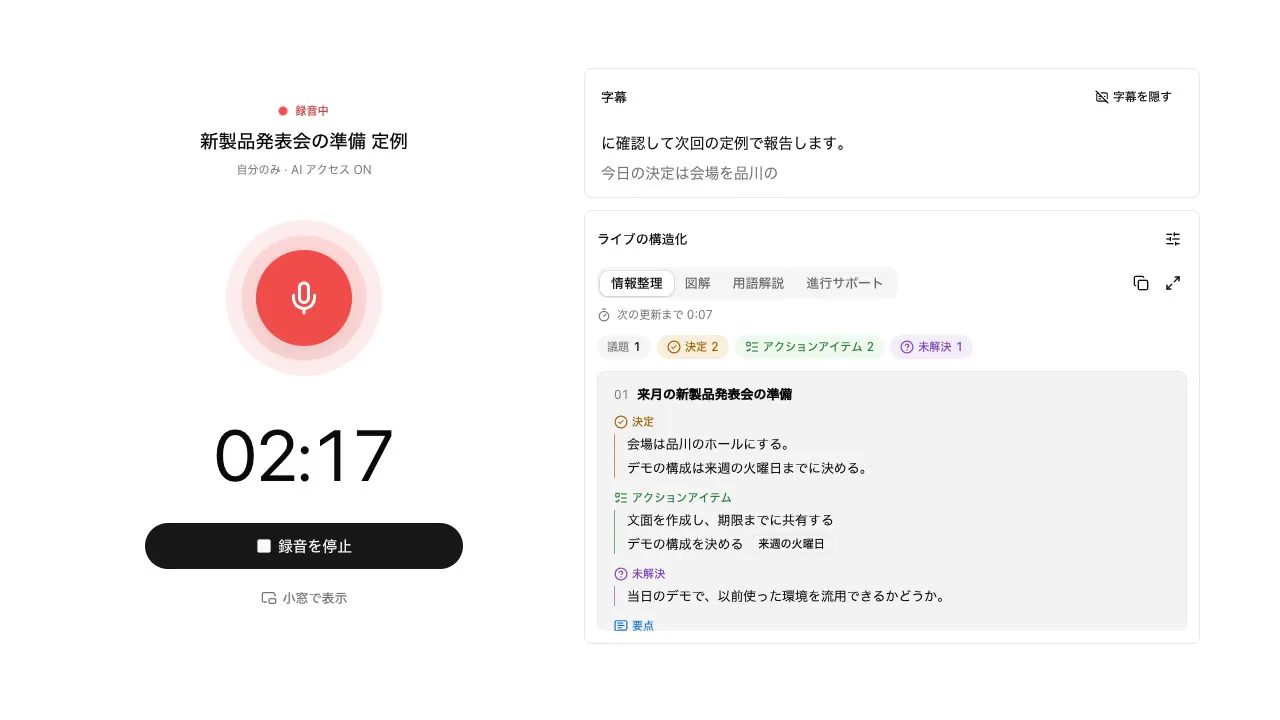
Click "Start recording," and when the meeting ends, click "Stop recording." While recording, the settings collapse, and only the title, a timer, a ring that moves with the microphone volume, and "Stop recording" are shown.
If you're online and "Live structuring" is on, captions and the "Organized notes," "Diagram," and "Glossary" tabs appear beside the recorder. During the meeting, you can check decisions and action items for each agenda item.
When you record with live structuring on, knowing the following will keep you from getting lost.
- On a smartphone, the recording controls collapse into a thin bar at the top of the screen. Below it, the latest captions and "Live structuring" are shown side by side, so you can see them without scrolling the whole page
- Items in "Organized notes" can be edited or deleted while recording. If you fix a misheard decision on the spot, the error won't end up in the minutes
- Under "AI settings," you can change which tabs are shown, the "Organized notes update interval" (15 to 90 seconds, default 60 seconds), the minutes format, and the meeting language, even while recording. They can't be changed after you stop recording
- Turning on "Translated captions" shows a translation under each finalized caption. In a new meeting it starts off, and only the person who created the meeting and administrators can switch it
- Recording continues even if live structuring stops. When the connection drops, it reconnects automatically, and if it isn't back in about 10 seconds, it shows "Reconnecting to live structuring. Recording continues."
Things to watch for while recording:
- Don't leave the page. While recording, the "Go to Meetings" link is hidden
- If you reload by accident, you return to the same recording within 2 minutes. The recordings before and after are joined into one, but up to the last 5 seconds before the reload may be lost
- The screen doesn't dim from the device's auto-lock (on supported browsers, including Safari on iPhones with iOS 16.4 or later). If you turn the screen off with the power button, recording may stop
- One recording can be up to 4 hours (60 MiB). When it reaches the limit, it stops and keeps what was recorded up to that point
On Chrome or Edge on a computer, "Show in mini window" shows the elapsed time and "Stop recording" in a small window that always stays on top. Use it when you're recording while presenting slides on the same computer.
3. If you recorded where there's no internet
The recording is saved in the device's browser as it goes, so you can record without an internet connection. When you stop recording, it shows "Saved to this device."
Once you're connected, open "Meetings." Recordings are listed under "Recordings on this device" above the list and uploaded automatically one at a time. Even if an upload stops partway, you won't end up with two meetings.
Recordings made in a different workspace are not uploaded automatically. Switch to the workspace where you recorded, then open "Meetings" again.
You can open this screen where there's no internet only in a browser that has previously opened Samurai App while connected. On a device you're using for the first time, open it once before the meeting.
4. Check the minutes and speakers
When transcription finishes, the minutes and transcript appear in the meeting's details. Long recordings take a few minutes.
Speakers are separated by voice and labeled "Speaker 1," "Speaker 2," and so on. The person who created the meeting or an administrator can name them under "Speaker names" above the transcript (up to 40 characters). Names are reflected in the transcript, the minutes, and the transcript file. If everyone introduced themselves at the start, it's easier to match numbers to names here.
For in-person recordings, "Meeting analysis" is on from the start. About 5 minutes after the minutes are ready, the "Analysis" tab shows the overall energy of the meeting, the balance of who spoke, how much progress was made, and more. "Ratings by participant" is shown only to the person who created the meeting. People who spoke fewer than 40 characters are not rated, and because in-person recordings have no facilitator, "Facilitation advice" does not appear.
Limits and situations it doesn't suit
- Because one microphone records everyone, captions during recording are not split by speaker. It doesn't suit meetings where you want to follow who said what on screen during the meeting
- Only that device's microphone is used for recording. You can't record the same meeting on several devices and combine them into one. Each recording becomes a separate meeting
- In a large meeting room where some seats are far from the mic, transcription accuracy drops. Ask people to speak near the microphone, or move seats closer
- If you choose the wrong visibility, you can't change it later. When in doubt, record with "Only me" and share the minutes file with the people who need it
- Where there's no internet, captions and organized notes don't appear. Only the recording proceeds, and the minutes are created once you're connected
If your goal is to confirm decisions during the meeting, also see How to take minutes in real time during a meeting. How to record web meetings is covered in How to automatically create minutes for Zoom and Google Meet.
Frequently asked questions
Can I record with just a smartphone?
Yes. Open "Record in person" in your smartphone's browser and allow microphone access. If you denied permission once, follow the steps shown on screen to allow the microphone again from the browser or app settings.
I recorded a meeting, but I don't want minutes created for it
Turn "AI access" off before recording. For recordings uploaded with it off, no transcript or minutes are created, and only the audio is kept.
How long are recordings kept?
It's set by "Meeting record retention period" on the "Automatic processing" tab of the workspace's "Permission settings." An administrator or manager chooses 90 days, 180 days (default), 365 days, or no limit. After the period, the recording and transcript files move to the file trash, but the minutes and analysis remain.
What happens to recordings made with a different account?
They aren't uploaded automatically. They show as "Recording from another account" under "Recordings on this device," so choose "Upload with this account" or "Delete from device."
Sources
- Recording in-person meetings (Samurai App guide)
- Minutes, transcripts, and record retention (Samurai App guide)
- Meeting analysis (Samurai App guide)
Based on the Samurai App guide pages as of November 9, 2026.