Meeting minutes usually arrive after the meeting is over. Until then, when the discussion runs long, people ask again, "So what happened with that earlier point?", or spend the last few minutes reconfirming out loud what was decided and who owns it.
This article is for anyone who wants every participant to be able to check "what has just been decided" while the meeting is still going, and lays out how to take notes in real time. We compare having a person act as note-taker, using web meeting captions, and leaving it to AI to organize by agenda item, and in the second half explain how to set up and use meetings in Samurai App. Recording a meeting and producing minutes afterward is covered in How to record in-person meetings and turn them into minutes and How to create Zoom and Google Meet minutes automatically.
Conclusion
- What helps in real-time notes is not writing down every remark, but having each agenda item's "decisions," "action items," and "unresolved" items listed on everyone's screen during the meeting
- Captions alone are not enough. Captions are a record of remarks that scroll past, and readers have to pick out what was decided themselves
- Even when you leave the organizing to AI, how reliable the notes are depends on whether there is a way for people to correct mishearings and jumped conclusions during the meeting
- In Samurai App's meetings, the "AI" panel beside the call keeps showing captions and an organized view by agenda item during the meeting, and participating members can correct items on the spot. When the meeting ends, minutes are created automatically
Why Notes Can't Keep Up During the Meeting
When a person writes notes during a meeting, the following happen at the same time.
- The note-taker can't take part in the meeting. Concentrating on writing leaves no room to give their own opinions
- No one else is looking at what was written. The note-taker's notes are on the note-taker's screen, and mistakes are noticed only after the minutes are distributed
- When the discussion circles back, the notes lose their structure. When an agenda item 1 topic comes up again in the middle of agenda item 3, chronological notes no longer show where the decision is
As a result, you end up taking time at the end of the meeting to "confirm what was decided." This confirmation matters, but if everyone has been looking at the same screen during the meeting, it can be kept short.
Common Approaches
| A human note-taker shares their screen | Web meeting captions | AI organizing by agenda item | |
|---|---|---|---|
| What is shown during the meeting | Notes the note-taker writes | The spoken words as text | Decisions, action items, and unresolved items by agenda item |
| Effort for the note-taker | High | None | Only checking and correcting |
| Missed decisions | Depends on the note-taker | Readers pick them out again | People correct the AI's judgment |
| Minutes after the meeting | Need a clean copy | Made separately | Some setups create them automatically |
A Human Note-Taker Shares Their Notes on Screen
In this method, you open a shared document, the note-taker sets up headings for agenda items, decisions, and action items in advance, and fills them in during the meeting. Everyone looks at the same screen, so people can point out on the spot, "That's not what we decided."
The note-taker, however, can hardly take part in the meeting. The realistic options are to rotate the role or to ask someone who is not part of the discussion.
Using Web Meeting Captions
Microsoft Teams and Google Meet have captions that show spoken words as text on screen. Both support Japanese.
- Live captions in Microsoft Teams are captions shown on your own screen during the meeting. Microsoft's support page says, "Teams doesn't save captions." Translated captions into other languages are a feature available with a Teams Premium or Microsoft 365 Copilot license
- Captions in Google Meet can be embedded in the recording when you record the meeting. Translated captions are available in specific editions, such as Business Standard, Business Plus, Enterprise Standard, and Enterprise Plus
Captions help you check words you missed, and help people who find it hard to follow by ear or whose native language differs take part in the meeting. On the other hand, since the text scrolls past, readers have to pick out what was decided themselves.
Having AI Organize by Agenda Item
In this method, AI reads the meeting transcript at fixed intervals and summarizes decisions and action items by agenda item. It almost eliminates the note-taker's effort, but AI sometimes writes a proposal still under discussion as a decision. If people cannot correct that mistake during the meeting, the error stays in the minutes as is.
How to Do It With Samurai App
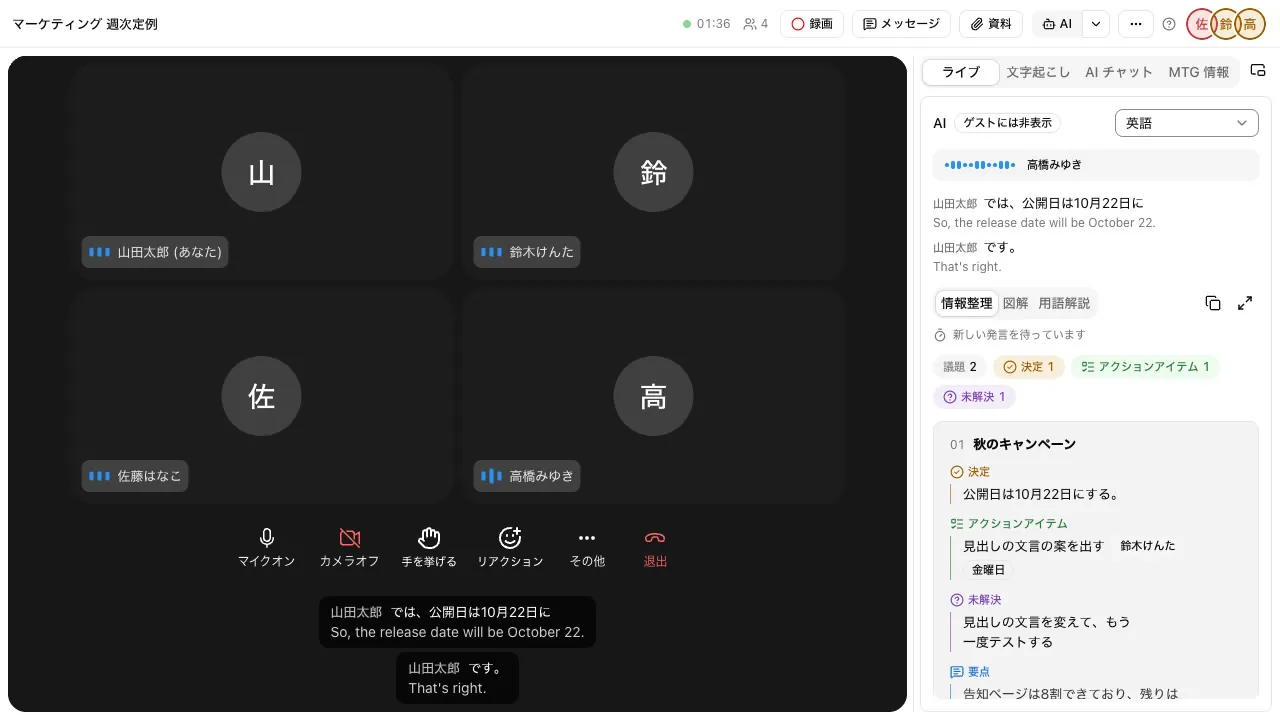
Samurai App's meetings are a feature for holding video calls within the app. The "AI" panel beside the call shows captions and an organized view by agenda item during the meeting.
1. Decide What the Panel Shows When You Create the Meeting
When you create a "New meeting," choose "What the panel shows" on the pre-join screen or on the meeting's "Settings" tab. The meeting's creator and administrators can change these.
- "Organized view," "Diagram," and "Glossary": On from the start in new meetings
- "Facilitation support": Off at first. Turn it on for meetings where you want help for the facilitator
- "Organized view update interval": You can choose from every 15 seconds to every 90 seconds. The default is every 60 seconds. Use a shorter interval for meetings where the discussion moves fast
- "Show to guests too": Off at first in new meetings. While it is off, external guests see only the most recent remarks, and the organized view, diagram, and glossary are not sent to guests' browsers
- "Translated captions": Off at first in new meetings. When on, each participant can choose the language to translate into
If you want company and product names to appear correctly in captions, register them in the "Proper noun dictionary." You can register up to 100 words for the whole workspace and up to 30 words per meeting.
2. During the Meeting, Watch the Captions and "Organized View"
Captions are off at first. Turn on "Captions" from the ▾ ("AI settings") next to "AI" above the call, and they appear at the bottom of the call with speaker names. Turning captions on or off only affects your own screen and does not stop transcription for others. People who join partway through can also read remarks from the start of the meeting on the "Transcript" tab.
The "Live" tab of the "AI" panel shows the following.
- Organized view: At the top, the counts of agenda items, decisions, action items, and unresolved items, with a card for each agenda item below. Action items have an owner and a due date. Items whose topic does not fit any agenda item are gathered under "Whole meeting" at the end
- Diagram: Diagrams the agenda items, decisions, and action items around the meeting name
- Glossary: Explanations of technical terms and abbreviations that came up in the meeting. They are written only from what was said in the meeting and general knowledge, without using workspace files or search
- Facilitation support: Shows a heads-up when the discussion drifts from the agenda, what would be good to ask next, and what to move on to next. It is shown only to members and is not kept in the minutes
Above the organized view, "Next update in m:ss" appears so you can see the update interval. Pressing "Enlarge" (⤢) opens a large window with the organized view, diagram, and glossary side by side. You can also stop screen sharing and have everyone review using this window.
3. Correct Mistakes on the Spot
Members can "Edit" and "Delete" items in the organized view during the meeting. Hovering over an item shows the buttons. On touch screens, choose from the ⋯ at the end of the row.
- What can be edited are decisions, action items, unresolved items, key points, and the values of organized information. You cannot add new items
- An edited item is marked "Edited," and you can see who edited it and the original value
- Edits are not overwritten by later automatic updates, and they also go into the minutes after the meeting
- Guests cannot edit
If "Release date is October 22" has become "October 12," correct it on the spot. At the end of the meeting, read out the decisions and action items in the organized view from the top to confirm them. Since they are listed on screen, the confirmation takes only a few minutes.
4. When the Meeting Ends, the Minutes Are Created
When you press "End meeting" or everyone leaves, the minutes are created automatically. The minutes include the date and time, format, attendees, decisions, action items, items on hold or taken back for follow-up, and key points by agenda item, and are kept in "Files" as minutes and transcript files.
The shape of the minutes changes with the meeting's "Minutes format" (discussion, regular meeting, brainstorm, and so on). If your company has a set way of writing them, you can rewrite the instructions for the minutes per meeting in "AI instructions" (up to 4,000 characters per type). Instructions you use often can be saved as "Templates" and shared with workspace members.
How the Note-Taker's Role Changes
Even when you leave real-time organizing to AI, the note-taker's role does not disappear; the work shifts from "writing" to "checking and correcting."
- Say the agenda items out loud at the start of the meeting. Saying "Three items today: the campaign, the budget, and hiring" makes it easier for the organized view to separate the agenda items
- When something is decided, say it is decided. Saying out loud "So the release date is decided as the 22nd" makes it more likely to be organized as a decision
- Correct mishearings. Check proper nouns and numbers in particular
- Run the final confirmation. Read out the decisions and action items in the organized view, and confirm the owner and due date with each person
Limits and Where It Doesn't Fit
- These features apply to calls held in Samurai App's meetings. For Zoom, Google Meet, and Microsoft Teams meetings, recording with the browser extension lets you see the same organized view in the extension's side panel. For in-person meetings, "Record in person" organizes them the same way as long as you are online
- For captions, each participant's browser sends that person's microphone audio to Google (Gemini) to turn it into text. Nothing is sent while the microphone is muted or when "AI access" is off. For meetings whose audio must not leave the company, turn "AI access" off when you create the meeting
- The AI's organizing is an inference from what was said. It may write a proposal still under discussion as a decision. Use it on the assumption that people will check and correct it during the meeting
- Facilitation support exists only during the meeting. It is not kept in the minutes, transcript, or meeting record
- When the workspace reaches its monthly usage limit, captions and AI stop. The call itself continues
Frequently Asked Questions
Can people who join partway through read what came before?
Yes. The "Transcript" tab lists remarks from the start of the meeting, and the organized view and glossary also show the content up to that point.
I don't want external guests to see the organized content
Leave "Show to guests too" off. It is off from the start in new meetings. While it is off, guests' "AI" panel shows only the most recent remarks, and the organized view, diagram, and glossary are not sent to guests' browsers.
Can I use it in meetings with English-speaking participants?
When you turn on "Translated captions," each participant can choose the language to translate into. The choices are Japanese, English, Chinese, Korean, Vietnamese, Spanish, and Portuguese, excluding the meeting's language. Translations appear under finalized remarks, and remarks from before a language was chosen are not translated.
Can I paste the panel's content into chat or email?
With the copy button to the left of "Enlarge" in the panel, you can copy the content of the open tab as text. This covers the organized view, glossary, and facilitation support; the diagram cannot be copied. The diagram can be exported as an HTML file from "Enlarge."
Sources
- Use live captions in Microsoft Teams meetings (Microsoft Support)
- Use translated captions in Google Meet (Google Meet Help)
- AI beside the call (Samurai App guide)
- Meetings (Samurai App guide)
- Minutes and transcripts (Samurai App guide)
Based on Microsoft's and Google's support pages and Samurai App's guide pages as checked on November 9, 2026.