Many workplaces manage deals and inquiries in kintone while the people responsible mostly look at Slack. This article walks through sending new and updated kintone records to a Slack channel.
The kintone specifications here were checked against Cybozu's official documentation as of November 4, 2026.
Summary
- Use a webhook. Samurai App's "service integrations" don't include kintone events, so you receive kintone's webhook with an "external trigger" and send it to Slack with a "Send to notification target" step
- Bulk operations aren't notified. kintone doesn't send webhooks for Excel or CSV imports, bulk deletion, or bulk operations through the REST API
- Editing many times in a short period hits the limit. kintone can send up to 60 per minute, but an external trigger can start only 10 times per minute by default
What it can and can't do
Requirements on the kintone side
- Not available on the Lite plan. It also can't be used where the cybozu.com common administrator has prohibited webhooks
- Up to 10 webhooks per app. URLs can be up to 1,024 characters
- 5 operations can be notified: adding, editing, and deleting a record, posting a comment, and updating the status
The gap between limits
| kintone webhook | Samurai App external trigger | |
|---|---|---|
| Count | 60 per minute per domain. Anything over that isn't sent | 10 per minute by default. Over that returns 429 |
| Size | Notification data up to 1 MB | Body up to 64 KiB. Over that returns 413 |
Records with long multi-line text fields or many table rows can exceed 64 KiB and fail to arrive. The notification's record contains the record's fields.
Fields that arrive depend on the operation
| Operation | Fields that arrive |
|---|---|
| Add, edit, status update | id type app record recordTitle url |
| Delete | id type app recordId deletedBy deletedAt |
| Post a comment | id type app recordId comment url |
recordTitle isn't included for deletions or comments. In Samurai App, a step fails if it refers to a field that didn't arrive. If you receive several operations in one workflow, either put only the shared app.name and type in the body, or split by operation.
Field codes in Japanese can't be referenced
The names you can use to reference values in Samurai App are limited to half-width letters, digits, _, and -. Values in record are keyed by field code, so field codes containing Japanese characters can't be read with {{input.event.record.…}}.
For the fields you want to read, change the field code to half-width characters in the kintone form settings. For example, if the code is customer, you can read the value with {{input.event.record.customer.value}}. This also affects formulas and JavaScript customizations that use the same code, so check before you change it. If you can't change it, send only recordTitle and url.
What you need
- Permission to manage the kintone app
- A Slack Incoming Webhook URL
- Manager or higher permission in Samurai App (needed to add an external trigger)
Steps
When you're done, the workflow looks like this.
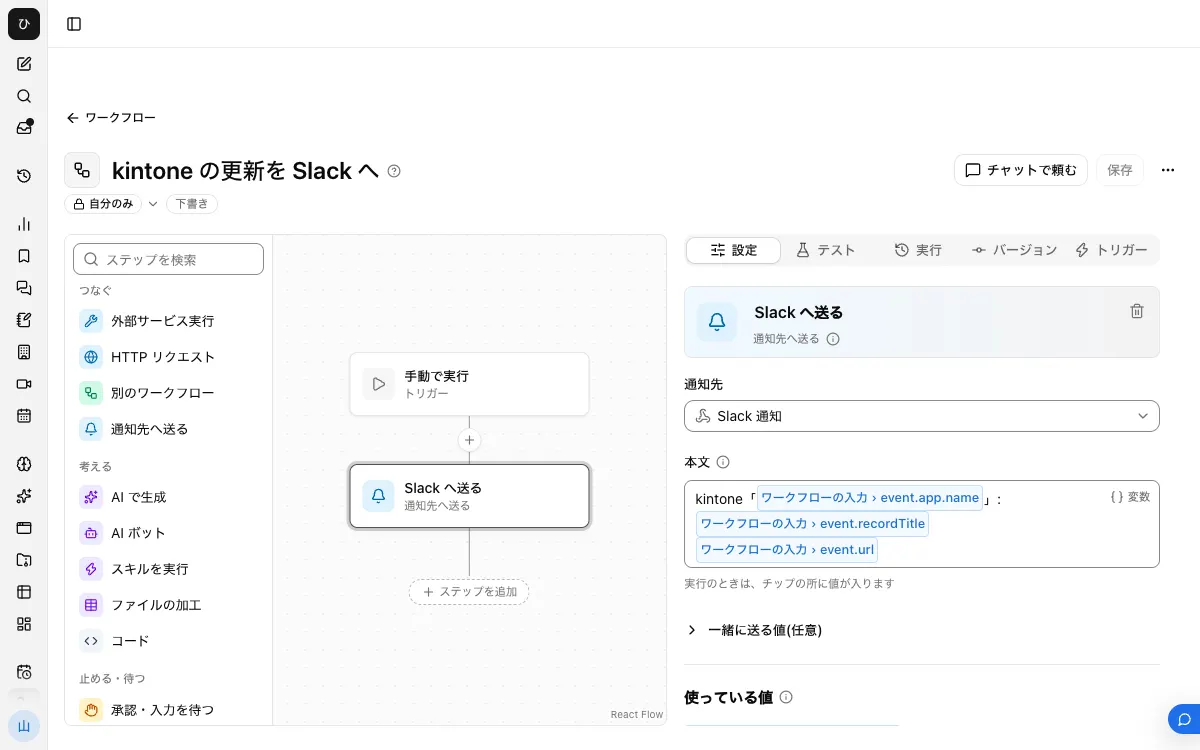
1. Register the Slack notification target
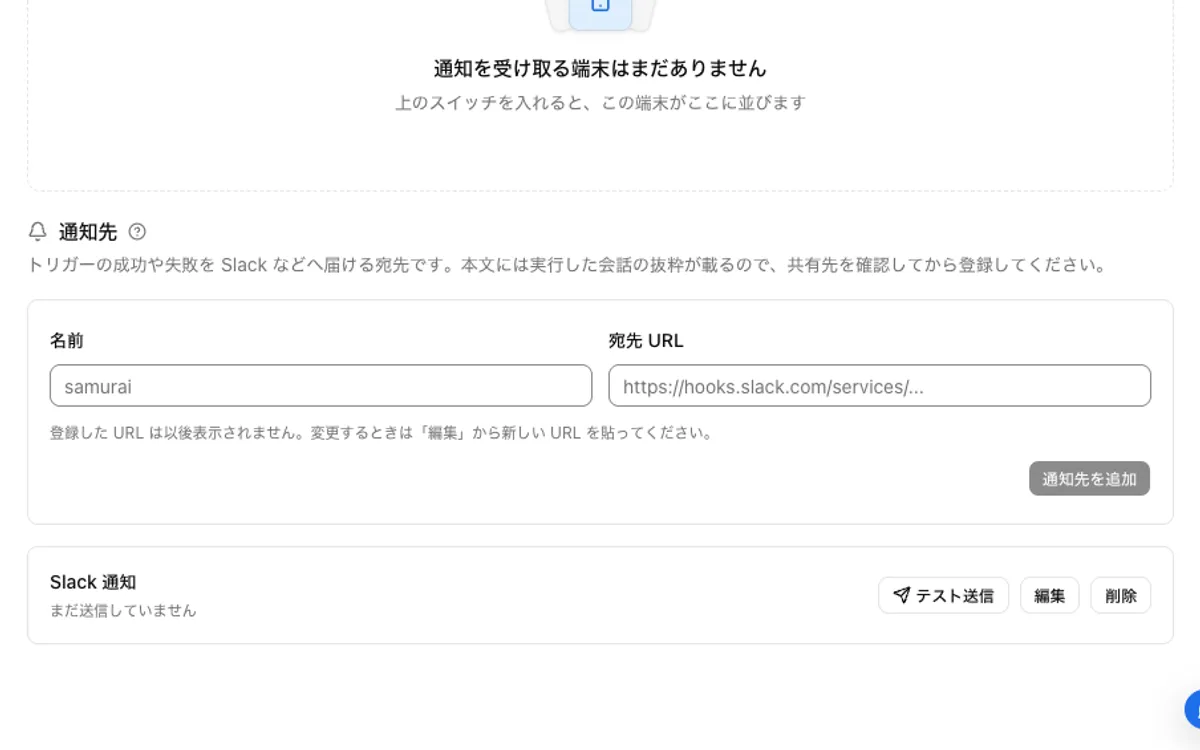
In your Slack app settings, turn on "Incoming Webhooks", then use "Add New Webhook to Workspace" to pick a channel and issue a URL. In Samurai App, go to "Notifications" in "Settings", register a name and this URL, and confirm it arrives with "Send test".
2. Build the workflow
From "Create" in "Workflows", choose "New".
- Under "Workflow inputs", use "Add input field" to create a field named
eventof the type "Group of fields" - From "Connect", place a "Send to notification target" step and pick the notification target from step 1
- Write the following in "Body" (when receiving only record additions or edits)
kintone "{{input.event.app.name}}": {{input.event.recordTitle}}
{{input.event.url}}
To change the message by operation, use "Route by value" to look at input.event.type and branch. The values are ADD_RECORD, UPDATE_RECORD, DELETE_RECORD, ADD_RECORD_COMMENT, and UPDATE_STATUS.
To build it in chat, choose "Build in chat" under "Create" and ask something like the following. Add the trigger on screen as in step 4.
Build a workflow that receives a kintone webhook as input.event and sends app.name, recordTitle, and url to the Slack notification target
3. Publish
On the "Versions" tab, press "Publish version N".
4. Add an external trigger
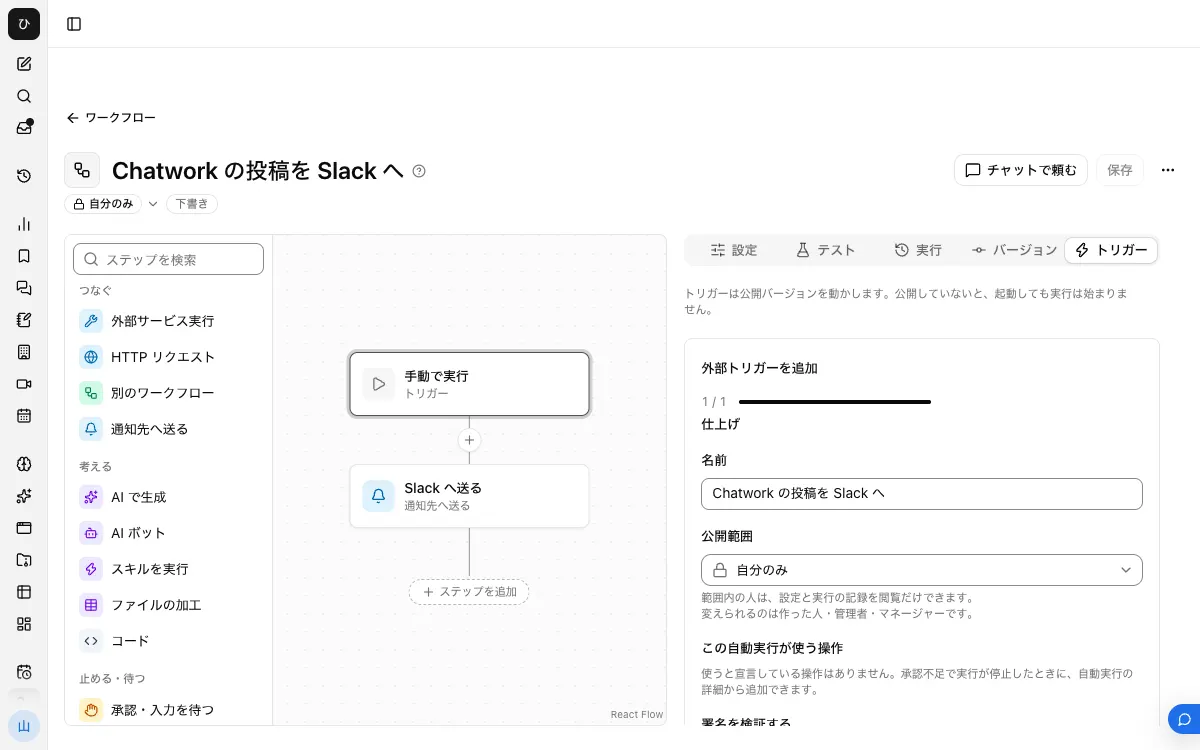
On the "Triggers" tab, open "Add external trigger", turn on "Also accept the secret in the URL's ?k=", and create it. kintone's webhook settings have no field for adding headers, so the secret is passed in the URL. The secret is shown only once, right after creation, so write it down.
5. Add the webhook in kintone
- From the app's "App settings", open the "Settings" tab
- Open "Webhook" under "Customization/Integration" and press "Add"
- In "Webhook URL", paste the external trigger's URL with
?k=<secret>appended to the end, and remove the leading "https://" - Under "Conditions for sending notifications", choose only the operations that match the body from step 2
- Select "Enable this webhook" and "Save"
- Go back with "Back to App Settings" and press "Update App". Also press "Update App" in the dialog
6. Add a record and check
Add one record and confirm the message arrives in Slack. In Samurai App, a "Started externally" row appears under "Recent runs" on the "Runs" tab. Open the step's input to see the field codes in record as well.
When it doesn't work
- Nothing appears in "Recent runs": Check the results with "View logs" in kintone's webhook settings. You can see up to the last 10, which tells you whether the destination returned an error. If it's 404, check the
?k=secret and "Also accept the secret in the URL's ?k=" - Only some of the records edited in bulk don't arrive: You're hitting the 10-per-minute start limit. The official documentation doesn't describe retries, so check the ones that didn't arrive on the kintone side. You can also stop the webhook before making a large number of edits
- A step fails: You may be receiving an operation without
recordTitle(deletion or comments). Narrow "Conditions for sending notifications" or branch with "Route by value" - The webhook still doesn't work after setup: Check whether you forgot to press "Update App". If the webhook menu itself is missing, either the common administrator has prohibited it or your plan doesn't include it
FAQ
How do I send the text of comments?
Set only "Post a comment" as the condition, and put {{input.event.comment.text}} in the body. The person who wrote it can be read with {{input.event.comment.creator.name}}.
Can I tell who made the update?
Notifications for additions and edits don't have a fixed field for this. If record has an "Updated by" field, you can read it by that field code. The shape depends on the field type, so check the input on the "Runs" tab.
Related guides
- How to send Backlog notifications to Slack
- How to forward Chatwork to Slack
- How to send LINE notifications to Slack