Even when you manage issues in Backlog, you may only notice updates when you open your email. This article walks through sending new and updated Backlog issues to a Slack channel.
The Backlog specifications here were checked against Backlog's official documentation as of November 4, 2026. The help pages include material for the Enterprise edition, so if the labels on your screen differ from your plan, go by what your screen shows.
Summary
- If you just want to pass updates through as they are, check Backlog's built-in Slack integration first. "Project settings" has "Slack" under "Integrations", where you can choose the channel and the events
- Put Samurai App in the middle when you want to process the updates along the way. Receive the Backlog webhook with an "external trigger", then add steps such as routing by assignee or type, or summarizing before posting
- Only some people can set it up. Webhooks can be added by administrators and project administrators
What it can and can't do
The JSON shape changes by event. According to the official documentation, attributes outside the common part differ for each event, and no actual webhook example is published. This article therefore starts by receiving the whole payload and checking it.
The values of type are the same as in the API's "Get recent updates". The ones you'll use most are:
type |
Meaning |
|---|---|
| 1 | Issue added |
| 2 | Issue updated |
| 3 | Comment on issue |
| 4 | Issue deleted |
| 5-7 | Wiki added, updated, deleted |
| 12 | Git push |
| 14 | Bulk issue update |
Events without a field will fail. In Samurai App, a step fails if its body refers to a field that didn't arrive. You can't expect a field like content.summary on a Git push, for example, so limit "Events to notify" to the types you actually use.
Receiver requirements: The URL must be reachable from Backlog. It can't send to an internal network or a private IP.
Limits on the Samurai App side: By default, an external trigger can start 10 times per minute, and the body can be up to 64 KiB. If you include "Bulk issue update", the count can jump in a short time. Backlog's official documentation says nothing about retries, so check anything that didn't arrive in the "Delivery history list".
What you need
- Administrator or project administrator permission in Backlog
- A Slack Incoming Webhook URL
- Manager or higher permission in Samurai App (needed to add an external trigger)
Steps
When you're done, the workflow looks like this.
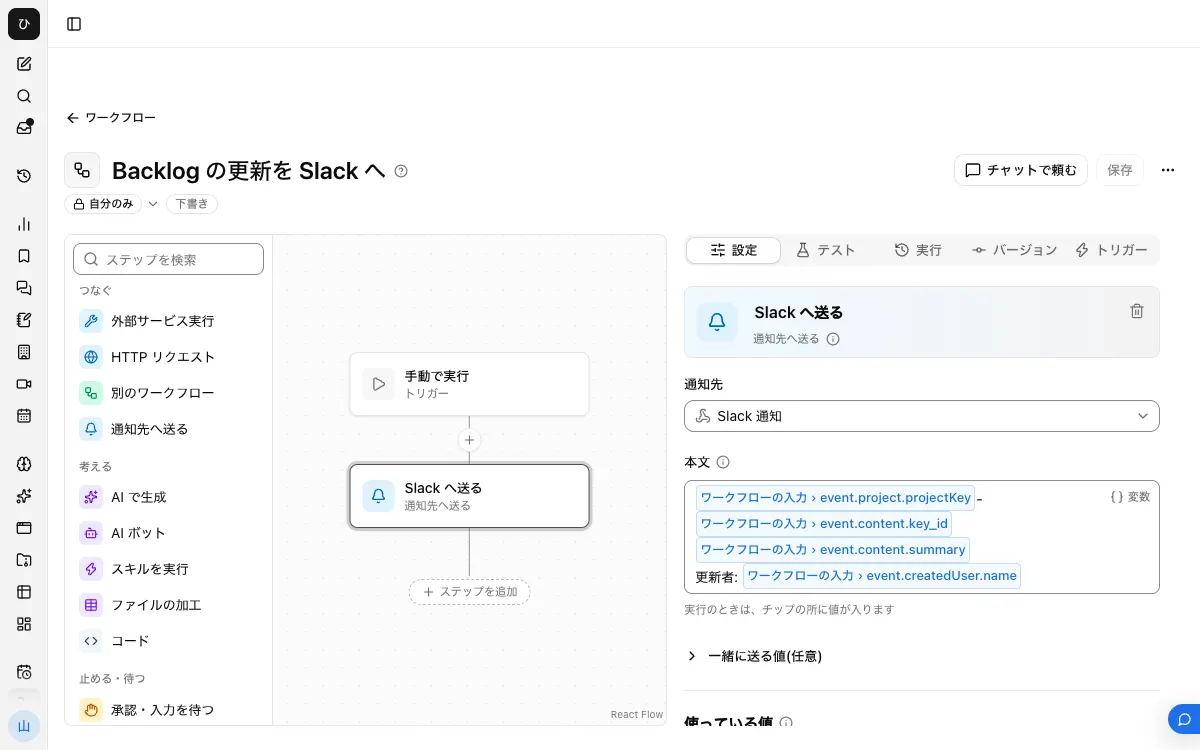
1. Register the Slack notification target
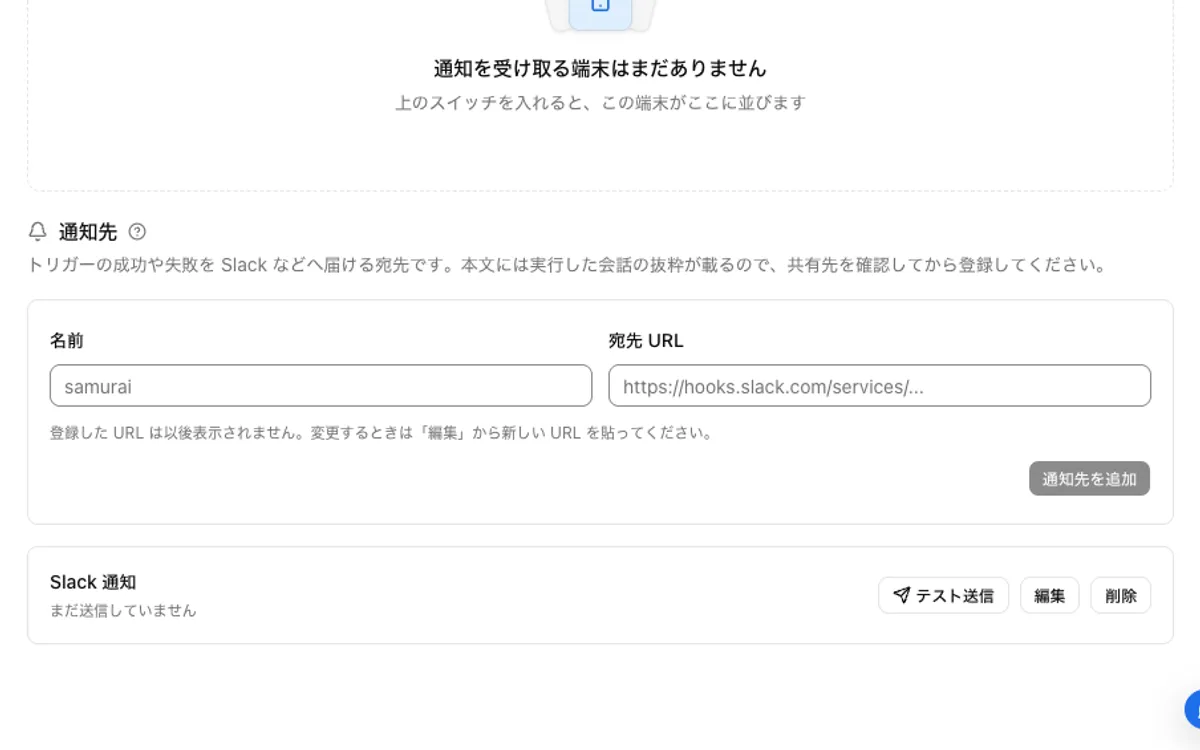
In your Slack app settings, turn on "Incoming Webhooks", then use "Add New Webhook to Workspace" to pick a channel and issue a URL. In Samurai App, go to "Notifications" in "Settings", register a name and this URL, and confirm it arrives with "Send test".
2. First, build a workflow that passes the whole payload through
From "Create" in "Workflows", choose "New".
- Under "Workflow inputs", use "Add input field" to create a field named
eventof the type "Group of fields" - From "Connect", place a "Send to notification target" step and pick the notification target from step 1
- Put only
{{input.event}}in the "Body". A group of fields arrives as JSON text - On the "Versions" tab, press "Publish version N"
This is a temporary setup for checking the shape of Backlog's webhook.
To build it in chat, choose "Build in chat" under "Create" and ask something like:
Build a workflow that receives a webhook as input.event and sends all of input.event to the Slack notification target
3. Add an external trigger
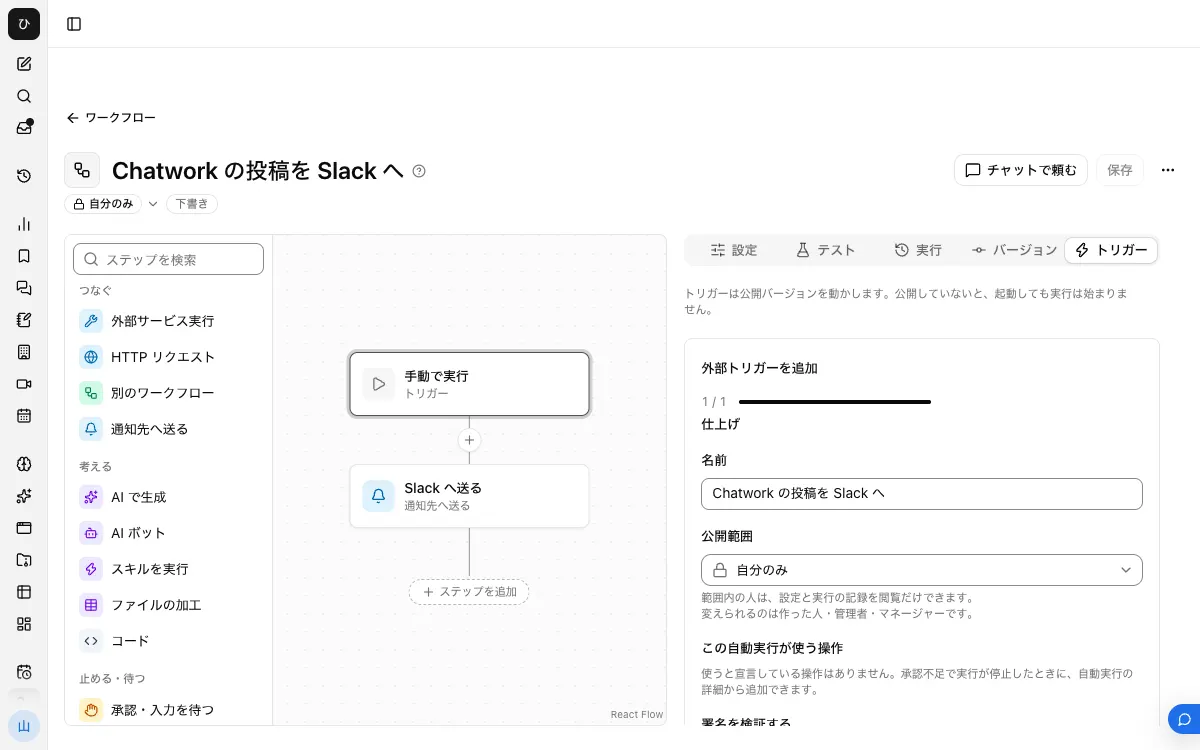
On the "Triggers" tab, open "Add external trigger", turn on "Also accept the secret in the URL's ?k=", and create it. This is because Backlog's webhook settings don't appear to have a field for adding headers. The secret is shown only once, right after creation, so write it down.
4. Add the webhook in Backlog
- In Backlog, open "Project settings", then "Webhook" under "Integrations"
- Press "Add Webhook"
- Enter a "Webhook name", and in "WebHook URL" enter the external trigger's URL with
?k=<secret>appended to the end - Under "Events to notify", choose the ones you use, such as issue added, updated, and comments
5. Look at the actual JSON
In Backlog, choose an "Event type to send" under "Test run" and press "Run". In Samurai App, open the workflow's "Runs" tab, open the "Started externally" row under "Recent runs", and check the input.
The same content also arrives in Slack as JSON text. Note down the names of the fields you'll use here. The response of the API's "Get recent updates" has the fields below. Use this step to confirm the webhook uses the same names.
project.projectKeyproject.namecontent.key_idcontent.summarycontent.commentcreatedUser.name
6. Rewrite the body and publish again
Rewrite the body using the fields you confirmed. For example:
{{input.event.project.projectKey}}-{{input.event.content.key_id}} {{input.event.content.summary}}
Updated by: {{input.event.createdUser.name}}
To change the message by event, use "Route by value" to look at input.event.type and branch. After rewriting, press "Publish version N". Until you publish again, the trigger runs the previous version.
When it doesn't work
- Backlog's "Delivery history list" shows 400: Backlog's FAQ explains that delivery fails when the destination URL doesn't support Backlog's format. Also check whether a row appears in "Recent runs"
- The "Delivery history list" shows 404: Either the secret is wrong or "Also accept the secret in the URL's ?k=" is off. If you reissue the secret, enter the URL again too
- A step with
{{input.event.…}}fails: That event doesn't have the field. Review the input from step 5, then narrow "Events to notify" or branch with "Route by value" - The body stays the same as before: You didn't publish after step 6. The trigger runs the published version
FAQ
Should I use the built-in Slack integration or this?
If you just want to send the selected events to a channel as they are, the built-in integration is enough. Receiving the webhook suits cases where you want to add processing in between, such as sending each type to a different place or summarizing with an "Generate with AI" step.
Can I set this up without being a project administrator?
Adding a webhook in Backlog requires administrator or project administrator permission. If you don't have it, ask the person in charge to do step 4.
Can Samurai App update Backlog issues directly?
Backlog is not in the list of connectors, so the method in this article can't read or write it.
Related guides
- How to send kintone notifications to Slack
- How to forward Chatwork to Slack
- How to forward Slack to Teams