Opening a partner's pricing page or a government agency's announcements every day to look for changes is easy to get wrong. This article explains how to read a fixed page on a schedule, have AI judge what's different from last time, and get notified only when it changes.
Summary
- Samurai App has no dedicated feature for automatically detecting page changes. You build it from workflow steps. The flow reads the page, reads the previous content from a table, has AI compare them, and if something changed, sends a notification and updates the table.
- Keep the previous content in a table. Workflow runs don't carry values over from the previous run, so you provide the place to remember them yourself.
- The shortest check interval is 1 hour. It isn't suited to monitoring by the second or minute.
- Because there's an AI step, it uses credits even on runs with no change.
What it can and can't do
What it can do:
- Read the body of a public page and compare it from a perspective you decide, such as "tell me only about price changes"
- Send a summary of what changed to a notification target such as Slack
What it can't do, or doesn't suit:
- It can't read pages that require sign-in. "Read page" reads without cookies or secret values.
- It reads only the body text. It can't tell when only an image was swapped.
- There's a limit on how much it can read. By default up to 20,000 characters, and up to 40,000 even if you specify more; anything after that is cut off. It misses changes in the latter part of long pages.
- It isn't strict diff detection. Because it's AI's judgment, you can ask it to ignore parts that change often, like ads and dates, but the results vary. Don't use it as a substitute for checks where nothing can be missed, such as regulatory compliance.
Don't target pages whose site terms of use prohibit automated reading.
What you need
- The URL of the page to monitor
- A notification target (for Slack, register the Incoming Webhook URL under "Settings" > "Notifications", and run "Send test")
- Permission to create scheduled runs in Samurai App (the creator, and managers and above)
Steps
When you're done, the workflow looks like this.
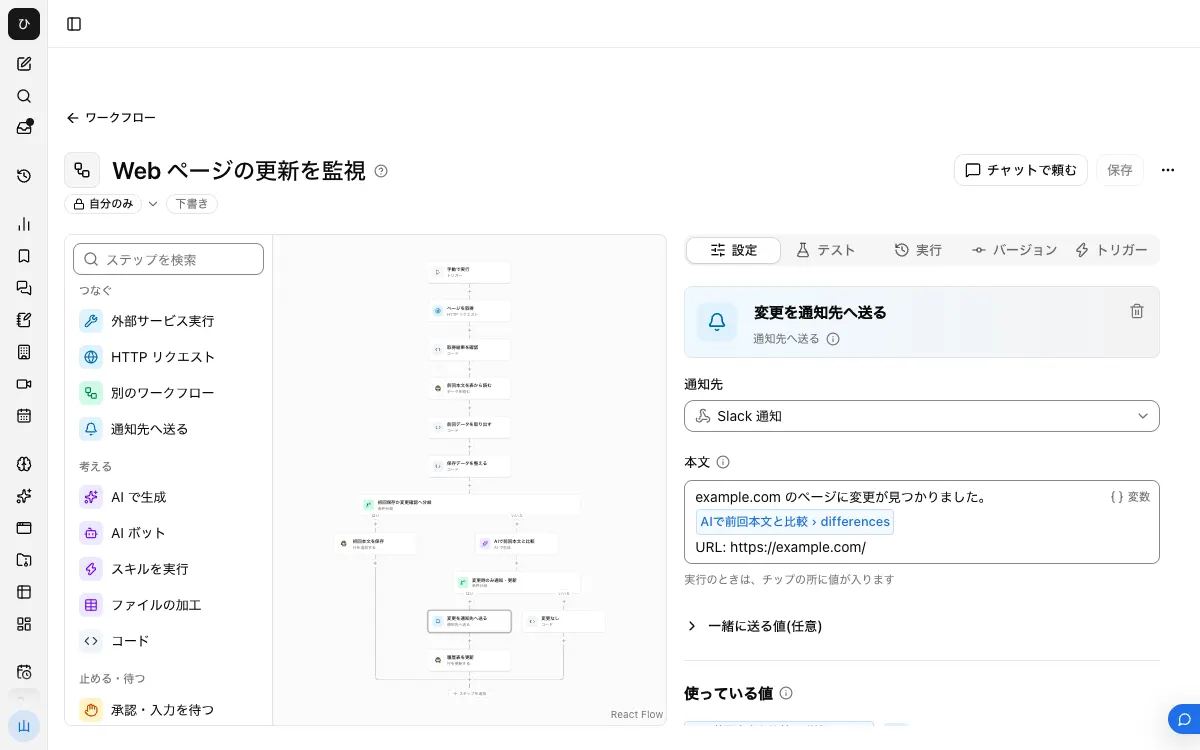
1. Create a table for the previous content
Ask in chat as follows, and the table is created. You'll use its identifier later, so check it in the reply.
Create a table named page_snapshots. It only needs a content column (text)
You can also create it with "Create table" on the "Data" screen. A table created on screen is visible only to you by default, so the person who created the table should also register the scheduled run.
2. Add a step that reads the page
Create a new workflow in "Workflows", and choose "Read page" from "Samurai App" under "Add step". Put the page to monitor in url. If it can't read the page, it doesn't fail: read becomes false, and content contains the reason it couldn't read it.
3. Branch on whether it could read the page
Add "Branch on condition", and place the following steps where read from "Read page" is true. On the other side, place a "Send to notification target" step that says "Couldn't read the page". Without this branch, AI compares the reason it couldn't read the page with the previous content and decides something changed.
4. Read the previous content
Inside the branch, add "Read data" and put the following in sql.
SELECT content FROM d_page_snapshots ORDER BY _updated_at DESC LIMIT 1
The table name in SQL is the identifier with d_ in front. If you write page_snapshots as is, it's refused with "That table can't be referenced".
On the first run, there are 0 rows. The next step handles that.
5. Have AI compare them
Add "Generate with AI", and set up changed (yes / no) and notice (text) under "Output fields". Here's an example prompt. Insert the values with "Variables".
Compare the previous and current body text of the page and decide whether it changed.
Only changes to prices and terms of service count. Ignore differences in dates, ads, and navigation.
If the previous content is empty, set changed to yes and write "Monitoring started" in notice.
If it changed, write what changed in notice, with the previous and current values side by side.

Previous: {{rowsJson from the Read data step}}
Current: {{content from the Read page step}}
Insert rowsJson, not rows. Depending on the situation, rows isn't included in the output, and the step fails when that happens.
6. Notify and update the table only when it changed
Add another "Branch on condition", and where changed is yes, place the following 3 steps in order.
- "Send to notification target": put the page URL and
noticein "Body". - "Code" ("Isolated"): convert the page body into a form that can be written to the table, as below. Pass
contentfrom "Read page" under the namecontent.
return { rows_json: JSON.stringify([{ content: inputs.content }]) };
- "Change data": set
actiontoinsert_rowsandtabletopage_snapshots, and forrowsJson, chooserows_jsonfrom the code step.
The code step is there because inserting the page body's quotes and line breaks as they are breaks the JSON, and the write fails.
7. Publish and add a schedule
On the "Versions" tab, press "Publish version N", then choose an interval with "Add scheduled run" on the "Triggers" tab. For 9 a.m. on weekdays, enter 0 9 * * 1-5 in "cron (minute hour day month weekday)". If "Monitoring started" arrives on the first run, the flow works up to this point.
You can create a draft by asking in chat, "Build a workflow that reads this page every morning and notifies me if the price changes." The way it's built can vary, so before publishing, check that it keeps the previous content in a table.
Unattended runs and approval
"Read page" has no approval. "Change data" shows an approval card when AI uses it in a conversation, but when called directly as a step, it's treated as approved at the time of publishing, so it runs and is recorded in the approval log. The exception is when an admin has set that operation to "Forbid" or "Confirm every time"; in that case it's refused.
Avoid building it so that a single "AI bot" step handles everything. AI bot writes go through the normal approval and wait up to 20 minutes for an answer on the card. If it's rejected or times out, AI continues without writing. Then it keeps notifying about the same change on the next run too.
Why not have memory remember it?
Samurai App's "Memory" is information passed to AI across conversations, and it isn't suited as a place to rewrite and compare a page's body every time. Memory operations also aren't in the list of operations a step can call directly. Use a table, which is easy to read back and check.
When it doesn't work
- A notification arrives every time. On the "Runs" tab, look at the last step to see whether the table write is failing. If the comparison scope is wide, changes like dates make it judge a change every time, so narrow the target in the prompt.
- "Couldn't read the page" arrives. The page is an image, in an unsupported format, or behind a sign-in. Check the reason in
contenton the "Runs" tab. - "Change data" is refused. An admin has set it to "Forbid" or "Confirm every time". Talk to them about changing the setting.
- The table's rows can't be read. If the person who created the table and the person who registered the scheduled run are different, it may not be able to read them. Use the same person, or set up sharing for the table.
FAQ
Can I monitor multiple pages?
Separating the workflow and the table for each page is the easiest structure to understand. Each run uses credits, so decide the number of pages and the interval before adding more.
Can I monitor while using as few credits as possible?
You can build it so that a "Code" step first checks whether the previous and current body text are exactly the same, and only passes them to AI when they differ. However, even small differences like dates will then be passed to AI.
Can I keep a history of changes?
These steps add a row every time something changes, so the table's rows become the history as they are. Since you can read the table back, you can check later when what changed.
Related guides
- Collect news automatically and send it to Slack
- Summarize a Slack channel with AI every morning
- Send Google Sheets updates to Slack