Visiting several sites every morning to follow your industry eats up time on collecting alone. This article explains how to have AI research a topic you choose on the web and send the key points, with source URLs, to Slack every morning.
Summary
- Start from the template "Research a topic on the web and summarize it in Markdown," add one "Send to notification target" step, and attach a schedule.
- You do not need to subscribe to RSS feeds. You just write the search terms and angle as the topic. In exchange, AI chooses which articles to cover on each run.
- It does not stop during unattended runs. Searching the web and reading pages need no approval, and the template contains no save operations.
- Each run uses a model, so it uses credits.
What it can and cannot do
What it can do:
- Pass a topic as text, and have it research several sources and return key points with source URLs
- Send to a fixed Slack channel on a schedule as often as once an hour (Japan time)
- Split schedules by topic, and send different topics from the same workflow
What it cannot do, and its limits:
- It does not guarantee every new item from a given site. AI searches the web and chooses, so the coverage is not the same each time. It is not suited to following a specific site without missing anything.
- The same news as last time can show up again. This setup does not read back what it sent last time. To avoid duplicates, you need to adapt the setup that keeps the previous content in a sheet.
- Source URLs assume a person will check them. Even when AI adds sources, there is no guarantee the content matches the page. Open the links before making important decisions.
- Paywalled articles and content behind a sign-in cannot be read by web search and page reading.
What you need
- The channel to post to, and a Slack Incoming Webhook URL
- Permission to create schedules in Samurai App (creator, or manager and above)
- Remaining credits
Steps
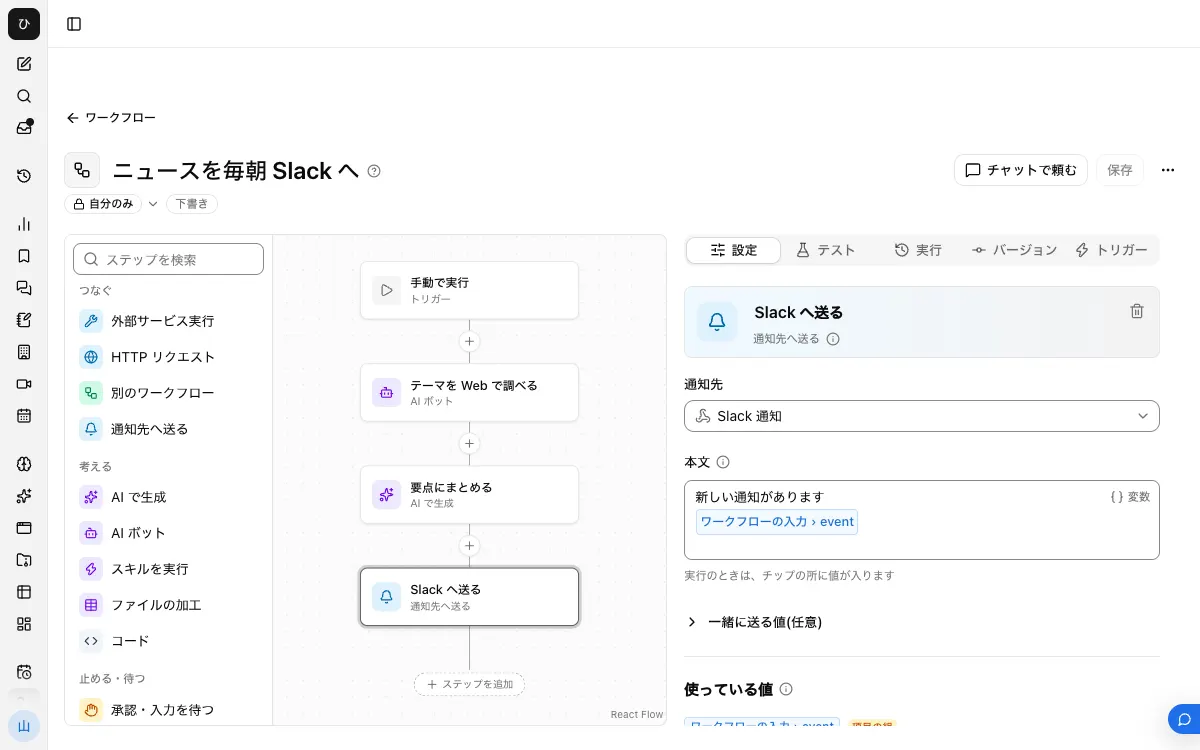
When finished, the workflow looks like this.
1. Register a notification target
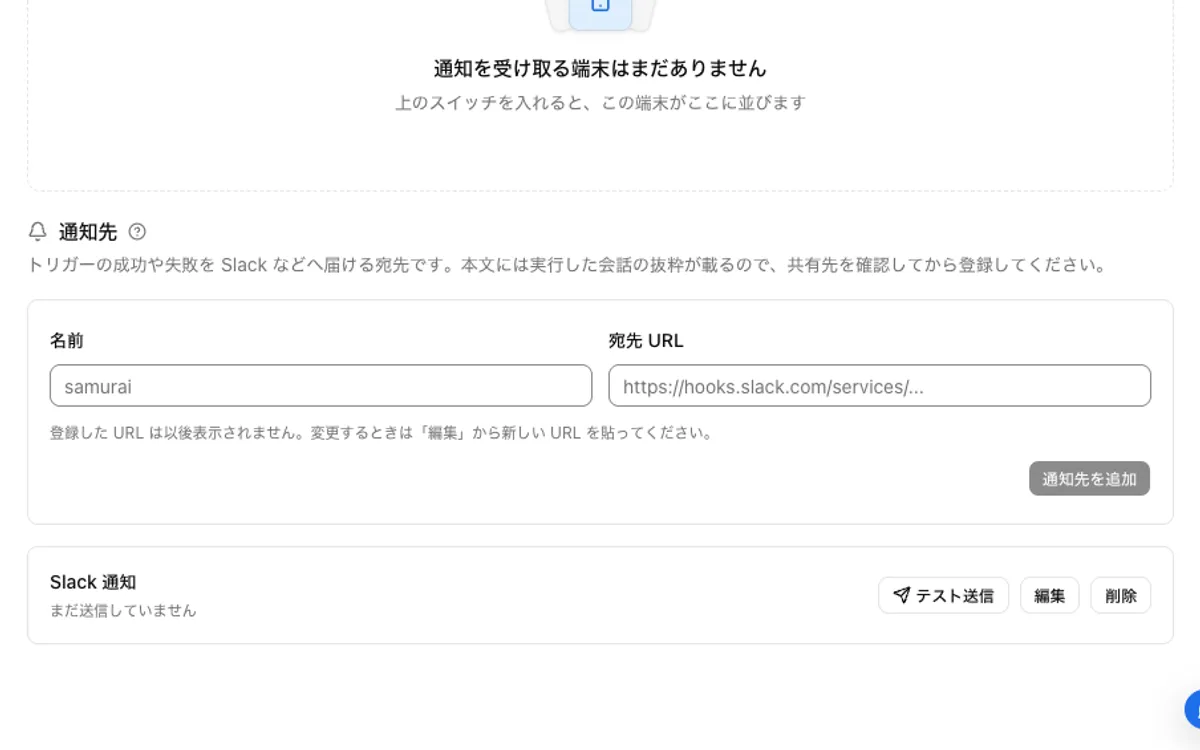
Create an app in Slack, turn on "Incoming Webhooks," and issue a URL for the channel to post to. Register it under "Notification targets" in Samurai App's "Settings" → "Notifications," and confirm it with "Send test."
2. Build from the template
In "Workflows," press "Create from template" and choose "Research a topic on the web and summarize it in Markdown." It contains the following two steps and an input theme (required).
- "Research on the web" ("AI bot"): researches the topic and writes out each fact it finds with a source URL.
- "Summarize in Markdown" ("Generate with AI"): turns the research notes into a document with headings, key points, and a list of sources.
3. Fix the formatting for Slack
Slack message text follows different rules from Markdown. Bold is *text*, and **text** and # headings show up as literal symbols. So change the "Summarize in Markdown" prompt as follows.
Summarize the following research notes as key points to post in Slack.
- Include at most 5 news items
- For each item, write a one-line headline in the form *headline*, then key points in 2 lines or fewer, and the source URL as is
- Do not use # in headlines
- Do not write anything that is not in the notes
- Keep the whole thing within 3,000 characters

{{research.text}}
Slack advises keeping message text within 4,000 characters, and longer text may be split.
4. Have it include dates too
Add "Include the article's publication date with each fact" to the end of the "Research on the web" prompt. That way readers can notice when an old article slips in. On the topic side, write something like "recent news" too.
5. Add the sending step
From "Connect" in "Add step," add "Send to notification target" and choose the notification target from step 1. For "Body," choose text from "Summarize in Markdown" with "/" or "Variables." The model is called by the two earlier steps; this step does not call a model.
6. Publish and attach a schedule
Press "Publish version N" on the "Versions" tab, and open "Add schedule" on the "Triggers" tab. Set the time in "When to run"; for 8:00 on weekday mornings, enter 0 8 * * 1-5 in "cron (minute hour day month weekday)."
Enter a fixed topic in theme under "Input passed to the workflow." It is a required field, so you cannot register without it.
Recent news on generative AI regulation in Japan and adoption cases in manufacturing
If you build it in chat, you can ask "Build a workflow that every morning at 8:00 researches recent news on generative AI regulation and sends it with sources to a Slack notification target." A draft is created, so check its contents before publishing.
7. Run it once to check
Before publishing, run it once as a draft with the run button, and check how it looks in Slack and the URLs. This run also actually sends the notification and uses credits.
Unattended runs and approval
The template's "Research on the web" is an AI bot step. "Search the web" and "Read a page" are operations that need no approval, so even scheduled runs do not stop at a card.
Asking this step to "save the research results" changes things. When an AI bot step calls an operation that needs approval, a card goes to the person who registered it and waits up to 20 minutes. Even if it is rejected or times out, the step does not fail and AI carries on. If you need saving, do not ask for it inside the "AI bot"; split it into a separate step.
When it does not work
**or#shows up as literal symbols in the text. The formatting instructions from step 3 are missing. Review the "Summarize in Markdown" prompt.- The notification is cut off or split. It is too long. Lower the item limit and the character count in the prompt.
- The run fails. You may have reached a usage limit. Check which step it stopped at under "Recent runs" on the "Runs" tab, and use "Retry from the failed step."
- Old articles slip in. Write a time period in the topic, and have it include publication dates. If they still appear, split it into topics with a narrower scope.
FAQ
Can I collect from specific sites only?
You can ask by writing site names or URLs in the prompt, but because it relies on search results, there is no guarantee it covers every new item. To follow changes on one fixed page, the setup for monitoring web page updates is a better fit.
Can I receive English news in Japanese?
You can add "Also research English-language sources, and write the key points in Japanese" to the prompt. The source URLs point to pages in the original language.
Does adding topics increase the cost?
AI steps run on every scheduled run, so credits are used in proportion to the number of topics and the number of runs.
Related how-tos
- Monitor web page updates and get notified
- Summarize a Slack channel with AI every morning
- Send Gmail to Slack