When you take sales calls or interviews through Calendly, booking notices often go only to the owner's email and stay invisible to the team. A cancellation on a day the owner is out can go unnoticed by everyone.
This article explains how to send bookings and cancellations to your team's Slack channel.
Conclusion
Connect Calendly to a Samurai App workflow with a "service integration," and start it on the following two events. Calendly pushes them to you.
- Booking: "Meeting Scheduled" (
CALENDLY_MEETING_SCHEDULED) - Cancellation: "Meeting Canceled" (
CALENDLY_MEETING_CANCELED)
A reschedule delivers one of each. Left as is, a single change posts two messages to Slack: a "cancellation" and a "booking." In this article, we exclude reschedules on the cancellation side.
Calendly also has an official Slack app that can notify you of bookings and updates. Use the method in this article when you want to choose the fields in the message yourself, or add processing before the notification.
What You Can and Cannot Do
- You need a paid Calendly plan. According to Calendly's help, webhooks are available on Professional, Standard, Standard Plus, Teams, Teams Plus, and Enterprise. You cannot register one on the free plan
- Specify what to receive with
scope.usercovers only the bookings of the person who connected.organizationcovers the whole organization, andgroupcovers one group. For the latter two, the request is refused unless the person who connected is a Calendly owner or admin - One event arrives per invitee. If three people sign up for a group booking, you get three. That means three notifications and three times the cost
- Times arrive in UTC.
scheduled_event.start_timeis in UTC, so if you put it in the message as is, it shows a time 9 hours earlier than Japan time - Each event received costs about ¥0.5. You can enable up to 20 service integrations
- Invitees' names and email addresses are included. Anything you put in the message is visible to everyone in the channel, so decide which fields to include first
What You Need
- A Calendly account on a paid plan (owner or admin if you want to receive the whole organization)
- The URL of a Slack Incoming Webhook for the destination channel
- Manager or higher permissions in Samurai App (required to add a service integration to a workflow)
Steps
When finished, the workflow looks like this.
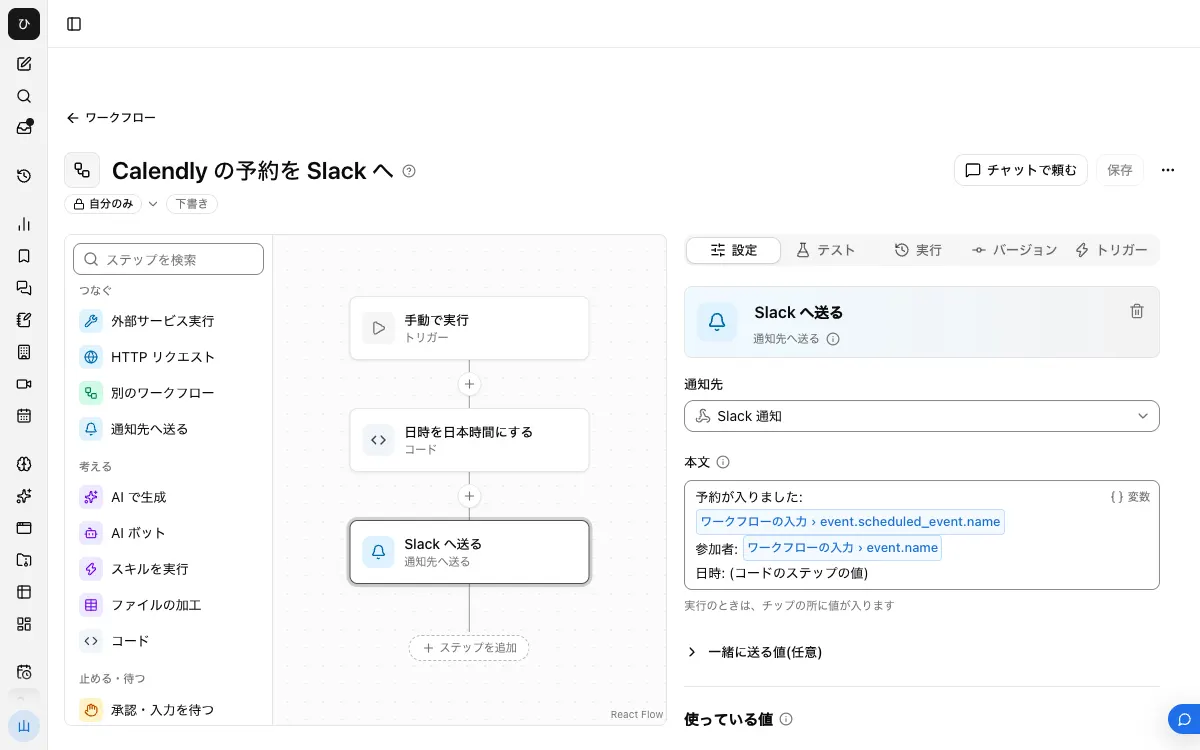
Split it into two workflows, one for bookings and one for cancellations, because the fields delivered and the notification conditions differ.
1. Register the Notification Target
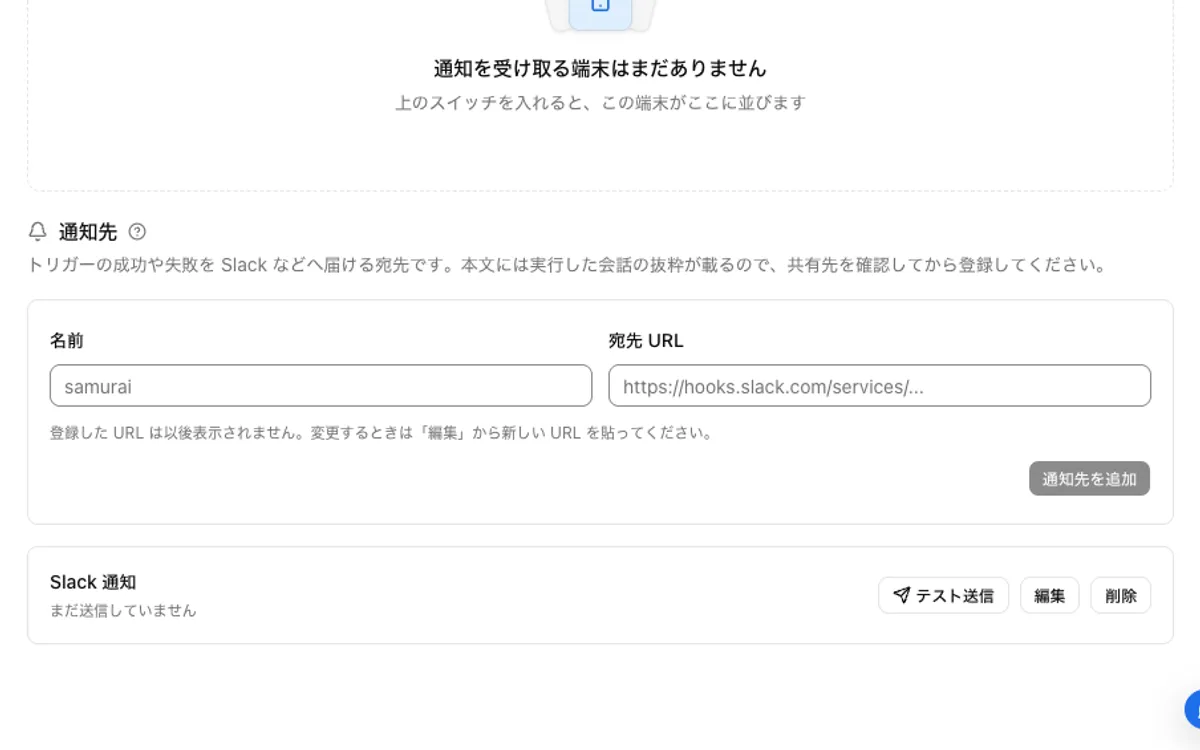
In your Slack app settings, enable "Incoming Webhooks," then choose a channel from "Add New Webhook to Workspace" to create a URL. In Samurai App, register a name and the URL under "Notification targets" in "Settings" → "Notifications," and check it with "Send test."
2. Connect Calendly
On the "Connectors" tab of the "Connectors" screen, press "Add" for Calendly, choose "Add with the standard integration app," and sign in.
3. Create the Booking Workflow
From "Create" in "Workflows," choose "New." With no step selected, go to "Workflow input" under "Settings," press "Add input field," name it event, and set its type to "Group of fields."
First, place a "Code" step to convert the time to Japan time. Under "Values to pass," pass input.event.scheduled_event.start_time as start, and write the following.
return new Date(inputs.start).toLocaleString("ja-JP", { timeZone: "Asia/Tokyo" });
Next, place a "Send to notification target" step, choose the notification target, and write the "Body." For the date and time line, insert the value of the code step using "/".
New booking: {{input.event.scheduled_event.name}}
Invitee: {{input.event.name}}
Date and time: (value from the code step)
After "Save," press "Publish version N" on the "Versions" tab.
4. Attach the Booking Event
Press "Add service integration" on the "Triggers" tab. Under "Which service to watch," choose your Calendly connection, and under "When to run," choose "Meeting Scheduled." Under "Filter," choose user or organization for scope and register it. If you choose group, also enter group_uri.
5. Create the Cancellation Workflow
As in step 3, place the event input and a "Code" step. Then place a "Branch" step with the condition that input.event.rescheduled is false. For a cancellation caused by a reschedule, rescheduled is true, so this condition excludes it. Place "Send to notification target" on the side where the condition matches.
Booking canceled: {{input.event.scheduled_event.name}}
Invitee: {{input.event.name}}
Date and time: (value from the code step)
Once published, attach "Meeting Canceled" in the same way as step 4.
6. Make a Booking and Check
Make one test booking and confirm it arrives in Slack. Then reschedule it and confirm that only the "booking" notification arrives, and cancel it and confirm the "cancellation" notification arrives. A "Started by event" row is added under "Recent runs" on the "Runs" tab, and opening it shows the input that arrived.
When It Doesn't Work
Registration Is Refused for Permissions or Plan
Calendly refuses to create a webhook on plans that do not support it. Calendly's official API documentation includes the refusal message "Please upgrade your Calendly account to Standard." If scope is organization or group, also check whether the person who connected is an owner or admin.
The Run Fails With "No value for $ref '…'"
A field in the message is not in what arrived. Watch out for optional fields. For example, cancellation.reason is the field for the cancellation reason. Before adding it to the message, check in the input under "Recent runs" that it actually arrives. A field whose value is null is sent as blank, and the step fails when the field itself is missing.
Two Notifications Arrive for the Same Booking
For a group booking, one arrives per invitee by design. For a reschedule, check that the "Branch" from step 5 is included in the published version.
The Time Is Off
If you put start_time in the message without going through "Code," it is shown in UTC. Use the value of the "Code" step from step 3.
Frequently Asked Questions
Can I include the answers to the booking form?
Yes. Writing {{input.event.questions_and_answers}} inserts the list of questions and answers in JSON form. To make it easier to read, combine question and answer in a "Code" step.
Can I word reschedules and new bookings differently?
Yes. For a new booking, old_invitee is empty. Add a "Branch" to the booking workflow, and set the condition after checking the values that arrived under "Recent runs."
Related Use Cases
- Send your Google Calendar events to Slack every morning
- Send Typeform responses to Slack
- Send HubSpot updates to Slack
Sources
- Calendly: Webhooks overview (eligible plans)
- Calendly: Webhook payloads for rescheduled events
- Calendly: Receive data from scheduled events in real time with webhook subscriptions
- Calendly: Create webhook subscription
- Calendly: OpenAPI (
start_timeis in UTC) - Calendly: Slack integration
- Slack: Sending messages using incoming webhooks