Your team talks things through in Google Chat, yet whenever you want AI's help you open another screen and paste the conversation in again. This article is for admins of teams on Google Workspace. It explains how to build a bot that takes on work right there when you mention it in a Google Chat space.
It centers on the setup with Samurai App, and covers how this differs from what Google offers, where Google Cloud tends to trip you up, and how to approve actions that need approval without leaving Google Chat.
Bottom line
- There are three main ways to use AI in Google Chat: use Gemini in Chat, build your own Chat app, or register an outside service as a Chat app
- Samurai App is the third. You register the Google Cloud project number and a service account key, and enter the receiving URL in the Chat API's "Configuration"
- In a space, it answers only messages that mention the app. In a DM with the app, it answers every message
- When work starts, one message saying "Received. Putting together a reply…" appears in the thread, and it is replaced once the reply is ready
- For actions that need approval, a card shown only to the requester arrives in the thread, so they can decide without opening Samurai App
Three ways to call AI in Google Chat
| Gemini in Chat | Build your own Chat app | Register Samurai App as a Chat app | |
|---|---|---|---|
| What you build | Nothing | The app's code and somewhere to host it | Only the Google Cloud setup and the registration |
| Main use | Summarizing conversations and answering questions about them | Building your own processing in detail | Asking for work that uses internal documents, tables, and connected services |
| Best for | Finding and summarizing what is in Chat | Running fixed processing on your own | Asking from Chat and handing off work in other tools too |
Gemini in Chat is used from the Gemini button at the top right of Chat on a computer. It summarizes what was discussed in a space or file and answers questions about a conversation. If you want to find and summarize information inside Chat, consider this first.
If you build your own Chat app, Google's documentation explains that the app's logic can be written in Apps Script or as a server with an HTTP endpoint. There is also a codelab that builds in Gemini. You can shape the processing in detail, but you build the AI calls and the connection to internal data yourself.
What Samurai App can and can't do
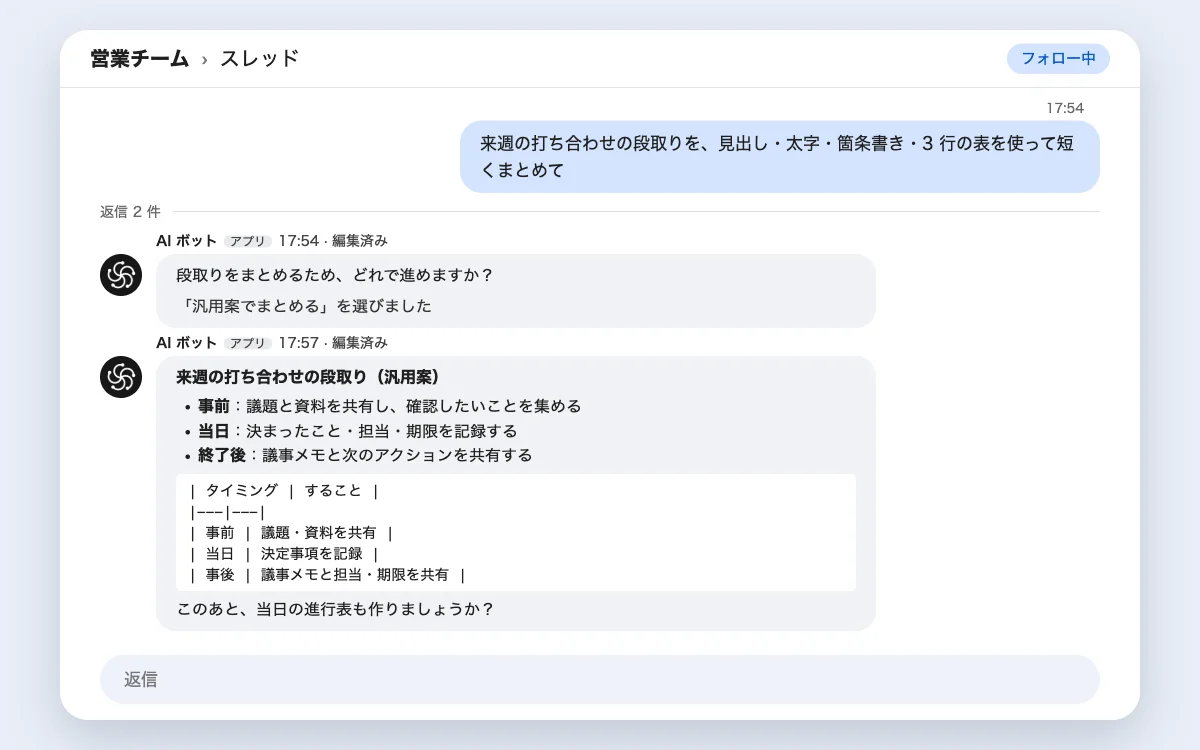
What it can do
- Mention the app in a space and the answer arrives in the same thread. In a DM with the app, it answers without a mention
- The first call also hands the AI earlier messages. Inside a thread, that is the whole thread from its parent; outside one, the messages from the 30 minutes before (up to 20). Later calls pass the messages after the AI's last post (up to 30 messages and 6,000 characters)
- The AI can read files attached to the message
- Bold, links, lists, and code show as they are. Headings become bold lines and tables become code blocks. Ask for a chart and it arrives as a table
- When a question has choices, you can answer by pressing a button. With several questions or a multiple-choice question, you answer them together with "Send" on one card. Only the requester can answer
- Paste the URL of a Samurai App page or file and a card with its title and opening lines appears in the space (needs setup; see below)
- Conversations started from Google Chat also stay in the requester's Samurai App history, and you can continue them in the app
What it can't do
- Files attached by picking them from Google Drive are not passed to the AI
- Reactions and messages shown only to you are not supported
- In a space, it cannot answer messages without a mention
- Publishing, publishing or running workflows, cloud browser operations, and the like can be decided only in Samurai App's own screens
What you need
- A Google Cloud project, and permission to create service account keys in it
- A Google Workspace admin (needed to approve the setting that lets it read earlier messages)
- A Samurai App account with the admin or manager role (only these two roles can add a channel)
Steps
1. Enable the Chat API and create a service account and key
In your Google Cloud project, enable the Chat API, create a service account, and issue a key (JSON). The "connection steps" on Samurai App's add-channel screen also offers gcloud commands that do this in one go ("Create with commands (gcloud)").
If you cannot create the key, check the organization policy under "Where people get stuck" below.
2. Register the channel in Samurai App
In Samurai App's "External chats, /settings/chat-surfaces", add a channel and choose Google Chat as the platform. You enter two things: the Google Cloud project number and the whole service account key JSON. A display name is optional.
Both are secrets shared across the tenant, picked or added right in the form.
3. Enter the receiving URL in the Chat API's "Configuration"
In the Google Cloud console, open the Chat API's "Configuration". Enter the HTTP endpoint URL shown in the form you registered, and choose "Project number" as the authentication audience.
There is no command for this configuration, so fill it in on the console.
4. Add the app to a space
Add the app to the spaces where you want to use it. You do not enter a room ID in Samurai App. Any space the app has been added to can call it.
5. Call it in a DM with the app, and link your account the first time only
The first time someone calls it, they get a link to connect their Samurai App account (valid for 1 hour). Open it while signed in to Samurai App and press "Confirm link"; the request from the call then continues, and the reply arrives in the original thread.
This link is sent only when the call was made in a DM with the app. A first call from a space gets no notice and no reply. Ask first-time users to call the app once in a DM.
Approving in Google Chat
When the AI stops at an action that needs approval, the thread says so with a link to the conversation in Samurai App. A card shown only to the requester also arrives in the thread. It offers "Reject", "Approve and run", "Always allow for this session", and "Always allow from now on", so they can decide without opening Samurai App. The "always allow" buttons appear under the same conditions as in the app.
Where people get stuck
| Symptom | Cause and fix |
|---|---|
| You cannot create the service account key | The organization policy iam.disableServiceAccountKeyCreation blocks key creation. It is on by default in organizations created on or after May 3, 2024. Ask an organization admin to lift it for that project |
| Calling it in a space returns nothing | The account is not linked yet. A call from a space gets no notice and no reply, so call the app once in a DM to link. The channel's row also shows this warning |
| It answers without taking earlier messages into account | For a space not added to the unified chat (/channels), earlier messages are read from Google Chat with the service account. Unless a Workspace admin approves the app's chat.app.messages.readonly scope, only the calling message is passed. Messages only some people can see are not passed either |
| It does not read a file you attached | Files picked from Google Drive are not passed. Upload the file to the message directly |
| Pasting a URL shows no card | In the Chat API's "Configuration", under link previews, add a URL pattern with the Samurai App domain as the host and an empty path prefix. The app has to be in the space. The card appears only when the person who pasted it has linked their account and can read that URL |
| The work did not start | "Received, but the work could not be started. Please wait a moment and call again." arrives only in a DM with the app. Nothing is posted in a space, so wait a moment and call again |
If the reply fails partway, the "Received" message changes to "Couldn't put together a reply. Check the conversation in the app for the rest."
Example requests
Mention the app in a space and ask right there.
- "Sum up what was decided in this thread in three lines, and put owners and deadlines in a table"
- "Compare the amount and delivery date in the attached quote against our past quotes table"
- "List five agenda items for next week's regular meeting from this week's discussion in this space"
- "Draft a reply to this inquiry, following our internal procedure document"
What you ask for as a table arrives in Google Chat as a table in a code block. To see it as a chart, open the conversation in Samurai App, where it shows as a chart.
FAQ
How is this different from Gemini in Chat?
Gemini in Chat mainly summarizes Chat conversations and answers questions about them. Samurai App uses internal documents, tables, and connected outside services to carry work through, such as making documents or registering data. Actions that affect the outside world stop at an approval card.
Can it respond without a mention?
Not in a space. The Google Chat connection answers only when called. In a DM with the app, it answers every message.
Can I put several bots in one space?
Yes. In Google Chat, each app is registered as one channel. For each channel, you can pick its "responding bot" from the bots shared with the tenant.
Can I do the same in other chat tools?
Yes. Slack is covered in How to Add an AI Bot to Slack and Hand It Work, Microsoft Teams in Using AI Like ChatGPT in Teams, and Chatwork in How to Ask AI for Work Through a Chatwork Bot. For a LINE Official Account, see How to Ask AI for Work Through a LINE Official Account, and for LINE WORKS, How to Make AI Auto-Reply with a LINE WORKS Bot.
Sources
- Collaborate with Gemini in Google Chat (Google Chat Help)
- Develop Google Chat apps (Google for Developers)
- Build a Google Chat app with Gemini (Google Codelabs)
- Verify requests from Google Chat (Google for Developers)
- Manage secure-by-default organization resources (Google Cloud)
- External chats (Samurai App documentation)
Specifications are as confirmed on each company's official site as of November 24, 2026. Check each company's site for the latest information.