Is your team discussing things in Slack, only to open another screen and paste the thread again every time you want AI's help? This article is for admins of teams that use Slack. It explains how to set things up so that mentioning an AI bot in a channel has it take on the work and answer in that thread.
It focuses on the setup when you use Samurai App, and covers how it differs from Slack's own AI features, how replies appear, how charts and files come back, and how to approve actions without leaving Slack. If you only want channel posts summarized and delivered every morning, How to Have AI Summarize a Slack Channel Automatically Every Morning is closer to what you need.
Bottom line
- Register Slack in Samurai App's external chats, and you can hand work to AI just by mentioning the app in any channel it has been added to. There is no channel ID to enter
- You can create the Slack app from a manifest Samurai App provides. The permissions and events it needs are already in the manifest
- Answers arrive in the thread where you called it. With an app that has Slack's "Agents" enabled, it shows its progress and writes the answer as it goes
- Ask for something like "show it as a pie chart" and it answers with a chart drawn by Slack. Files the AI makes are posted to the same thread as files after the answer
- When an action needs approval, an approval card arrives in the thread for the requester only, and they can press it without opening Samurai App
How it differs from Slack's AI features
Slack itself offers AI features in Slackbot and a way to add apps that have AI agents. According to Slack's help center, members can add apps with agents by default, and owners and admins can turn on app approval to review apps before they are added. Guests cannot use AI apps or agents (as of November 24, 2026).
Samurai App goes into Slack as one of these apps with an AI agent. The difference is what it bases answers on and how far it can reach.
| Slack's AI features | Samurai App's app | |
|---|---|---|
| What it mainly reads | Conversations and files in Slack | The surrounding Slack messages, plus Samurai App's files, knowledge, and tables, and the outside services you have connected |
| Where the work continues | In Slack | Also kept as a conversation in Samurai App, where you can continue it |
| Approving actions | — | Stops with an approval card before sensitive actions |
| Best for | Finding and summarizing information in Slack | Handing over work that uses internal documents and other services, from Slack |
If you only need to find and summarize conversations in Slack, Slack's AI features may be enough. Samurai App's app is a candidate when you want answers based on internal documents, want tables or files made, or want it to operate outside services.
What Samurai App can and cannot do
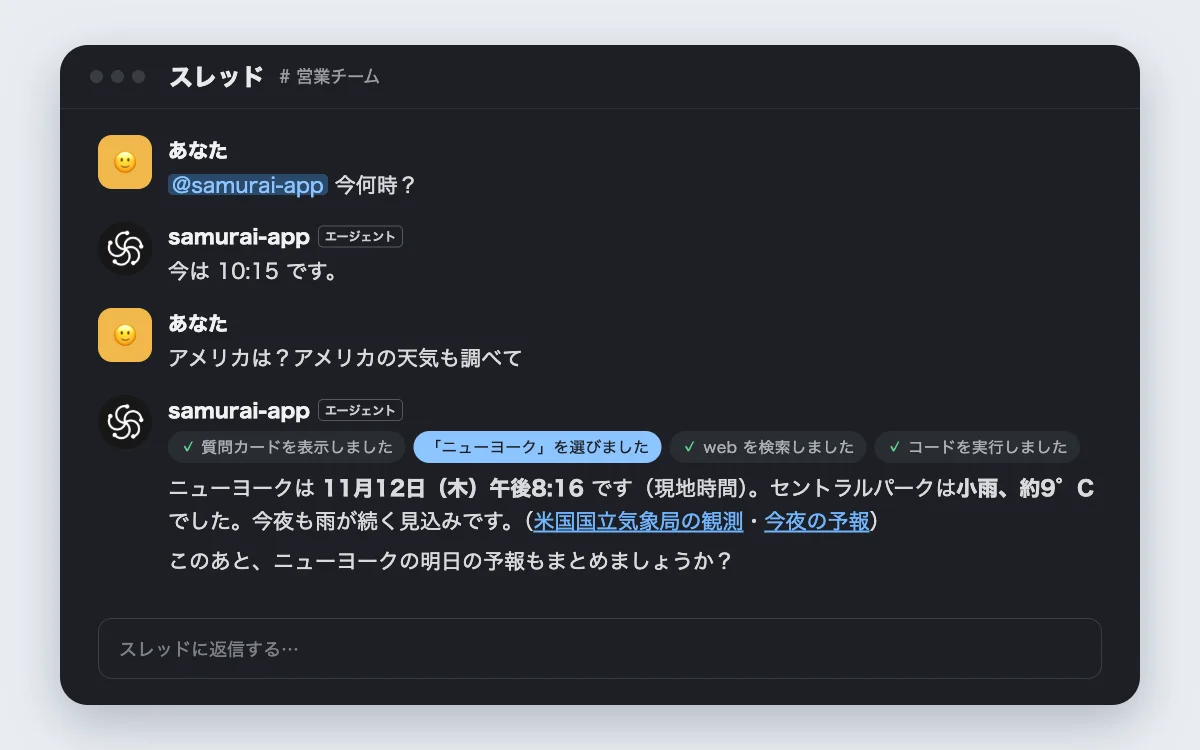
What it can do
- Call it with a mention: mention the app in a channel or thread it has been added to, and the AI takes on the work. A DM to the app also counts as a call
- Pass along earlier messages: called inside a thread, it passes the AI the thread from its parent. Called outside a thread, it passes the messages from the 30 minutes before (up to 20). From the second call on, it passes only the messages after the AI's last post. At most 30 messages and 6,000 characters are passed, dropping the oldest
- Read a Slack message link: paste a Slack message link in the calling message, and that message (its author and text) is also passed to the AI. Up to 3 links per call and 3,000 characters per message
- Write as it goes: with "Agents" enabled on the app, the thread shows a working status and the answer is written while each step, such as searching or reading files, is shown as a task. Without it, the answer arrives as one message at the end
- Answer with charts: pie, bar, and line charts come back as charts drawn by Slack. A message holds up to 2; more charts, scatter and combo charts, and charts with more than 20 categories or 12 series come back as tables. Charts are never sent as images
- Return files: files the AI makes, up to 5 per answer, are posted to the same thread as files
- Answer choices with buttons: when the AI asks a question with a single choice, you can answer with buttons. With several questions or a multiple-choice question, the "Answer" button opens one form. Only the requester can answer
- Show Samurai App links as cards: paste the public URL of a SIROE page or a file from Samurai App in Slack, and a card with its title and opening lines appears. The card is visible to everyone in the channel, but it appears only if the person who pasted it has completed linking and can read the content
What it cannot do, and limits
- One Slack workspace can be registered by only one tenant
- A message link is read only when the message is in the same channel or in a public channel. Messages in private channels, DMs, and group DMs are not read. If the calling channel is shared with another company (Slack Connect), messages from other channels are not read. Replies in the linked message's thread are not read either
- Publishing, publishing a workflow or running its draft, declaring a skill, and operating the cloud browser cannot be approved from Slack. Decide them in Samurai App
- Mentions in the answer are disabled, so an AI reply never calls the whole channel
- An answer grounded in files only the requester can see goes to the requester alone, without the as-it-goes display
What you need
- A Samurai App tenant (only admins and managers can register external chats)
- Permission to create and install apps in the Slack workspace
- The channels where you want to call the AI
Steps
1. Choose Slack in Samurai App
Open "External chat" (external chats) in Samurai App's settings (/settings/chat-surfaces), and choose Slack as the platform under "Connections". "Setup steps" lists what to do on the Slack side. The list of permissions to give Slack is folded, since the manifest carries it.
2. Create the Slack app from the manifest
Press "Create a Slack app" to open Slack's create-app page with a manifest for your tenant already filled in. Create it as is and install it to the workspace. To use an app you made earlier, copy the manifest with "Copy manifest" and paste it into that app's App Manifest page.
The manifest also includes files:write for posting files, link_shared and App unfurl domains for link cards, and the setting for Slack's "Agents".
3. Register it in Samurai App
Take the two secrets from the Slack app, the Signing Secret and the Bot User OAuth Token, enter them in the form, and press "Register". The secrets are shared across the tenant, picked or added right in the form. A display name is optional. The steps after registering, and settings that break without warning, are collected under "Steps and notes after registering" below the "Register" button.
4. Add the app to a channel and mention it
Add the app to the channel where you want to call the AI, then mention it with your request.
5. Link your account the first time only
The first time someone calls it, they get a linking notice visible only to them. Press the "Link to Samurai App" button, then press "Confirm account link" while signed in to Samurai App. Once linked, the original request continues and the answer arrives in the original thread. Nothing runs until linking is done.
6. Choose which messages get a reply (if needed)
Open "Edit" from "More actions" on the channel's row to choose "Messages to reply to" (which messages get a reply).
| Choice | Messages that get a reply |
|---|---|
| "Only when mentioned" (default) | Only messages that mention the app |
| "Also in threads" | Every message in a thread where the AI was called or has posted |
| "Let AI decide" | The AI reads unmentioned messages from linked people and replies only when one is needed |
| "All messages" | Every message |
"Let AI decide" works only while the tenant's "Let AI reply without being mentioned" is on and the usage limit has not been reached. To receive unmentioned messages, the app has to subscribe to events such as message.channels.
Approving in Slack
When the AI moves on to an action that needs approval, such as sending an email or updating an outside service, the thread says so with a link to the conversation in Samurai App. At the same time, an approval card visible only to the requester arrives in the thread. Its buttons are "Deny", "Approve and run", "Always allow for this session", and "Allow from now on". You can decide without leaving Slack.
If you want to build an approval flow with Slack buttons itself, How to Approve with Slack Approval Buttons also helps.
Common stumbling points
- Earlier messages are not passed: if the app lacks permission to read history, it cannot read earlier messages from Slack. Reinstall the app with the permissions shown on screen
- A Signing Secret was reused: Slack apps in the same workspace cannot share a Signing Secret (error code CS-40013)
- The token was refused: CS-40007 means Slack did not accept the token. Check the saved token
- A chart became a table: a message holds up to 2 charts. From the third on, and for types such as scatter charts, it answers with tables
- No card for a link: if the person who pasted it has not completed linking, or cannot read the content, no card appears
Error screens show the reason and the next step, with an error code and an inquiry number beneath them. Give both when you contact support.
Example requests
@Samurai App Summarize the discussion in this thread, split into decisions and to-dos
@Samurai App From last month's inquiry table, show the count by type as a pie chart
@Samurai App Based on the request in https://example.slack.com/archives/..., draft a quote and return it as a file
The first is called inside a thread, so the thread from its parent is passed along. Paste a Slack message link as in the third, and that message's text is also passed to the AI.
FAQ
Can it respond without being mentioned?
Yes. Choose "Also in threads", "Let AI decide", or "All messages" in "Messages to reply to". To receive unmentioned messages, the app has to subscribe to those events.
Can one workspace have several AI bots?
Yes. One workspace can hold several apps, registered as separate channels. For each one, pick "Bot to respond" (the bot that answers) from the bots shared with the tenant.
Can I check the work I asked for from Slack later?
Yes. Work requested from Slack also stays in the requester's conversation history and in "All conversations", and you can continue it in Samurai App.
Can I do the same in other chat tools?
Yes. Microsoft Teams is covered in Using AI Like ChatGPT in Teams, Chatwork in How to Ask AI for Work Through a Chatwork Bot, and Google Chat in How to Build a Google Chat Bot That Takes Work from AI. For a LINE Official Account, see How to Ask AI for Work Through a LINE Official Account, and for LINE WORKS, How to Make AI Auto-Reply with a LINE WORKS Bot.
Sources
- Work with AI agents in Slack (Slack Help Center)
- Manage AI agents and assistants in Slack (Slack Help Center)
- Manage app approval for your workspace (Slack Help Center)
Slack's specifications were checked in the official help center as of November 24, 2026. Please check Slack's site for the latest information.