Do you discuss things in Teams, then open ChatGPT in another window and paste the conversation over whenever you want to ask AI? When you wonder whether you can use ChatGPT inside Teams, there are two broad options. One is to use the Teams features ChatGPT provides. The other is to mention an AI agent in a Teams channel and hand it the work.
This article is for IT staff and team admins at companies that use Teams company-wide. Based on official information, we lay out what each option can do and how far it reaches, and explain concretely what you can do when you call Samurai App in Teams. The steps for building the bot itself are covered in detail in How to Build a Bot That Takes Work from AI in Teams.
Bottom line
- ChatGPT has a Teams app for searching and summarizing Teams messages from ChatGPT, and a feature for calling @ChatGPT in Teams conversations. @ChatGPT is available on ChatGPT Business, Enterprise, and Edu, and an admin has to set it up
- With Samurai App, you mention the bot in a Teams channel or personal chat and it takes the work on the spot. The answer arrives in the same thread, and you can continue the conversation later in Samurai App
- The biggest differences are that you can press approvals for operations that need them without leaving Teams, and that charts and choices arrive as cards. Only the person who made the request can press the approval card and the question choices
- If your internal documents are gathered in ChatGPT, ChatGPT's features suit you. If you want the work carried through using your internal documents, tables, and connected outside services, calling an AI agent suits you
What the ChatGPT Teams app can do
This is what we could confirm in OpenAI's help center and product pages (as of November 24, 2026).
- Teams app (reading Teams from ChatGPT): Once Teams is connected to ChatGPT, it can search and read the one-on-one chats, group chats, and channel messages the signed-in person can see. Whether it is available depends on your ChatGPT plan, region, workspace settings, Microsoft account, and your organization's Microsoft Entra policies
- @ChatGPT (calling it in a Teams conversation): Call @ChatGPT in a Teams conversation and it answers questions. It is available on ChatGPT Business, Enterprise, and Edu, and a workspace admin sets it up for the organization
- Admin-managed sync (Enterprise and Edu): Once an admin connects it to the workspace, ChatGPT takes in the approved Teams messages, and members can ask about the content they can see in Teams. The sync is read-only: it cannot send messages, create chats or channels, or take other actions in Teams. The permissions need Microsoft Entra admin consent
It suits searching and summarizing past Teams messages from inside ChatGPT.
How the two options differ
| ChatGPT's Teams features | Calling Samurai App in Teams | |
|---|---|---|
| Who can use it | ChatGPT Business, Enterprise, and Edu (sync: Enterprise and Edu) | People who linked their Samurai App account |
| Where you ask | The ChatGPT screen, or @ChatGPT in a Teams conversation | A mention in a Teams channel, group chat, or personal chat |
| What answers draw on | Teams messages (within the synced scope) and ChatGPT's features | Samurai App files, tables, and memory, plus connected outside services |
| Operations that need approval | The sync is read-only | An approval card arrives in the requester's personal chat |
| Continuing the conversation | Inside ChatGPT | The same thread, or the conversation in Samurai App |
What you can do when you call Samurai App in Teams
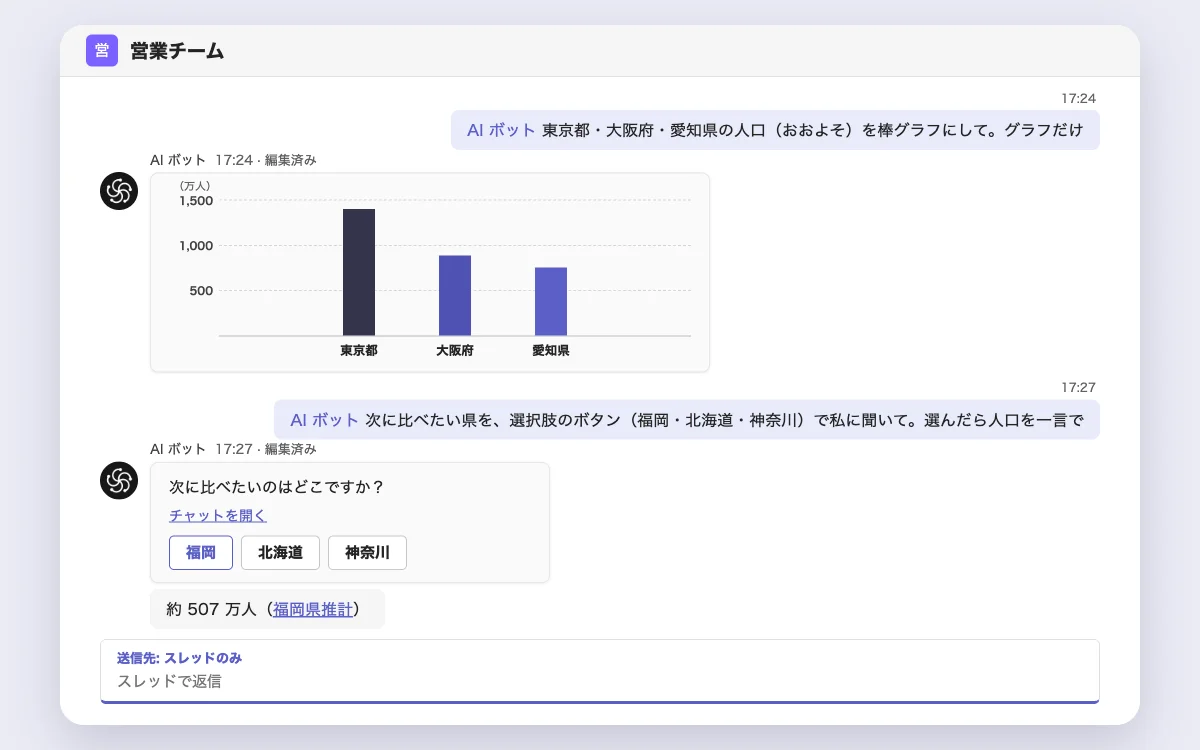
How answers appear
- In a personal chat, the answer streams in as it is written. Ask in a one-on-one personal chat with the bot, and the answer shows up as it is being written
- In channels and group chats, a "Received, please wait" message appears first. When the answer is ready, that message is replaced with it
- Charts arrive as cards. Ask something like "show it as a pie chart" and it appears as a Teams chart card. Area charts become line charts. Charts are never sent as images
Approval and question buttons
- When it stops at an operation that needs approval, an approval card arrives in the requester's personal chat. It has four buttons, "Deny", "Approve and run", "Always allow for this session", and "Always allow from now on", so you can decide without opening Samurai App. The thread says that it stopped, with a link to the conversation
- When the AI stops at a question, you can answer by pressing an option. A question with one choice comes as buttons; several questions, or a question with several choices, come as one card with a "Send" button. Only the requester can answer
- Publishing an app, publishing a workflow or running its draft, declaring a skill, and cloud browser operations cannot be decided in Teams; you decide them on the Samurai App screen
Files and links
- Files the AI makes are posted after the answer, up to five per answer. What Teams can show is PNG, JPEG, and GIF images up to 1 MiB. Anything else is listed by file name, with why it could not be posted and a link to the conversation in Samurai App
- Paste the URL of a Samurai App page or file into the Teams compose box, and a card with its title and opening lines appears. Only when the person who pasted it has linked their account and can read it. It needs a Teams app zip downloaded after this change
- Put a Samurai App URL in the message that calls the bot, and the AI reads its content with the caller's permissions before answering
- The other way around, paste a link to a Teams message into a Samurai App channel and it becomes a card with the room name, sender, time, and the start of the text
How it reads earlier messages, and which messages it answers
- To let it read earlier messages too, put that channel into "Channels" (the unified chat). Then it passes the AI the flow from the thread's parent, or the messages from the 30 minutes before, up to 30 messages and 6,000 characters. Otherwise only the calling message is passed
- "Messages to reply to" (which messages get a reply) offers four choices: "Only when mentioned" (only when called, the default), "Also in threads" (also within threads), "Let AI decide" (the AI decides), and "All messages" (all). If you choose anything other than "Only when mentioned", download the Teams app zip again and reinstall it, because the zip then carries the permission to read channel messages
- Conversations stay in the requester's history, and they can find and continue them from "All conversations" (all conversations) in Samurai App
Getting started
- Create an Azure Bot and note its Microsoft App ID and client secret
- Register a Microsoft Teams connection in Samurai App's "External chat" (external chat,
/settings/chat-surfaces), and get the zip with "Download Teams app" (download Teams app) - Upload the zip to Teams and add it to a team. Only the first time you mention it, link your account from the notice that arrives in your personal chat
The screens for each step and common pitfalls are in How to Build a Bot That Takes Work from AI in Teams.
Example requests
An example of asking in a channel, letting it read the flow of the thread:
@Samurai Put the ideas raised in this thread into a table comparing cost, duration, and owner.
List the points still undecided as bullets at the end
An example of asking in a personal chat, specifying a chart:
@Samurai From the inquiries table, make a bar chart of this month's count by type.
For the top three, add one line each on how to reduce them
FAQ
Can I use it alongside the ChatGPT Teams app?
Yes. Both are separate apps you add to Teams. You can also split the work: use ChatGPT to look into past Teams messages, and call the Samurai App bot when you want work carried through.
Can someone other than the requester press the approval button?
No. The approval card arrives only in the personal chat between the requester and the Teams bot. No one else in the channel can approve on their behalf.
What happens if someone who has not linked their account calls it?
Nothing runs. The first time, a linking notice arrives in their personal chat. Once they link with "Link with Samurai App", the original request continues as is, and the answer arrives in the original thread.
Can I do the same in Slack, Chatwork, or Google Chat?
Yes. How answers appear and which buttons are available differ by service. We cover the differences in How to Add an AI Bot to Slack and Hand It Work, How to Ask AI for Work Through a Chatwork Bot, and How to Build a Google Chat Bot That Takes Work from AI. For a LINE Official Account, see How to Ask AI for Work Through a LINE Official Account, and for LINE WORKS, How to Make AI Auto-Reply with a LINE WORKS Bot.
Sources
- Microsoft Teams app and setup in ChatGPT (OpenAI Help)
- Microsoft Teams app with admin-managed sync in ChatGPT (OpenAI Help)
- Setting up and managing ChatGPT in Slack and Microsoft Teams (OpenAI Help)
- ChatGPT in Slack and Teams (ChatGPT)
- External chat settings (Samurai App docs)
Confirmed on OpenAI's official pages as of November 24, 2026. Please check each company's site for the latest information.