People out on sales calls or at work sites open LINE on their phone before they open a laptop. Yet when they want to ask AI something, do they still sign in to a different app? This article explains how to make a LINE Official Account the entry point to AI, so people inside the company can ask for work from a LINE chat.
Only people inside the company who have linked their Samurai App account get answers. Having AI draft or send replies to LINE messages from customers is a different feature, covered in How to Manage LINE and Messenger in One Place.
Bottom line
- Get the channel secret and a long-lived channel access token from the LINE Official Account's Messaging API, and register them in Samurai App
- In a one-on-one chat with the official account, it answers every message. In a group, it answers only messages that mention the official account or contain text you set in advance
- Send a photo, video, audio, or file and it is passed to the AI. For a photo of a quote, it can read the text in it
- LINE has no threads, so calling it in the same chat continues the same conversation
- Answers are sent as push messages, so they count toward the official account's monthly message limit
Three ways to call AI from LINE
| Connect ChatGPT with an integration tool | Build your own bot server | Samurai App's external chat | |
|---|---|---|---|
| The AI that answers | One text generation set in the flow | Whatever you build | AI that works with your company's files, tables, and connectors |
| Who uses it | Depends on the flow | Depends on the build | Linked people inside the company |
| Photos and files | Only if the flow handles them | You fetch them yourself | Passed to the AI |
| Setup | An integration tool subscription and a flow | Building and running a server that receives the webhook | Official account settings and registering in external chat |
Integration tool templates mostly pass a message that reaches LINE to ChatGPT or a similar service and send back the text it returns. That suits fixed replies, but work such as looking through company documents or making tables has to be built separately.
Once registered in Samurai App's external chat, the same AI you call from Slack or Teams answers in LINE chats. It runs with the requester's own Samurai App permissions, so it uses only the files and tables that person can read.
What Samurai App can and can't do
What it can do
- In a one-on-one chat, it answers without a mention. In a group, call the official account with a LINE mention, or include the "Text that addresses the bot" set in the registration form
- Photos, videos, audio, and files are passed to the AI. For photos, it reads the text in them; it may not tell what is pictured. A photo without a name is passed as "line-
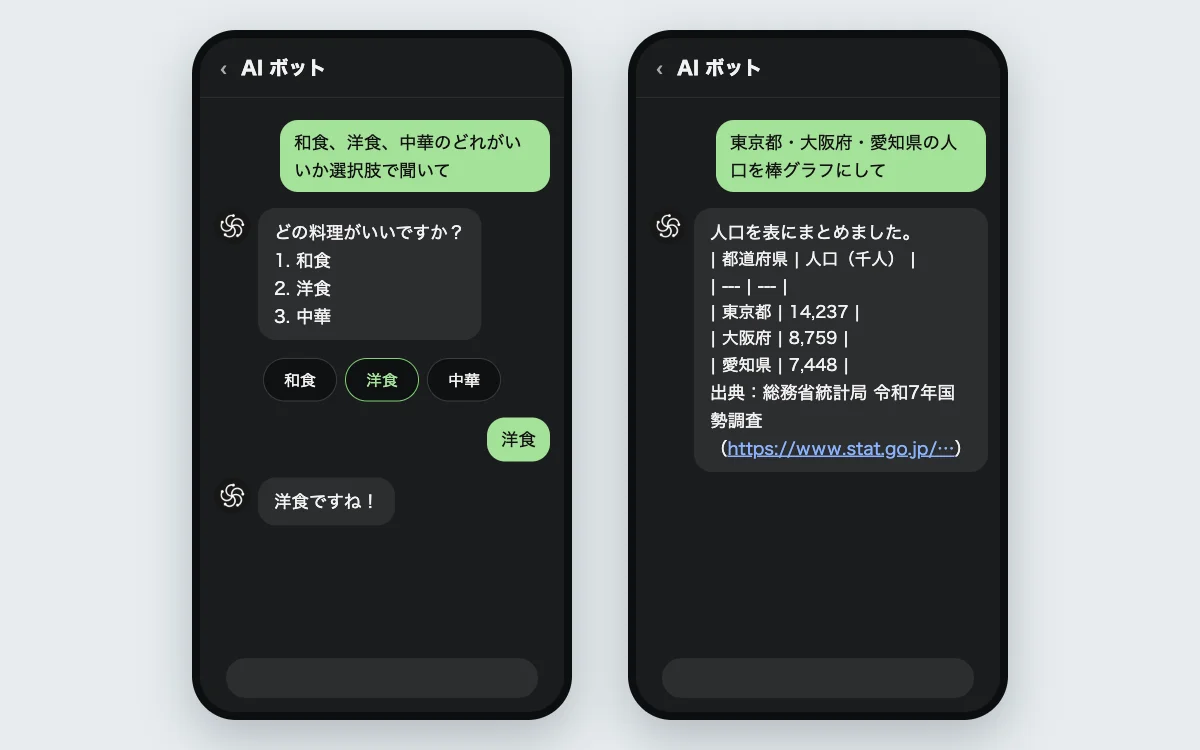
.jpg". In a group a photo can't carry a mention, so send it in a one-on-one chat - When the AI asks back with choices, you can answer with the quick reply buttons shown below the chat
- Images the AI makes (PNG and JPEG, up to 1 MiB) are sent to the same chat after the answer. Other files are listed by name with a link to the Samurai App conversation
- In "Messages to reply to", you can choose "Only when mentioned", "Let AI decide", or "All messages"
- The conversation is also kept in the requester's Samurai App history, and they can continue it in the app
What it can't do
- It doesn't answer people who haven't linked their account. It can't serve as a customer-facing window
- The answer arrives as one message. There is no display that streams it as it is written
- Headings and bold aren't available, so answers are plain text. Links are written as the URL next to the name. Charts become tables, and tables arrive as text separated by "|"
- Operations that need approval can't be approved in the chat. A link to the Samurai App conversation arrives, and you approve in the app
- Messages sent before the call usually aren't passed to the AI. Only when the chat is added to Samurai channels are the messages from the previous 30 minutes (up to 20) passed too
What you need
- A LINE Official Account. Creating one just for internal use keeps it separate from your customer-facing account
- Permission to use that account's Messaging API in the LINE Developers console
- A Samurai App admin or manager (these two roles can create external chat connections)
- A Samurai App account for each person who will call it
Since September 4, 2024, Messaging API channels can no longer be created directly in the LINE Developers console. Create the LINE Official Account first, then enable the Messaging API in LINE Official Account Manager.
Steps
1. Note the channel secret and channel access token
In the LINE Developers console, open the official account's Messaging API channel. Note the channel secret under "Basic settings" and a long-lived channel access token you issue under "Messaging API settings".
2. Register the connection in Samurai App
In Samurai App's "External chat" (/settings/chat-surfaces), add a connection and choose LINE as the platform. Register two secrets: the channel secret and the channel access token. Both are tenant-shared secrets, picked or added right in the form.
If you'll use it in groups, putting text such as @AccountingBot in "Text that addresses the bot (optional)" makes messages containing that text count as calls too. Left empty, only LINE mentions count.
3. Paste the webhook URL and turn the webhook on
In the console's "Messaging API settings", paste the URL shown in the form into Webhook URL and turn on "Use webhook". After registering the connection, press "Verify" and check that it says "Success".
If you'll use it in groups, also turn on "Allow bot to join group chats" on the same tab. It is off by default.
4. Talk to the official account one-on-one and link your account
Add the official account as a friend and talk to it in a one-on-one chat. The first time, a linking link comes back. It is valid for 1 hour. Open it while signed in to Samurai App and press "Confirm account link"; your first request then continues and the answer arrives.
After linking, calls from groups also run with the requester's own Samurai App permissions.
Watch your message count
Samurai App sends answers as push messages. LINE's pricing page says push messages count toward the monthly free message limit, while reply messages don't. One message sent to a group counts once for each member of the group.
On LY Corporation's plan page (as of November 24, 2026), the free message counts are as follows (monthly fees exclude tax).
| Plan | Monthly fee | Free messages | Additional messages |
|---|---|---|---|
| Communication plan | ¥0 | 200 | Not available |
| Light plan | ¥5,000 | 5,000 | Not available |
| Standard plan | ¥15,000 | 30,000 | Pay per message |
Once you reach the limit, push messages can't be sent for the rest of the month. Use a test official account for trying it out, and pick a plan with room to spare if many people will use it.
Common pitfalls
- Calling it in a group the first time returns nothing. The linking notice is sent only in a one-on-one chat. The connection's row also shows this warning
- You can't invite the official account to a group. "Allow bot to join group chats" is off. Only one official account can be in a group
- A fixed message comes back besides the AI's answer. Auto-reply messages are still on in LINE Official Account Manager. Turn them off for chats where AI answers
- Choice buttons don't appear in LINE on a computer. Quick replies show only in LINE on a smartphone (iOS and Android). On a computer, answer by writing the option's number
- Answers suddenly stopped arriving. Check in LINE Official Account Manager whether you've reached the monthly message limit
Example requests
In a one-on-one chat, sending just a photo is enough for the AI to read it and answer. Write the form you want next, and it revises the answer as part of the same conversation.
(after sending a photo of a quote)
Put the items and amounts from that quote in a table with the total
@AccountingBot List this month's travel expense requests that haven't been approved yet
FAQ
Can AI answer LINE messages from customers?
Not with the method in this article. Only people inside the company who have linked their Samurai App account get answers. Chats from customers are received in the unified inbox, where AI drafts or sends replies. See How to Manage LINE and Messenger in One Place.
Can I do the same in LINE WORKS?
Yes. How to register a LINE WORKS bot is covered in How to Make AI Auto-Reply with a LINE WORKS Bot. In LINE WORKS, bots can't be added to chats that include LINE users or people outside the company.
Can I do the same in other chat tools?
Yes. See the articles for Slack, Microsoft Teams, Chatwork, and Google Chat. In Slack, Teams, and Google Chat, approvals can also be pressed with buttons in the chat.
Sources
- Messaging API pricing (LINE Developers)
- Group chats and multi-person chats (LINE Developers)
- Using quick replies (LINE Developers)
- Getting started with the Messaging API (LINE Developers)
- Plans (LINE Yahoo for Business)
- External chat settings (Samurai App usage guide)
LINE's specifications and pricing were checked on the official pages as of November 24, 2026. See LY Corporation's site for the latest information.