Are you opening another screen and pasting room messages again every time you want to ask AI something, even though the discussion is already happening in Chatwork? This article is for administrators of teams that use Chatwork. It explains how to set things up so that mentioning a bot in a room has AI take on the work right there and answer with a reply to the message that called it.
If you want AI to draft replies to messages from clients, that is a different feature, covered in How to Let AI Handle Your Chatwork Replies. This article covers people inside the company calling the bot to ask for work.
Bottom line
- Create one Chatwork account for the AI bot, and register its API token and the webhook token that receives mentions in Samurai App
- When you mention the bot in a room it has joined, the AI answers with a reply to the message that called it (shown with "Re" in Chatwork), which notifies the caller
- Chatwork has no threads, so each mention starts a new conversation. Replying to the bot's message within 7 days continues the same conversation
- Earlier messages are passed to the AI too. The first call passes the 30 minutes before it (up to 20 messages); later calls pass only the messages after the AI's last post
- The first time, call the bot from a direct chat with the bot to link your account. Calls from a group room get no reply until linking is done
Two ways to call AI from Chatwork
| Call AI from a connector tool on each post | Call through a bot account | |
|---|---|---|
| What starts it | A post to the room | A mention of the bot |
| Where the answer goes | A post to the room set in the flow | A reply to the calling message |
| Internal documents and services | Only what is built into the flow | Chosen from the files and connectors the AI can use |
| Suits | Repeating a fixed process | Asking for different work on the spot |
Chatwork webhooks notify an outside service of posts to a room (room events) and of mentions to yourself (account events). Chatwork's API documentation calls a mention to yourself the mention_to_me event, covering group chats, direct chats, and My Chat. Samurai App receives mentions to the bot account through this event.
What Samurai App can and cannot do
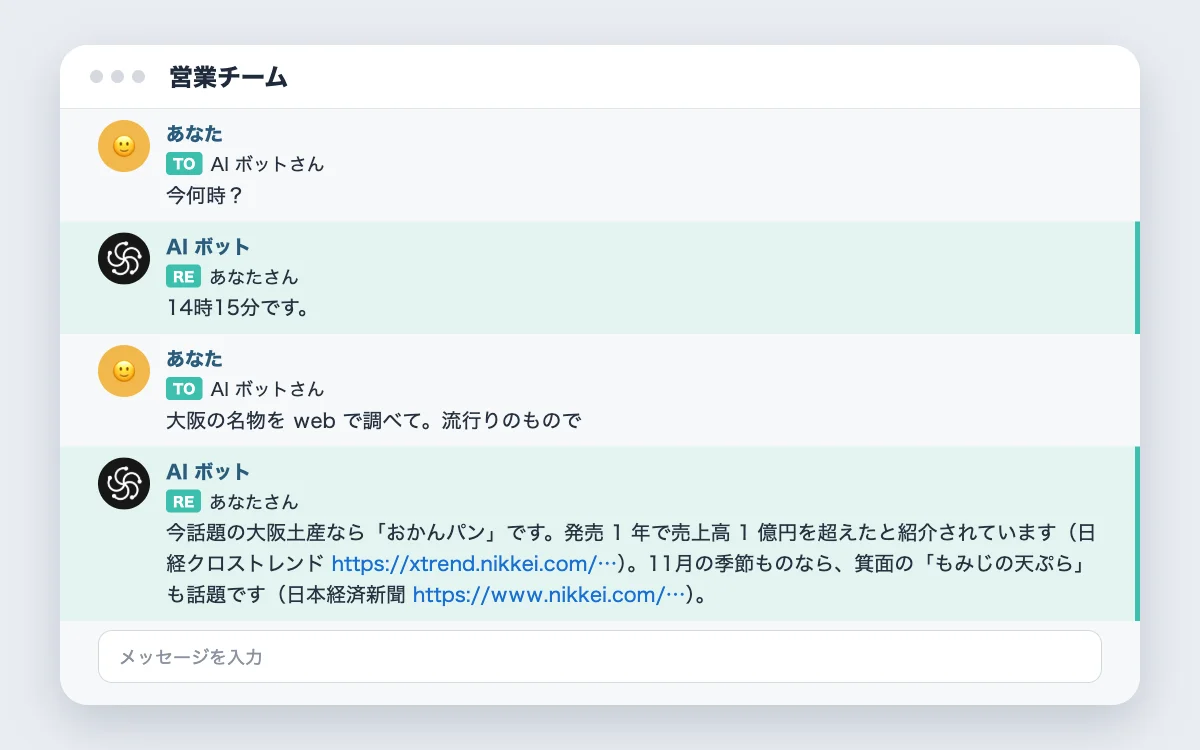
What it can do
- The bot can be called from any room it has joined. You do not enter room IDs
- The answer arrives as a reply to the calling message. A follow-up answer to the same call, or one sent after the app restarted while working, is posted to the room without the reply format
- Earlier messages are passed to the AI. It reads the latest 100 messages in the Chatwork room with the API token and passes up to 30 messages and 6,000 characters, dropping the oldest beyond that
- If you paste a link to a Chatwork message in the same room into the calling message, that message's sender and text are passed to the AI too. Up to 3 links per call and 3,000 characters per message
- The AI reads files uploaded in Chatwork. Files the AI makes are posted to the same room after the answer, up to 5 per answer
- The conversation also appears in the requester's history and can be continued in Samurai App later
What it cannot do
- It does not answer messages without a mention. A Chatwork connection answers only when called
- It does not read links to messages in other rooms, even rooms the bot has joined, or links from rooms where AI access is turned off
- The answer arrives as one message. There is no display that streams it as it is written
- Headings and bold are not available, so answers are plain text. Links are written with the URL next to the label, and code and dividers use Chatwork's own notation. Charts become tables
- Mentions in the answer such as
[toall]are disabled, so the AI never calls everyone in the room
What you need
- A Chatwork account for the AI bot. Answers are posted from this account
- That account's API token. According to Chatwork's API documentation, you find it under your user name at the top right → "Service Integration" → "API Token". Outside the Personal plan, you need to apply to your organization's administrator to use the API
- An administrator or manager in Samurai App (only these two roles can create external chat connections)
The API token has no expiry and can be used for everything that account can do. Use the token of the bot account, not a personal account.
Steps
1. Register the connection in Samurai App
In Samurai App's "External chat" (/settings/chat-surfaces), add a connection and choose Chatwork as the platform. You register two secrets: the bot account's API token and the webhook token. Both are tenant-shared secrets that you pick or add right in the form.
The form's "How to connect" lists a link to Chatwork's admin screen and what to do before registering.
2. Create a webhook with the bot account
Sign in to Chatwork as the bot account and create a new webhook under "Service Integration" → "Webhook". Paste the URL shown in the form, and choose account event (mentions to the bot account) as the event.
After creating it, copy the token shown on the edit screen and register it as the webhook token in step 1. If you choose room event, mentions do not arrive.
3. Add the bot to rooms
Add the bot account as a member of the rooms where you want to use AI. Also open a direct chat with the bot.
4. Call the bot in a direct chat and link your account
In the direct chat with the bot, mention it and ask something. The first time, a linking link comes back, valid for 1 hour. Open it while signed in to Samurai App and press "Confirm linking"; the first request then continues and the answer arrives.
After linking, the bot works with the requester's own Samurai App permissions, whichever room it is called from.
Continuing a conversation
Chatwork has no threads, so each mention of the bot starts a new conversation. To follow up on an earlier answer, reply to the bot's message. A reply within 7 days continues the same conversation. While the AI is waiting for your answer to a question, calling it again in the same room also continues it.
When the AI asks with options, answer by writing the option numbers in a reply.
When the request stops at an operation that needs approval, a notice with a link to the conversation in Samurai App comes back. Approve it in the app.
Common pitfalls
- Calling the bot first in a group room returns nothing. The linking notice is sent only when the call is made in a direct chat with the bot. The connection's row also shows a warning about this
- If the webhook event is left as room event, mentions do not arrive. Mentions come through account events
- The notice that work could not be started appears only in a direct chat. Nothing is posted in a group room, so wait a moment and call again
- The same bot account cannot be registered by another tenant. If it is already registered, you see CS-40003. If Chatwork rejects the API token, CS-40007; if Chatwork cannot be reached, CS-40009
- The platform and secrets cannot be changed later. To change them, add the connection again
Example requests
Answers are steadier when the AI reads the room first and you specify the format.
[To:bot account ID]
Separate what was decided in this room today from what is still open.
Include names where an owner has been assigned
[To:bot account ID]
Pick out the quote conditions in this message and draft a reply. I will send it myself
https://www.chatwork.com/#!rid12345-67890
The link in the second example is read only for messages in the same room.
FAQ
Is this different from AI replying automatically to client messages?
Yes. The bot in this article works only when mentioned, and does the work with the requester's permissions. AI drafting or auto-replying to messages from clients is a unified channels feature, explained in How to Let AI Handle Your Chatwork Replies.
Can it respond without a mention?
No. A Chatwork connection answers only mentions to the bot.
Can I do the same in other chat tools?
Yes. See the articles for Slack, Microsoft Teams, and Google Chat. Unlike Chatwork, Slack, Teams, and Google Chat let you press buttons for approvals and options. For a LINE Official Account, see How to Ask AI for Work Through a LINE Official Account, and for LINE WORKS, How to Make AI Auto-Reply with a LINE WORKS Bot.
Can one room have several bots?
Yes. In Chatwork you register a connection per bot account and choose each one's "Responding bot". When bots call each other, they run with the permissions of the person who first called a bot, and stop after 3 calls.
Sources
- Chatwork API documentation: Webhook
- Chatwork API documentation: Getting started
- Chatwork API Terms of Use
Chatwork's specifications were checked in its official documentation as of November 24, 2026. Check Chatwork's site for the latest information.