Someone asks in chat, "What's the password for the company X account again?" and you paste it right into the reply. Ad dashboards, business accounts on shopping sites, guest Wi-Fi: a surprising number of services cannot be set up as one account per person, so passwords change hands inside the company almost every week.
This article is for the IT and general affairs staff and department leaders put in charge of shared accounts. We compare what each way of handing over a password leaves behind and what goes wrong, then lay out how to decide the unit of sharing and permissions, how to handle two-step verification codes, and the steps when people join and leave.
The descriptions from public agencies reflect what their official sites showed as of November 9, 2026.
Bottom line: hand over "permission to view," not "the value"
- Once you write a value in chat or email, you cannot delete it after sending. The website of Japan's Ministry of Internal Affairs and Communications also urges people not to exchange passwords by email
- Group sharing by purpose, not by person. Split it into units such as "Sales shared" and "Accounting shared," and add people to or remove them from that unit
- At minimum, split permissions into "people who can change" and "people who can only view." Even so, people who can only view can still note down the value
- When you remove someone, change the passwords they could see. No tool can take back what a removed person remembers or noted down
- Decide whether to keep two-step verification codes in the same place as the passwords before sharing them
Comparing ways to hand over passwords
| Method | What is left afterward | What goes wrong |
|---|---|---|
| In person, by phone | No record | Mishearing. You lose track of who you told |
| The mailboxes of both sender and recipient, and anywhere it was forwarded | Cannot be deleted after sending. Spreads through attachments and forwarding | |
| Chat | Conversation history, notifications, the search index | People who join later can search past messages. It also reaches integrated apps |
| Spreadsheet | The file and its copies | No record of who opened it. Copies multiply |
| Password manager | Encrypted items and a record of operations | Requires introducing the tool and initial setup for each user |
In person, by phone
Leaving no record may seem like an advantage, but there is also no record of who you told and when. When someone leaves, you cannot remember which passwords you gave them. The longer the string, the more likely it is to be misheard.
An email you send stays with both the sender and the recipient. If the recipient forwards it, it spreads further. The Ministry of Internal Affairs and Communications' "Setting and managing secure passwords" also lists not exchanging passwords by email.
Chat
The easiest method, and the one most likely to leave traces. A value pasted in a channel can be found by search even by people who join the channel later. It can also fall within the scope that apps integrated with the chat, or summary features, refer to. If you do end up sending one, do not just delete the message; change that password too.
Spreadsheet
It is easy to manage as a list, but everyone who can open the file can read every row. Copies multiply easily, and there is no record of who looked. We cover this in more detail in The risks of managing passwords in Excel.
Password manager
This method shares an encrypted vault and hands over "permission to open the vault" rather than the value itself. When you add or remove people, only the permission changes, so there is no longer any moment where a value gets written in chat or email. We compare products in our password manager comparison.
How to decide the unit of sharing and permissions
Group the unit by "purpose"
Put everything into one giant share, and everyone in sales can see even the accounting accounts. On the other hand, creating a share for each account becomes unmanageable. As a guide, group the accounts used by the same people, as follows.
- Department shares (Sales shared, Accounting shared)
- Purpose shares (ad operations, social media operations, office equipment)
- Shares for executives or administrators only (banking, domains, cloud admin accounts)
Split permissions into three levels
Within a share, permissions are easier to run when split into these three levels.
- People who manage: can add and remove people and change the share's own settings
- People who can change: can add and edit items
- People who can only view: can read and copy values
"Only view" means they cannot change things on their own. As long as they can read a value, you cannot stop them from noting it down elsewhere. The basic rule is not to share with people you do not want reading it in the first place.
Who receives two-step verification codes
When you turn on two-step verification for a shared account, receiving the code tends to fall to one person. When that person is off, nobody can sign in. There are two ways to deal with this.
- Put the authenticator app's setup key in the vault item along with the password. Everyone in the share can generate codes. In exchange, the password and the setup key are in one place
- Have a different person hold the setup key. This preserves the point of two-step verification, but nobody can sign in when that person is away
Choose based on how important the account is. You can also draw the line by keeping banking and cloud admin accounts separate while combining social media and ad dashboards. See also How to use two-step verification on shared accounts, which compares four ways of sharing, and the two-step verification for shared accounts page, which lays out the problem.
Steps when people join and leave
When someone joins or transfers in
- Decide which shares they will use, and add them to those shares
- They do the first sign-in themselves, on their own device
- Do not send values by chat or email. Just tell them where it is: "Look at X in the vault"
When someone leaves or transfers out
- List the shares they were in
- Remove them from the shares
- Change the passwords of the accounts the removed person could see. Work from the most important accounts down
- For accounts where they held the two-step verification setup key, set up two-step verification again
For the full flow, including deactivating company accounts and the steps in Google Workspace and Microsoft 365, see Deleting accounts and changing passwords when employees leave.
The Ministry of Internal Affairs and Communications says regular password changes are unnecessary as long as there has been no leak. The US NIST guidelines also do not require regular changes, and call for a change when there is evidence of a compromise. Someone leaving is an event where "a person who knows goes outside the company," so it is a reason to change.
What Samurai App can do
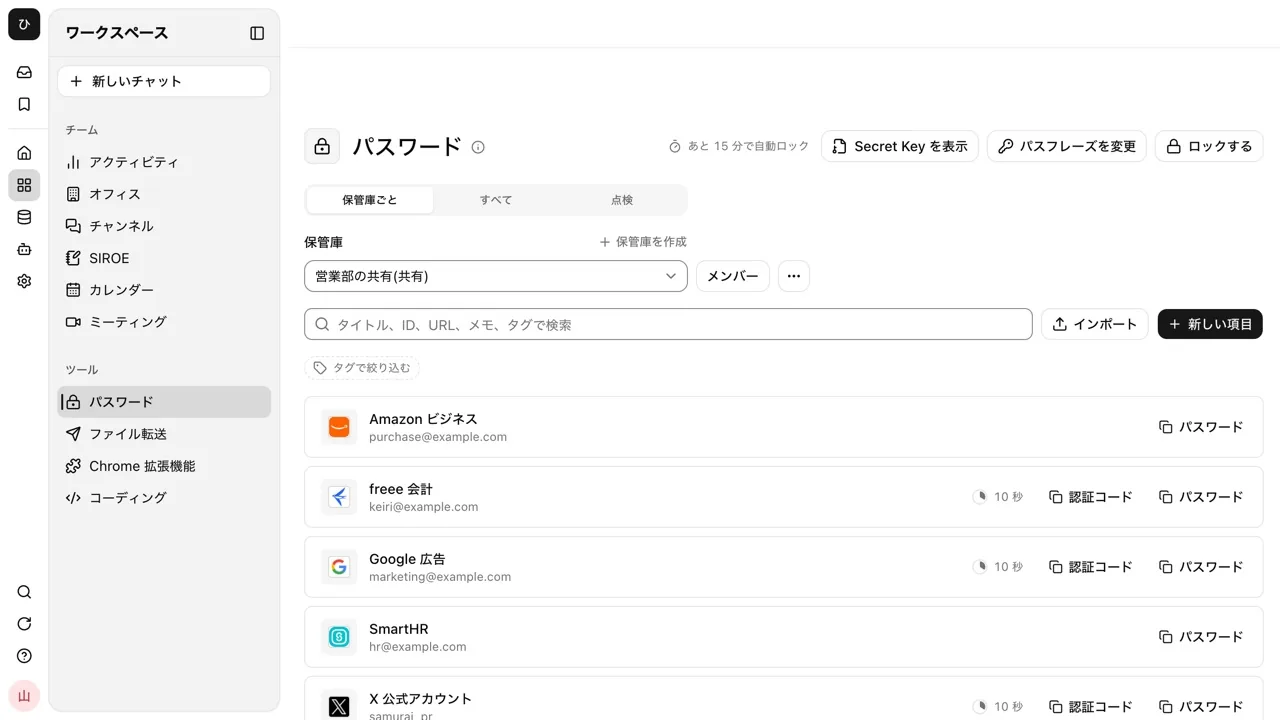
"Passwords" in Samurai App shares with people using the vault as the unit. Contents are encrypted in the browser, and while stored, neither the server, the operators, nor the AI can read them.
- You decide the members of each vault. Add people from "Members" and choose "Manager," "Editor," or "Viewer." Up to 100 people can be in one vault
- You can add people from a group at once. Choose "Group," and of the people in it at that moment, those who have finished initial setup are added one by one. People who join the group later are not added automatically, so add them from "Members" each time someone joins or transfers
- Once removed, nothing more reaches that person. "Remove [name]" stops delivery. The screen also prompts you to change, at each service, the passwords that person could see
- You can share two-step verification codes too. Put the setup key in the item's "Authentication code key," and you can copy the code with the "Authentication code" button in the list. For sites that only show a QR code, you can read the image (reading happens only inside the browser)
- Copied values are cleared from the clipboard after 30 seconds
- When a key is handed over again, you read a verification code to each other. When an administrator hands the key to a shared vault back to someone who lost their passphrase and recreated their keys, the same 30-digit number appears on both their screens. Read it to each other by phone or in person, and hand it over only if it matches
Here is what it cannot do.
- Viewers can also copy. Do not put people you do not want reading it in the vault
- Values a removed person noted down cannot be taken back. Changing passwords after removal is done by a person at each service
- The AI cannot use the vault. For sites you want the AI to sign in to, open the item, press "Copy to browser logins," and register it separately as a login only you use. Changing the original item later does not change the copy, so make changes on the "Browser logins" side
- Records of viewing and copying are reported by the browser. They are kept in the audit log, but they do not prove who read a value
For details, see the Share shared-account passwords safely in a vault page.
Frequently asked questions
What should I do when I want to share a password temporarily?
Even if temporary, a value written in chat or email stays behind. The reliable way is to add the person as a vault member, remove them when they are done, and change that password. To hand one over just once to someone outside the company, some password managers (such as Proton Pass) let you share an item by link.
Isn't sharing a password itself a violation of the terms of service?
Some services prohibit account sharing in their terms of service. Before sharing, check whether the service supports multiple users or adding administrators. If you can give each person their own account, that is the safest option.
Should Wi-Fi passwords be shared the same way?
Employee Wi-Fi is best put in a vault and shared only with employees. Guest Wi-Fi is meant to be shown to outsiders, so keeping it on a separate network with a separate password from the employee one limits the damage if it leaks.
When someone I shared passwords with leaves, do I need to change all of them?
The principle is to change everything that person could see. If you cannot change them all at once, start with things tied to money (banking, payments, advertising), things that speak in the company's name (social media, domains), and things with admin privileges.
Sources
- Setting and managing secure passwords (Ministry of Internal Affairs and Communications, Cybersecurity Site for Citizens)
- Proton Pass for Business Pricing (Proton)
- NIST SP 800-63B Digital Identity Guidelines: Authentication and Authenticator Management (NIST)
- Passwords (guide) (Samurai App)
The descriptions from public agencies were checked against each official site as of November 9, 2026.