Even when a card payment or invoice payment fails, you may not notice until you open the Stripe dashboard. This article explains how to send payment failures to a Slack channel, including how to read amounts and how to handle customer information.
Summary
- Receive Stripe events with a Samurai App "service integration" and send them to Slack with "Send to notification target". You don't need to paste any URL.
- The core events are
STRIPE_INVOICE_PAYMENT_FAILED(invoice payment failed) andSTRIPE_CHARGE_FAILED(charge failed). Completed sign-ups can be received withSTRIPE_CHECKOUT_SESSION_COMPLETED. - Amounts arrive as a number in the smallest currency unit. For Japanese yen,
5000is ¥5,000, but for US dollars,1099is $10.99. - "Send to notification target" doesn't call a model, so this setup uses no credits. The roughly ¥0.5 per event received is charged separately.
What it can and can't do
What it can do:
- For each event, pick values such as the amount, failure reason, and invoice number and insert them into the message
- Send to different channels for each notification target registered under "Notifications" in "Settings"
Constraints from Stripe's specifications:
- The same event can arrive twice. Stripe advises that it doesn't guarantee order and may send the same event more than once. In live mode, if delivery fails, it retries for up to 3 days.
invoice.payment_failedisn't necessarily a final failure. It also arrives for temporary failures that are retried automatically. You can show the attempt count in the message withattempt_count.checkout.session.completeddoesn't necessarily mean the payment is complete. The payment may still be processing even when the session is complete, so includepayment_statusin the message to tell them apart.- If you receive both
charge.failedandinvoice.payment_failedfor a single payment failure, notifications may overlap. We couldn't find an official statement of how they correspond, so we recommend starting with one, watching how events actually arrive, and then adding the other.
Constraints from Samurai App's specifications:
- Trigger runs only work with the published version.
- Service integration triggers can be added by managers and above, and up to 20 can be enabled. You create one trigger per event, so each event you want to receive uses up part of that limit.
What you need
- A Stripe account
- The channel to post to, and a Slack Incoming Webhook URL for that channel
- Manager or higher permission in Samurai App
Steps
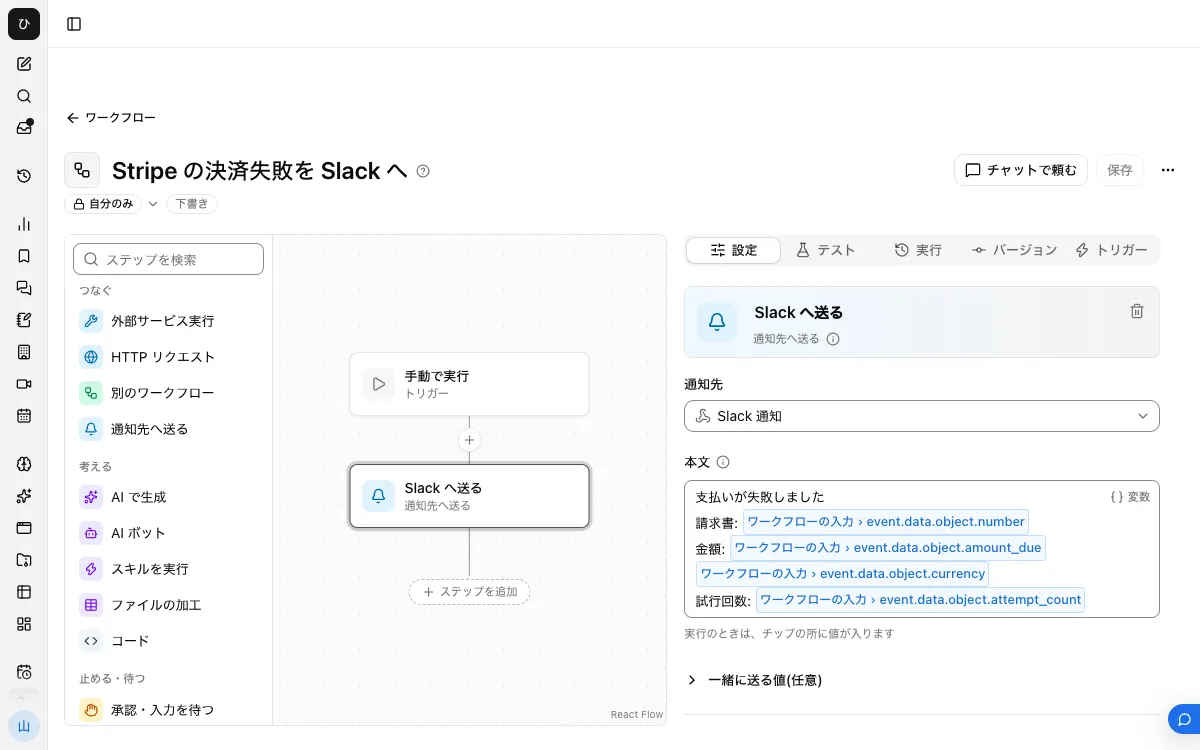
When you're done, the workflow looks like this.
1. Create an Incoming Webhook in Slack
Create an app in Slack's app management screen and enable "Incoming Webhooks". Choose the channel to post to with "Add New Webhook to Workspace" and allow it, and a URL is issued. The destination is fixed at this point and can't be changed by the sender. If the URL leaks, a third party can post to that channel, so don't share it.
2. Register the notification target
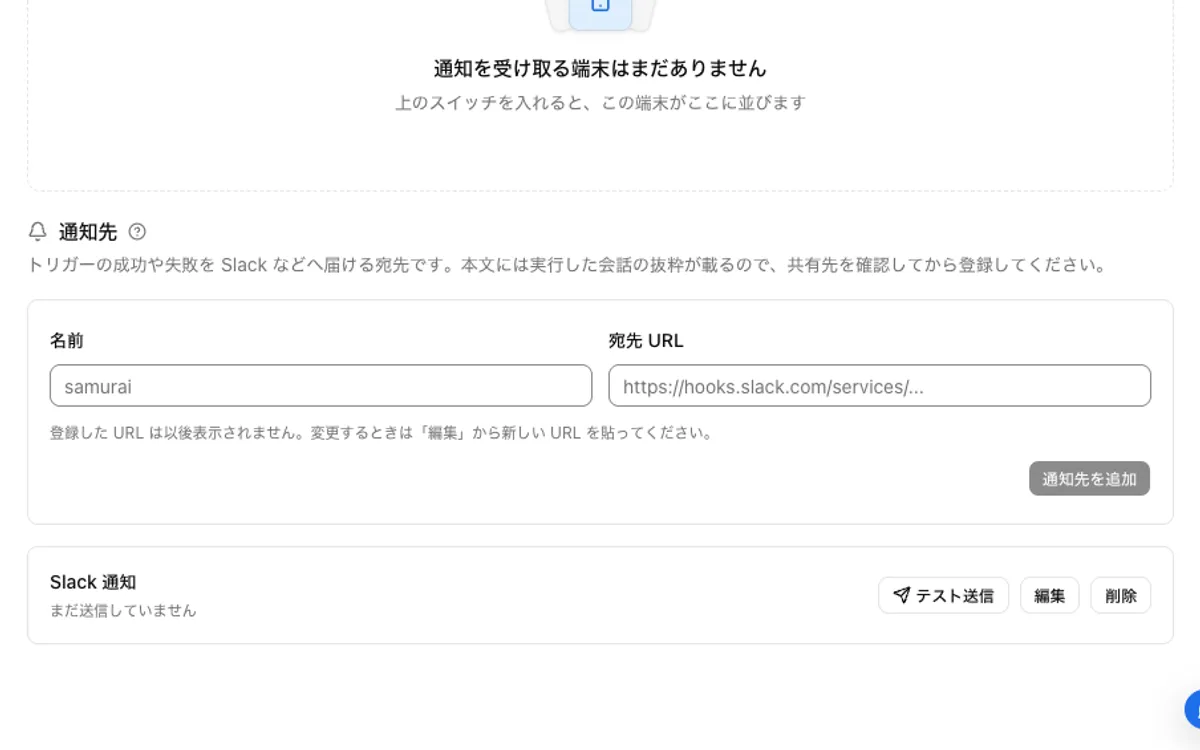
In Samurai App, register a name and the URL under "Notification targets" in "Settings" > "Notifications", and confirm it arrives with "Send test". Only https:// URLs can be registered as notification targets, and the URL isn't shown again after registration.
3. Connect Stripe
On the "Connectors" tab of the "Connectors" screen, search for Stripe, press "Add", and "Connect" your own account.
4. Build the workflow
Create a workflow with "New" in "Workflows". With no step selected, go to "Workflow inputs" under "Settings" and press "Add input field". Name it event and set its type to "Group of fields".
Add "Send to notification target" from "Add step" and choose the notification target from step 2. In "Body", you can insert values with "/", "{{", or "Variables". For an invoice payment failure, for example, write the following.
Payment failed
Invoice: {{input.event.data.object.number}}
Amount: {{input.event.data.object.amount_due}} {{input.event.data.object.currency}}
Attempts: {{input.event.data.object.attempt_count}}
For a failed charge, use amount, currency, and failure_message. currency arrives in lowercase, like jpy. To build it in chat, ask "Build a workflow that sends Stripe invoice payment failures to the Slack notification target".
5. Publish and add the trigger
On the "Versions" tab, press "Publish version N". Then press "Add service integration" on the "Triggers" tab, choose Stripe under "Which service to watch" and STRIPE_INVOICE_PAYMENT_FAILED under "When to run". What arrives is passed as the input event, so you aren't asked about that field.
6. Check the contents with the first event
When an event arrives, open the step's input and output under "Recent runs" on the "Runs" tab, and check that the inserted values are what you expected. Don't add more fields to the message until you've done this check.
Notes on sending customer information to Slack
Stripe events contain customers' personal information, such as customer_email, customer_name, customer_address, customer_phone, and billing_details. Everyone in a Slack channel can read it, and posts remain. Insert only the fields you need into the message.
- If you identify whose payment it is by
customer(the customer ID) first and look up the details in the Stripe dashboard, no personal information stays in Slack. - An invoice's
hosted_invoice_urlis the URL where the customer views and pays the invoice. Don't post it in the channel. - "Values to send along (optional)" aren't shown in Slack. Even if you put the whole event in, it doesn't appear on screen and only increases the data sent outside, so don't use it.
When it doesn't work
- A step fails, saying a value is missing. If an inserted field isn't in what arrived, the step fails rather than sending it empty. A value of
nullbecomes empty, but if a parent field isnull, the fields under it are treated as missing. Checkout'scustomer_detailscan benull, so an insertion likecustomer_details.emailfails this way. - Events arrive but nothing runs. The workflow may not be published. Check the publication status on the "Versions" tab.
- The amount is off by some digits. You're misreading the smallest currency unit. Japanese yen is a currency without decimals, so the number as-is is the amount in yen. For currencies with 2 decimal places, such as US dollars, divide by 100.
- Nothing arrives in Slack. If the "Notification targets" row says "The destination URL was not found. Check the URL (404)", the URL is wrong. Fix it with "Edit".
FAQ
Can I tell test-mode payments from live payments?
Events include livemode. Insert {{input.event.livemode}} into the message to tell them apart.
Can I also get notified about refunds and disputes?
Yes. STRIPE_CHARGE_REFUNDED and STRIPE_CHARGE_DISPUTE_CREATED are in the list. Add each as a separate trigger. For failed payouts, there's STRIPE_PAYOUT_FAILED.
Can I stop duplicate notifications?
Not with the setup in these steps. If the same event arrives again, it's sent again. Stripe advises identifying duplicates by event ID, so people reading the notifications should check by invoice number or charge ID whether it's the same case.
Related guides
- Send Shopify out-of-stock alerts to Slack
- Send HubSpot updates to Slack
- Summarize a Slack channel with AI every morning