Sometimes the person handling orders does not notice that a popular product has sold out until they open the admin. This article explains how to notify Slack when a Shopify variant (a product by color, size, and so on) goes out of stock, and when it comes back in stock.
Conclusion
- Receive
SHOPIFY_PRODUCT_VARIANT_OUT_OF_STOCKandSHOPIFY_PRODUCT_VARIANT_BACK_IN_STOCKthrough a Samurai App "service integration," and send them to Slack with "Send to notification target." - Shopify is a connector that shows "No standard integration app," so you need to prepare by creating an app on the Shopify side and connecting it as your own OAuth client.
- What arrives includes the variant name, but not the product name.
- This article does not cover order notifications, because there are no order events in the list of service integration events.
What You Can and Cannot Do
What you can do:
- Get notified when a variant goes out of stock and when it comes back
- Insert the variant name, SKU, price, and product ID into the message
Constraints that come from Shopify's specifications:
- Out-of-stock notifications arrive only when the total across all locations reaches 0. Even if one warehouse runs empty, no notification arrives if other locations still have stock. Back-in-stock likewise arrives only when the total goes above 0. It does not arrive with every sale or restock.
- It does not notify you when stock runs low. These two events cannot notify you at a threshold such as "5 left."
SHOPIFY_INVENTORY_LEVEL_UPDATEDarrives on changes in quantity per location, but every change incurs a receiving cost. - For online channels, it arrives only when online inventory runs out. Shopify's webhook documentation describes conditions that depend on the channel.
- Order and delivery are not guaranteed. Shopify advises that webhook delivery is not always guaranteed and that order is not guaranteed either, and recommends periodic reconciliation. These notifications are for noticing; check the accurate inventory record in the Shopify admin.
- One arrives per variant. If all four colors of a product sell out, you get four notifications.
What You Need
- A Shopify store, and permission to create and install apps
- The destination Slack channel and the URL of an Incoming Webhook
- Administrator or manager permissions in Samurai App (required to add connectors and service integration triggers)
Steps
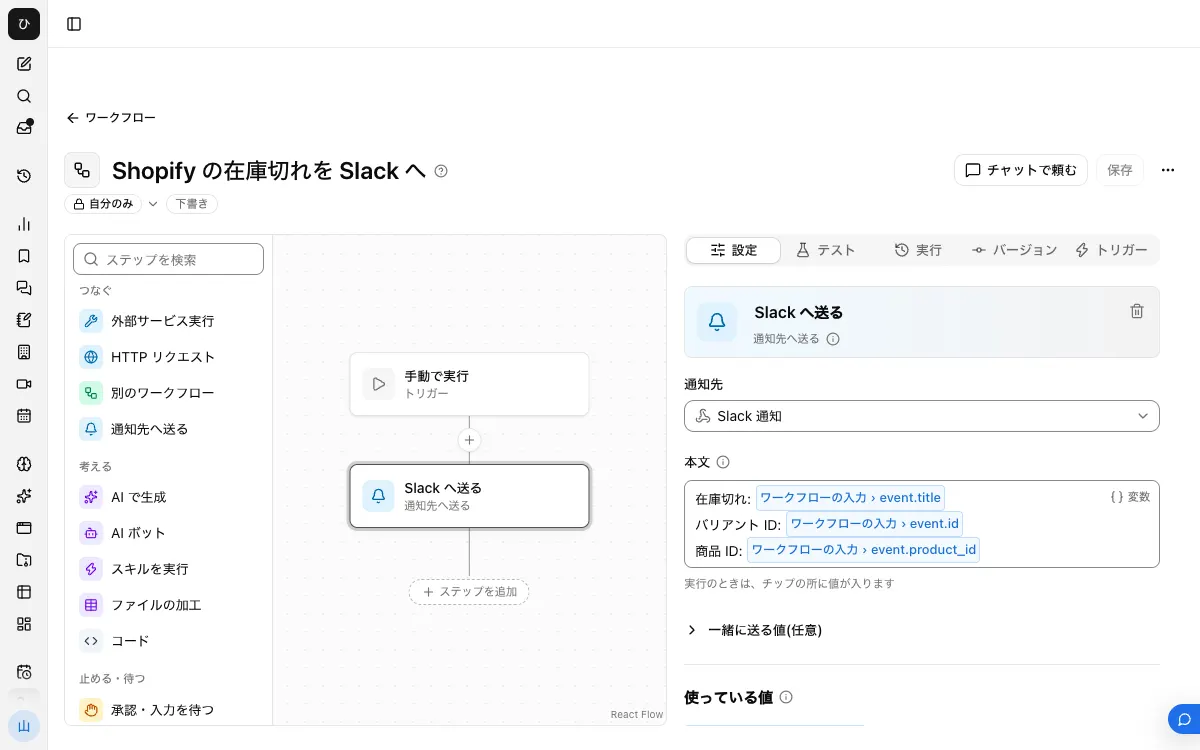
When finished, the workflow looks like this.
1. Note the Redirect URI in Samurai App
Search for Shopify on the "Connectors" tab of the "Connectors" screen. It shows "Shopify has no standard integration app," and the only "Add" menu item is "Add with your own OAuth client." Press it, and the form shows "Redirect URI to register on the Shopify side"; note it down.
2. Create an App on the Shopify Side
In Shopify's Dev Dashboard, go to "Apps" → "Create app" → "Start from Dev Dashboard," and name the app. Create a version under "Versions," add read_products to the scopes, and press "Release." Also register the redirect URI from step 1 with the app.
Under "Credentials" in "App settings," you will find the Client ID and Client secret; note them down. Install the app on your store from "Install app."
3. Connect in Samurai App
Enter the Client ID and Client secret in the form from step 1 and save. If you leave the "Scopes" field empty, the default scopes are used; if you fill it in, it replaces the defaults. To add scopes, enter the defaults with "Use example" first and then append. After connecting, "Link" your own account.
4. Register the Notification Target
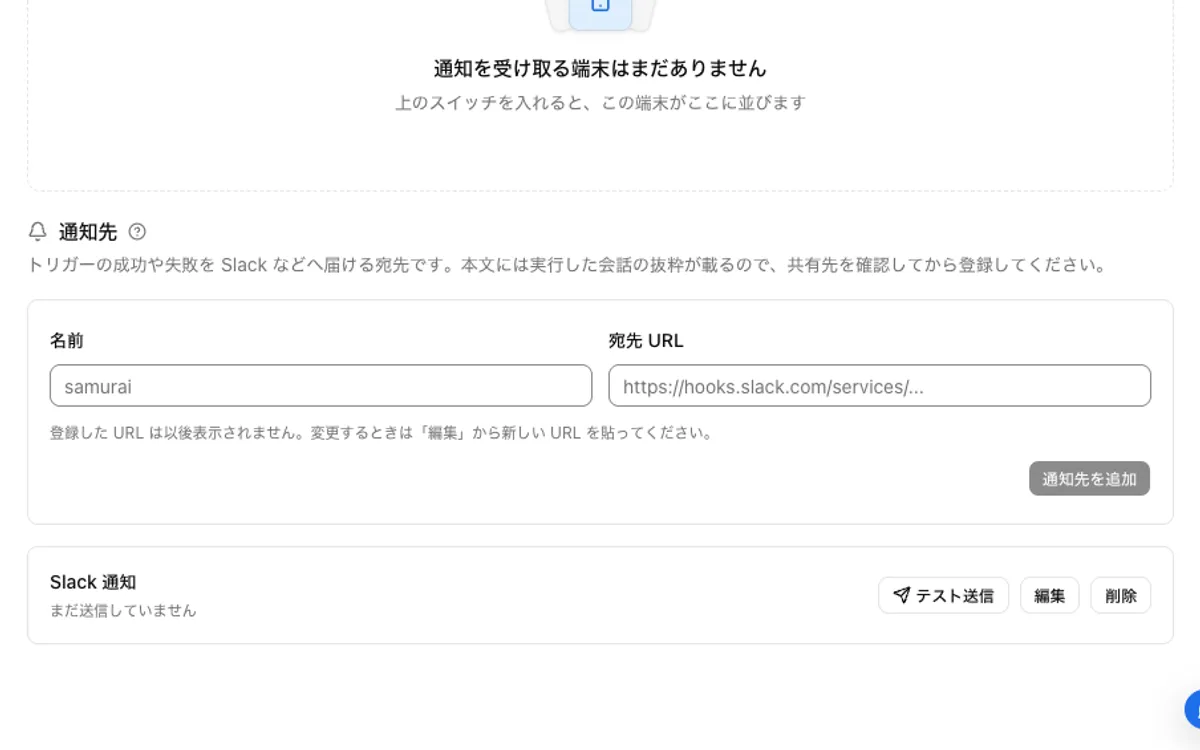
Register the Slack Incoming Webhook URL under "Notification targets" in "Settings" → "Notifications," and check it with "Send test."
5. Create the Workflow
Create a new one in "Workflows," and add event (type "Group of fields") to "Workflow input." Add "Send to notification target" with "Add step," and write the body.
Out of stock: {{input.event.title}}
Variant ID: {{input.event.id}}
Product ID: {{input.event.product_id}}
title is the variant name, with values like Small / Blue. For a product with only one variant, it is Default Title.
Of what arrives, only id is documented as always present. If you insert sku or barcode, add them only after confirming the field is there in the first event from the next step. If the field is missing from what arrives, the step fails rather than sending it blank.
6. Publish and Attach the Trigger
Press "Publish version N" on the "Versions" tab, then choose Shopify and SHOPIFY_PRODUCT_VARIANT_OUT_OF_STOCK with "Add service integration" on the "Triggers" tab. For back-in-stock notifications, create a separate workflow with different wording and attach SHOPIFY_PRODUCT_VARIANT_BACK_IN_STOCK.
According to the provider's description, notifications arrive a few seconds after the inventory change. Set the stock of a test product to 0, and check what arrived under "Recent runs" on the "Runs" tab.
When You Want the Product Name in the Message
The product name is not in what arrives. To include it, add a step for the Shopify action SHOPIFY_GET_PRODUCT before the notification and pass it {{input.event.product_id}}. Later steps can choose the product name from its result under "Variables."
This action is a read and runs in unattended runs too. If an administrator has set this action to "Confirm every time," it is refused because there is no one to approve it. By default, runs use the account of the person who started them, so if the person in charge changes, check "Lend to this workflow" under "Credentials used for runs."
When It Doesn't Work
- Nothing arrives even though I set stock to 0. Check whether other locations still have stock. It does not fire unless the total across all locations reaches 0.
- A step fails. A field you inserted may not be arriving. Check the field names in the input on the "Runs" tab, and remove missing ones from the body.
- The connection fails. Check that the redirect URI registered on the Shopify side matches the value on the Samurai App screen, and that the app is installed on your store.
- It is stuck because it is unpublished. Triggers start only the published version.
Frequently Asked Questions
Can I get notifications for specific products only?
One way is to compare {{input.event.product_id}} in a "Branch" step. However, events that do not match the condition and send nothing are still counted as received, at about ¥0.5 each.
Can I get notified when an order comes in?
There are no order events in the list of service integration events, so you cannot build it this way.
Which scopes are required?
The variant inventory events require read_products. If you use SHOPIFY_INVENTORY_LEVEL_UPDATED, you also need read_inventory.
Related Use Cases
- Send Stripe payment failures to Slack
- Send kintone updates to Slack
- Send Google Sheets updates to Slack