As tickets increase, posting every one of them to Slack buries them, and you miss the one urgent ticket. This article is for support staff, and explains how to have AI classify and summarize new tickets and notify Slack of only the urgent ones.
Conclusion
First, choose a route based on whether you need AI's judgment.
| Route | Good for | Delay |
|---|---|---|
| Zendesk's official Slack integration | When the conditions are fixed and no AI judgment is needed | No polling delay |
| Service integration + AI | When you want to read the body to spot urgent ones | Up to 15 minutes |
| Zendesk webhook + external trigger + AI | When you want AI judgment and also want to avoid delays | No polling delay |
If you can decide using Zendesk fields, as in "post tickets whose priority is urgent," the official integration is enough. The official integration and webhooks are available on Zendesk Support's Team, Professional, and Enterprise plans (for Suite, check the official guidance). The steps in this article are for when you want to read the body to decide.
What You Can and Cannot Do
With a service integration, you cannot filter on the Zendesk side. The "New Zendesk Ticket" settings have no option to choose an assigned group or view. Every new ticket arrives, costing about ¥0.5 each plus the AI cost.
Pass the whole ticket that arrives to the AI. The official list describes ticket only as "Ticket details" and does not show the fields inside. A step fails if a field you inserted does not arrive, so in this article we have the AI read the whole ticket and pull out the values it needs.
The AI's "urgent" is a guideline. It can miss things or mix them up. If a customer writes "urgent" in the body, that may sway its judgment. "Generate with AI" has no tools, so instructions in the body cannot make it operate Zendesk or Slack.
Do not use the "New User" event. That one is webhook-based, but it is an event for when users are added, separate from tickets.
What You Need
- A Zendesk account, and a Zendesk connection under "Connectors" in Samurai App
- The URL of a Slack Incoming Webhook
- Permission to add a service integration to a workflow (manager or higher)
Steps
When finished, the workflow looks like this.
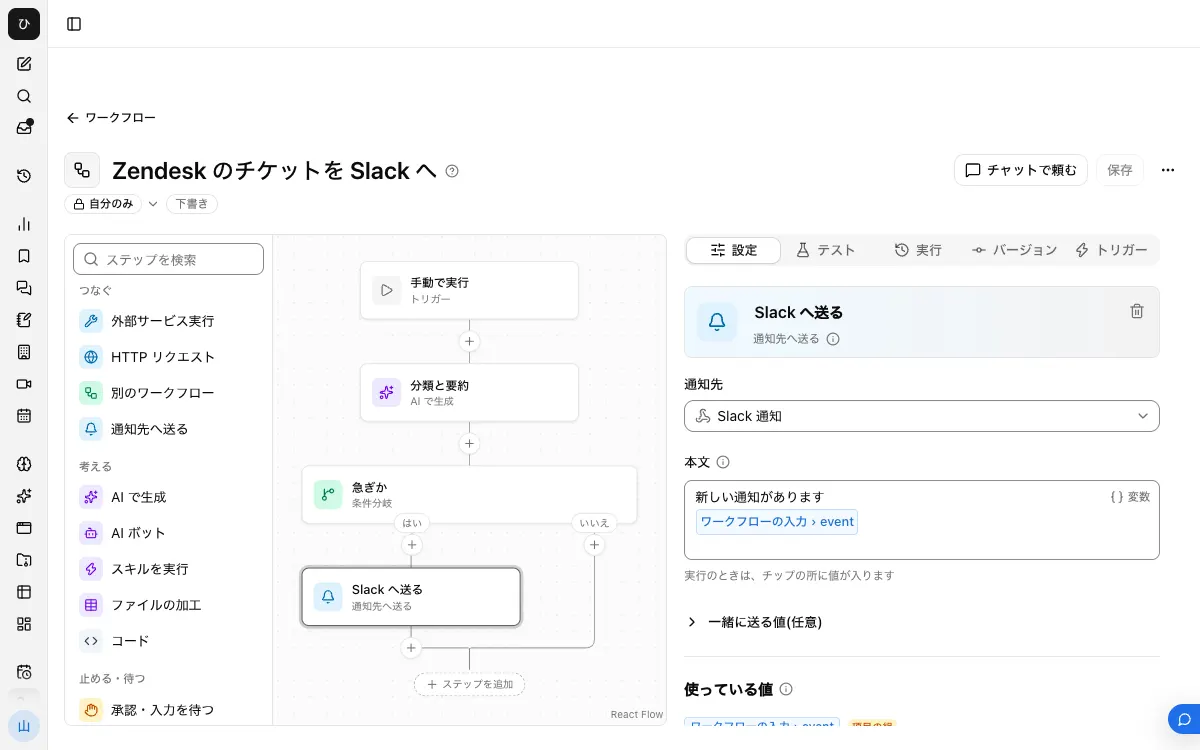
1. Prepare the Notification Target and Connection
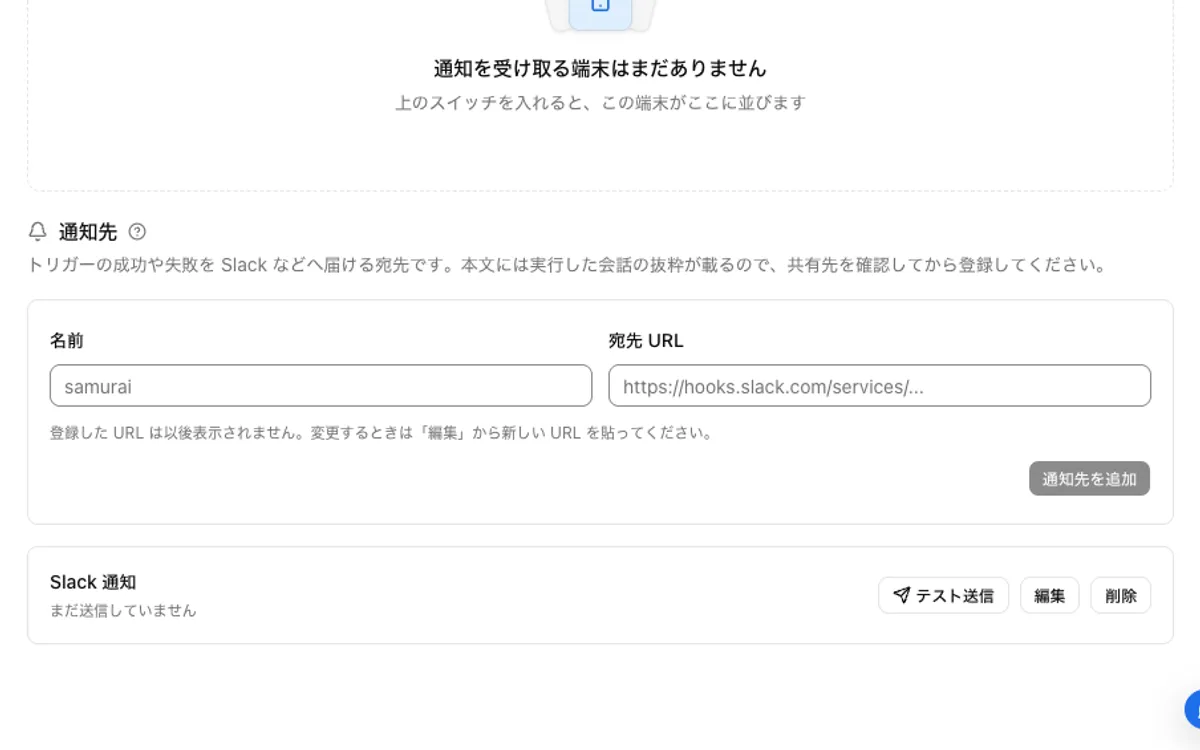
From "Incoming Webhooks" in your Slack app settings, create a URL for the urgent channel. Register it under "Notification targets" in "Settings" → "Notifications," and press "Send test."
On the "Connectors" screen, "Add" Zendesk and link it with your own account. Adding connectors is an operation for administrators and managers.
2. Have AI Classify and Summarize
Create a workflow with "New," and add an input to "Workflow input" with the name event and the type "Group of fields."
Add "Generate with AI" and write the following in "Instructions." Rewrite the urgency criteria in your company's own words.
The following is the content of a new Zendesk ticket.
urgency: high for outages, failed payments, and cancellation requests; normal for everything else
category: one of bug, billing, how-to, or other
summary: a summary of no more than 2 sentences. Do not include names, email addresses, phone numbers, or addresses
ticket_id: the ticket number

{{input.event.ticket}}
Under "Output fields," add urgency, category, summary, and ticket_id with the type text, marked "Required."
3. Send Only Urgent Ones to the Notification Target
Add "Route by value," and choose urgency with "/" as the "Value to route by." Add high with "Add value," and place "Send to notification target" under it. In the "Body," list ticket_id, category, and summary using "/."
Even if you connect nothing to "Everything else," the tickets remain in Zendesk. If you are worried about the AI missing something, place a notification target for another channel under "Everything else" too.
4. Publish and Attach the Trigger
"Save," then press "Publish version N" on the "Versions" tab. Under "Add service integration" on the "Triggers" tab, choose your Zendesk connection, and under "When to run," choose "New Zendesk Ticket."
When You Want to Avoid Delays
Call Samurai App directly from a Zendesk trigger. This route was checked against both services' official specifications, and has not been run against a real Zendesk account.
- Press "Add external trigger" on Samurai App's "Triggers" tab. The secret is shown only once, right after it is created
- In the Zendesk Admin Center, open "Webhooks" under "Apps and integrations," and choose "Trigger or Automation" with "Create webhook." Enter the issued URL as the "Endpoint URL," set "Request method" to POST, "Request format" to JSON, and "Authentication" to "Bearer token" with the secret
- Under "Objects and rules," go to "Business rules" → "Triggers," press "Add trigger," set the condition to
Ticket | Is | Createdand the action to "Notify webhook," and enter the following
{ "ticket_id": "{{ticket.id}}" }
- Add "Run external service" at the start of the workflow, choose
ZENDESK_GET_ZENDESK_TICKET_BY_ID, and enter{{input.event.ticket_id}}forticket_id. Replace the last line of the instructions from step 2 with this step's result, chosen with "/"
We send only the ticket number because Zendesk's official documentation does not describe how values inside JSON are handled, so we cannot say for certain that line breaks or quotation marks in the body will not break it. It also reduces how much personal information is carried outside.
Watch the limit. External triggers accept up to 10 calls per minute; beyond that they return 429 with a retry-after of 60 seconds. Zendesk retries a 429 only when retry-after is under 60 seconds, so the excess calls are not retried and their runs never start. For a help desk where tickets come in bursts, the service integration is a better fit.
When Sending Personal Information to Slack
Tickets include customers' names, contact details, and contract or payment details.
- Put only the number and summary in the notification, and do not include fields like Zendesk's
{{ticket.requester.email}}or the whole body - Telling the AI "do not include" is not reliable. Assume such details may slip into the summary, and limit who is in the channel
- Incoming Webhooks have no way to delete posts. If something is posted by mistake, delete it in the Slack screen
- Ticket contents are passed to the AI model and also remain in the run record as input and output. Check first that this fits your company's handling rules
When It Doesn't Work
- Nothing arrives: If the workflow is not published, the trigger does not start runs. Service integrations are delayed by up to 15 minutes. Check under "Recent runs" on the "Runs" tab whether it started and what value
urgencyhas - The "Notification target" row shows "Destination URL not found. Check the URL (404)": Check the Slack webhook URL and enter it again with "Edit" on the notification target
- Zendesk's "Test webhook" returns 404: The secret is not arriving. Zendesk's documentation does not state the form of the Bearer token header. Turn on "Also accept the secret via ?k= in the URL" on the external trigger, and also try appending
?k=to the URL highnever comes: If the AI returns a spelling other thanhigh, it goes to "Everything else." Check the output under "Recent runs," and specify the spelling again in the instructions
Frequently Asked Questions
Can I get notified on updates and comments too?
"New Zendesk Ticket" covers only new tickets. To catch updates, use the official integration or the webhook route, changing the conditions of the Zendesk trigger.
Can I reply to tickets from Slack?
These steps are for notifications only.
Can I also route non-urgent tickets by category?
Yes. Use category as the "Value to route by," and place a separate notification target for each value.