When you take inquiries or applications through Typeform, the time it takes to notice a response directly becomes a delay in replying. But if you pass responses to Slack as they are, you tend to get unreadable text full of question IDs.
This article walks through formatting Typeform responses as "Question: Answer" and sending them to a Slack channel.
Summary
Connect Typeform to a Samurai App workflow with a "service integration," and start it with the event "New Form Response" (TYPEFORM_NEW_RESPONSE). Because Typeform sends to it, it runs without waiting for a check interval.
The workflow has two steps, "Code" and "Send to notification target." Neither calls a model.
What it can and cannot do
- It starts only when a response is submitted. Partial responses don't trigger it
- Each registration covers one form. You specify the form ID when registering. Up to 20 service integrations can be active
- It costs about ¥0.5 per event received. It's the same even when no run happens
- Only the "Body" is shown in Slack. "Values to send along (optional)" isn't shown in Slack
- You can't read answers by their order. Typeform's official documentation says the order of
answersisn't necessarily the same asfields, and unanswered questions aren't included inanswers. If you writeanswers.0in the body as "question 1," another question's answer may appear there, or the notification may fail
A response that arrives looks roughly like this.
| Field | Contents |
|---|---|
form_response.definition.title |
The form's name |
form_response.definition.fields |
The list of questions. Each has an id and a title |
form_response.answers |
The list of answers. Linked to questions by field.id |
form_response.submitted_at |
The submission date and time. It's in UTC, so it reads 9 hours earlier than Japan time |
form_response.hidden |
Hidden fields. Present only when the form uses them |
The name of the field holding the answer's value changes with the answer's type. Short text is text, email addresses are email, single choice is choice.label, and multiple choice is choices.labels.
What you need
- A Typeform account and the form you want notifications for
- A Slack Incoming Webhook URL for the destination channel
- Manager or higher permission in Samurai App (needed to add a service integration to a workflow)
Steps
When you're done, the workflow looks like this.
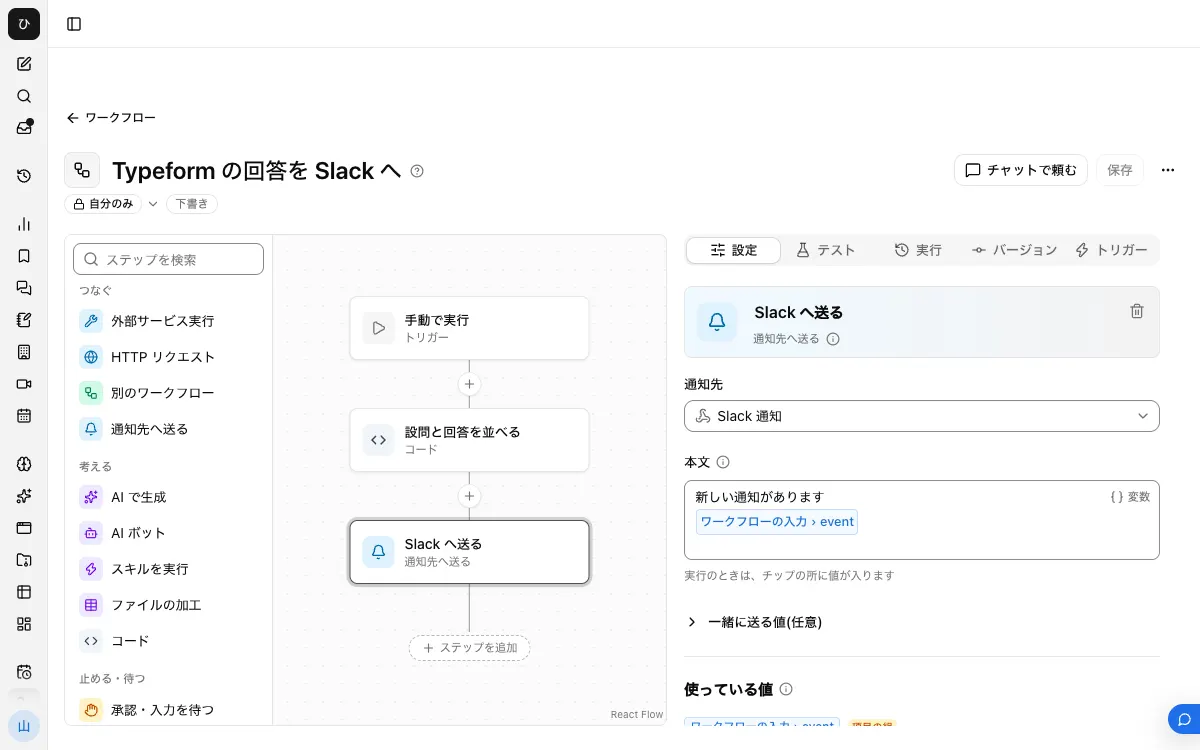
1. Create a Slack webhook URL
In Slack's app settings, turn on "Incoming Webhooks," choose a channel from "Add New Webhook to Workspace," and press "Authorize." The URL is dedicated to the channel you chose.
2. Register the notification target
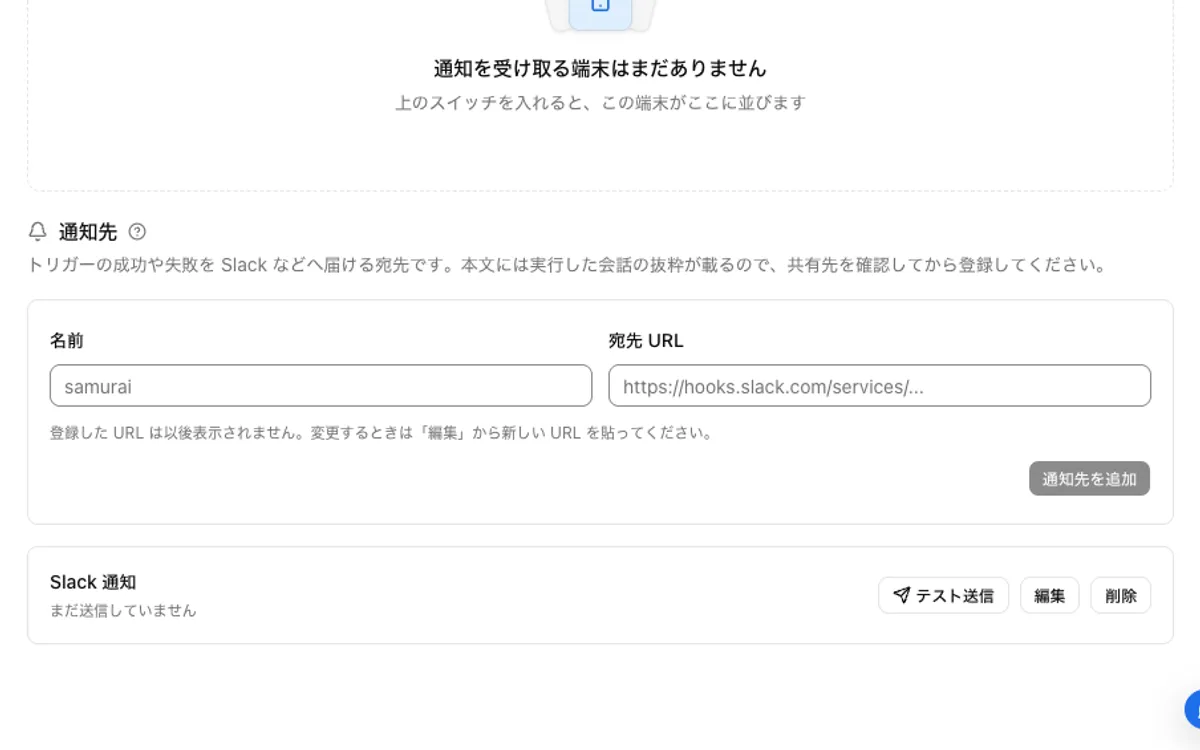
In Samurai App, register a name and the URL under "Settings" → "Notifications" → "Notification targets." Confirm with "Send test" that it arrives in Slack. A registered URL isn't shown again later, so if you need a copy, store it first.
3. Connect Typeform
On the "Connectors" tab of the "Connectors" screen, press "Add" for Typeform, choose "Add with standard integration app," and sign in.
4. Note the form ID
The string of letters and numbers in the form's public URL is its ID.
5. Build the workflow
From "Create" in "Workflows," choose "New." With no step selected, go to "Workflow inputs" under "Settings," press "Add input field," name it event, and set the type to "Group of fields."
Next, place a "Code" step. Add two rows to "Values to pass."
answers:input.event.form_response.answersfields:input.event.form_response.definition.fields
Write the following in the "Code" field. It takes the value from the field with the same name as the answer's type and pairs it with the question's name.
const lines = inputs.answers.map((answer) => {
  const field = inputs.fields.find((f) => f.id === answer.field.id);
  const value = answer[answer.type];
  const text = value?.labels?.join(", ") ?? value?.label ?? value?.other ?? value?.url ?? value?.text ?? value;
  return (field?.title ?? "(untitled question)") + ": " + (typeof text === "object" ? JSON.stringify(text) : text);
});
return lines.join("\n");
Next, place "Send to notification target" and choose the notification target from step 2. On the first line of the "Body," write New response to {{input.event.form_response.definition.title}}, and on the second line insert the code step's value from "/".
6. Save and publish
Press "Save," then press "Publish version N" on the "Versions" tab. Only the published version runs automatically.
7. Add a service integration
On the "Triggers" tab, press "Add service integration." Under "Which service to watch," choose the Typeform connection, and under "What triggers it," choose "New Form Response." Enter the ID from step 4 in form_id under "Filter" and register it.
8. Submit a response and check
Submit one response to the form. When it arrives in Slack, open the "Started by an event" row under "Recent runs" on the "Runs" tab and check the input that actually arrived. When adding things like hidden fields to the body, copy the field names shown here.
When it doesn't work
The run fails with "No value for $ref '…'"
A field you wrote in the body isn't in the response that arrived. If you write optional questions or hidden fields directly as {{input.event…}}, the whole notification fails whenever they're unanswered. It isn't sent with a blank. Read answers from the code in step 5, and write directly in the body only fields that are always present.
Nothing starts
If no new rows appear in "Recent runs," check whether you forgot to publish and whether form_id is wrong. An unpublished version doesn't start.
The webhook was disabled on the Typeform side
If the destination returns 404 or 410, Typeform disables the webhook without retrying. It's also disabled if failures continue, and the owner is notified. If you receive that notification, check the status of the webhook on the Typeform form.
It doesn't arrive in Slack
Open the run record for "Send to notification target." If the URL is wrong, the notification target row shows "The destination URL was not found. Check the URL (404)." Enter the new URL again from "Edit."
FAQ
Can I notify only for certain answers?
Yes. Place a "Branch" before "Send to notification target." Use fields that are always present for the condition. To branch on a single-choice question, first extract the value with code, and use that result as the condition.
Why can't I find the response when I open it right after the notification?
According to Typeform's official documentation, the webhook may arrive a few seconds before the response is stored in the database. Wait a moment and open it again.
Can I get notifications for several forms together?
Add a service integration for each form to the same workflow. The workflow's contents can be shared.
Related guides
- Send Google Forms responses to Slack
- Send Google Sheets updates to Slack
- Send Calendly bookings to Slack