When GitHub notifications flow into a development channel, members who are not engineers cannot tell what a PR is about from its title alone, so they tend to skip them. This article explains how to use a Samurai App workflow to have AI condense a PR's description and send it to Slack.
To say it up front: if you only need to receive notifications, GitHub's official Slack app is enough. The reason to use Samurai App is when you want an AI summary or sorting step before the notification.
The short answer
- For notifications alone, use the official app:
/github subscribe owner/repodelivers notifications for issues, PRs, commits, releases, and deployments. Filtering by label and review notifications are also available there - To attach a summary, use Samurai App: receive GitHub events through a service integration, summarize them in a "Generate with AI" step, and send them to Slack in a "Send to notification destination" step
- The summary is built from the title and description: the delivered content does not include the diff. A PR with an empty description will not produce a summary that explains what it contains
What you can and cannot do
The differences between the official app and Samurai App are as follows.
| Point of comparison | GitHub's official Slack app | Samurai App workflow |
|---|---|---|
| Where you set it up | Slack slash commands | The workflow screen |
| Notification text | A format the app decides | You write it yourself, and can include an AI summary |
| Filtering by label | +label:"priority:HIGH" |
The "Filter" of Pull Request Created below |
| Acting on PRs and issues from Slack | Yes | No (send only) |
| Cost | Within the official app | About 0.5 yen per event received (even if nothing runs). The summary also costs model usage separately |
Events split into those that arrive immediately and those that are polled and can be up to 15 minutes late. The four most commonly used are below. They are listed under "What triggers it" by the names on the left.
| Name on screen | Identifier | How it arrives | Notes |
|---|---|---|---|
| Pull Request Event | GITHUB_PULL_REQUEST_EVENT |
Immediately | Arrives when a PR is opened, closed, or updated. The only "Filter" is the repository |
| Issue Added Event | GITHUB_ISSUE_ADDED_EVENT |
Immediately | Arrives on a new issue |
| Pull Request Created | GITHUB_PULL_REQUEST_CREATED |
Up to 15 minutes late | Can filter by label, target branch, author, and whether it is a draft |
| Pull Request Review Submitted | GITHUB_PULL_REQUEST_REVIEW_SUBMITTED_TRIGGER |
Up to 15 minutes late | The PR number (pull_number) is required, and it watches only one PR |
If you want review notifications for every PR, the official app's /github subscribe owner/repo reviews is a better fit.
Pull Request Event also arrives when you just add a commit to a PR. Cost is determined by the number of events delivered, and a "Filter" does not necessarily reduce it, so watch the volume on repositories with many commits.
There are three things it cannot do:
- Summarize the diff: Pull Request Event carries
action,title,description,number,url,createdBy, andcreatedAt. Code changes are not included - Receive replies to the Slack post: "Send to notification destination" only sends
- Steps for GitHub Enterprise Server: this article was written with a github.com repository. We have not checked whether it works with a server you host yourself
What you need
- A GitHub account that can read the repository you want notifications for and can create webhooks. Per GitHub's specifications, repository webhooks can be created by the owner or someone with admin permission
- A Slack Incoming Webhook URL. One URL is tied to one channel
- Manager or higher permission in Samurai App. Only managers and above can attach a service integration to a workflow
Steps
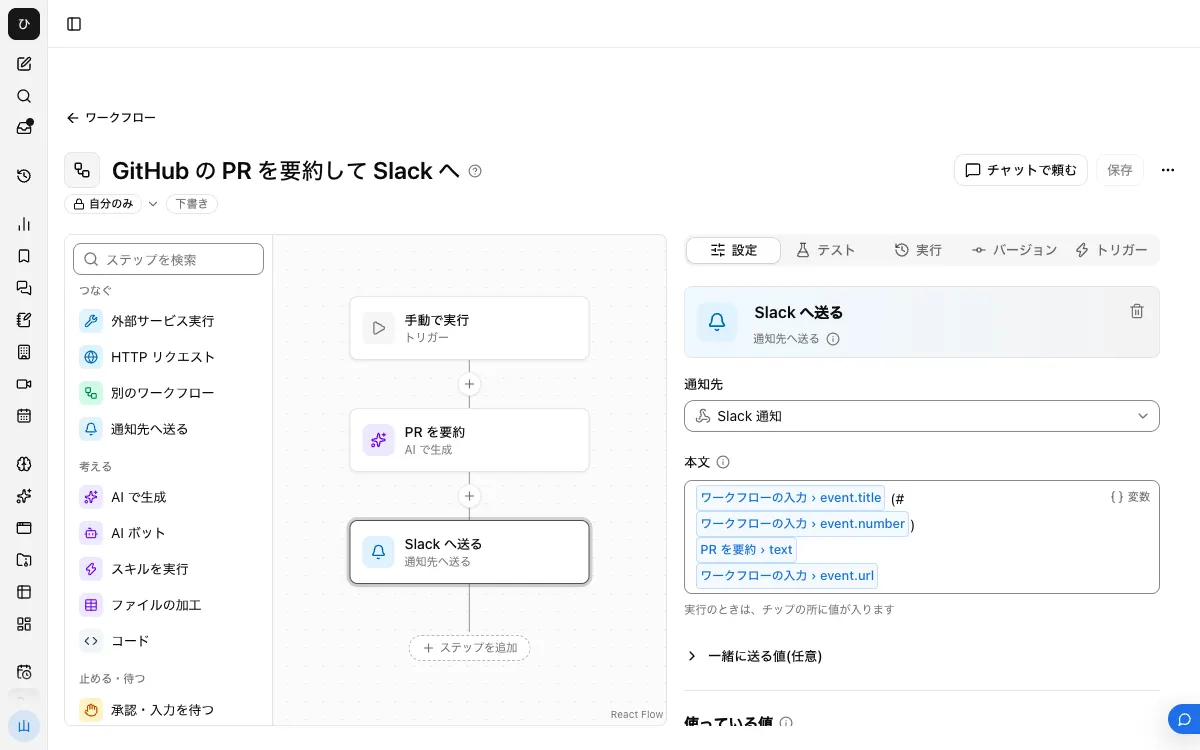
When it is finished, the workflow looks like this:
1. Create an Incoming Webhook URL in Slack
Create an app at api.slack.com/apps, turn on "Incoming Webhooks," and choose your development channel with "Add New Webhook to Workspace." Note down the issued https://hooks.slack.com/services/.... This URL is secret, so do not write it in a repository.
2. Register a notification destination in Samurai App
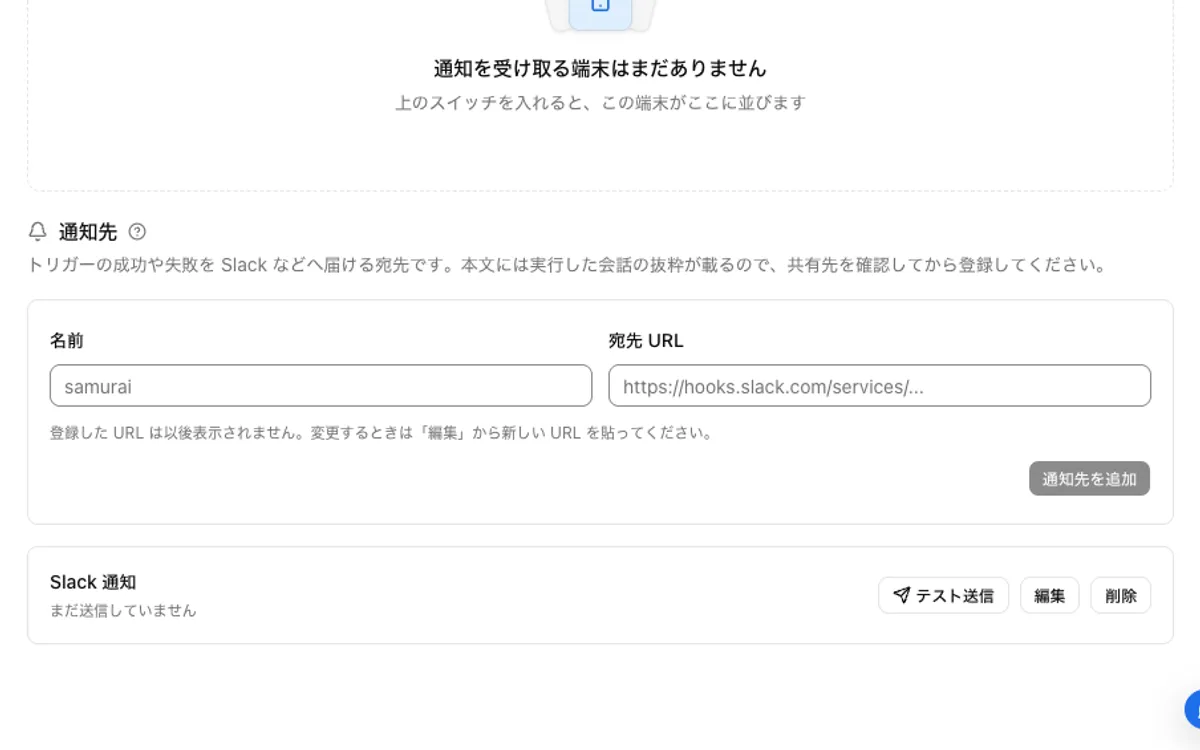
Under "Notifications" in "Settings," enter a "Name" and "Destination URL" and press "Add notification destination." Use "Send test" on the row to confirm it reaches the channel. The registered URL is not shown again.
3. Connect GitHub
On the "Connectors" tab of /settings/connections, add GitHub, sign in in the browser, and connect.
4. Build the workflow
Create a draft with "New" under "Workflows." In "Settings" with no step selected, press "Add input field," set the name to event and the type to "Group of fields." Received events go into this event.
Then add two steps.
In the "Instructions" of "Generate with AI," write something like this:
Summarize the following PR in two sentences so that someone who is not a developer can understand it. If there is no description, write only "No description."
{{input.event}}
For "Send to notification destination," choose the destination you registered in step 2, and write the following in "Body." For the AI result, type / and choose the text of the "Generate with AI" step from the list that appears.
{{input.event.title}} (#{{input.event.number}})
{{choose the AI's text}}
{{input.event.url}}
Only insert fields that are always present in the delivered content. If you specify a field that is missing, the step fails without sending anything. The description of Pull Request Event is not always present, so the example above passes the whole {{input.event}} to the AI.
To build it in chat, ask something like "Create a workflow. The input is event (group of fields). Use Generate with AI to summarize input.event in two sentences and send it to the notification destination 'Development channel'." Once the draft is ready, check its contents before moving on.
5. Notify only when a PR is opened
Pull Request Event also arrives on updates, so if you want to notify only for opened PRs, put the two steps inside a "Branch on condition." With "Add condition," specify that {{input.event.action}} "equals" opened. opened is how GitHub's webhooks spell it. Check the actual value on the first event.
6. Publish and add the trigger
After "Save," press "Publish version N" on the "Versions" tab. Only the published version runs from a trigger.
On the "Triggers" tab, press "Add service integration." Under "Which service to watch," choose your GitHub connection, under "What triggers it," choose Pull Request Event, and under "Filter," enter the repository owner (owner) and name (repo).
7. Try it
Open a test PR. A "Started by event" row is added under "Recent runs" on the "Runs" tab, and you can read each step's input and output. This is where you can see what event contains.
When it does not work
- You cannot press "What triggers it": choose a connection first. If the connection list is empty, GitHub has not been connected under "Connectors" yet
- You cannot register the trigger, or nothing arrives after registering: check whether the connected account has admin permission for that repository. If you cannot get that permission, switch to the polled Pull Request Created
- No rows are added to "Recent runs": check that you did not forget to publish. A draft does not run from a trigger
- "Send to notification destination" fails: the reason is shown on the "Notification destination" row. If it says "The destination URL was not found. Check the URL (404)," the URL has been disabled on the Slack side
Frequently asked questions
Can I notify only when a PR is merged?
In GitHub webhooks, a merged PR has action set to closed and merged set to true. However, merged is not in Pull Request Event's field list, so closed alone may not distinguish it from a PR that was closed without merging. Look at the input of the first event and decide.
Can I send notifications for several repositories together?
Pull Request Event registers a trigger per repository. With Pull Request Created, leaving repo empty covers every repository the connected account can read, and you can narrow it to an organization with owner. You can enable up to 20 service integrations.
Can I also get notified about CI failures?
"GitHub Workflow Run State Changed" (GITHUB_WORKFLOW_RUN_STATE_CHANGED_TRIGGER) requires a run ID (run_id) and watches only a single run. It is not suited to reporting CI failures across a whole repository. Use the official app's /github subscribe owner/repo workflows.
Related guides
Sources
- integrations/slack: Bring your code to the conversations you care about (GitHub's official Slack app, checked November 4, 2026)
- Creating webhooks (GitHub Docs)
- Webhook events and payloads (GitHub Docs)
- Sending messages using incoming webhooks (Slack)