If you send every movement on a Trello board to Slack, the news that something is done gets lost among notifications for card edits and comments. This article explains how to send to Slack only when a card moves to the "Done" list.
Check the official features first. Trello's Slack Power-Up and automation rules can also notify Slack of card moves. Samurai App is worth using when you want AI to summarize the card's contents or connect it to other workflows.
Bottom line
- If you only need to announce the move, use the official features: the Slack Power-Up lets you choose alerts for each board action. To send on moves to a specific list, you can also use Trello's automation rules
- If you want to add an AI summary, use Samurai App: receive the service integration Card Moved Between Lists (
TRELLO_CARD_MOVED_BETWEEN_LISTS), summarize with "Generate with AI," and send to Slack with "Send to notification destination" - Narrow "when it moves to the Done list" with
to_list_id: this field takes the list's ID, not its name
What you can and can't do
Card Moved Between Lists behaves as follows.
- Reordering within the same list doesn't trigger it: actions that only change position are not events
- Moving to another board is a different event: moves across boards are received with Card Moved In From Another Board and Card Moved Out To Another Board
- It arrives immediately: there's no 15-minute delay as with methods that check periodically
There are three fields under "Filter."
| Field | Required | What to enter |
|---|---|---|
board_id |
Required | The ID of the board to watch. The board's short link is also accepted |
to_list_id |
Optional | The destination list. Enter it here if you only want it to run when cards enter "Done" |
from_list_id |
Optional | The source list. For uses such as running only when cards leave "Review" |
What arrives includes card (the card), list_before (the list before the move), list_after (the list after the move), board (the board), member_creator (the person who moved it), and date (the time).
What it can't do:
- Specify by list name:
to_list_idis an ID. If you want to decide by name, check{{input.event.list_after.name}}in a "Condition" step in the workflow. In that case, every move adds a run record - Watch boards the connected account can't read: Trello webhooks can only watch things the token has access to
- Save on cost: each event received costs about ¥0.5. Filtering doesn't necessarily reduce cost
What you need
- A Trello account that is a member of the board to watch
- The board's URL. The string after
trello.com/b/is the short link - A Slack Incoming Webhook URL
- Manager or higher permissions in Samurai App
Steps
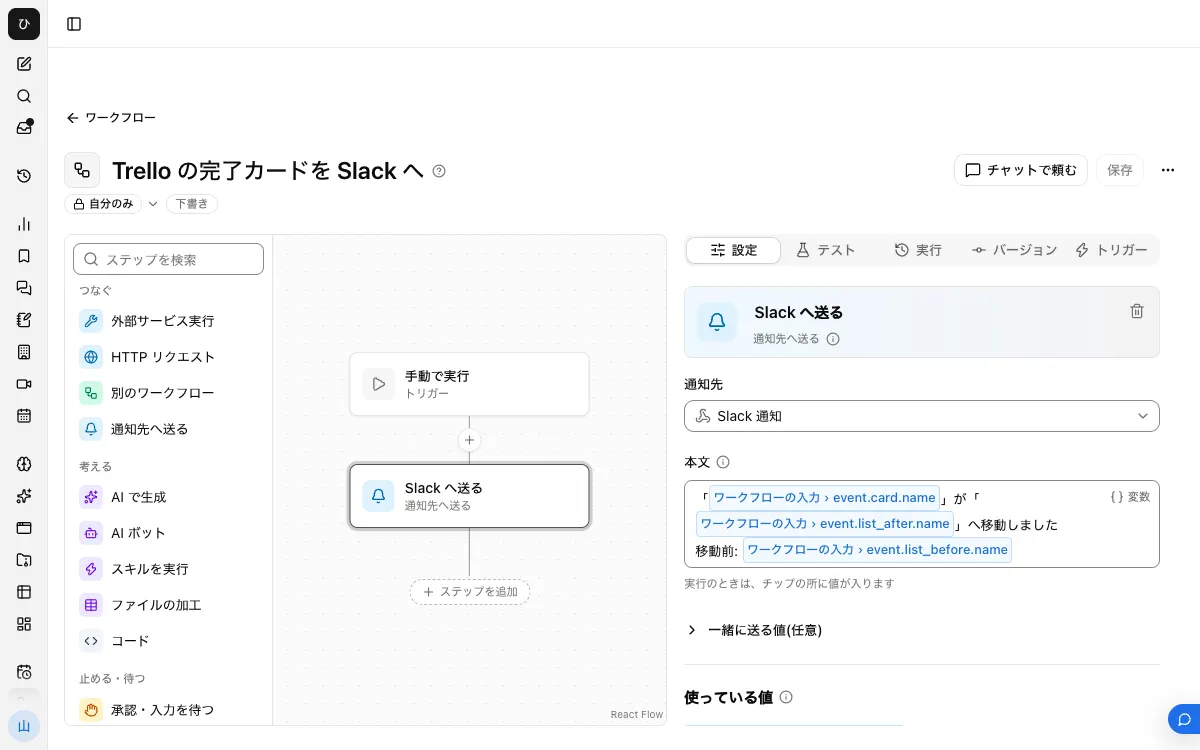
When finished, the workflow looks like this.
1. Connect Trello
Add Trello on the "Connectors" tab of /settings/connections and sign in through the browser.
2. Find the ID of the "Done" list
In Samurai App's chat, ask the connected Trello.
List the names and IDs of the lists on the Trello board (short link
abc12345)
Note the ID of "Done" from the list that comes back.
3. Register a notification destination
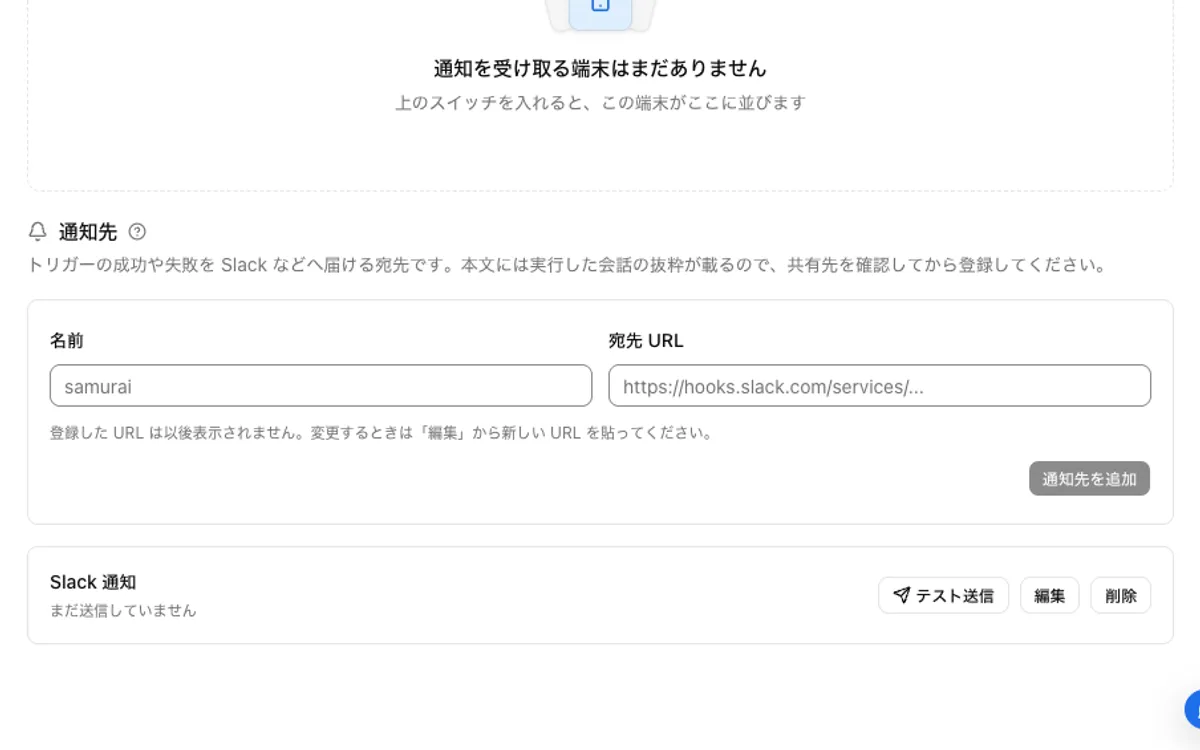
Create an Incoming Webhook URL in Slack. In Samurai App, go to "Notifications" in "Settings," enter a "Name" and "Destination URL," click "Add notification destination," and check it with "Send test."
4. Build the workflow
Create a draft with "New" in "Workflows," and with no step selected, click "Add input field" in "Settings." Set the name to event and the type to "Group of fields."
If you only need a notification, place one "Send to notification destination" step and write the following in "Body." Since no model is called, there's no model cost in this case.
"{{input.event.card.name}}" moved to "{{input.event.list_after.name}}"
Before the move: {{input.event.list_before.name}}
To include the card's contents, put a "Generate with AI" step before it. Write the following in "Instructions," and in the "Body" of "Send to notification destination," insert the text of the "Generate with AI" step from the / list.
Summarize the contents of the completed card in one sentence that other teams can understand.
{{input.event.card}}
If an inserted field isn't in what arrives, that step fails. Check how the fields are written in step 7 below.
To build it in chat, ask something like "Create a workflow. The input is event (group of fields). Send the card's name and the destination list name to the notification destination 'Progress channel.'"
5. Publish
After "Save," click "Publish version N" on the "Versions" tab.
6. Add a service integration trigger
Click "Add service integration" on the "Triggers" tab.
- Choose the Trello connection under "Which service to watch"
- Choose Card Moved Between Lists under "When to run"
- Under "Filter," enter the board's short link or ID in
board_id, and the ID you noted in step 2 into_list_id
7. Try it
Move a test card to "Done" and open "Recent runs" on the "Runs" tab. You can read each step's input and output, so check that the contents of event match how fields are written in "Body." If moving a card to another list doesn't add a run, the filter is working.
When it doesn't work
- Moving a card doesn't run it: check that you didn't move it within the same list. Nothing arrives unless it crosses lists. Also check that you didn't forget to publish
- It runs no matter which list the card moves to:
to_list_idis empty. Check that what you entered is the list's ID. A list name or board ID won't narrow it - The "Send to notification destination" step fails: the way an inserted field is written differs from what arrives. Check the input under "Recent runs" and fix "Body"
- It stopped working after recreating the "Done" list: a new list has a different ID. Fix the trigger's
to_list_idfrom the "Automation" settings
Frequently asked questions
Can it also notify when someone is assigned?
There's Member Assigned To Card (TRELLO_MEMBER_ASSIGNED_TO_CARD). The fields that arrive are different, so register it as a separate workflow. You can enable up to 20 service integrations.
Can it watch several boards together?
board_id takes only one. Register a trigger for each board.
How is this different from the official Slack Power-Up?
The Power-Up can be set up from the board screen, and alerts for the actions you choose arrive. With Samurai App, you write the notification text yourself and can add AI summaries or other steps in between. In return, it takes setting up a workflow and costs something per event.
Related uses
- Notify Slack of Jira issues
- Notify Slack of Backlog updates
- Notify Slack when Notion pages are created or updated
Sources
- Get Trello alerts in Slack with the Slack Power-Up (Atlassian)
- The Trello app for Slack (Atlassian Support)
- How to bring Butler automations into Slack and Jira (Atlassian)
- Webhooks (Trello Developers)
- Sending messages using incoming webhooks (Slack)