Google Forms has no setting for sending responses to Slack. So you need some kind of relay to get notified.
This article compares two ways to use a Samurai App workflow as that relay and walks through the steps for each.
The short answer
Samurai App's service integrations do not include Google Forms events. Receive responses in one of these two ways:
| Apps Script + external trigger | Response sheet + service integration | |
|---|---|---|
| What starts it | A form submission | A row added to the spreadsheet |
| Delay | Starts right after submission | Up to 15 minutes |
| What arrives | Question titles and answers (decided by your code) | A list of the row's values. Column headers are not included |
| Setup | Write a script and create a trigger | Create a response sheet and connect Sheets |
| Cost estimate | Receiving through an external trigger has no service integration fee | About 0.5 yen per event received |
For inquiries and sign-ups you want to know about right away, Apps Script fits. If you do not want to maintain code, or a few minutes of delay is fine, the response sheet fits.
What you can and cannot do
- With Apps Script, you can send the secret in a header.
UrlFetchApplets you set headers, so you do not use?k=in the URL - Apps Script triggers run under the account of the person who created them. When the person in charge changes, recreate the trigger under the new person's account
- External triggers start at most 10 times per minute by default, and the body can be up to 64 KiB. Over the limit, a 429 is returned. The code below does not retry, so that response will not be sent. Check Apps Script's execution log and read the response in the form
- If a respondent skips a multiple-choice question, that question does not arrive. According to Google's documentation, unanswered short-answer and paragraph questions return an empty string, and other types are left out of the list. Checkbox answers arrive as an array of strings
- With the response sheet, headers do not arrive.
row_datais a list of the row's values only
What you need
- Edit permission on the Google Form you want notifications for
- A Slack Incoming Webhook URL for the channel to post in
- Manager or higher permission in Samurai App (needed to add external triggers and service integrations)
Steps (Apps Script + external trigger)
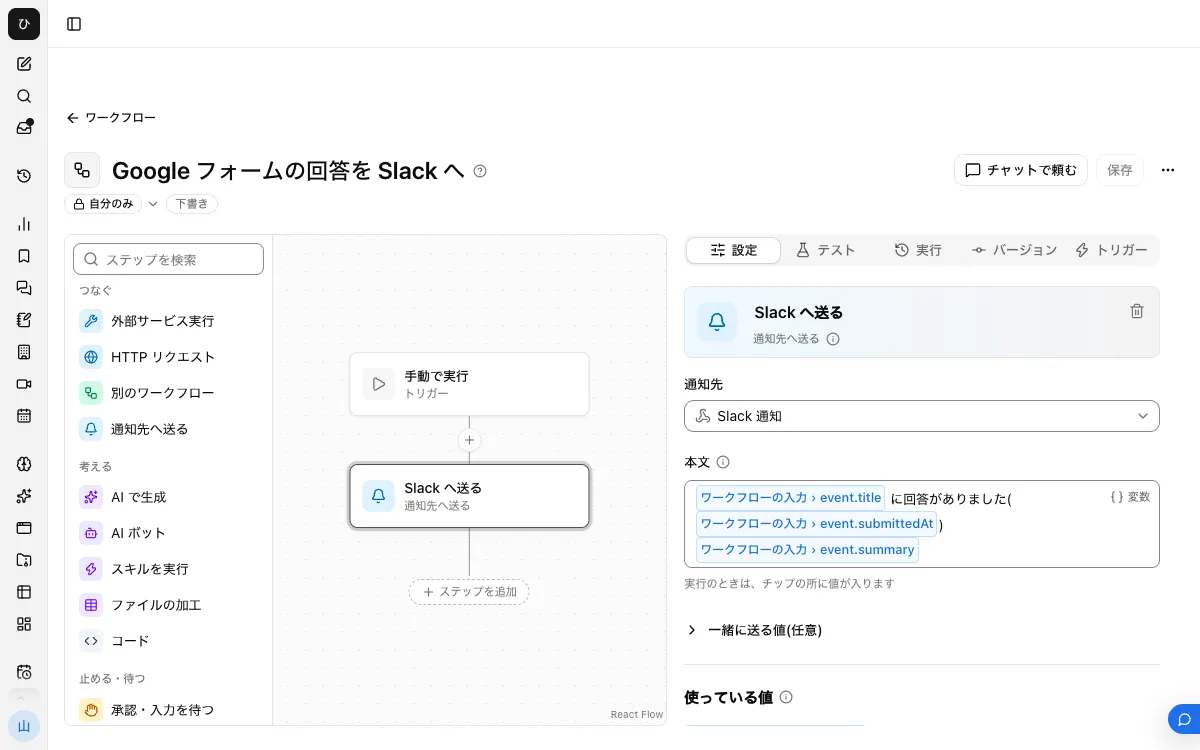
When it is finished, the workflow looks like this:
1. Register a notification destination
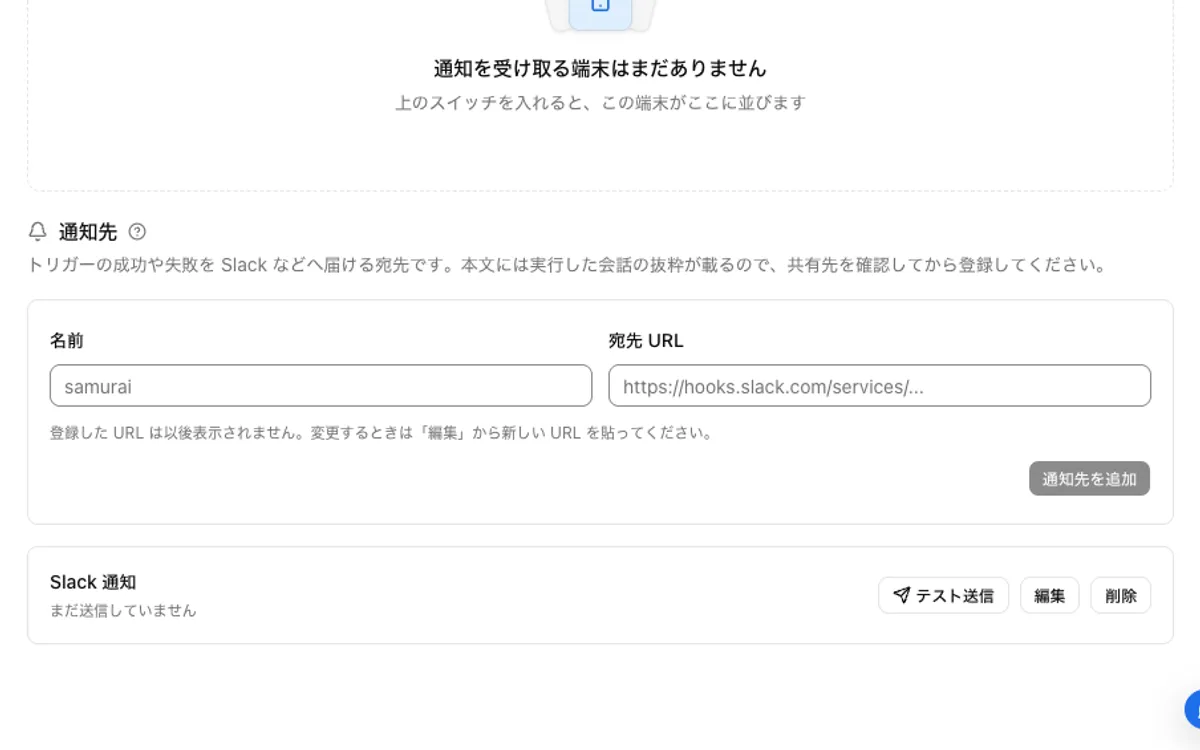
In your Slack app settings, enable "Incoming Webhooks," choose a channel with "Add New Webhook to Workspace," and create a URL. In Samurai App, register a name and the URL under "Notification destinations" in "Settings" > "Notifications," and check it with "Send test."
2. Build and publish the workflow
Choose "New" from "Create" under "Workflows." In "Workflow inputs" under "Settings" with no step selected, press "Add input field," set the name to event and the type to "Group of fields."
Add one "Send to notification destination" step and write the following in "Body":
New response to {{input.event.title}} ({{input.event.submittedAt}})
{{input.event.summary}}
After "Save," press "Publish version N" on the "Versions" tab. If it is not published, calls to the external trigger are refused with a 422 and the body returns "This workflow has not been published yet. Publish it and then run it."
3. Issue an external trigger
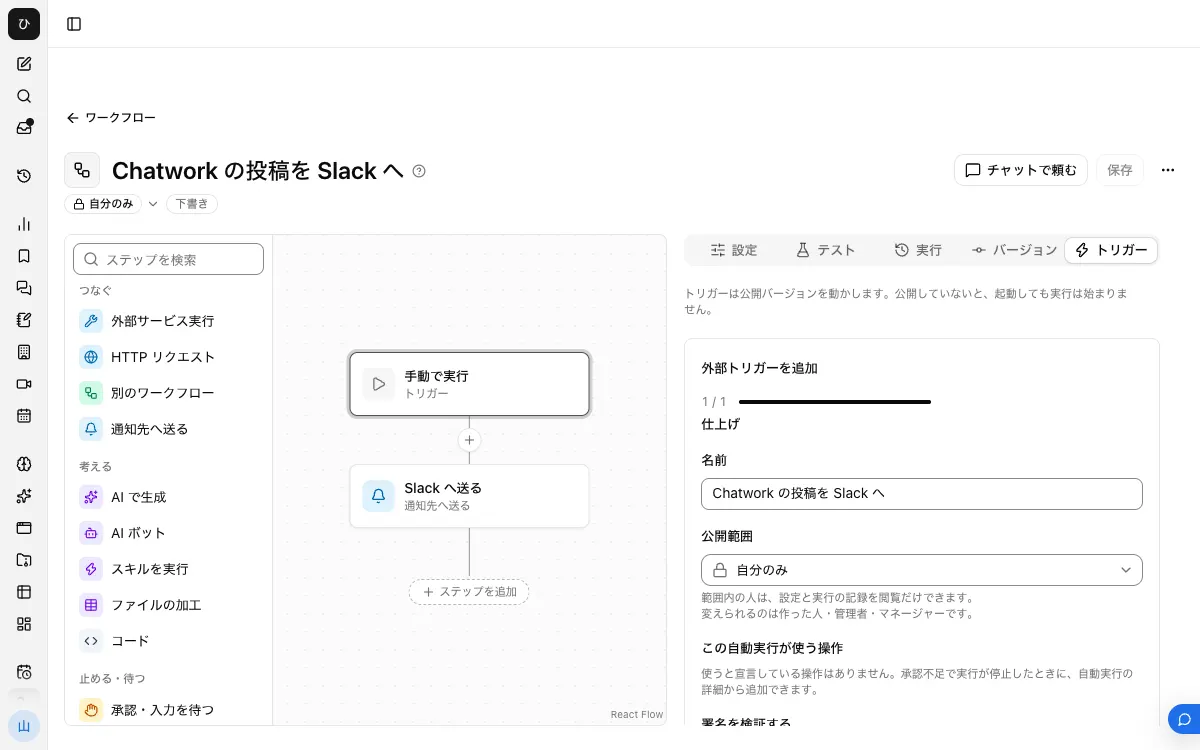
Register one from "Add external trigger" on the "Triggers" tab. A URL and a secret are issued. The secret is shown only once, right after you create it, so note it down then and there.
4. Put the code in Apps Script
Open "Apps Script" from "More" in the form's edit screen. Under "Script Properties" in "Project Settings" on the left, save TRIGGER_URL and TRIGGER_SECRET. Writing them directly in the code would expose the secret to anyone who can see the script.
Paste the following into the editor:
function onFormSubmit(e) {
  const props = PropertiesService.getScriptProperties();
  const summary = e.response.getItemResponses().map((item) => {
    const answer = [].concat(item.getResponse()).join(", ");
    return item.getItem().getTitle() + ": " + answer;
  }).join("\n");

  UrlFetchApp.fetch(props.getProperty("TRIGGER_URL"), {
    method: "post",
    contentType: "application/json",
    headers: { Authorization: "Bearer " + props.getProperty("TRIGGER_SECRET") },
    payload: JSON.stringify({
      title: e.source.getTitle(),
      submittedAt: Utilities.formatDate(e.response.getTimestamp(), "Asia/Tokyo", "yyyy/MM/dd HH:mm"),
      summary: summary,
    }),
  });
}
5. Add an on-form-submit trigger
Press "Add Trigger" under "Triggers" on the left. Choose onFormSubmit as the function to run, the form as the event source, and on form submit as the event type, then save. The first time, a permission check appears; read it and allow it.
6. Submit a response and check
Submit one response to the form. If it reaches Slack, you are done. A "Started externally" row is added under "Recent runs" on the "Runs" tab.
Steps (response sheet + service integration)
1. Create a response spreadsheet
Link a spreadsheet from the form's "Responses" tab. The part of the URL between /d/ and /edit is the spreadsheet ID.
2. Connect Google Sheets
On the "Connectors" tab of the Connectors screen, press "Add" for Google Sheets, choose "Add with the standard integration app," and sign in.
3. Build and publish the workflow
The event input and "Send to notification destination" are the same as above. Write the following in "Body":
New form response (row {{input.event.row_number}} of the sheet)
{{input.event.row_data}}
row_data goes into the body as JSON, like ["2026/11/04 10:00:00","Yamada","Corporate"].
4. Add a service integration
Under "Add service integration" on the "Triggers" tab, choose your Google Sheets connection, and under "What triggers it" choose "New Rows in Google Sheet" (GOOGLESHEETS_NEW_ROWS_TRIGGER). Under "Filter," enter the ID in spreadsheet_id and the response sheet name in sheet_name.
When it does not work
The Apps Script run fails with a 404
A call without the secret returns 404. Check the names and values of the script properties, and if you missed noting down the secret, recreate the external trigger.
The Slack body is empty, or the step fails
Make the field names in the body match the field names the code sends. If the body uses a field that is not sent, it fails with "No value for $ref '...'."
Notifications are slow with the response sheet
It is polled, so it can be up to 15 minutes late. If the delay is a problem, switch to Apps Script.
Apps Script does not run when someone responds
Open the editor's execution log (Executions) and check what failed. According to Google's documentation, a trigger run fails immediately if it uses a service you have not authorized. Also, triggers created by another account do not appear on your screen, so check with the person who created it.
Frequently asked questions
How is this different from calling the Slack webhook directly from Apps Script?
If you call it directly, you do not need Samurai App. Putting a workflow in between leaves a record of failures under "Recent runs," and lets you add processing before the notification, such as sorting inquiry types with "Classify into categories."
Can I also send the respondent's email address?
Only if the form collects email addresses can you get it with e.response.getRespondentEmail(). Everyone in the Slack channel will see it, so decide first whether to include it.
Related guides
- Send spreadsheet updates to Slack
- Send Typeform responses to Slack
- Send new Google Drive files to Slack