A row was added to a Notion database, nobody noticed, and the request sat untouched. This article explains how to let Slack know when that happens.
If you are on a paid Notion plan, check Notion's own automations first. Database automations can send notifications to a Slack channel. The reason to use Samurai App is when you want AI to summarize the page content before sending it.
Summary
- For notifications only, use Notion's own automations: in the database's "Automations", choose "Send Slack notification to..." triggered by a page being added or a property being edited. This is limited to paid plans and requires full access to that database
- To add a summary, use Samurai App: receive Page Created (
NOTION_PAGE_CREATED) or Page Properties Updated (NOTION_PAGE_PROPERTIES_UPDATED) through a service integration, read the page again, summarize it with AI, and send it to Slack - Only the page ID arrives: neither the title nor the body is included. To put the content in the notification, you need a step that reads the page
What it can and cannot do
Notion's limits determine the steps.
Only events for pages shared with the connection arrive. Notion Webhooks are sent only for objects the connection can access. If you choose a parent page when selecting pages during connection, the pages under it are accessible as well. If a page created later falls outside the selection, nothing happens and no error appears.
What arrives has no content. Page Created and Page Properties Updated deliver page_id, event_type, timestamp, workspace_id, authors, and data. In Page Properties Updated, data.updated_properties is a list of the IDs of the changed properties, and their names are not included.
It arrives a little late. It is delivered as events happen, but Notion bundles edits before sending, so most arrive within 1 minute, and Notion's target is within 5 minutes. This reduces the number of deliveries sent while someone is still typing.
Adding a column sends one event per row. When you add a column to a database, Page Properties Updated arrives once for every existing row. Each event received costs about 0.5 yen, and filtering does not necessarily reduce that, so be careful with databases that have many rows.
The "Filter" fields differ by event, and you specify only one of them.
| Field | Events | Target |
|---|---|---|
data_source_id |
Page Created / Page Properties Updated | Rows in this database (data source) |
parent_page_id |
Page Created / Page Properties Updated | Pages directly under this page. Grandchild pages are not included |
page_id |
Page Properties Updated | This page only |
If you specify nothing, it runs for every page the connection can access.
What it cannot do is receive changes to a specific property only. There is no filter field for something like "only when the status column changes". Notion's own automations can specify a property, so if this condition is your only goal, Notion's automations are the better fit.
What you need
- A Notion account that can share the pages you want notifications for. When selecting pages during connection, only pages you have full access to appear
- A Slack Incoming Webhook URL
- Manager or higher permission in Samurai App
Steps
When finished, the workflow looks like this.
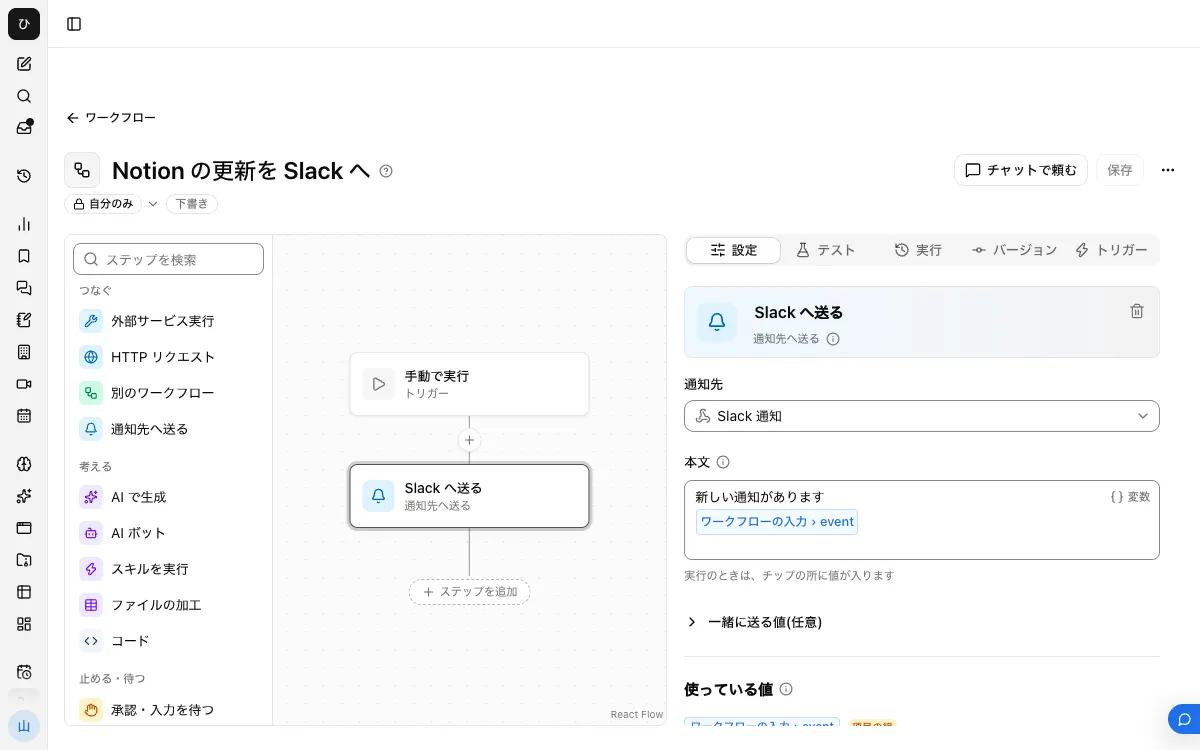
Here we build "when a row is added to the requests database, send the title and a summary of the content".
1. Connect Notion and share the database
On the "Connectors" tab of /settings/connections, add Notion and sign in through the browser. In Notion's page selection, choose the database you want notifications for, or its parent page.
To add it later, open the page in Notion, and choose the connection from "Connections" → "Add connections" under "More" in the "•••" menu at the top right.
2. Note the data source ID
In Notion, open the database's settings menu and press "Copy data source ID" under "Manage data sources".
3. Register a notification target
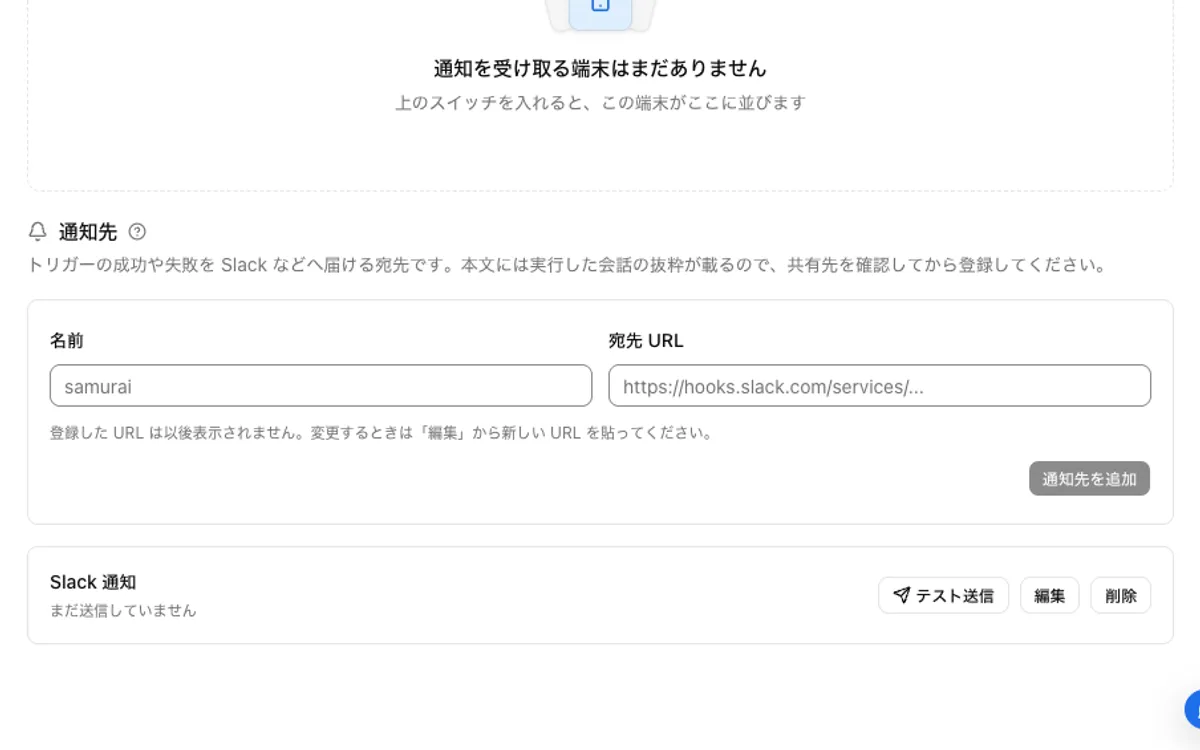
Create an Incoming Webhook URL in Slack. Under "Notifications" in Samurai App's "Settings", enter a "Name" and the "Destination URL", press "Add notification target", and check it with "Send test".
4. Build the workflow
Create a draft with "New" in "Workflows", and with no step selected, press "Add input field" under "Settings". Name it event and set the type to "Group of fields".
Place three steps.
In "Run external service", choose the operation that reads a page in the connected Notion (Retrieve page). Enter {{input.event.page_id}} as the value in the page_id row. If you open "Credentials used to run" and press "Lend to this workflow", every run reads with the same account.
Since this operation only reads, no approval card appears. However, if an admin has set this operation to "Confirm every time", unattended runs are refused.
In the "Instructions" of "Generate with AI", write something like the following. Type / and choose the result of the first step from the list that appears.
Read the properties of the following Notion page and summarize the title and the content of the request in two sentences.
In the "Body" of "Send to notification target", insert the text of the "Generate with AI" step from the / list.
Retrieve page returns the properties and page information, and does not include the body blocks. If you also want to summarize the body, add an operation that reads blocks.
To build it in chat, ask something like "Build a workflow. The input is event (group of fields). Read the Notion page at input.event.page_id, summarize it in two sentences with AI, and send it to the notification target 'Requests channel'."
5. Publish and add the trigger
After "Save", press "Publish version N" on the "Versions" tab.
On the "Triggers" tab, press "Add service integration", choose the Notion connection in "Which service to watch", and Page Created in "When to run". Enter the ID from step 2 in data_source_id under "Filter".
6. Test it
Add one row to the database and wait about a minute. Open "Recent runs" on the "Runs" tab to read the input and output of each step.
When it does not work
- Adding a row does not start a run: check that the database is shared with the connection. If it is not shared, no error appears either. Also check that you did not forget to publish
- It does not run right away: Notion bundles edits before sending, so wait a few minutes before deciding
- The Retrieve page step fails: the page may not be shared with the connection of the person who created the trigger. Check that the account lent with "Lend to this workflow" is the same account the page was shared with
- Many events arrive for the same page: Page Properties Updated arrives once per row even when a column is added. If you pause the trigger from the "Automation" settings before adding columns, no extra runs occur
FAQ
Can I notify only when the status becomes "Done"?
Receive Page Properties Updated, read the page, and then check the status with a "Condition". Updates other than the status still cause runs and costs. If this condition is your only goal, Notion's own automations are the better fit.
Can I notify on edits to the body?
There is Page Content Updated (NOTION_PAGE_CONTENT_UPDATED). Edits arrive bundled, but they also arrive while someone is still writing, so it is a high-volume event.
Can I notify on comments?
There is Comment Created (NOTION_COMMENT_CREATED). In Notion, receiving comment events requires the connection to have permission to read comments.
Related how-tos
- Notify Slack when a Trello card moves
- Notify Slack about Jira issues
- Notify Slack about HubSpot deal updates
Sources
- Webhooks (Notion Developers)
- Event types & delivery (Notion Developers)
- Authorization (Notion Developers)
- Upgrading to 2025-09-03 (Notion Developers)
- Add and manage connections with the API (Notion Help)
- Slack integration (Notion Help)
- Sending messages using incoming webhooks (Slack)