If you are slow to notice a lead that came in through your inquiry form, your first response is slow too. This article explains how to summarize a new lead in Salesforce with AI and send it to Slack when it comes in.
If you want to be notified right away, first check Salesforce's official Flow. This route in Samurai App checks Salesforce periodically, so it can be up to 15 minutes late. The reason to use Samurai App is when the delay does not matter and you want an AI summary or sorting in between.
Bottom line
- For immediate notifications, use the official Flow: Flow's "Send Message to a Slack Channel" can send to Slack triggered by record changes. However, it cannot send to private channels or Slack Connect channels
- To add a summary, use Samurai App: receive the service integration's New Lead Trigger (
SALESFORCE_NEW_LEAD_TRIGGER), summarize with "Generate with AI," and send to Slack with "Send to destination" - An edition that can use the API is required: it cannot be used with Group or Essentials
What you can and cannot do
All Salesforce events work by checking periodically, so it takes up to 15 minutes from when something happens to when the run starts.
| Name on screen | Identifier | Filters |
|---|---|---|
| New Lead Trigger | SALESFORCE_NEW_LEAD_TRIGGER |
None. Every new lead arrives |
| New or Updated Opportunity | SALESFORCE_NEW_OR_UPDATED_OPPORTUNITY_TRIGGER |
You can specify the stage with stage_name |
| New Contact Trigger | SALESFORCE_NEW_CONTACT_TRIGGER |
None |
| Task Created or Completed | SALESFORCE_TASK_CREATED_OR_COMPLETED_TRIGGER |
status, subject |
This table leads to the following constraints.
- You cannot filter by lead conditions: New Lead Trigger has no fields to filter by lead source or region. To send only certain leads, split them within the workflow with "Branch" or "Categorize." Even with splitting, each event received costs about ¥0.5
- Bulk imports arrive one event per record: importing a list in bulk increases cost and runs by that number. If you stop the trigger from the "Automation" settings before importing, runs do not increase
- Opportunities arrive with every update: New or Updated Opportunity arrives on both creation and update. Even with
stage_namespecified, it arrives whenever an opportunity in that stage is updated. It is not an event that captures only "the moment it changed to Closed Won" - Do not use
intervalunder "Filters": it is an old field. Leave it empty
The content that arrives is lead and event_type for New Lead Trigger, and opportunity and event_type for New or Updated Opportunity.
What you need
- A Salesforce edition and permissions that can use the API. Enterprise, Unlimited, Performance, and Developer include the API, and Professional can use it with an additional purchase. It cannot be used with Group or Essentials. The user needs the "API Enabled" permission
- A Slack Incoming Webhook URL
- Manager or higher permissions in Samurai App
Steps
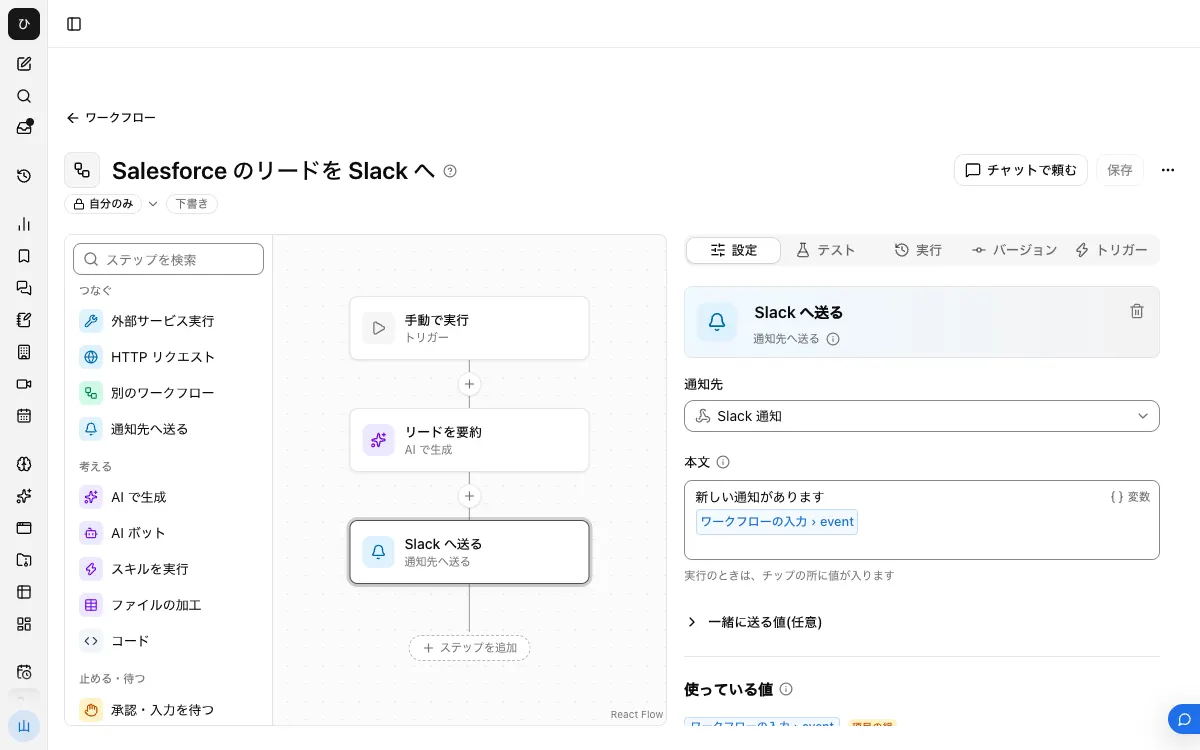
When finished, the workflow looks like this.
1. Register the destination
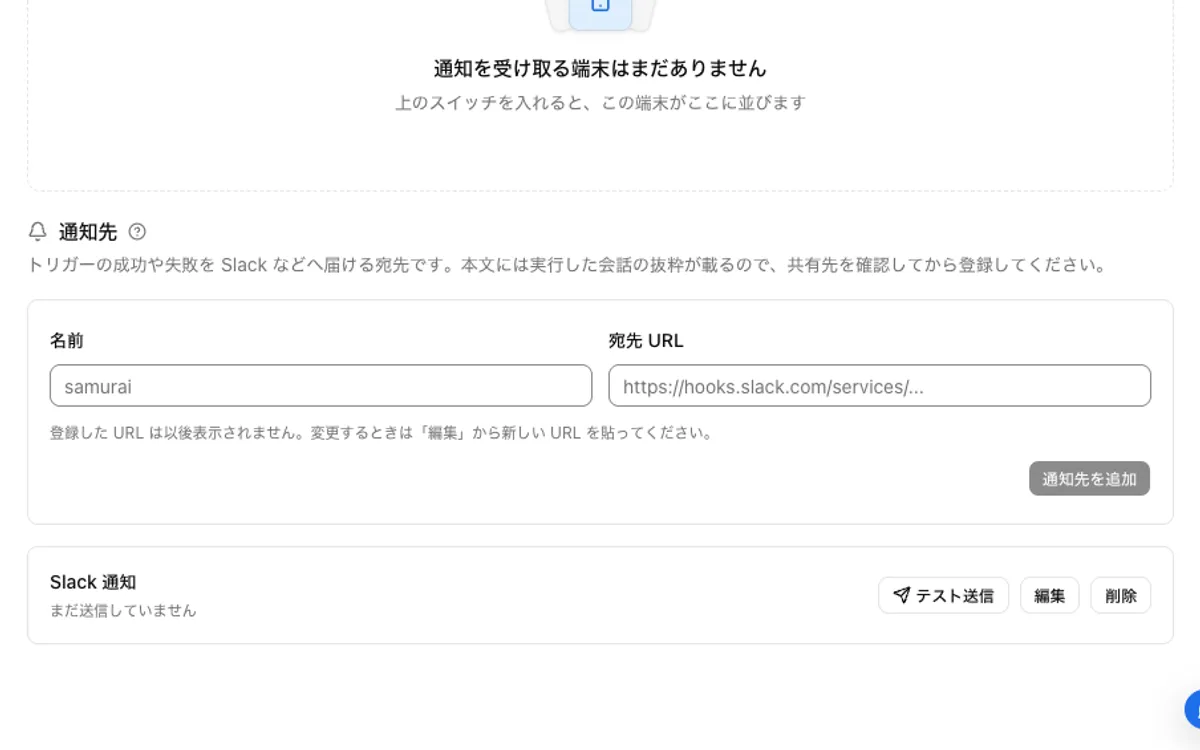
Create an Incoming Webhook URL in Slack. To send to a private channel, the person creating it must be a member of that channel. In Samurai App's "Settings" > "Notifications," enter a "Name" and "Destination URL," press "Add destination," and check it with "Send test."
2. Connect Salesforce
On the "Connectors" tab at /settings/connections, add Salesforce and sign in through the browser. Depending on your org's settings, permission from a Salesforce admin may be required. See "When it does not work" below.
3. Build the workflow
Create a draft with "New" in "Workflows," and with no step selected, press "Add input field" in "Settings." Set the name to event and the type to "Group of fields."
In the "Instructions" of "Generate with AI," write something like this.
Read the following Salesforce lead and summarize the company name, contact name, inquiry details, and what to check next in up to 4 lines. Do not mention empty fields.
{{input.event.lead}}
The whole thing is passed to the AI because inserting fields one by one can fail. If an inserted field is not in the content that arrived, that step fails. In Salesforce, which fields are required or present differs from org to org.
In the "Body" of "Send to destination," write the following. From the list that appears when you type /, choose text from the "Generate with AI" step.
A new lead has come in
{{choose the AI text}}
"Generate with AI" calls a model, so each event also incurs model usage. If you do not use AI, use only "Send to destination" and put {{input.event.lead}} in the "Body." In this case it arrives as raw JSON, which is harder to read.
To build it in chat, ask something like, "Create a workflow. The input is event (group of fields). Summarize input.event.lead in 4 lines with Generate with AI, and send it to the destination 'Sales channel.'"
4. Publish and attach the trigger
After "Save," press "Publish version N" on the "Versions" tab.
On the "Triggers" tab, press "Add service integration," choose the Salesforce connection under "Which service to watch," and choose New Lead Trigger under "When to run."
5. Try it
Create one test lead and wait about 15 minutes. A "Started by event" row appears in "Recent runs" on the "Runs" tab, and you can read each step's input and output. Check here which fields are in event.lead.
When it does not work
OAUTH_APPROVAL_ERROR_GENERICappears when connecting: your org restricts the use of external apps. Ask your Salesforce admin to allow this app in External Client App Settings or OAuth Connected App Usage in Setup- An error says the API cannot be used: check your org's edition and the user's "API Enabled" permission
- Creating a lead does not trigger a run: it works by checking periodically, so wait 15 minutes. If a row still does not appear, check that you did not forget to publish and that the connected user can read the lead
- The "Send to destination" step fails: an inserted field is not in the content that arrived. Check the input in "Recent runs"
Frequently asked questions
Can it be shorter than 15 minutes?
The maximum delay of service integrations cannot be changed. If you want to be notified right away, sending to Slack from Salesforce's official Flow is the better fit.
Can I notify only about Closed Won opportunities?
Enter the value of your Closed Won stage in stage_name of New or Updated Opportunity. Use the value defined in your Salesforce org. Since it arrives every time an opportunity in that stage is updated, you may get multiple notifications for the same opportunity.
Can I use it alongside the official Slack integration?
Yes. You can split it so that Closed Won notifications you want right away are sent with Flow, and lead summaries that can be up to 15 minutes late are sent with the workflow.
Related guides
- Notify Slack of HubSpot deal updates
- Notify Slack of new Gmail messages
- Notify Slack of kintone updates
Sources
- Send Message to a Slack Channel Action (Salesforce Help)
- Salesforce editions with API access (Salesforce Help)
- Supported Editions and Required Permissions (Salesforce Developers)
- Sending messages using incoming webhooks (Slack)